ServiceNow
ServiceNow is a cloud software solution that offers a comprehensive suite of IT management software in the areas of IT service, IT operations, and IT business.
Use cases
Integrate the ServiceNow connector with your business applications to automate IT service management. You can improve incident tracking, onboarding, and ensure seamless collaboration between IT, HR, and other teams. Explore our use cases to discover how you can enhance your ServiceNow processes:
- Create Jira issues for new ServiceNow incidents.
- Sync Greenhouse offer letters and ServiceNow onboarding requests to Box.
API version
The ServiceNow connector uses the ServiceNow REST API v2.
Supported editions and versions
The ServiceNow connector works with ServiceNow and ServiceNow Express editions.
All versions of ServiceNow are supported. However, only Istanbul and later versions support OAuth 2.0 connection.
| Version | Release date | Supports OAuth 2.0? |
|---|---|---|
| Yokohama | Q1-2025 | Yes |
| Xanadu | Q3-2024 | Yes |
| Washington D.C. | Q1-2024 | Yes |
| Vancouver | Q3-2023 | Yes |
| Utah | Q2-2023 | Yes |
| Tokyo | Q4-2022 | Yes |
| San Diego | Q2-2022 | Yes |
| Rome | Q3-2021 | Yes |
| Quebec | Mar 2021 | Yes |
| Paris | Sep 2020 | Yes |
| Orlando | Mar 2020 | Yes |
| New York | May 2019 | Yes |
| Madrid | Jan 2019 | Yes |
| London | Jul 2018 | Yes |
| Kingston | Nov 2017 | Yes |
| Jakarta | Jul 2017 | Yes |
| Istanbul | Jan 2017 | Yes |
| Helsinki | May 2016 | No |
| Geneva | Dec 2015 | No |
How to connect to ServiceNow on Workato
The ServiceNow connector supports three authentication types:
Username/Password
Select Username/Password authentication type to connect to your ServiceNow instance with your login credentials.
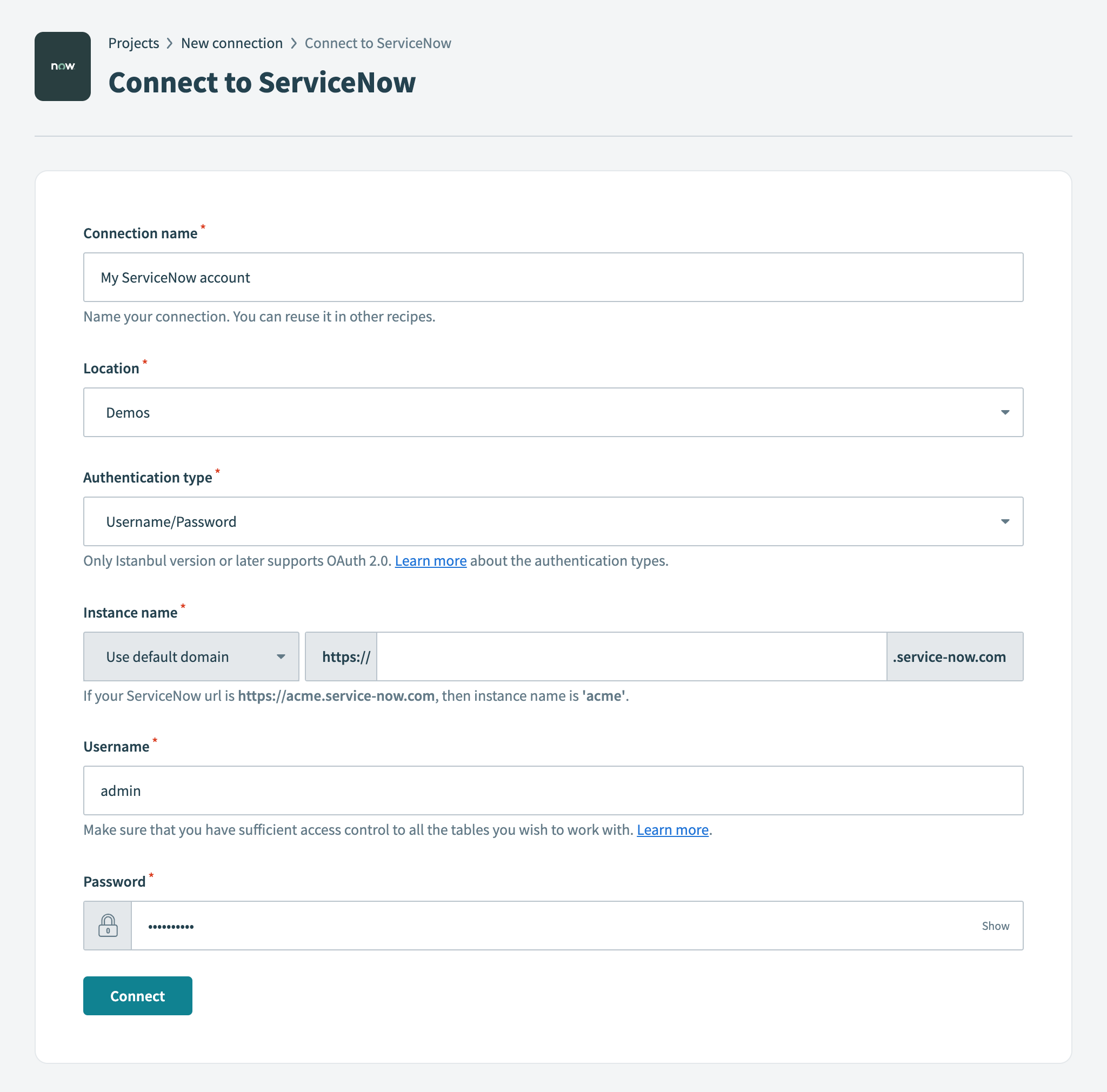 Username/Password connection
| Field | Description |
|---|---|
| Connection name | Give this ServiceNow connection a unique name that identifies which ServiceNow instance it is connected to. |
| Authentication type | Choose an authentication type for this ServiceNow connection. The ServiceNow connector supports Username/Password (Basic) authentication, OAuth 2.0 using the authorization code grant, and Password grant authentication. |
| Instance name | Provide the name of your instance. For example, if your ServiceNow URL is https://acme.service-now.com, the instance name is acme. |
| Username | Provide the username you plan to use to connect to ServiceNow. |
| Password | Provide the password you plan to use to connect to ServiceNow. |
| Custom OAuth profile | Optional. Select a custom OAuth profile for this connection. |
OAuth 2.0
Select the OAuth 2.0 authentication type to connect to your ServiceNow instance without using your login credentials. This authentication type allows you to grant access to Workato by obtaining a token rather than disclosing your login credentials.
Only Istanbul and later versions of ServiceNow support OAuth 2.0 connection with authorization code grant flow. Make sure that your ServiceNow version supports this when selecting this authentication type.
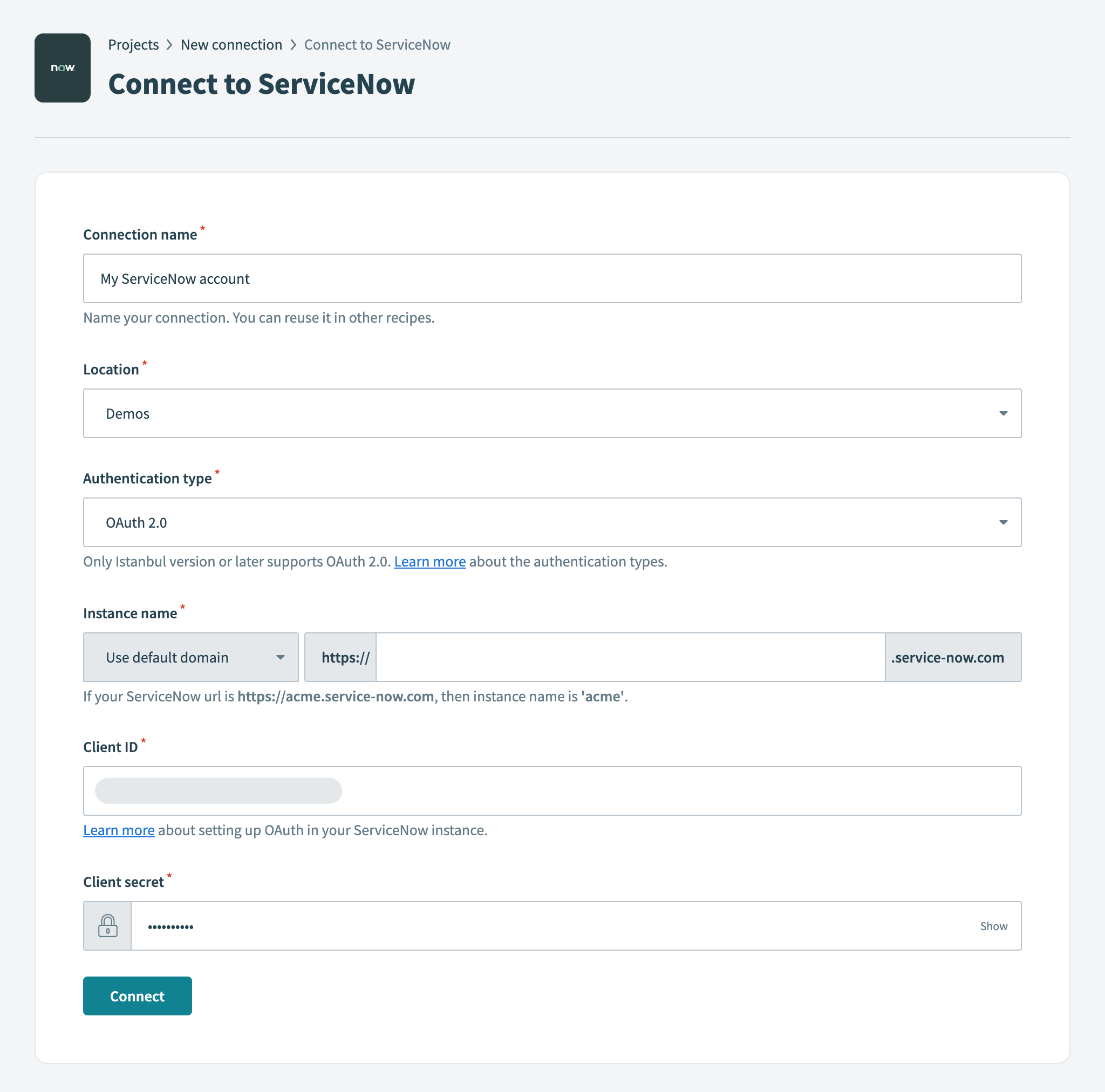 OAuth 2.0 connection
| Field | Description |
|---|---|
| Connection name | Give this ServiceNow connection a unique name that identifies which ServiceNow instance it is connected to. |
| Authentication type | Choose an authentication type for this ServiceNow connection. The ServiceNow connector supports Username/Password (Basic) authentication, OAuth 2.0 using the authorization code grant, and Password grant authentication. |
| Instance name | Provide the name of your instance. For example, if your ServiceNow URL is https://acme.service-now.com, the instance name is acme. |
| Client ID | Provide the Client ID for your connection to use for authorization. Refer to the Set up an OAuth 2.0 client section for more information on how to set up Application Registry for an OAuth client. |
| Client secret | Provide the Client secret for this OAuth application. Click Toggle Password Visibility (lock icon) to reveal the secret. |
| Custom OAuth profile | Optional. Select a custom OAuth profile for this connection. |
INVALID REFRESH TOKEN ERROR
You may see an invalid_request or invalid refresh token error when your ServiceNow OAuth 2.0 connection expires. This behavior occurs because ServiceNow limits how long a refresh token remains valid. You must reauthenticate the connection when the token expires.
You can adjust the Refresh Token Lifetime in your ServiceNow OAuth client configuration. Go to your ServiceNow instance, click System OAuth > Application Registry, open your Workato OAuth client, and review the Refresh Token Lifetime value. You can keep the default duration of 100 days or reauthorize the connection manually when it expires.
Refer to the ServiceNow external client documentation for more information.
Password grant
Select the Password grant authentication type to connect to your ServiceNow instance. This authentication type allows you to grant Workato access by providing your login credentials, which are used to obtain an access token.
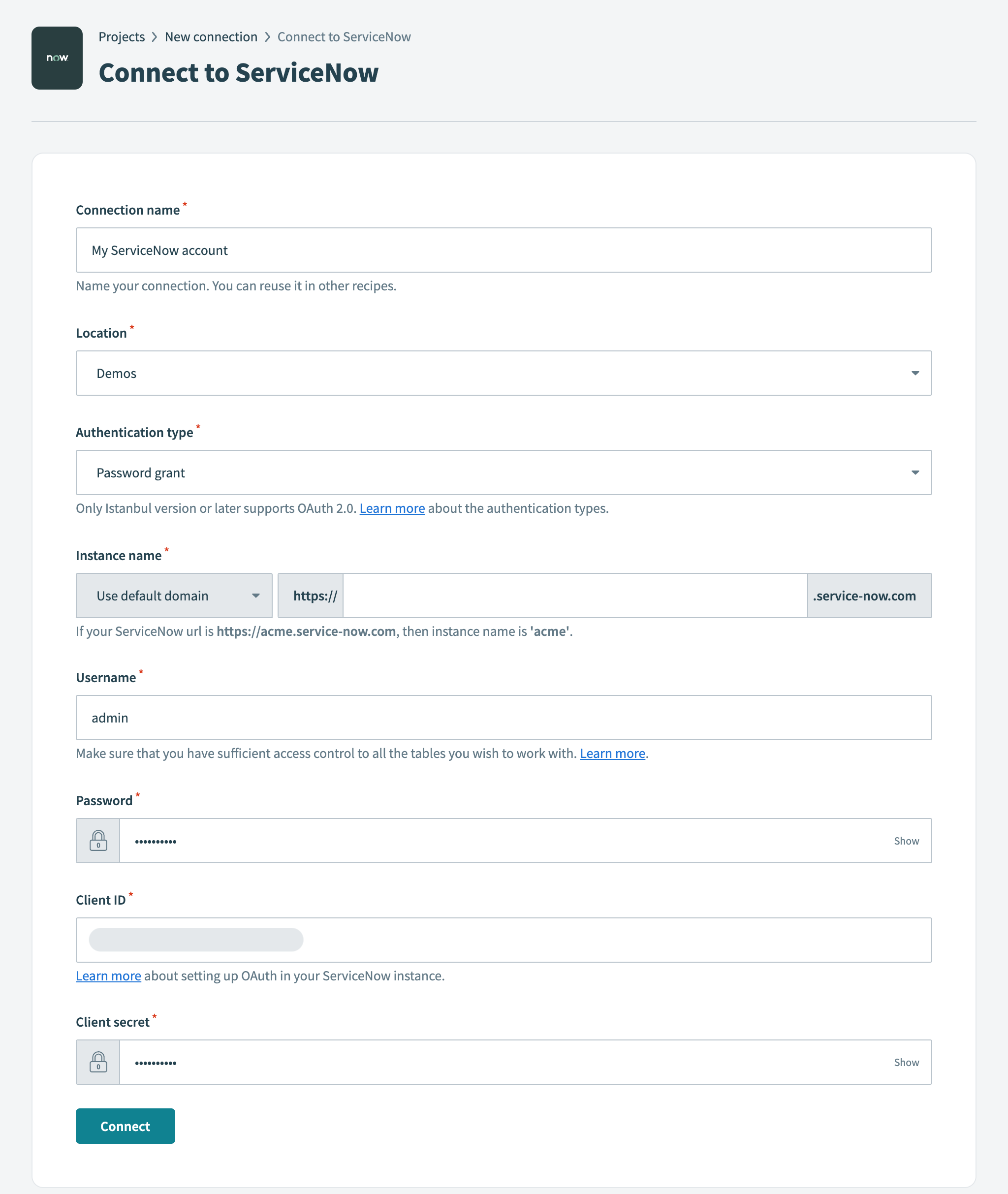 Password grant connection
| Field | Description |
|---|---|
| Connection name | Give this ServiceNow connection a unique name that identifies which ServiceNow instance it is connected to. |
| Authentication type | Choose an authentication type for this ServiceNow connection. The ServiceNow connector supports Username/Password (Basic) authentication, OAuth 2.0 using the authorization code grant, and Password grant authentication. |
| Instance name | Provide the name of your instance. For example, if your ServiceNow URL is https://acme.service-now.com, the instance name is acme. |
| Username | Provide the username you plan to use to connect to ServiceNow. |
| Password | Provide the password you plan to use to connect to ServiceNow. |
| Client ID | Provide the Client ID for the connection to use for authorization. Refer to the Set up an OAuth 2.0 client section for more information on how to set up Application Registry for an OAuth client. |
| Client secret | Provide the Client secret for this OAuth application. Click Toggle Password Visibility (lock icon) to reveal the secret. |
| Custom OAuth profile | Optional. Select a custom OAuth profile for this connection. |
Set up an OAuth 2.0 client
You must have an admin role to set up an OAuth 2.0 client.
Complete the following steps to set up an OAuth 2.0 client:
Activate the OAuth 2.0 (com.snc.platform.security.oauth) plugin. Refer to the ServiceNow documentation for more information on how to activate OAuth 2.0
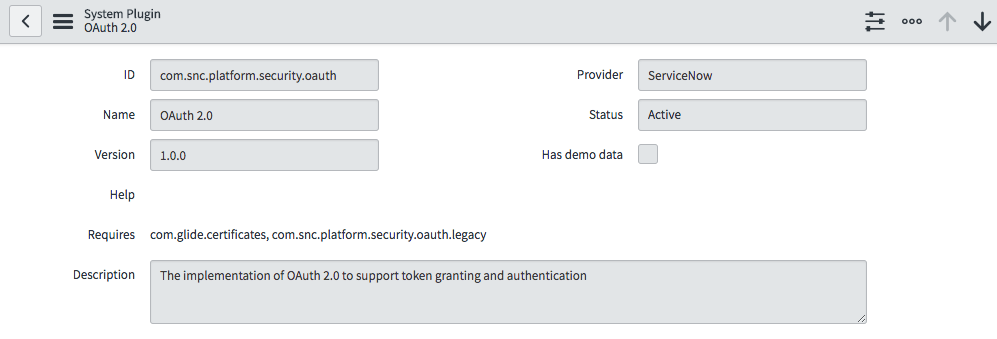 Activate OAuth plugin
Create an endpoint for a client application to gain access to your ServiceNow instance. Use https://www.workato.com/oauth/callback as the Redirect URL. Refer to the ServiceNow documentation for more information on how to create an endpoint for external clients.
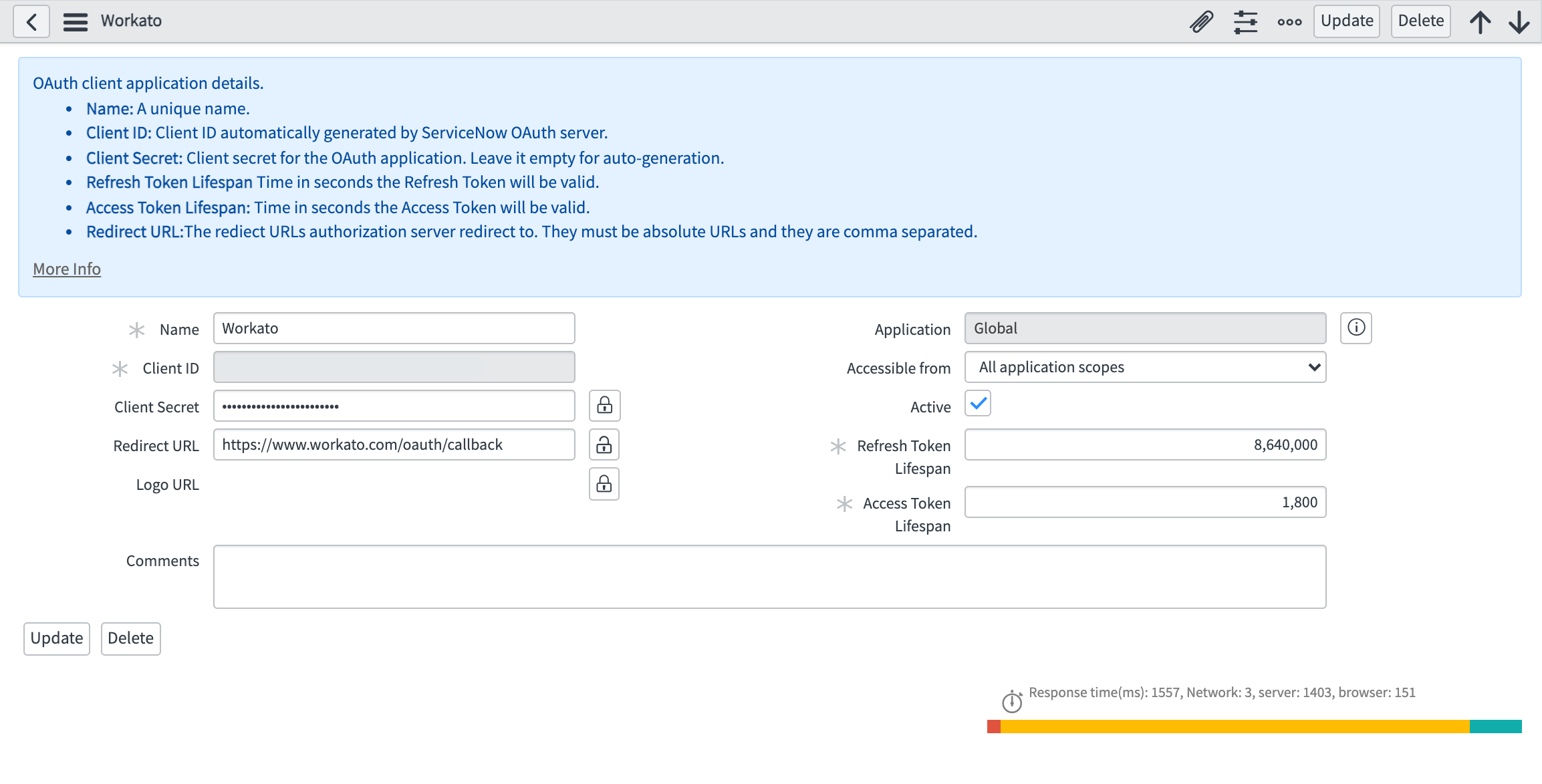 OAuth 2.0 client
Use the Client ID and Client secret to create a ServiceNow connection in Workato. This triggers an OAuth authorization code grant flow that opens a new browser window requesting authorization.
Roles and permissions required to connect
To use the ServiceNow connector, you must establish the connection with a user that has roles with access control to the following tables:
| Table | Purpose | Operation | Name |
|---|---|---|---|
| Tables (sys_db_object) | Contains a row for each table in your ServiceNow instance. This table is used to generate a list of tables to perform an action or trigger event. | read | sys_db_object sys_db_object.* |
| Dictionary entry (sys_dictionary) | Contains details for each table and columns in each table in your ServiceNow instance. This table is used to generate input and/or output fields when you select a table to perform and action. | read | sys_dictionary sys_dictionary.* |
Some Base system roles (such as admin) include access control to these tables. However, if you plan to grant only the minimum required access control for using the ServiceNow connector, consider creating a custom role tailored to these access controls.
In addition to their base system role, the user must have access control to the tables required in the integration use case. For example, to create an integration user that can perform standard ITIL helpdesk actions (open, update, close incidents, problems, changes, configuration management items), you must assign them the itil role. To grant access only to specific tables or tables besides those available in the base system roles, we recommend that you create a custom role and assign the appropriate access control as needed.
Create a custom role
You can create a custom role with sufficient access control for the tables you plan to work with if you don't plan to use a Base system role to connect to Workato.
Complete the following steps to create a custom role:
Create a role in your ServiceNow instance and assign it a name that reflects its association with the Workato connector, such as Workato Integrator. Refer to the ServiceNow documentation for more information on creating roles.
Give your new role the following access control rules to use the ServiceNow connector:
| Table | Type | Operation | Name |
|---|---|---|---|
| Tables | record | read | sys_db_object sys_db_object.* |
| Dictionary entry | record | read | sys_dictionary sys_dictionary.* |
SECURITY ADMIN ROLE REQUIRED FOR ACCESS CONTROL
Only a user with security_admin role can edit or create access control. Confirm your permissions with your ServiceNow administrator. Read more about Elevated privilege roles.
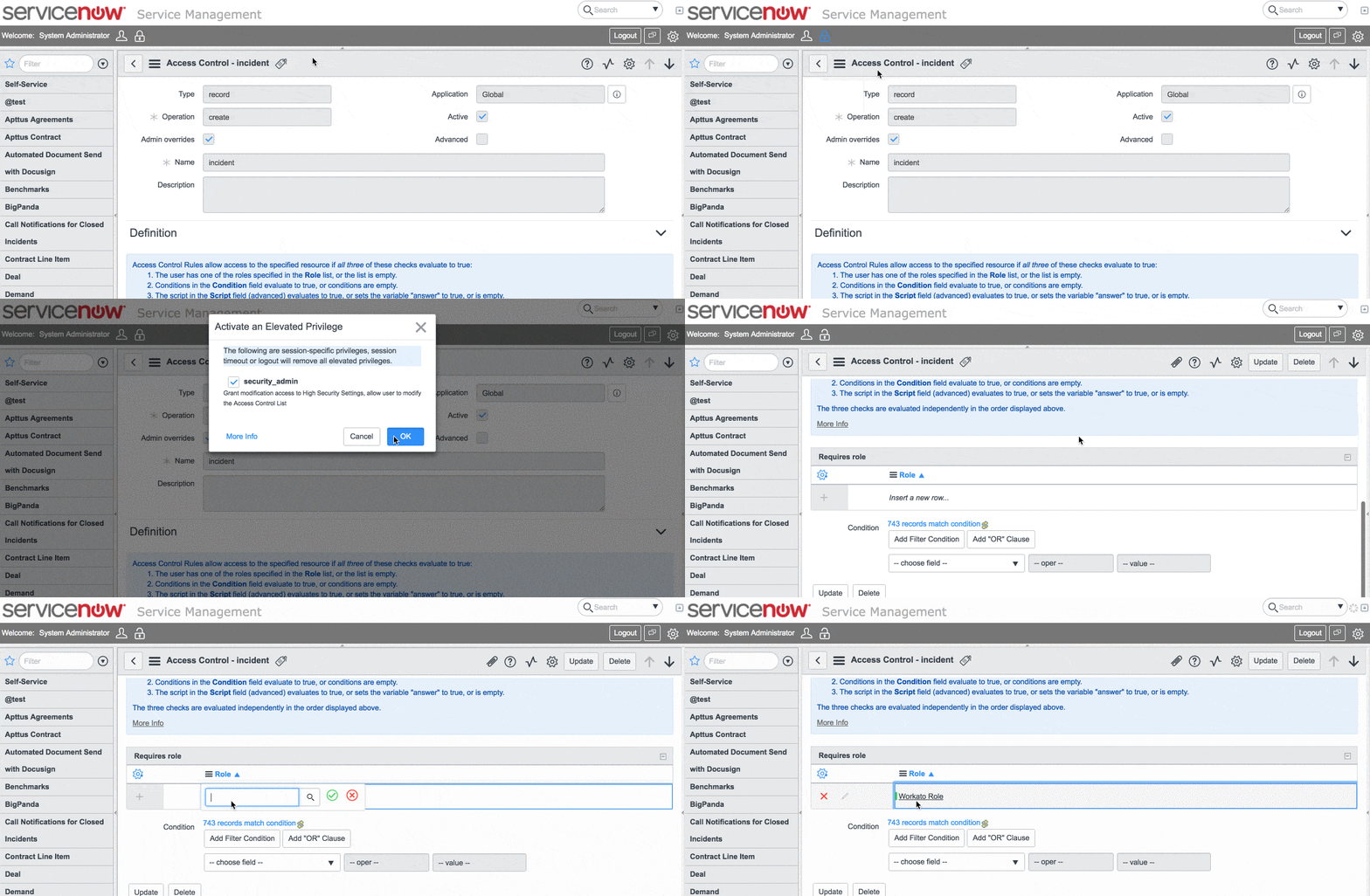 Elevate to privilege role
Assign the relevant access control to use the triggers/actions you plan to use in your integration use case. For example, you must have a custom role that includes access control to read and write to the incident table for a workflow that requires triggering closed incident events.
| Table | Type | Operation | Name |
|---|---|---|---|
| Incident | record | read | incident |
| Incident | record | write | incident |
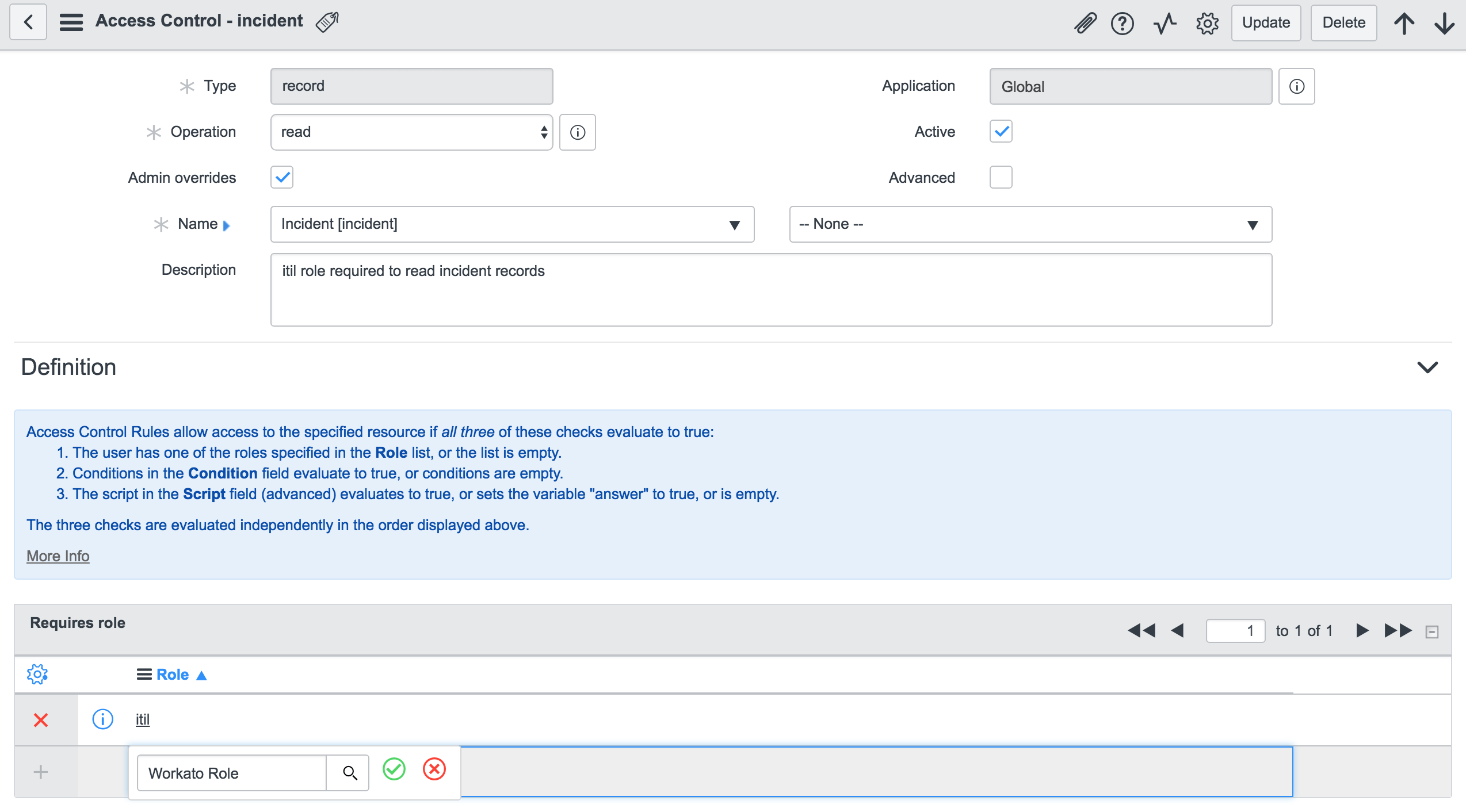 Granting access control rule for
 incident table to custom role
Real-time triggers
The ServiceNow connector features a set of real-time triggers for new and updated records in a selected table. This trigger uses the sys_script table to send HTTP requests to Workato's webhook gateway when the specified event (new or new and updated records) occurs in your ServiceNow instance.
A record is automatically created in the sys_script table that points to a webhook URL unique to your recipe when you start a recipe with one of these triggers. Similarly, the same record in the sys_script table is deleted when you stop the recipe.
The account you use to establish the ServiceNow connection must be assigned roles with the following access control rules to enable this feature:
| Table | Type | Operation | Name |
|---|---|---|---|
| Business Rules | record | read | sys_script sys_script.* |
| Business Rules | record | write | sys_script sys_script.* |
| Business Rules | record | create | sys_script |
| Business Rules | record | delete | sys_script |
Last updated: