Edit table data
The Data tables interface supports editing and deleting table data. You can interact with your data using your mouse or by using keyboard shortcuts.
Add a new row
Data tables support up to 1,000,000 (one million) records/rows for each data table. Workato numbers each row on the left side of the table.
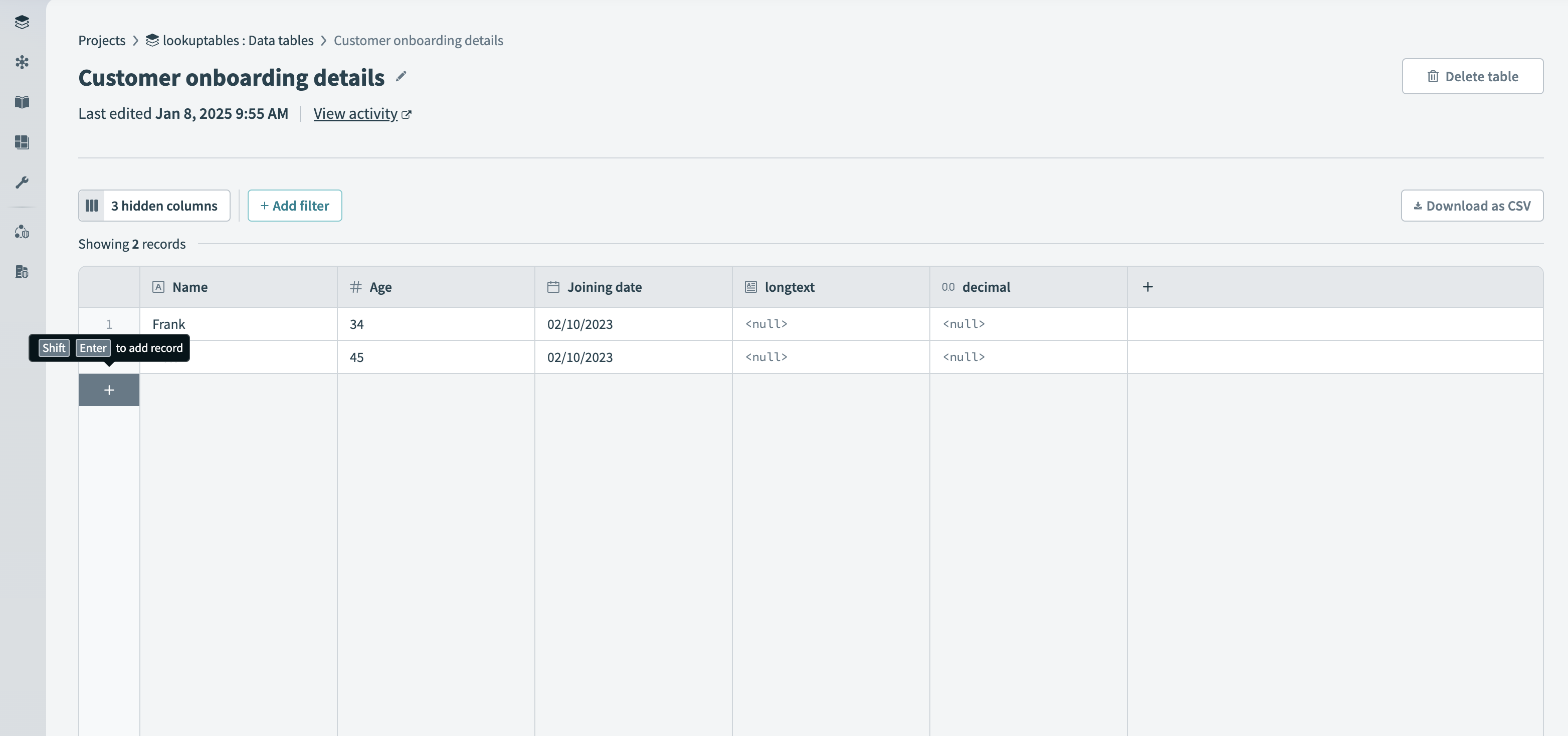 Add a new row to your data table
To add a new row to a data table:
In your data table, click + underneath the row numbers.
Enter information into each column field.
Click ✓ (checkmark) to save column data.
Add a new row using keyboard shortcuts
Press shift + enter.
Enter information into each cell.
Use tab and tab + shift to navigate between cells.
Press command/ctrl + s to save column data.
Edit a row
You can edit the data in a row. A row is a complete record of data.
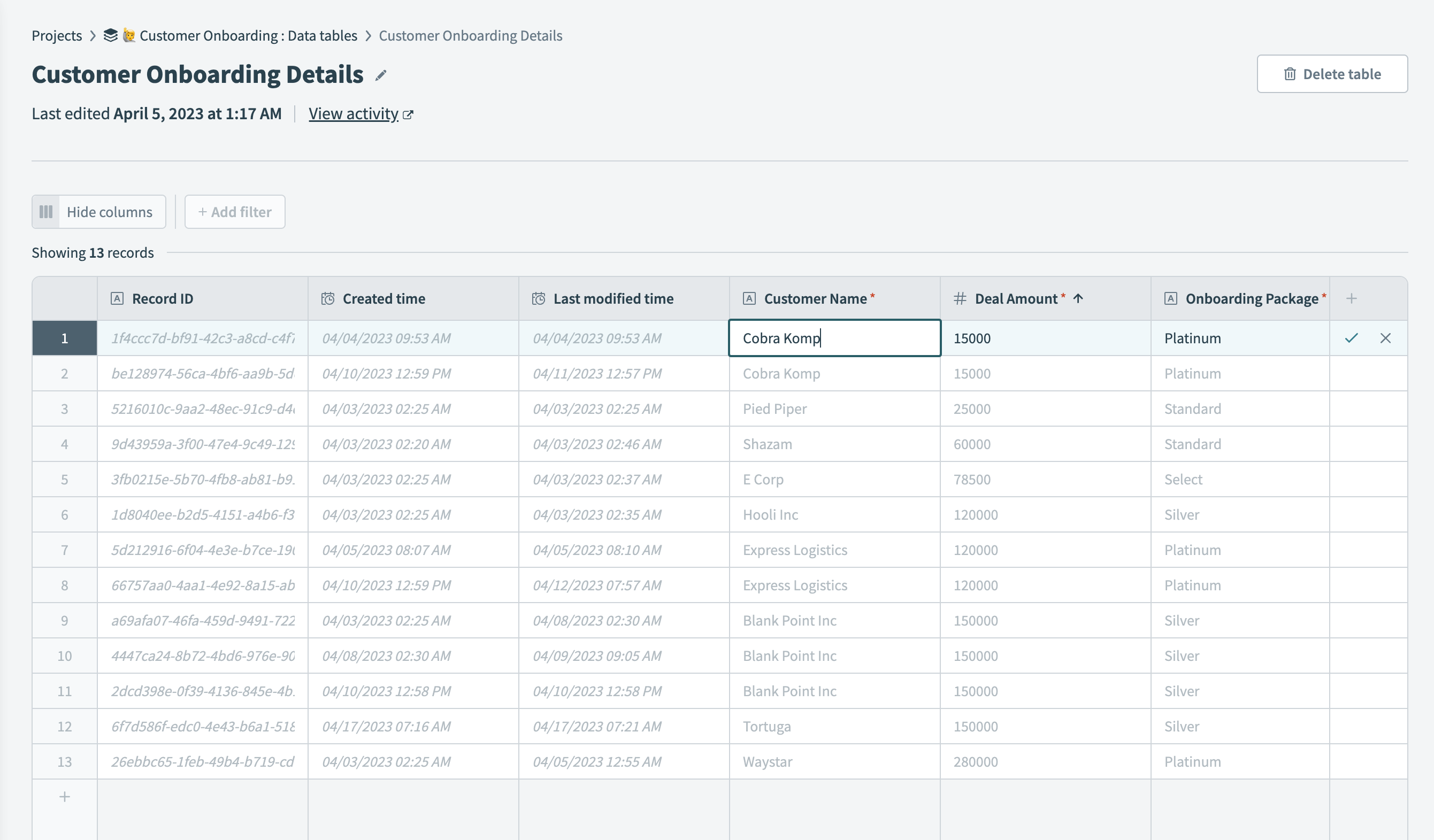 Edit a row in a data table
To edit a row:
Click into the table cell you plan to modify, and make the necessary changes.
Edit additional cells in that row if necessary.
Click ✓ (checkmark) to save column data.
To discard your changes, click x (remove).
Edit a row using keyboard shortcuts
Select a cell by clicking into it.
Press enter.
Make the necessary changes.
Press command/ctrl + s to save your changes.
Delete a row
You can delete the data in a row.
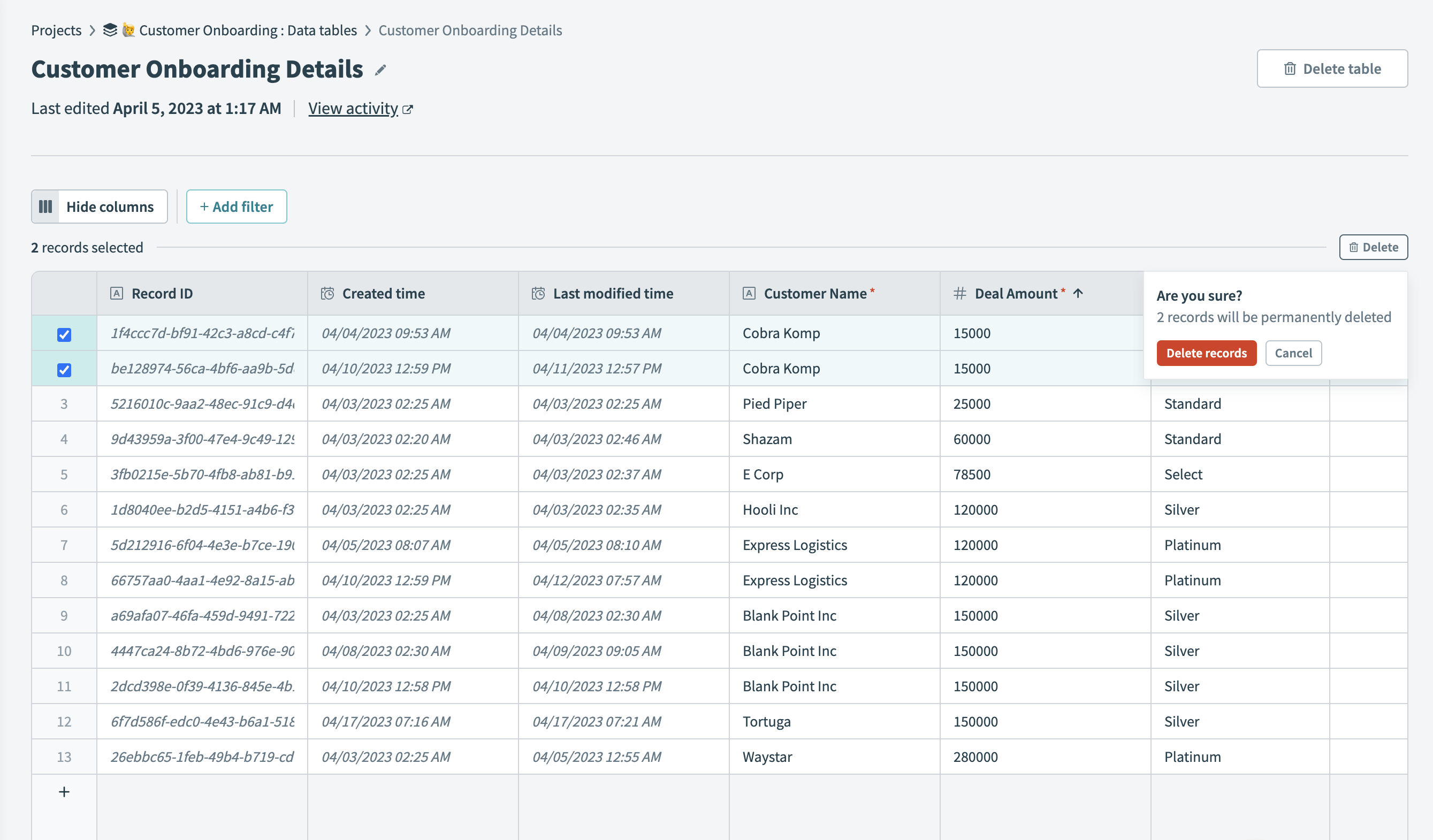 Delete one or more rows
To delete a row:
Select one or more row numbers of the rows you plan to delete. Row numbers appear on the left side of the table.
You can also select entries and right-click to delete them.
Click Delete.
Last updated: