Add a Slack data source to Workato GO
The Slack data source enables Workato GO to access Slack documents and associated permissions, sync content and permission updates multiple times every hour after the initial crawl, and search for Slack documents.
The Slack data source connector uses federated search to query the Slack API in real time. The API endpoints used in federated searches are invoked with end-user OAuth credentials to prevent data leakage. Slack only permits federated search.
Prerequisites
You must have the following prerequisites to use the Slack data source connector:
- A Workato Client role and API token
- An existing parent connection in Workato to add Slack as a data source in Workato GO.
- A custom OAuth profile for Slack https://docs.workato.com/en/connectors/slack/custom-oauth.html
Create a Workato client role, API client and API token
Complete the following sections to set up your client role and an API client with a generated token:
Create a client role
You must create a client role before you create an API client. The client role allows you to configure which endpoints the API client can access.
Complete the following steps to create a client role:
Sign in to your Workato account.
Go to Workspace admin.
Select API clients > Client roles > Add client role.
Enter Workato GO in the Name field.
Select the required endpoints for the role under each section. All Workato API endpoints available to your workspace are listed under these sections. Your Workato GO client role requires the following access:
Projects
- Projects & folders
- Connections
- Recipes
Tools
- Data tables
- Data table records
- Direct Actions
Click Save.
Create an API client
Complete the following steps to create an API client:
Go to Workspace admin.
Select API clients > Create API client.
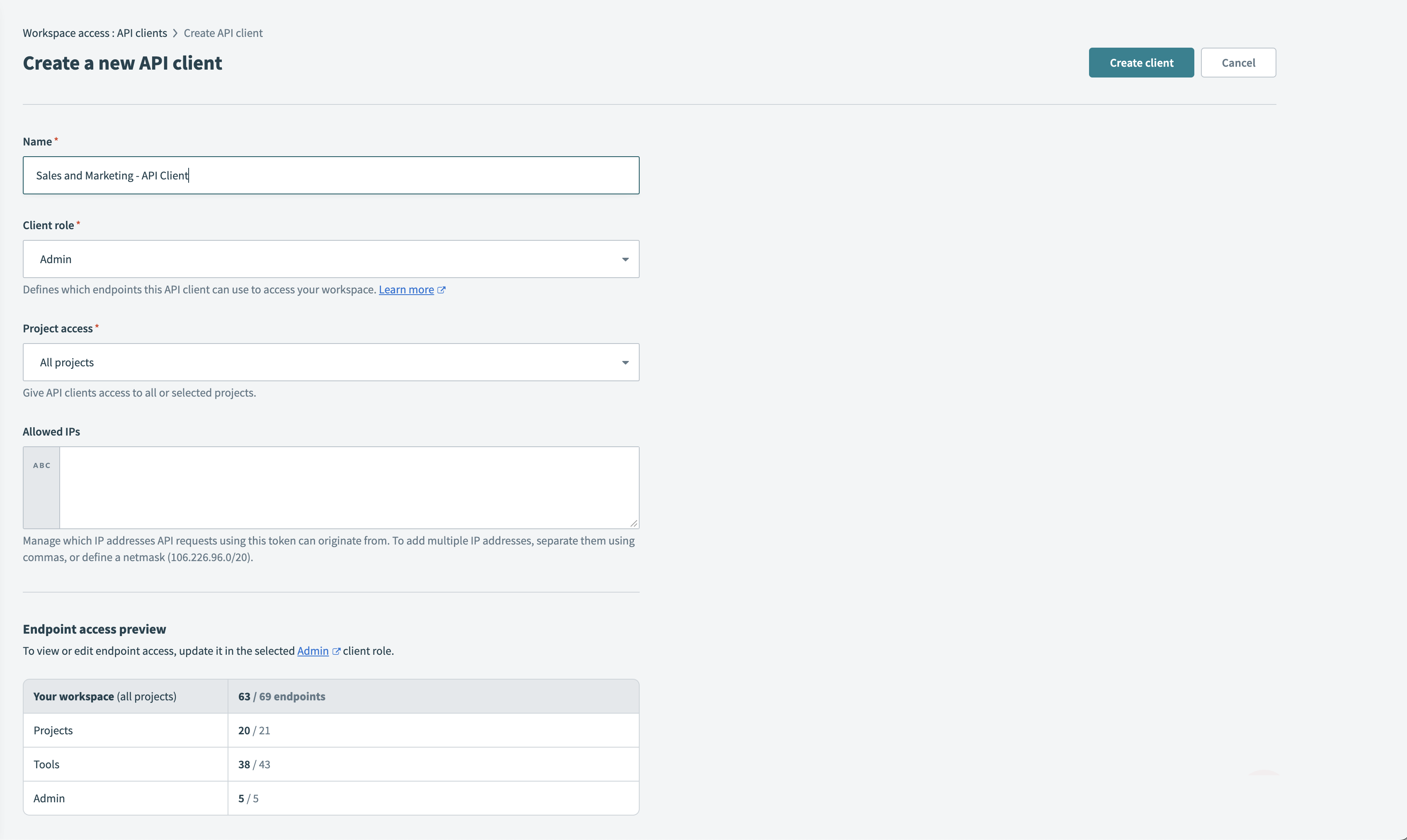 Create a new API client
Enter Workato GO in the Name field.
Use the Client role drop-down menu to select the Workato GO client role created in the preceding steps. The client role determines which endpoints the API client can access.
Select the environment the API client is allowed to access. This depends on the environment your Workato GO account is set up on.
Select the projects the API client is allowed to access. Project access rules apply to all assets that can be scoped to projects including: connections, recipes, folders, lookup tables, properties, API platform collections and API platform API clients.
EMBEDDED PARTNER ACCESS
API clients for Embedded partners with access to embedded APIs can access all customer workspaces and projects.
Copy the generated token that displays and store it in a secure location. You can't retrieve the API token after you leave this screen.
Click Save.
Set up a Workato Slack connection
The Slack data source connector searches using end-user runtime connections, which require a parent connection. A Workato workspace admin must set up a Slack parent connection in Workato before runtime connections can be established. The Slack connector uses the end-user runtime connection, not the parent connection.
Complete the following steps to set up a Workato Slack parent connection:
Follow Custom OAuth profiles for Slack steps to create a Slack app with a search:read oauth scope.
Go to your Workato account.
Go to Tools > Custom OAuth profiles.
Click + New custom profile.
Use the Application drop-down menu to select Slack.
Go to Step 2 and provide a name for your custom profile in the Name field.
Click Create new app.
Go to Step 3 and enter your client ID in the Client ID field. Refer to Slack App Credentials to find this value.
Enter your client secret in the Client secret field. Refer to Slack App Credentials to find this value.
Enter your signing secret in the Signing Secret field. Refer to Slack App Credentials to find this value.
Click Save.
Optional. Review the Step 4 information.
Click Done.
Add Slack as a data source
Complete the following steps to add Slack as a data source in Workato GO:
Sign in to your Workato GO account.
Expand the Admin menu in the sidebar and click Data sources.
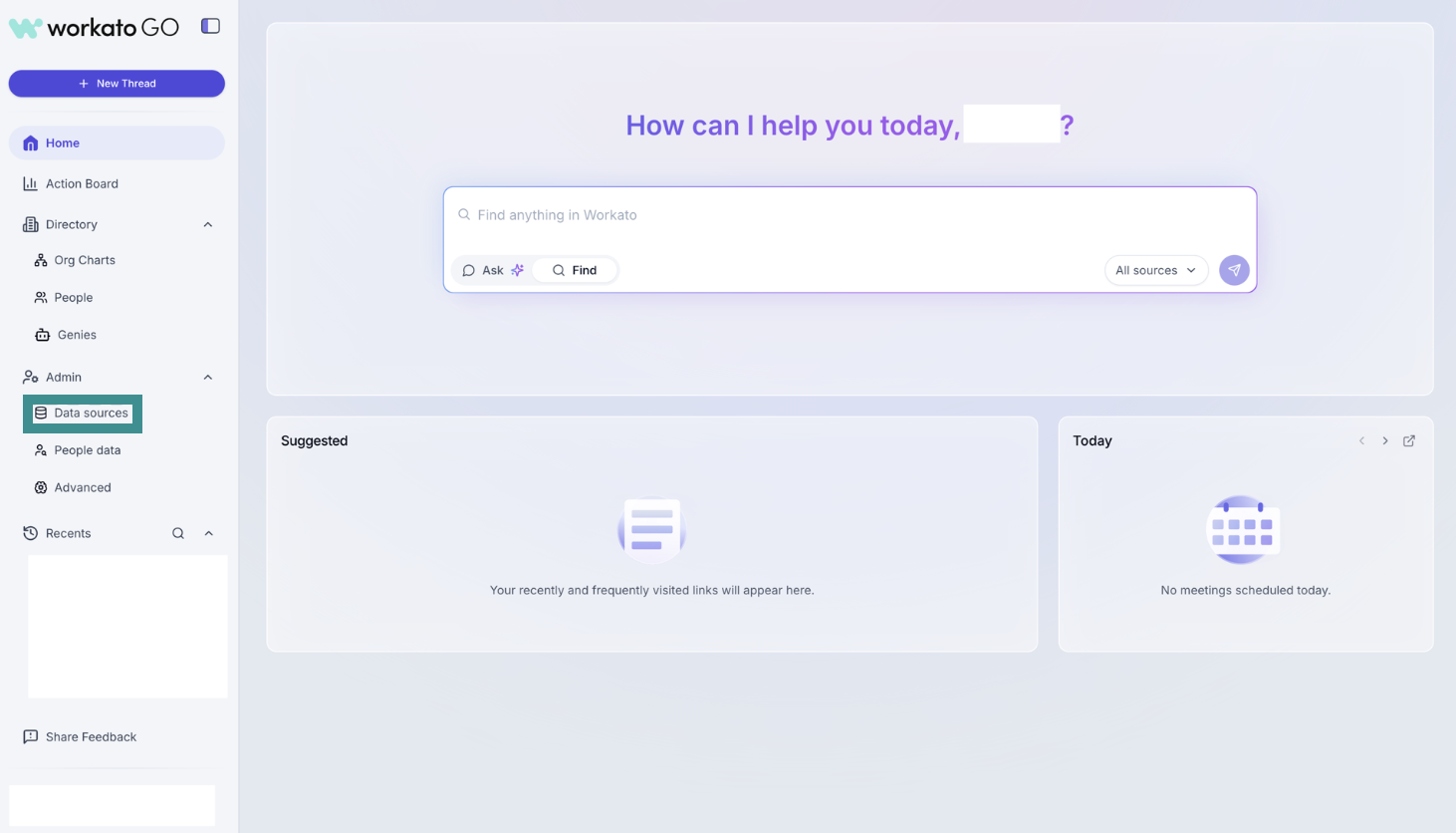 Go to Admin > Data sources
Click Add Data Source. The Add Data Source page displays.
Select the Slack app.
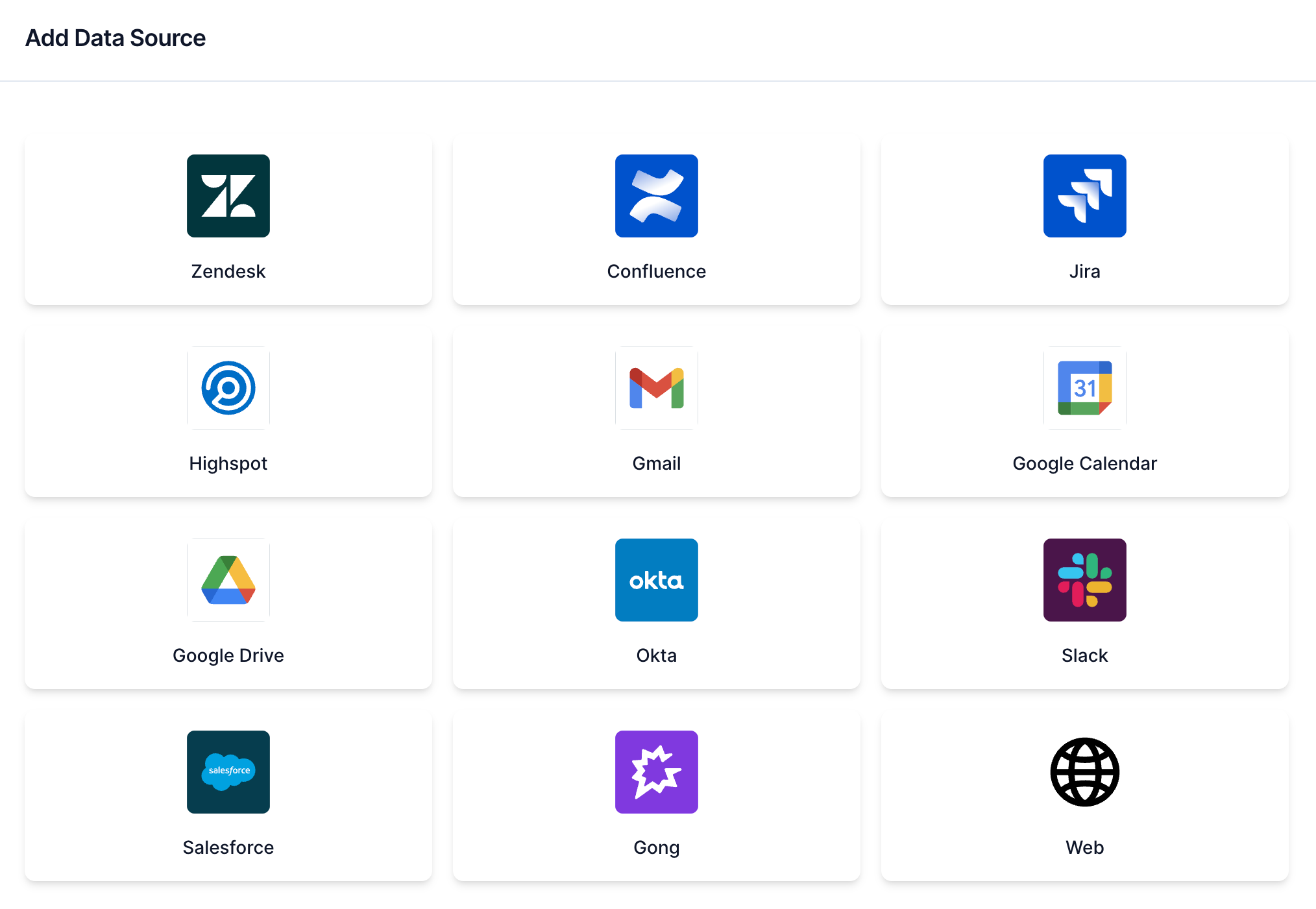 Select Slack
Switch the search toggle to Federated Search.
Enter a name for your data source in the Name field.
Go to the Select a Slack connection field and select the connection you plan to use.
Click Create. Your data source is now listed on the Data Sources page.
Last updated: