Update account email
This guide demonstrates how to manage the email address associated with your personal account profile, which is the email address you use to authenticate with Workato. Refer to our email notifications guide to learn how to manage email addresses for your entire workspace.
PREREQUISITES
Before you begin, ensure you have access to your current and new email inboxes.
Complete the following steps to update the email address associated with your personal account profile:
Click your user icon and select Profile settings from the drop-down menu.
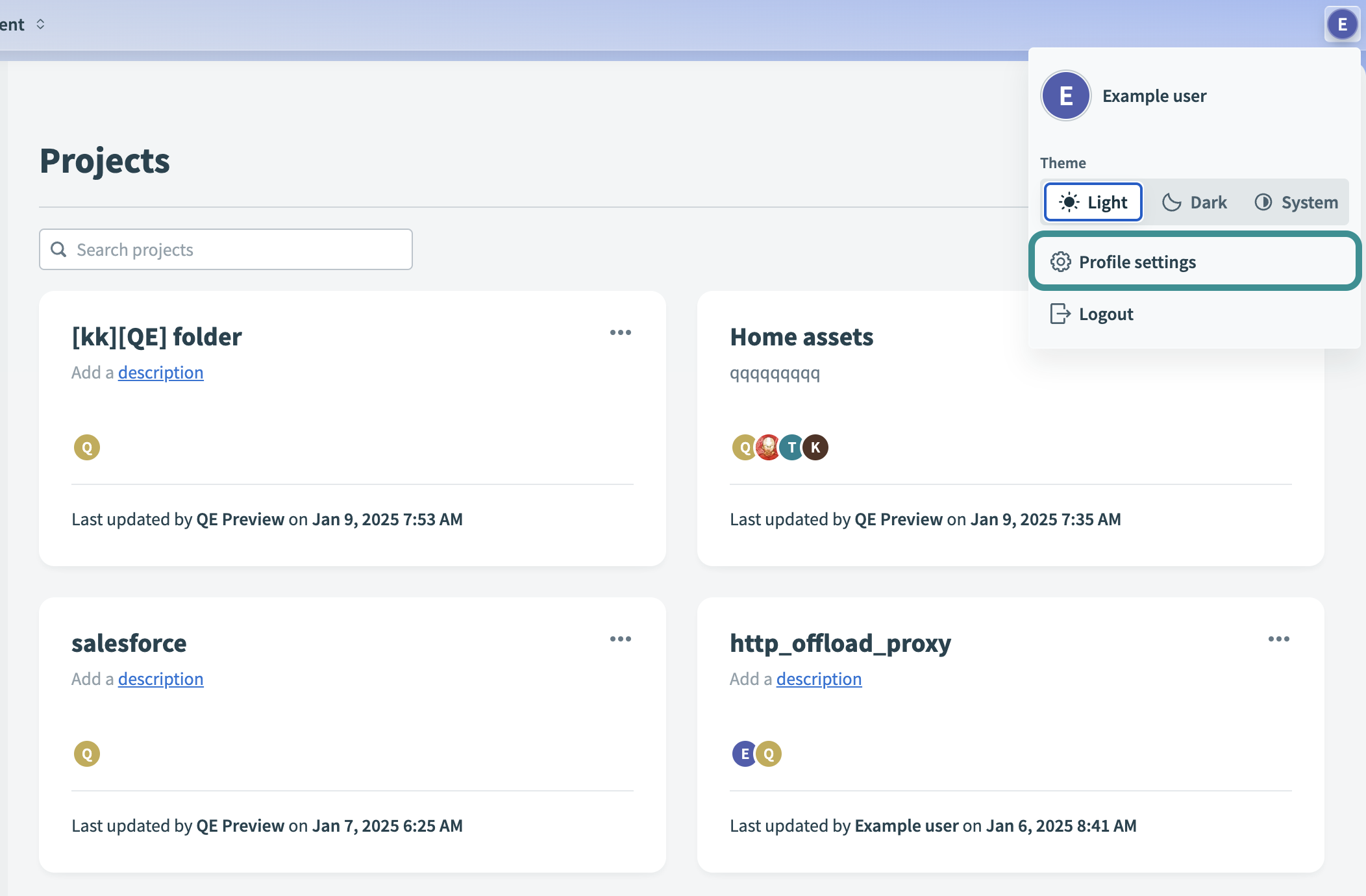 Select Profile settings
Enter the new email address in the Account email field.
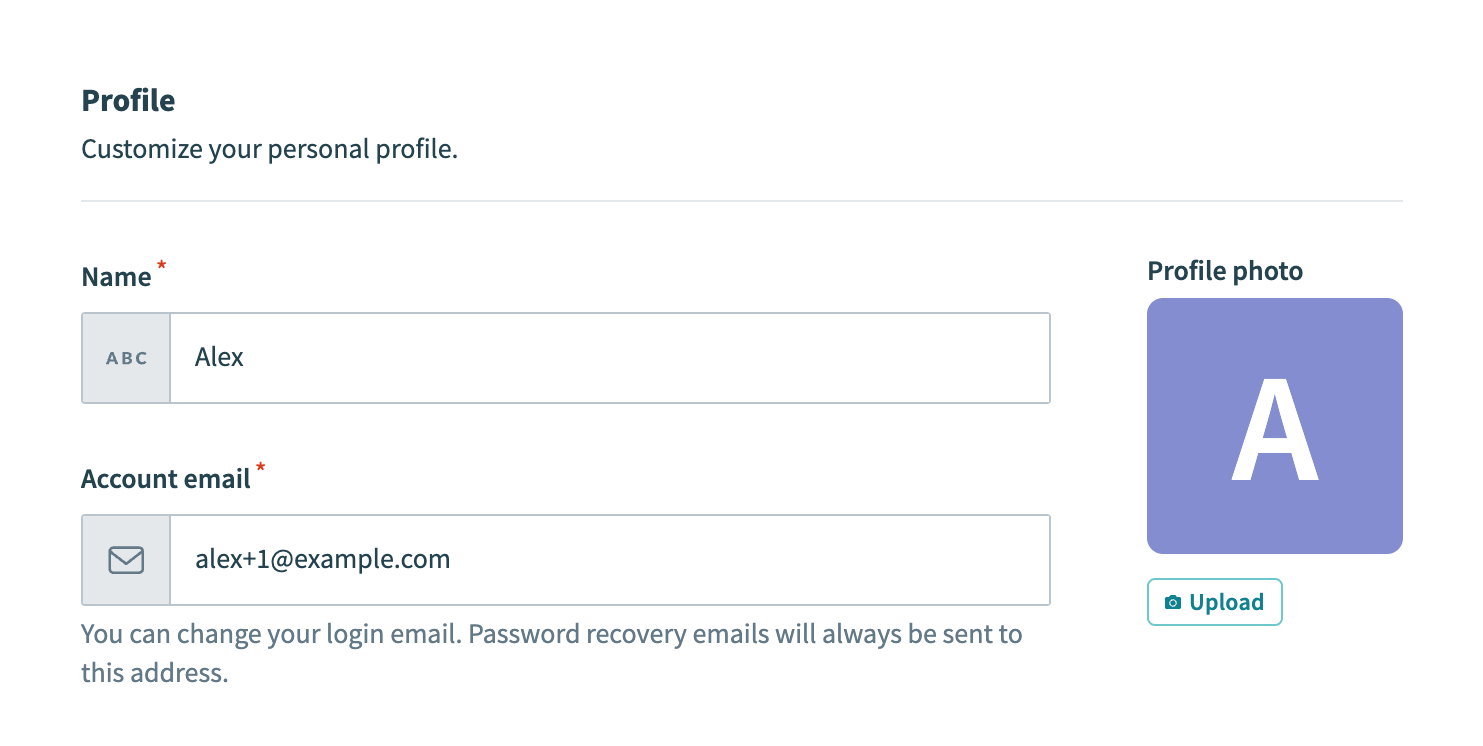 Enter the new email address
Click Save. Workato prompts you to verify your password.
Enter your password and click Verify password.
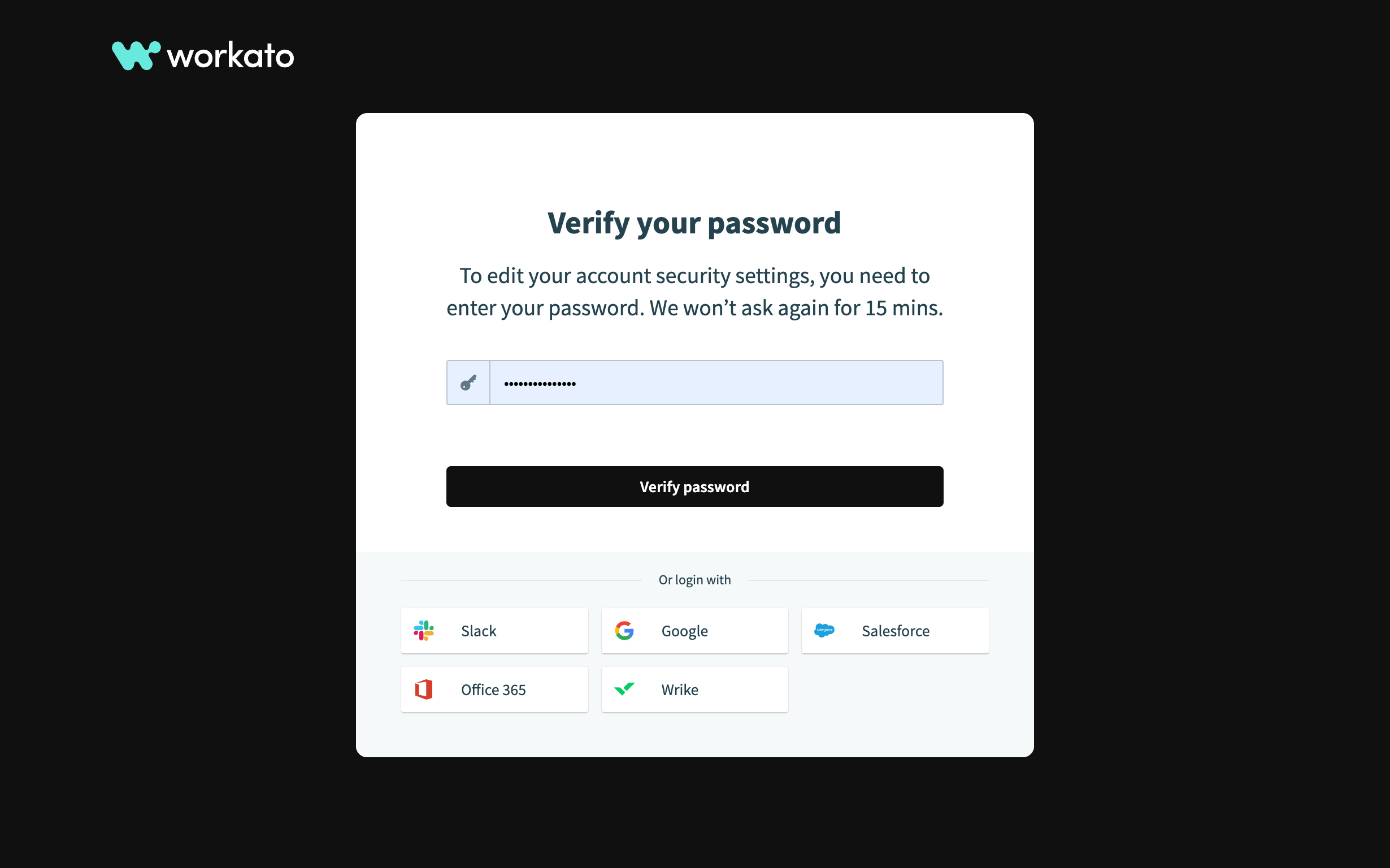 Verify your password
After verification, the form resets and displays your original email address. Re-enter your new email address in the Account email field.
Click Save again.
Workato sends a confirmation email to the new address. A notification confirms that the email has been sent.
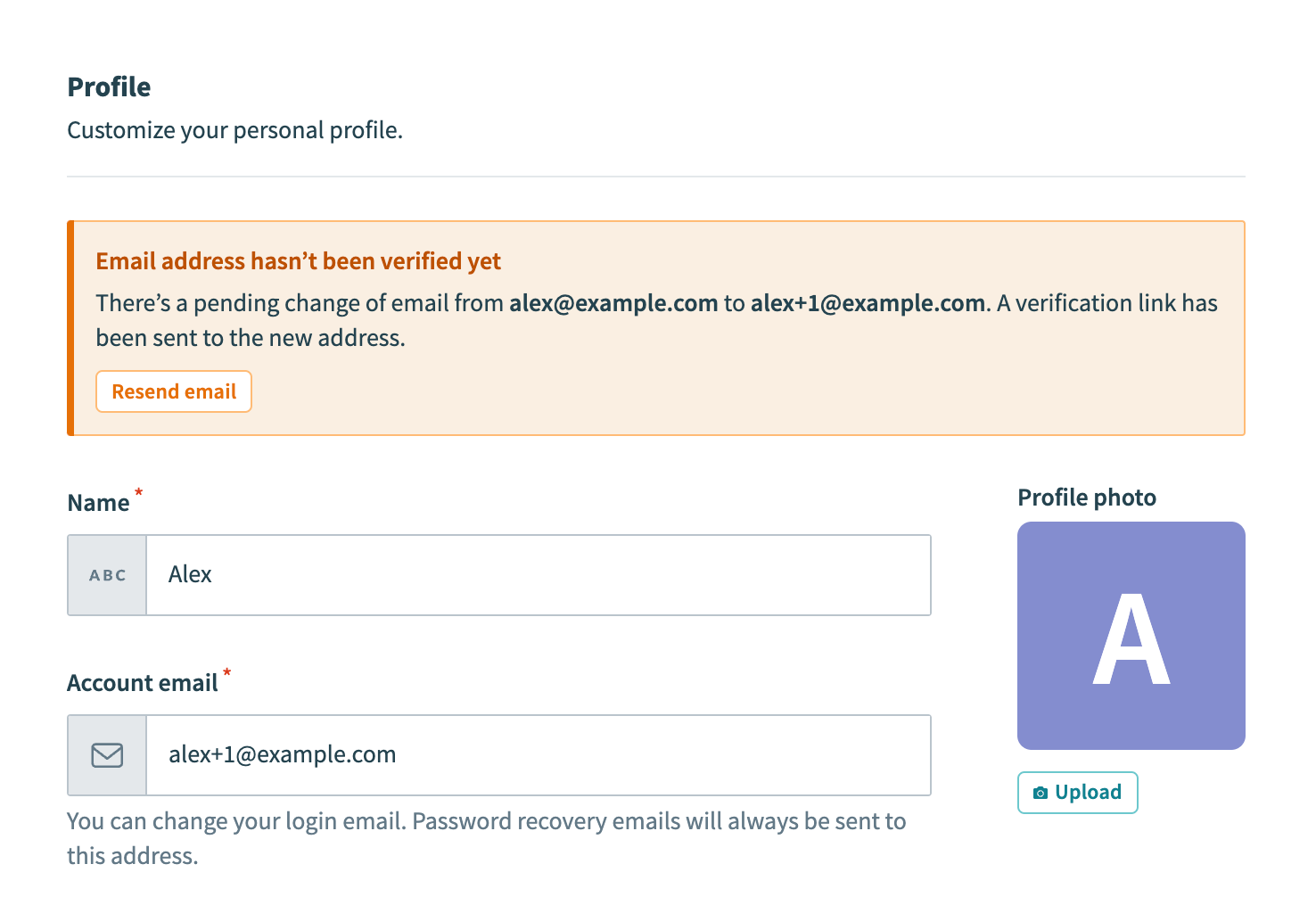 Verify your email
Check your inbox and verify the new email address by clicking Change email address or the raw confirmation link.
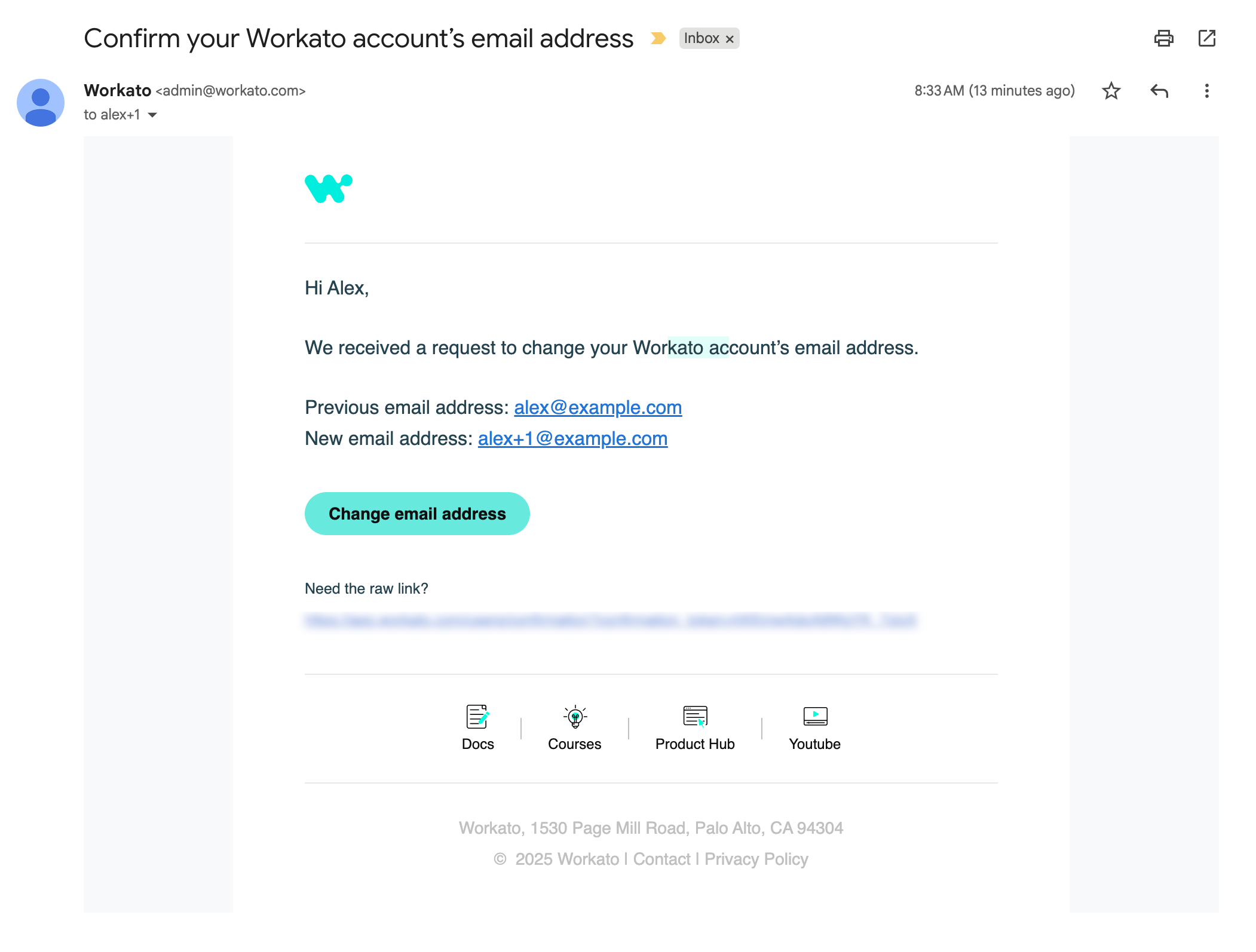 Confirm the new email address
After you verify the new email address, use it as the primary email for accessing your Workato account.
Last updated: