Zoom - Registrants
Registrants are a way for people to register for your webinars, meetings, and cloud recordings. Having people register for your webinars, meetings, and cloud recordings is also a great way to collect information about the registrant such as their purchase role and purchasing time frame.
The Zoom connector supports the following registrant actions:
Add registrants
Add registrants to any webinars, meetings, or cloud recordings. This allows you to register a participant without them having them actually register. This allows you to collect registration information in a platform of your choice like EventBrite and send that data over to Zoom through Workato.
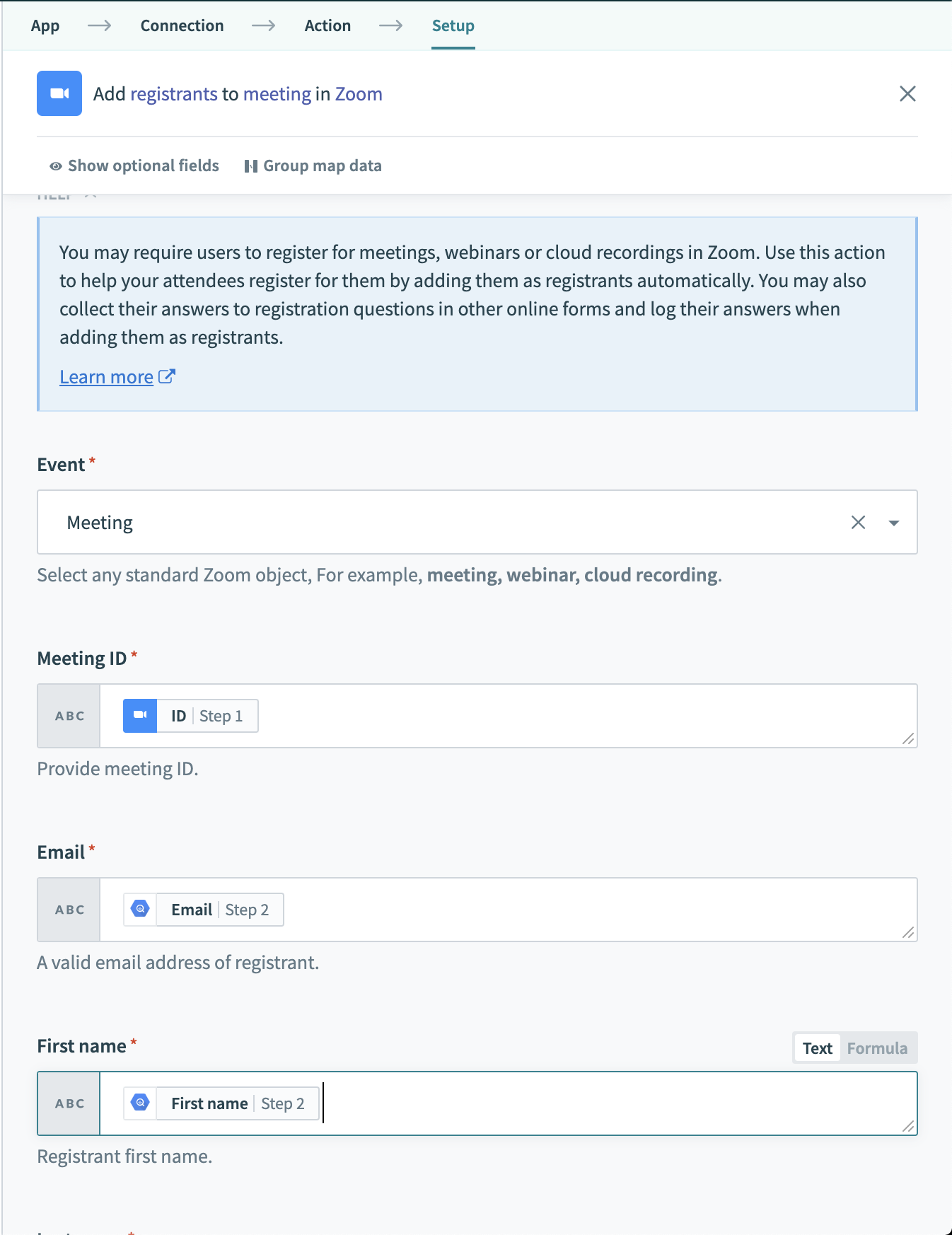 Add registrants to meetings, webinars, or cloud recordings
Configuring the action
When configuring this action, you'll first be prompted to select what kind of Event you want to add registrants to. You can pick from either meeting, webinar, or cloud recording. After selecting the event type, relevant input fields will appear which allows you to configure the settings for the event being created. The output of this action is the details of registrations created.
Below, we go through the input fields that can be configured for each registrant.
| Input field | Description |
|---|---|
| Object | Select either webinar, meeting, or cloud recording. |
| Event ID | The ID of the webinar, meeting, or cloud recording you are adding a registrant to. |
| Email address of the registrant. | |
| First name | First name of the registrant. |
| Last name | Last name of the registrant. |
| Custom Questions | A list of all custom questions and the answers that can be for this registrant. These custom questions have to be already been configured for the event via the Zoom Web UI or by creating these registration questions in an earlier step in a recipe. |
Get registrants
Get a list of registrants for your webinars, meetings, or cloud recordings. Use this to pull all the registrants of a specific webinar, meeting, or cloud recording so you can perform actions like send them emails or create leads in Salesforce.
Configuring the action
When configuring this action, you'll first be prompted to select what kind of Event you want to retrieve the list of registrants from. You can pick from either meeting, webinar, or cloud recording. The output of this action is the details of registrants such as emails and names.
Below, we go through the input fields that can be configured while getting a list of registrants.
| Input field | Description |
|---|---|
| Event | Select either webinar, meeting, or cloud recording. |
| Event ID | The ID of the webinars, meetings, or cloud recordings. |
| Occurrence ID | If webinars or meeting is recurring, this allows you to specify which occurrence of the event to pull registrants for. |
| Status | Filter by registrants that have been either pending, approved, or denied. Leave blank to retrieve all registrants. |
Update registrant status
Approve, deny, or cancel registrations for webinars, meetings, or cloud recordings. This action can update up to 30 registrations at once. Use this to automate the process of approving, canceling, or denying registrations to your meetings or webinars.
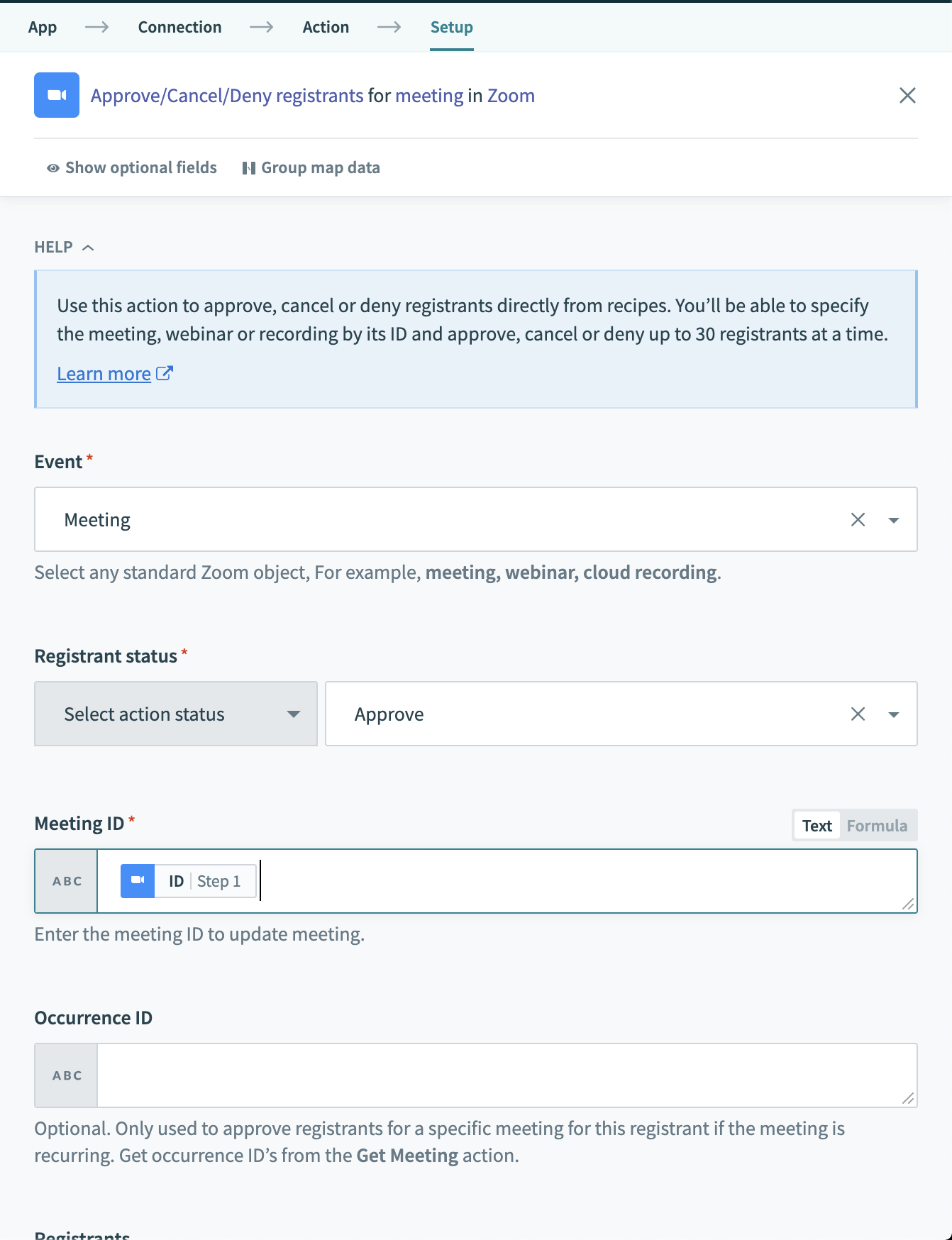 Approve/deny/cancel registrants to meetings, webinars, or cloud recordings
Configuring the action
When configuring this action, you'll first be prompted to select what kind of Event whose registrants you want to approve, deny, or cancel. You can pick from either meeting, webinar, or cloud recording. After selecting the event type, relevant input fields will appear which allows you to configure the settings for the event being created.
Below, we go through the input fields that can be configured while approving a batch of registrants.
| Input field | Description |
|---|---|
| Event | Select either webinar, meeting, or cloud recording. |
| Event ID | The ID of the webinars, meetings, or cloud recordings. |
| Registrant status | Select whether to approval, cancel, or deny this batch of registrants. |
| Registrants | Provide the list registrants to update. |
Last updated: