Zoom - Webinar, meetings, and cloud recordings
Webinars and meetings can be easily scheduled and updated using the Workato Zoom connector. Beyond that, the connector also supports a wide range of actions that can help you manage your webinars, meetings, and cloud recordings which we collectively call Events. You'll be able to update events in Zoom as well as pull information from events.
The Zoom connector supports the following event actions:
- Scheduling meetings or webinars
- Update event details
- Search event details
- Get event details
- Retrieve webinar results
Schedule meetings or webinars
This action allows you to schedule meetings and webinars through a recipe. This allows you to schedule these events based off triggers such as new leads in Salesforce or new interviews in Greenhouse.
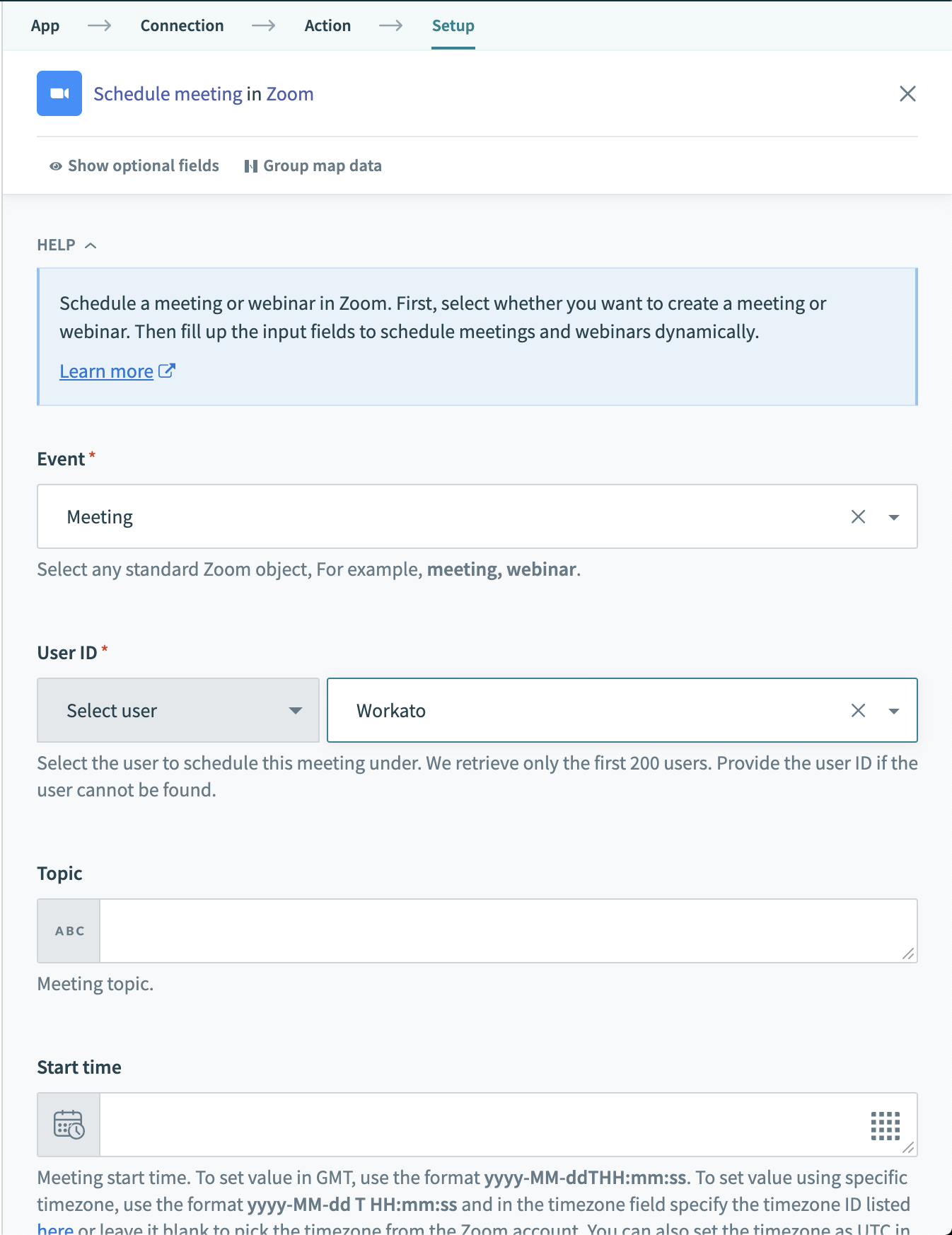 Schedule Meeting or Webinars
Configuring the action
When configuring this action, you'll first be prompted to select what kind of Event you want scheduled. You can pick from either meeting or webinar. After selecting the event type, relevant input fields will appear which allows you to configure the settings for the event being created. The output of this action is the details of the event created.
Below, we go through common input fields that will help you schedule webinars and meetings dynamically.
| Input field | Description |
|---|---|
| Event | Select either meeting or webinar. |
| User ID | Select from possible users in your Zoom organization or map the datapill of a user to schedule meetings dynamically based on users. |
| Topic | The name or topic of the Webinar or Meeting. Users who join your event see this as the main label. |
| Type | The type of Webinar or meeting. It can either be instant, scheduled, or recurring. |
| Start time | The start time of the event. Used when event is scheduled or recurring. |
| Duration | The set duration of the event. Used when event is scheduled or recurring. |
| Password | Set the password of the event. Use this to ensure security. |
| Agenda | The long description of the event. |
| Tracking fields | Use to set the purpose of the event. Refer to the Zoom tracking fields documentation for more information. |
| Recurrence | Settings to configure if the event is recurring. |
Update event details
Update the details of various components of the meetings, webinars, or cloud recordings. This allows you to update the meeting times of upcoming events or even add new polls to your webinar.
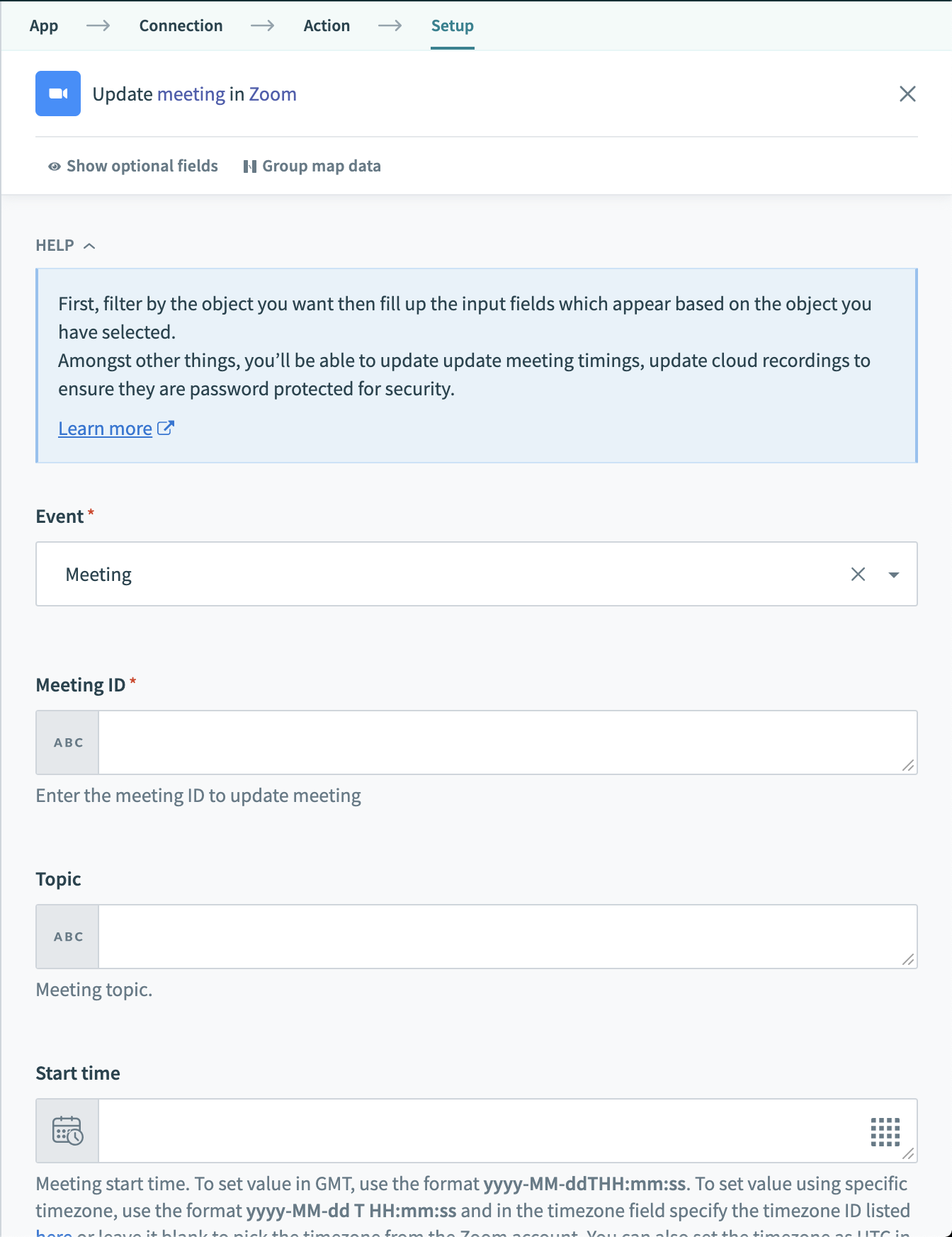 Choose from a list of events to update
Configuring the action
When configuring this action, you'll first be prompted to select what kind of Event you want updated. After selecting the event, relevant input fields will appear which allows you to configure the settings for the event being updated.
| Event | Description |
|---|---|
| Meeting | Update the details of a meeting that has been scheduled. |
| Meeting recording settings | Update the cloud recording settings of the meeting. Useful when ensuring certain recordings are accessible to participants when needed. |
| Webinar | Update the details of a webinar that has been scheduled. |
| Webinar status | Able to update the status of the Webinar to end it. |
| Webinar poll | Add a new webinar poll or update an existing poll. |
| Webinar registration questions | Do a full update on all Webinar registration questions. Use this to create custom questions for your registrants. |
| Webinar panelist | Do a full update on the panelists for a Webinar. |
Search event details
Search for details of meetings, webinars, or cloud recordings. This allows you to get details of meetings or even get the download URLs for cloud recordings.
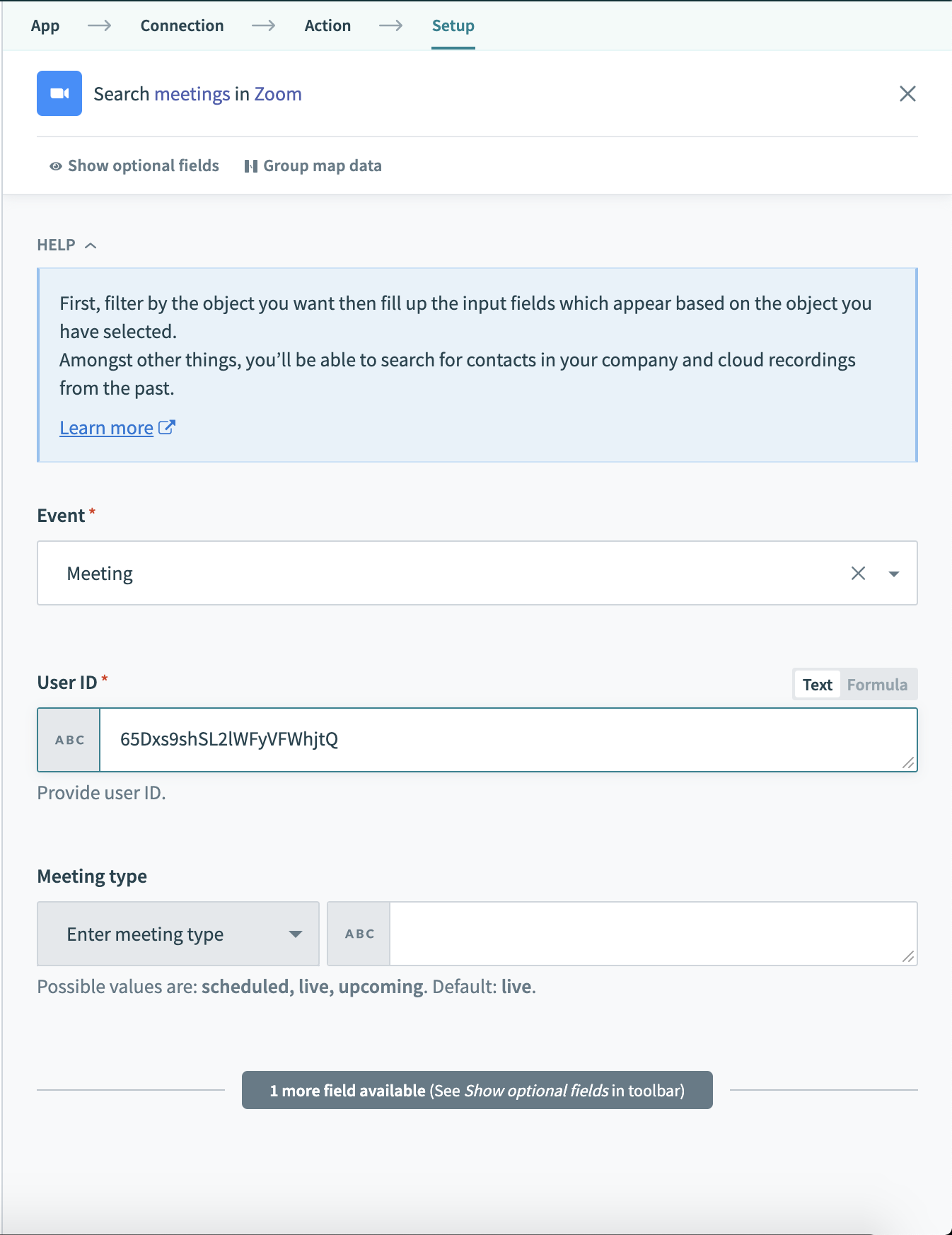 Search meetings, webinars, and more
Configuring the action
When configuring this action, you'll first be prompted to select what kind of Event you want scheduled. After selecting the event, relevant input fields will appear which allows you to configure the settings for the event being created.
| Event | Description |
|---|---|
| Meeting | Search meetings based on a specific user. |
| Company contact | Search contacts in a company |
| Cloud recording | Search cloud recordings based on a specific user. |
| Webinar | Search Webinars based on a specific user. |
| Past webinar instances | Search past occurrences of a recurring Webinar. This is useful when you have a recurring webinar. |
| Webinar panelists | Search panelists in a webinar based on a webinar ID |
| Webinar poll | Search polls in a webinar based on a webinar ID |
Get event details
Get details of meetings, webinars, or cloud recordings. Use this action to get details of meetings and even details of Webinar registrants/absentees.
Configuring the action
When configuring this action, you'll first be prompted to select what kind of Event you want details of. Select the event that best matches what you require. After selecting the event, relevant input fields will appear which allows you to configure the settings for the event being retrieved.
| Event | Description |
|---|---|
| Meeting | Get details of a meeting. |
| Past meeting details | Details of a meeting that has ended. This includes details such as total duration of the meeting and total participants. |
| Past meeting participants | Retrieves the participants of a meeting that has ended. |
| Cloud recording | Retrieves the details of a cloud recording that came from either a meeting or webinar. |
| Meeting recording settings | Retrieves the recording settings of a meeting. |
| Webinars | Get details of a webinar. |
| Webinar registrant | Get specific registrant of a webinar by Webinar ID and registrant ID |
| Webinar absentees | Get absentees from a Webinar that has past. An absentee is classified as a person who registered for your Webinar but did not attend |
| Webinar tracking resources | Get the tracking resource details if you used that in your Webinar registration URL. |
| Specific webinar poll results | Get the results of a specific Webinar poll. There can be multiple webinar polls in a single Webinar. |
| Webinar registration questions | Get the registration questions of a webinar. |
| Past webinar files | The files shared during a Webinar that has ended. |
Retrieve Webinar results
Retrieving webinar results is a great way to send the responses of your webinar or meeting participants to other applications using a recipe.
Configuring the action
When configuring this action, you'll first be prompted to select what kind of result type you want scheduled. Select the result type that best matches what you require. After selecting the event, relevant input fields will appear.
| Input field | Description |
|---|---|
| Object | Select either to retrieve Q&A or Poll results. |
| Webinar ID | The ID of the Webinar. This can found from the output of our Zoom trigger or other Zoom actions. |
| Output field | Description |
|---|---|
| ID | The ID of the specific Webinar. |
| UUID | The UUID of the Webinar. |
| Start time | The start time of the poll. |
| Questions | A list of questions and answers separated by participant. |
| Questions[Name] | The name of the participant in each position of the list. |
| Questions[Email] | The email of the participant in each position of the list. |
| Questions[Question details] | A list of questions and answers for this particular participant. Each position in this nested list represents a single question and answer. |
Last updated: