AgentX Support - Core nodes
Core nodes are the foundational building blocks used in flows. These nodes handle common actions like sending messages, asking questions, making decisions, and launching guides.
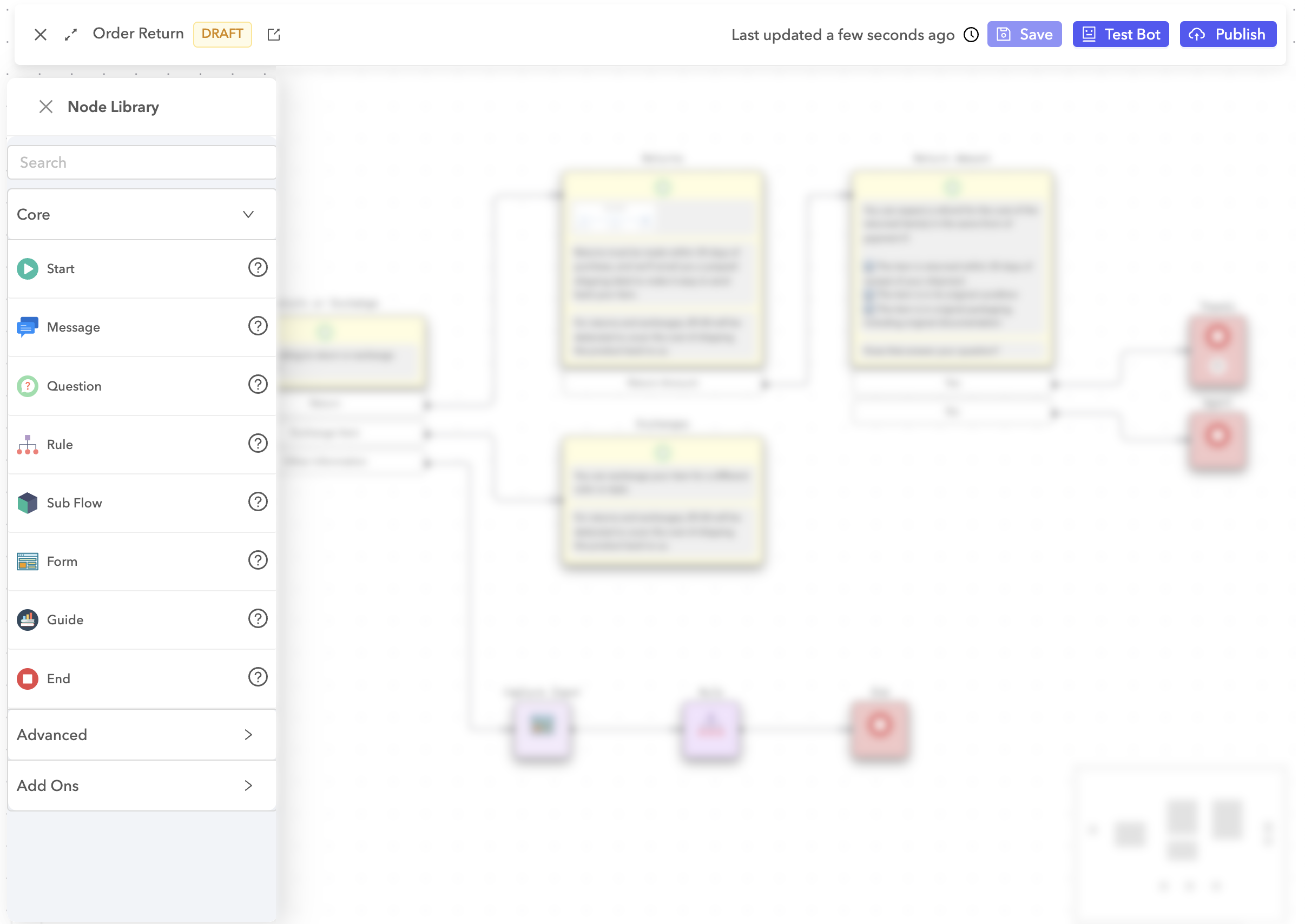 Core nodes
Start
The Start node marks the beginning of a conversation flow.
Message
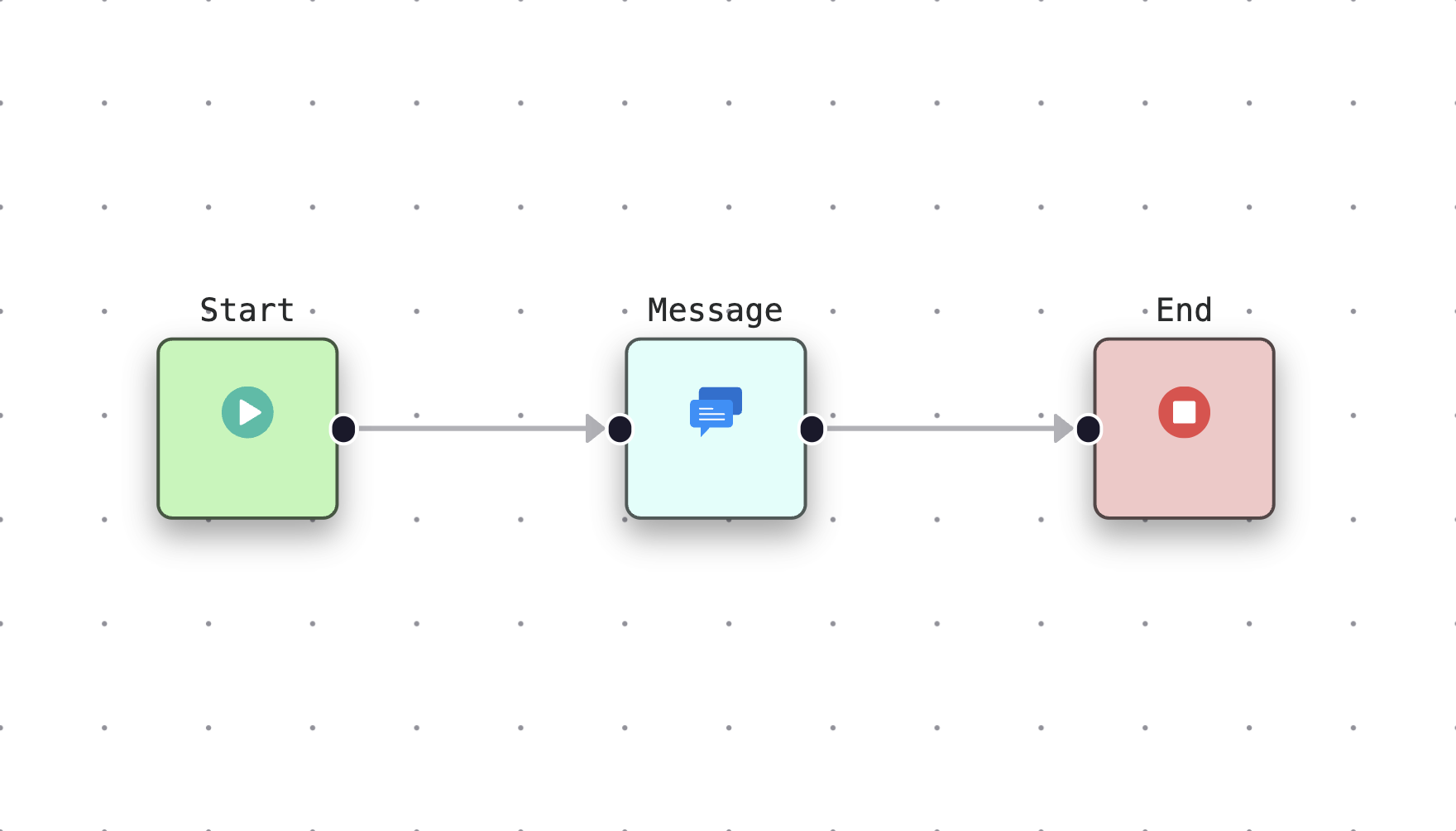
The Message node sends a message to the customer in the chat.
 Message
Use this node to provide information, instructions, or confirmations before continuing to the next step in the flow.
Question
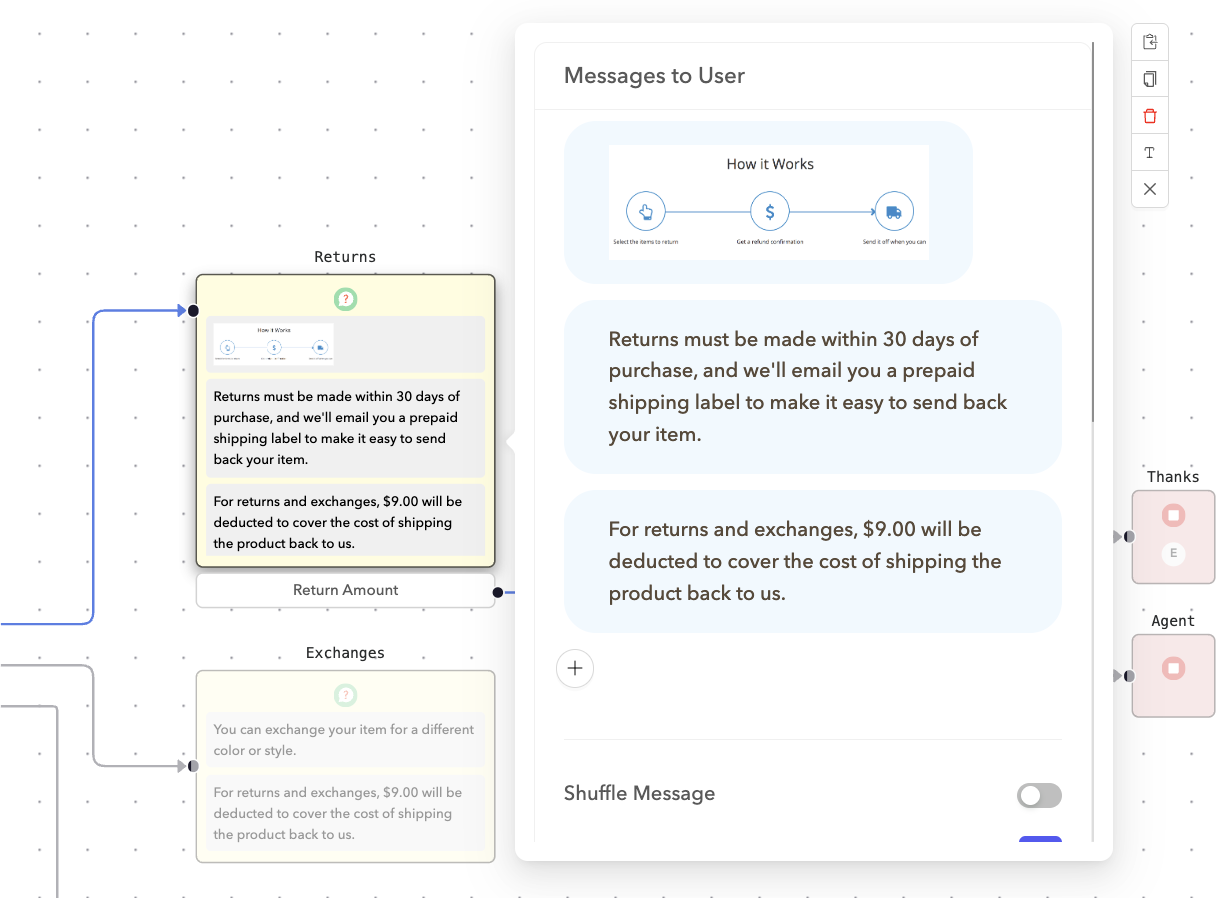
The Question node displays information to the customer and asks a question.
Use this node to gather input or guide the customer through decision points in the conversation.
 Question node
Click + to add content to the node. You can mix and match components to create clear, engaging questions:
- Text
- Rich text
- Link
- Image
- GIF
- IFrame
- Guide
- Video
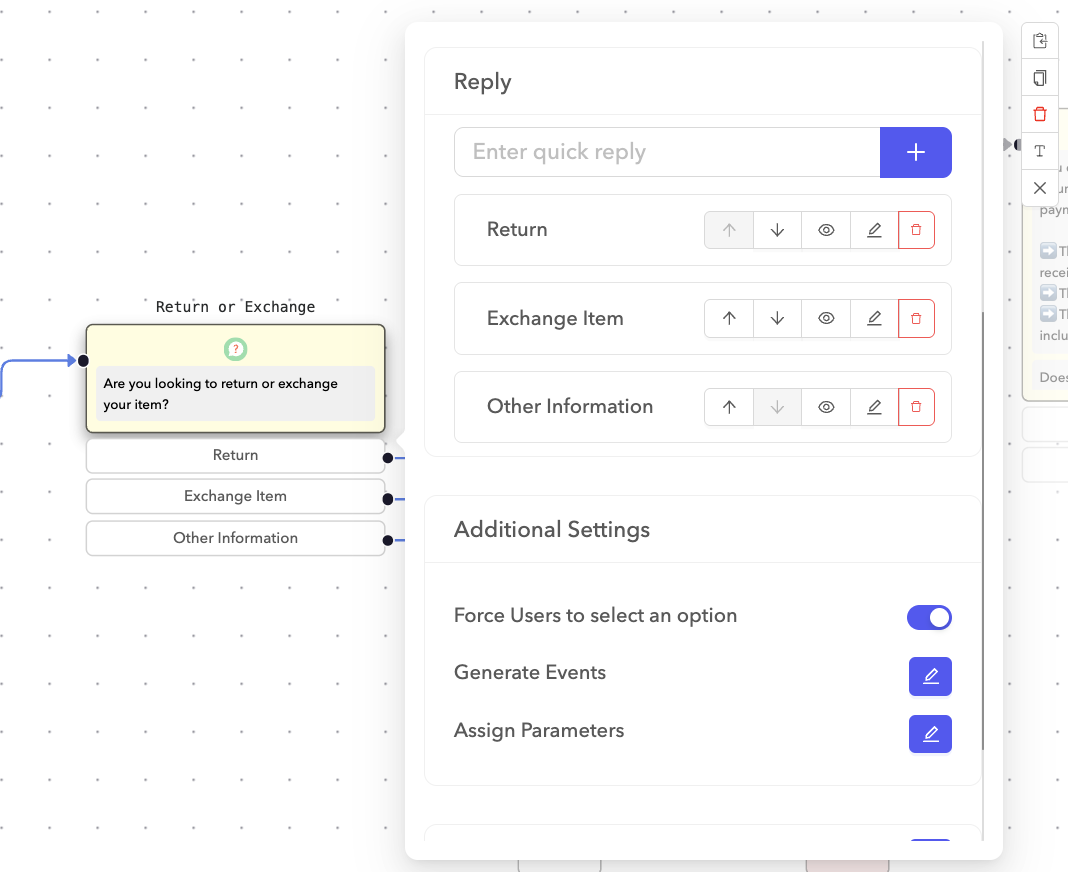
After adding the question content, you can configure quick replies. Quick replies are buttons the customer can select as a response. Use quick replies to route the customer to different paths in the flow.
 Quick replies
Rule
The Rule node adds conditional logic to a flow based on defined parameters.
Use this node when you plan for the AI agent to make decisions or branch the conversation depending on context, such as user input or external data.
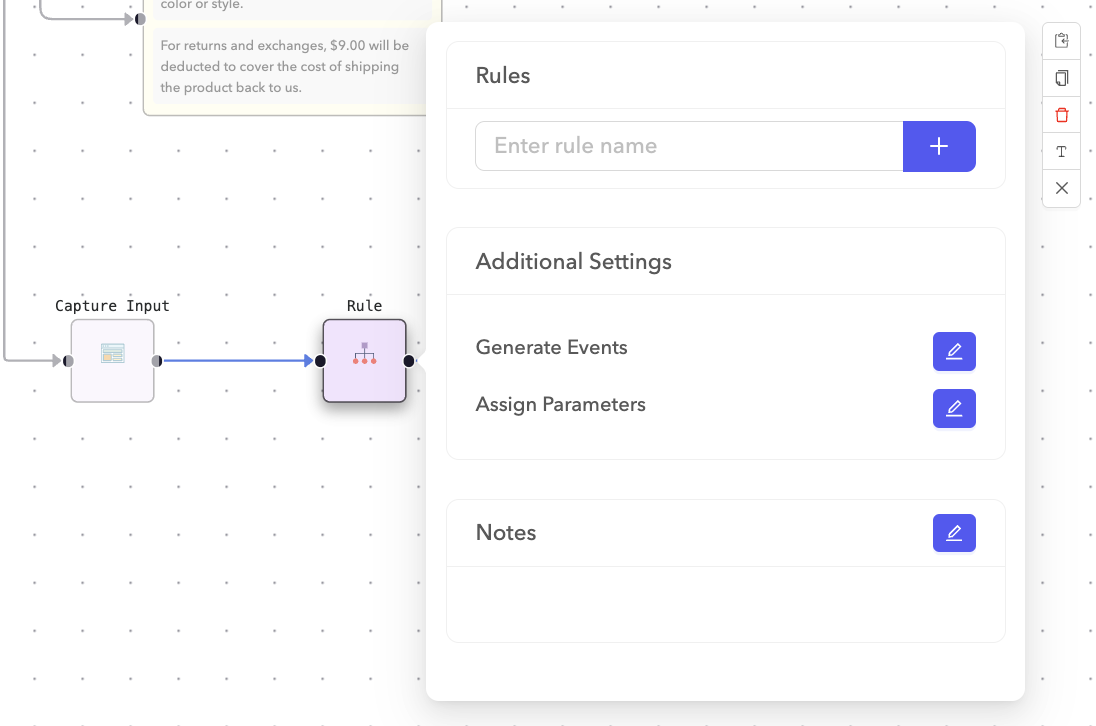 Rules
Rules
Define rule criteria
Each rule contains one or more conditions, evaluated together using either:
- All conditions (AND): All conditions must be true for the rule to pass.
- Any condition (OR): At least one condition must be true for the rule to pass.
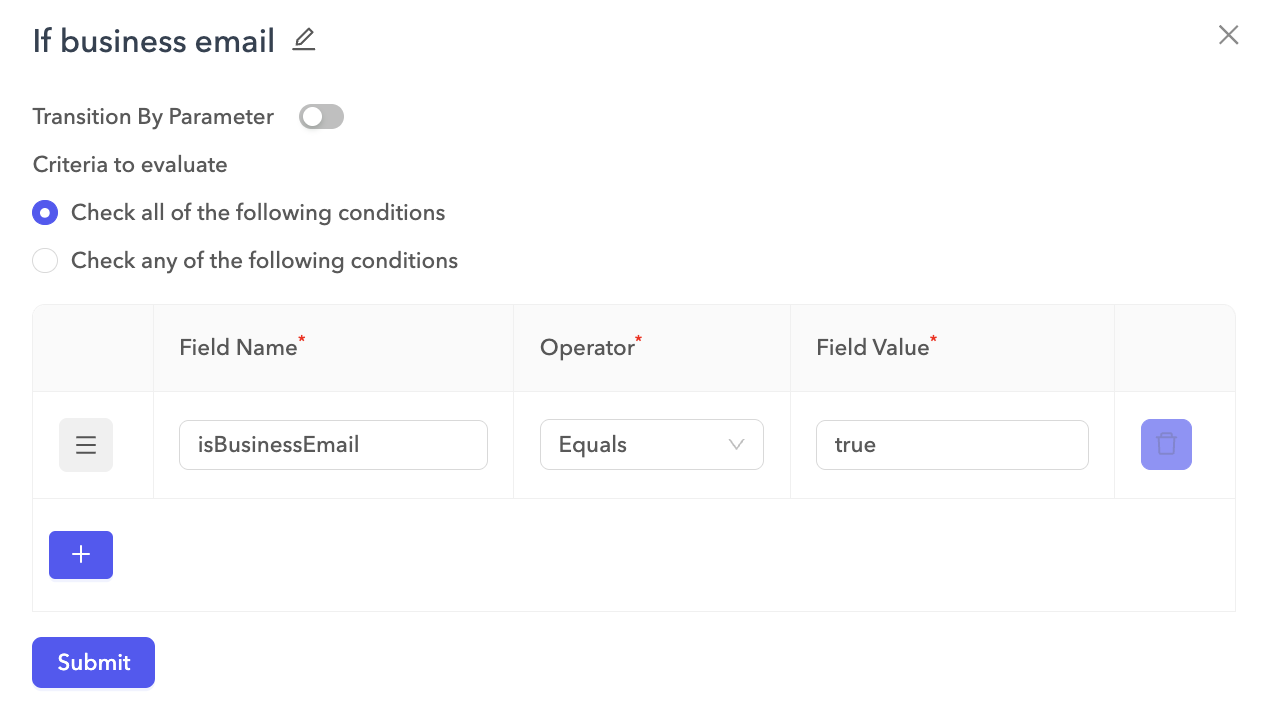 Define rule criteria
Each condition includes:
- Field Name
- Operator
- Field Value
Add conditions
| Operator | Description | Supported types |
|---|---|---|
| Not Equals | Evaluates whether the field value doesn't match the specified value. | Number, Text, Boolean |
| Equals | Evaluates whether the field value matches the specified value. | Number, Text, Boolean |
| Greater Than | Evaluates whether the field value is greater than the specified number. | Number |
| Less Than | Evaluates whether the field value is less than the specified number. | Number |
| Contains | Evaluates whether the text field includes the specified substring. | Text |
| Is Not Empty | Evaluates whether the field has a value (not blank or empty). | Text, List |
| Is Empty | Evaluates whether the field is blank or contains no items. | Text, List |
Sub Flow
The Sub Flow node embeds another flow within the current one.
Use this to reuse common conversation sequences or break large flows into smaller, more manageable components.
Form
The Form node creates a custom form to collect structured input from the customer.
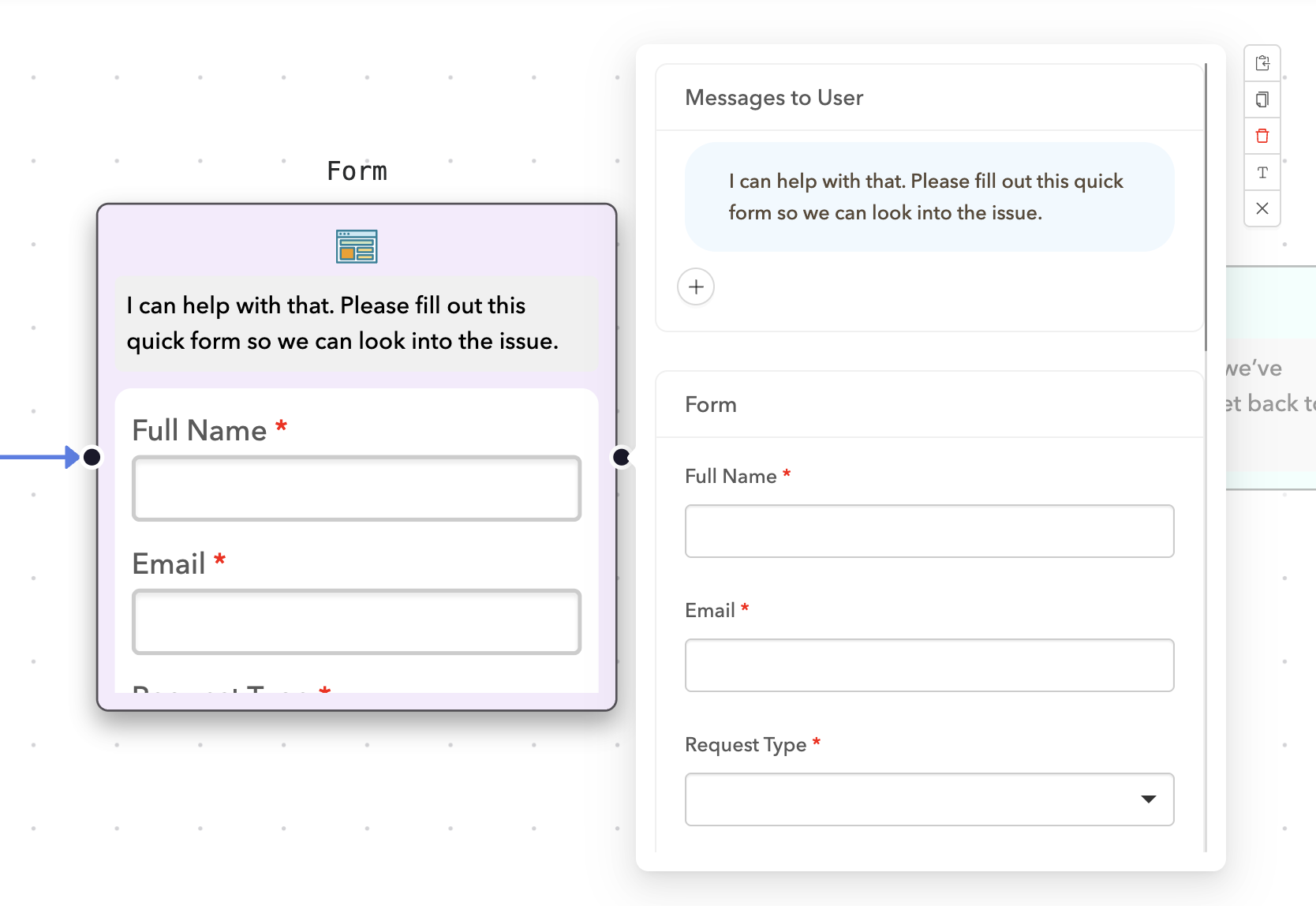 Form node
You can click Edit to edit the form.
This opens a drag-and-drop interface to design your form layout. You can add the following form components:
- Text Field
- Text Area
- Phone Number
- Number
- Date / Time
- Checkbox
- Select
- Radio
- File
- Button
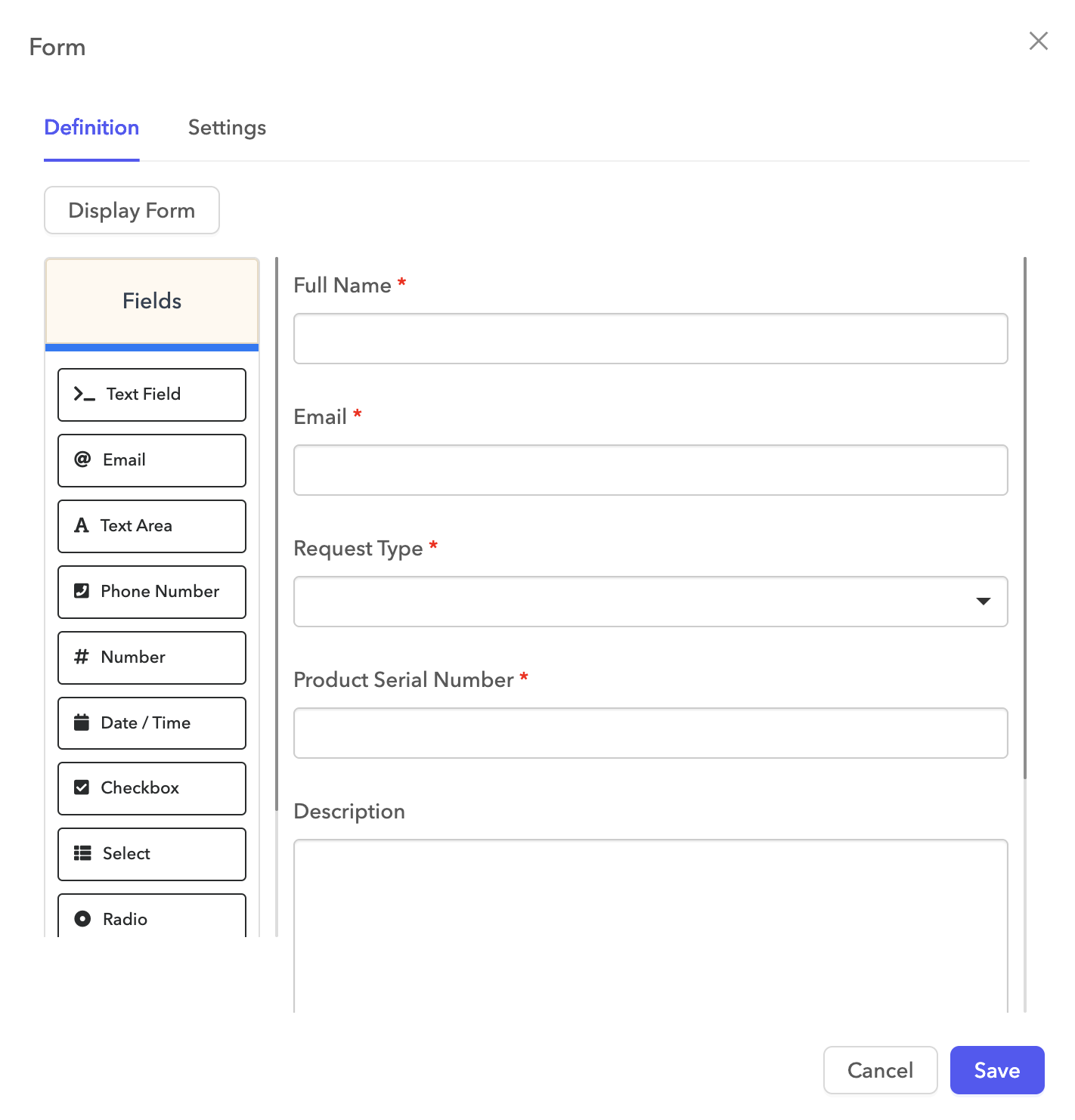 Form editor
Example: Product support request form
This form collects user contact details and routes requests based on the selected issue type. It uses conditional logic to display relevant fields and supports file uploads for better support resolution.
| Field | Type | Notes |
|---|---|---|
| Full Name | Text Field | Required. |
| Email Address | Required, validated email format. | |
| Request Type | Select | Options: Product Support, Billing, and Other. |
| Product Serial Number | Text Field | Shown only if Request Type = productSupport. |
| Description | Text Area | Optional, allows users to provide more context. |
| Upload Screenshot | File | Optional, for attaching images or documents. |
| Submit Request | Button | Sends the completed form data. |
Guide
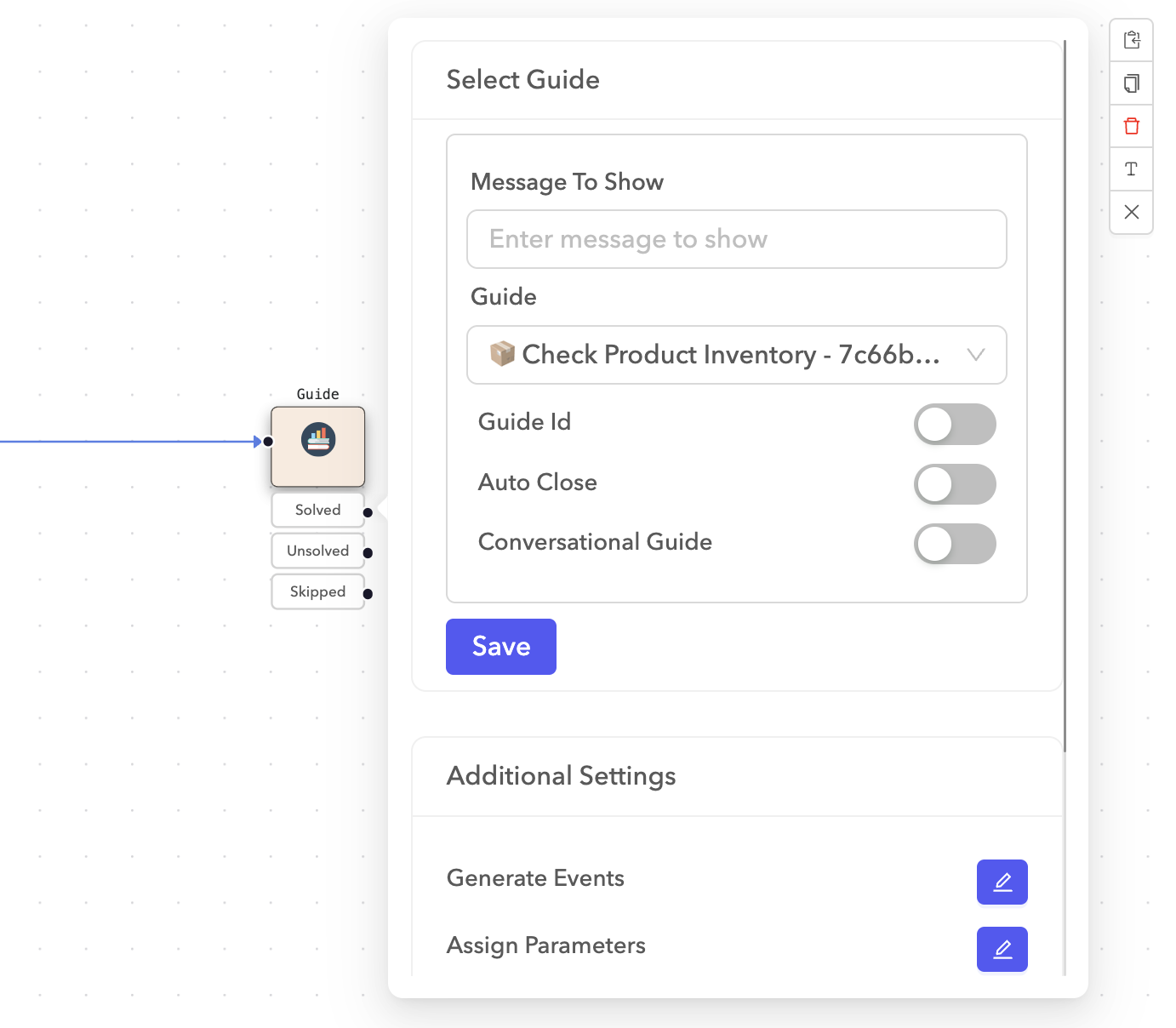
The Guide node references an existing guide within a flow.
This node supports three transitions depending on the customer's actions in the guide:
 Guide node transitions
- Solved: The customer finishes the guide and reaches a solved step.
- Unsolved: The customer finishes the guide on an unsolved step.
- Skipped: The customer exits the guide early.
Use these transitions to define what happens next depending on the customer's experience.
Guide Step
NODE AVAILABILITY
The Guide Step node is available only when building guides. You can use the Guide node to embed an existing guide within a conversation flow.
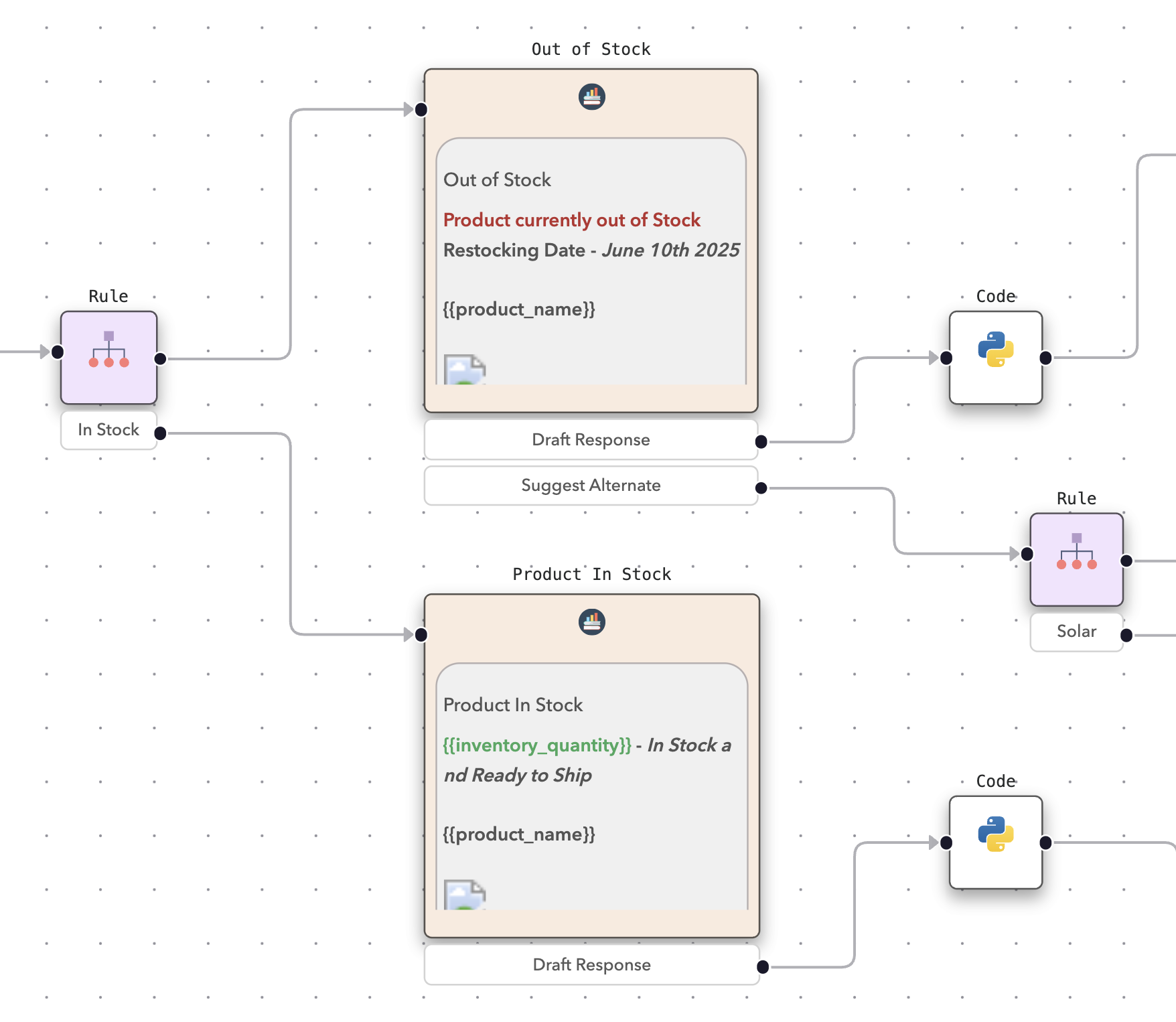
The Guide Step node allows you to create a step in a guide.
 Guide step
Each step can include the following components:
- Title and subtitle
- Step content (text, instructions)
- A question to prompt the user
- Media like images or video
Solved
NODE AVAILABILITY
The Solved node is available only when building guides.
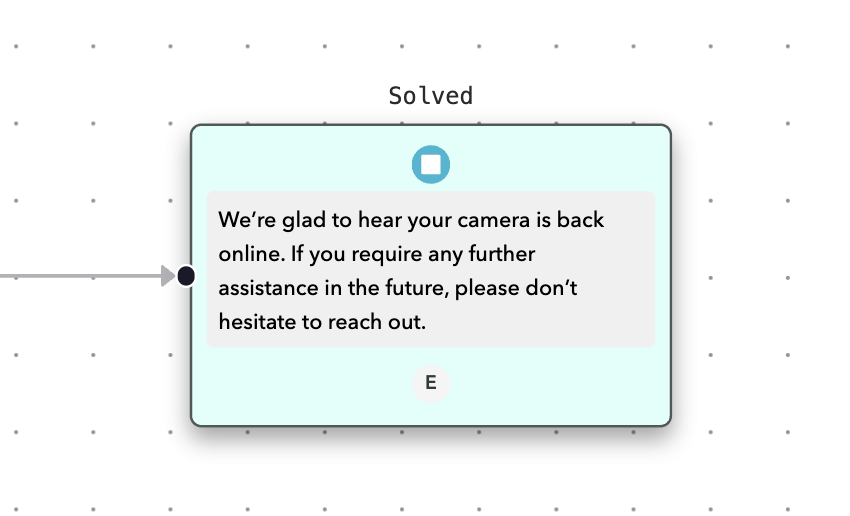
The Solved node marks the end of a successful guide interaction.
Reaching this node is tracked as a successful interaction in reporting.
 Solved
Unsolved
NODE AVAILABILITY
The Unsolved node is available only when building guides.
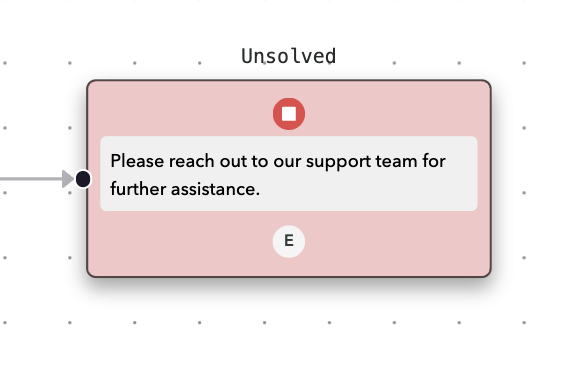
The Unsolved node marks the end of a guide when the customer did not find a solution.
Reaching this node is tracked as an escalated interaction.
 Unsolved
End
The End node marks the end of a conversation flow.
You can also use this node to transition to another flow if the user's intent suggests a different skill is more relevant. This allows the AI agent to pivot smoothly to another capability without restarting the entire conversation.
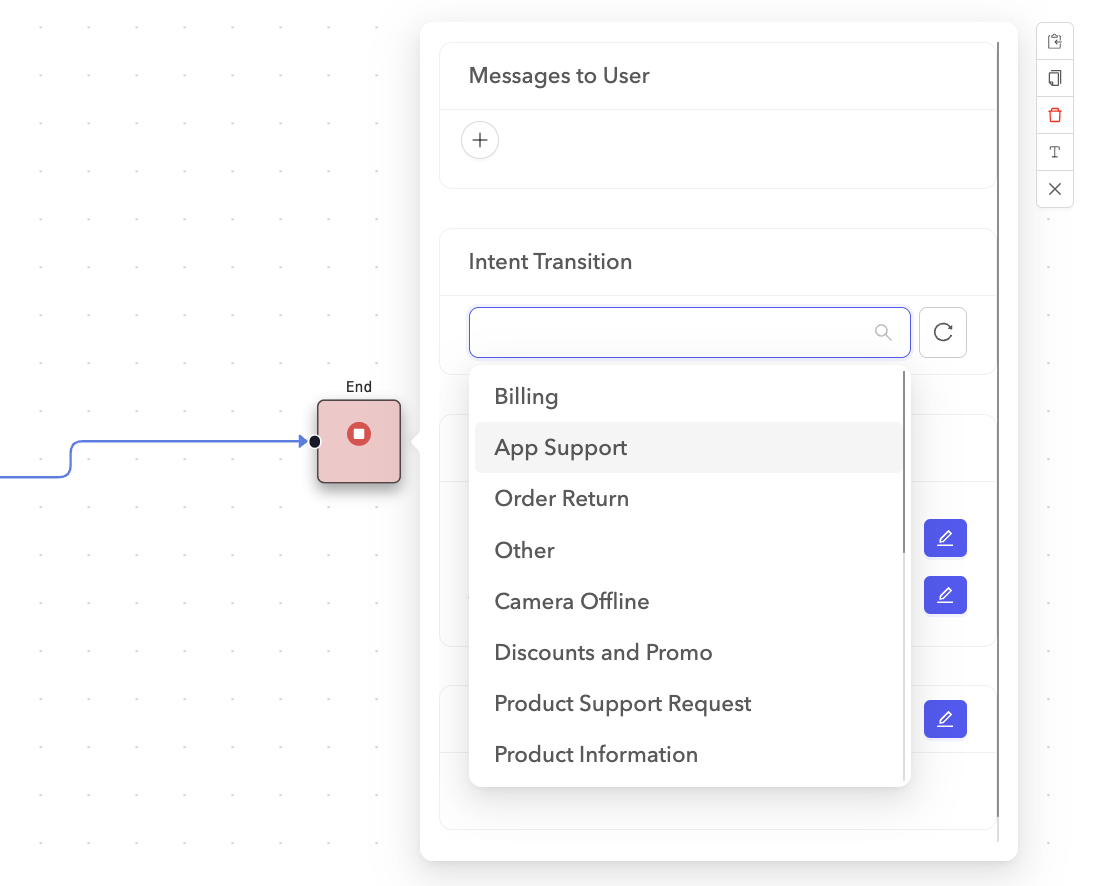 Intent transition
Last updated: