# Azure OpenAI
Azure OpenAI (opens new window) is a collaboration between Microsoft Azure and OpenAI (opens new window), an artificial intelligence research organization. Azure OpenAI is a cloud-based platform that enables users to build and deploy AI models. These models allow you to edit text, generate images, and perform classification. You can fine-tune and create models that are exposed internally using Azure OpenAI.
# API version
The Azure OpenAI connector uses the Azure OpenAI Service REST API (opens new window).
# How to connect to Azure OpenAI
Workato supports the following types of connections to Azure OpenAI:
MICROSOFT MFA ENFORCEMENT
Microsoft is rolling out mandatory multi-factor authentication (MFA) (opens new window) gradually to different applications and accounts in phases. This enforcement will continue throughout 2025 and beyond.
We strongly recommend enabling MFA now for all Microsoft accounts used with Workato to avoid service disruptions from short-notice enforcement changes.
Complete the following steps to maintain uninterrupted service:
Enable MFA for your Microsoft organization following Microsoft's MFA setup guide (opens new window).
Reconnect your Microsoft connection in Workato.
Complete the OAuth flow with MFA when prompted.
Test your recipes to ensure they work with the updated connection.
# OAuth 2.0 authentication
OAuth 2.0 authentication consists of the following steps:
# Prerequisites
You must complete the following prerequisites to establish an OAuth 2.0 connection to Azure OpenAI:
- Refer to the Azure OAuth 2.0 authorization (opens new window) documentation to generate a client ID and secret using an identity provider, such as Microsoft Entra ID.
- Refer to the Azure Delegate an Azure DNS subdomain (opens new window) documentation to delegate a subdomain in the Azure portal.
# Complete setup in Workato
Complete the following steps to establish an OAuth 2.0 connection to Azure OpenAI:
Click Create > Connection.
Search for and select Azure OpenAI as your connection on the New connection page.
Provide a name for your connection in the Connection name field.
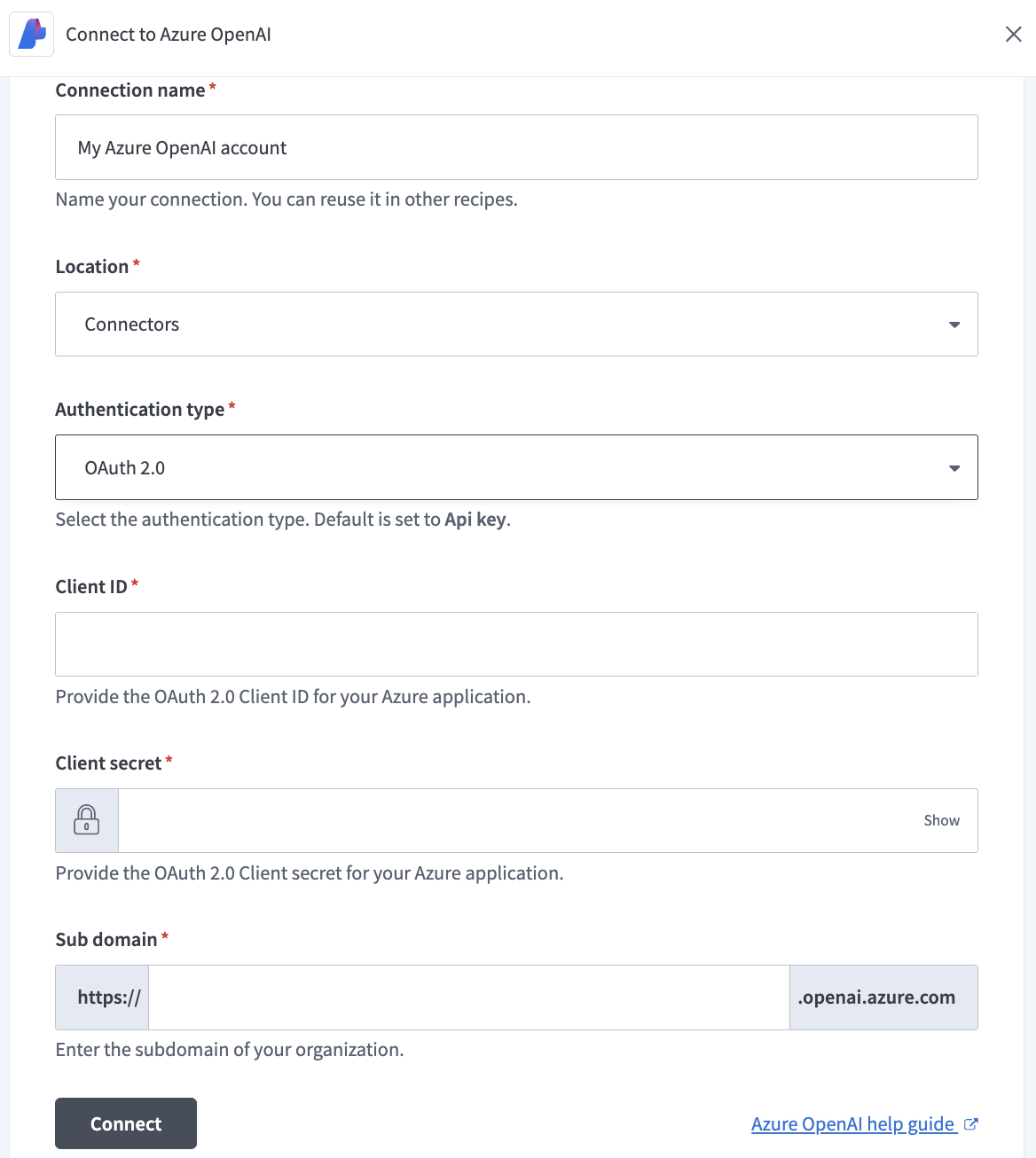 Azure OpenAI OAuth 2.0 connection
Use the Location drop-down menu to select the project where you plan to store the connection.
Use the Authentication type drop-down menu to select OAuth 2.0.
Enter the Client ID and Client secret for your Azure application.
Enter your organization's Sub domain.
Click Connect.
# API key authentication
API key authentication consists of the following steps:
# Prerequisites
You must complete the following prerequisites to establish an API key connection to Azure OpenAI:
- Refer to the Azure OpenAI Authentication (opens new window) documentation to generate an API key. Workato recommends that you store the API key safely, as it's only displayed once.
- Refer to the Azure Delegate an Azure DNS subdomain (opens new window) documentation to delegate a subdomain in the Azure portal.
# Complete setup in Workato
Complete the following steps to establish an API key connection to Azure OpenAI:
Click Create > Connection.
Search for and select Azure OpenAI as your connection on the New connection page.
Provide a name for your connection in the Connection name field.
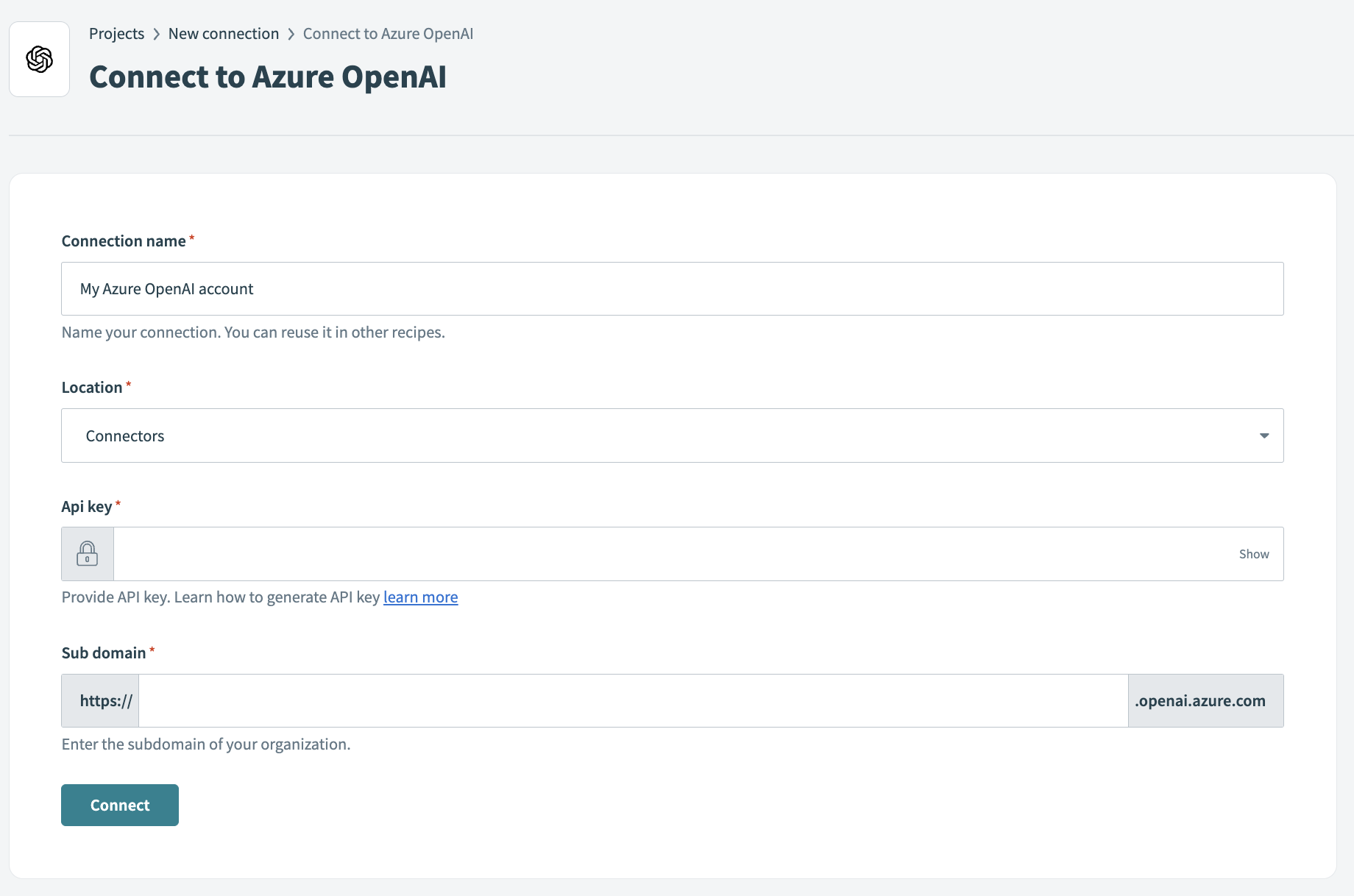 Azure OpenAI API key connection
Use the Location drop-down menu to select the project where you plan to store the connection.
Use the Authentication type drop-down menu to select API key.
Enter the API key.
Enter your organization's Sub domain.
Click Connect.
# Supported actions
Azure OpenAI supports the following actions:
Last updated: 2/2/2026, 8:59:29 PM