Google Gemini
Google Gemini is a large language model (LLM) and AI chatbot developed by Google. Gemini is a multimodal AI, meaning it can interpret and generate text, images, audio, and code. Gemini is designed to be a versatile tool for various tasks, from answering questions and generating creative content to assisting with research, coding, and even acting as a personal assistant within Google Workspace apps.
Prerequisites
Workato requires an API key to connect to Gemini. Complete the following steps to generate an API key:
Sign in to Google AI Studio. Ensure billing is configured correctly if you plan to use paid features or exceed free quotas.
Accept the terms and conditions if prompted.
Click + Create API key.
Select a project to store the API key in.
Click Create API key.
Copy the key and store it securely.
How to connect to Google Gemini
Connecting to the Google Gemini involves the following steps:
Download the Gemini connector from the community
Complete the following steps to install the Google Gemini connector from the community library:
Open the recipe editor and search for a connector. Alternatively, you can search for a connector in the community library.
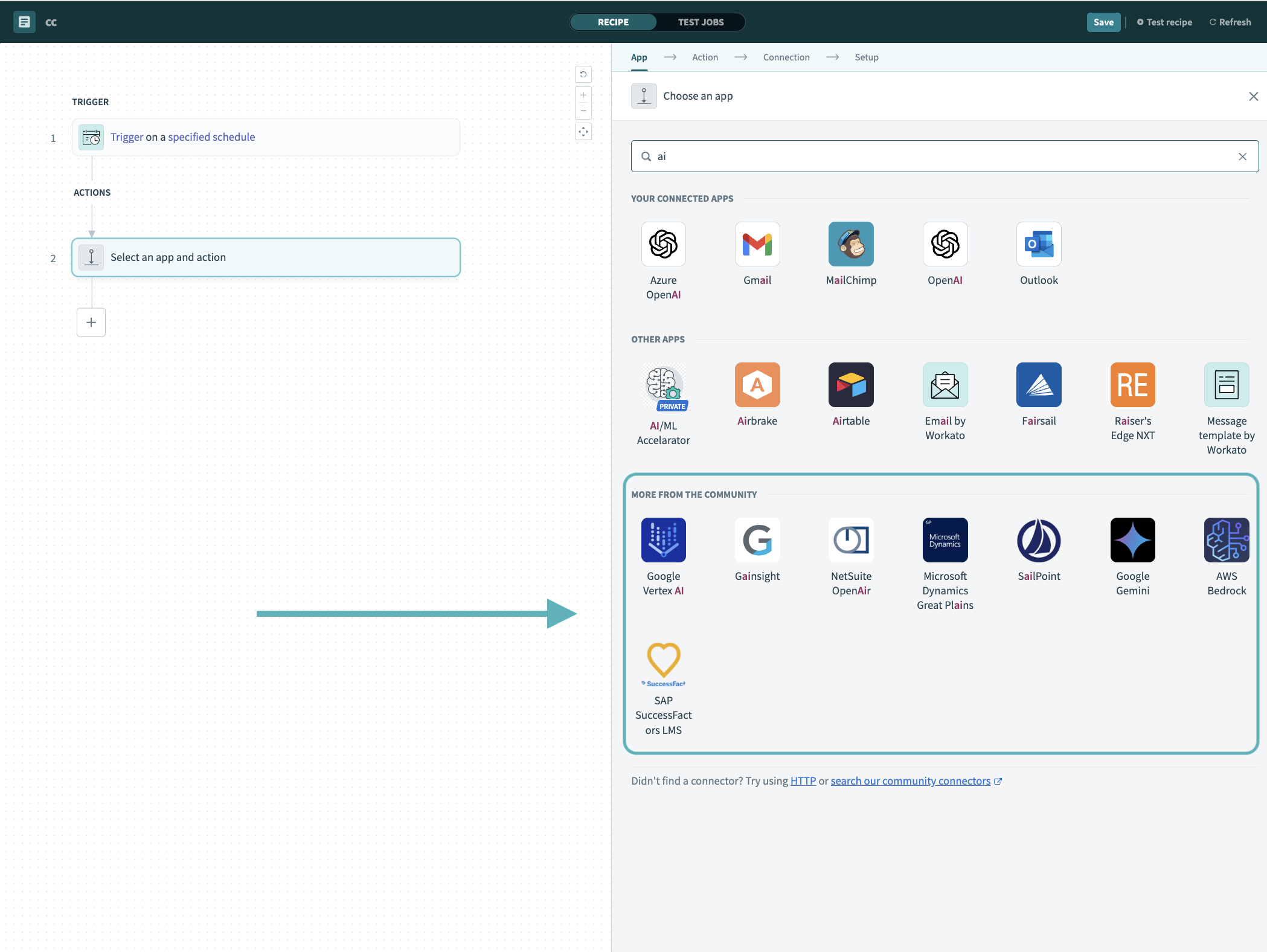 Search for community connectors in the recipe editor
Select the community connector you plan to install.
Click Install to install the connector from the community library.
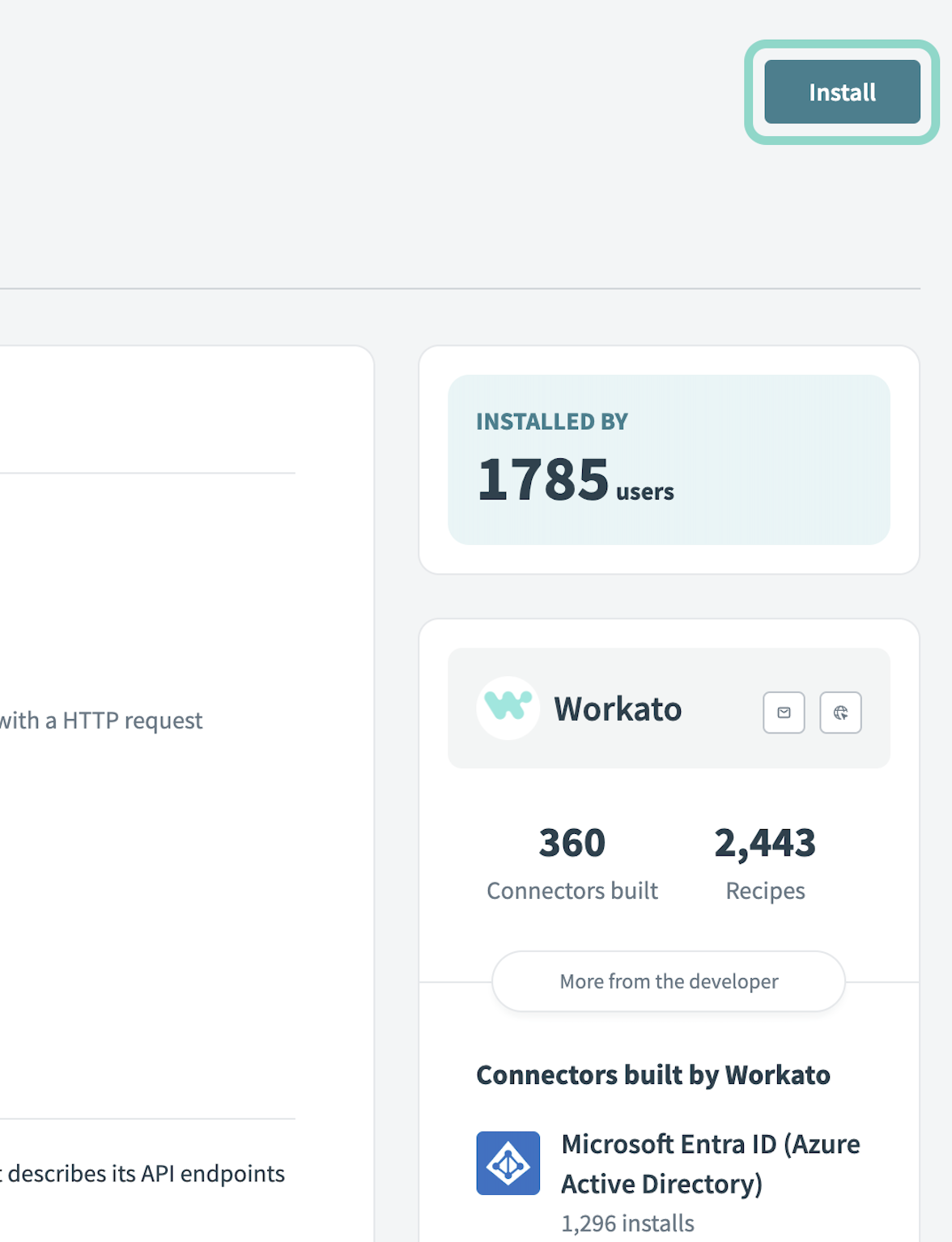 Click Install
Select Release connector. Alternatively, select Review code to review and modify the connector code before releasing it to the workspace.
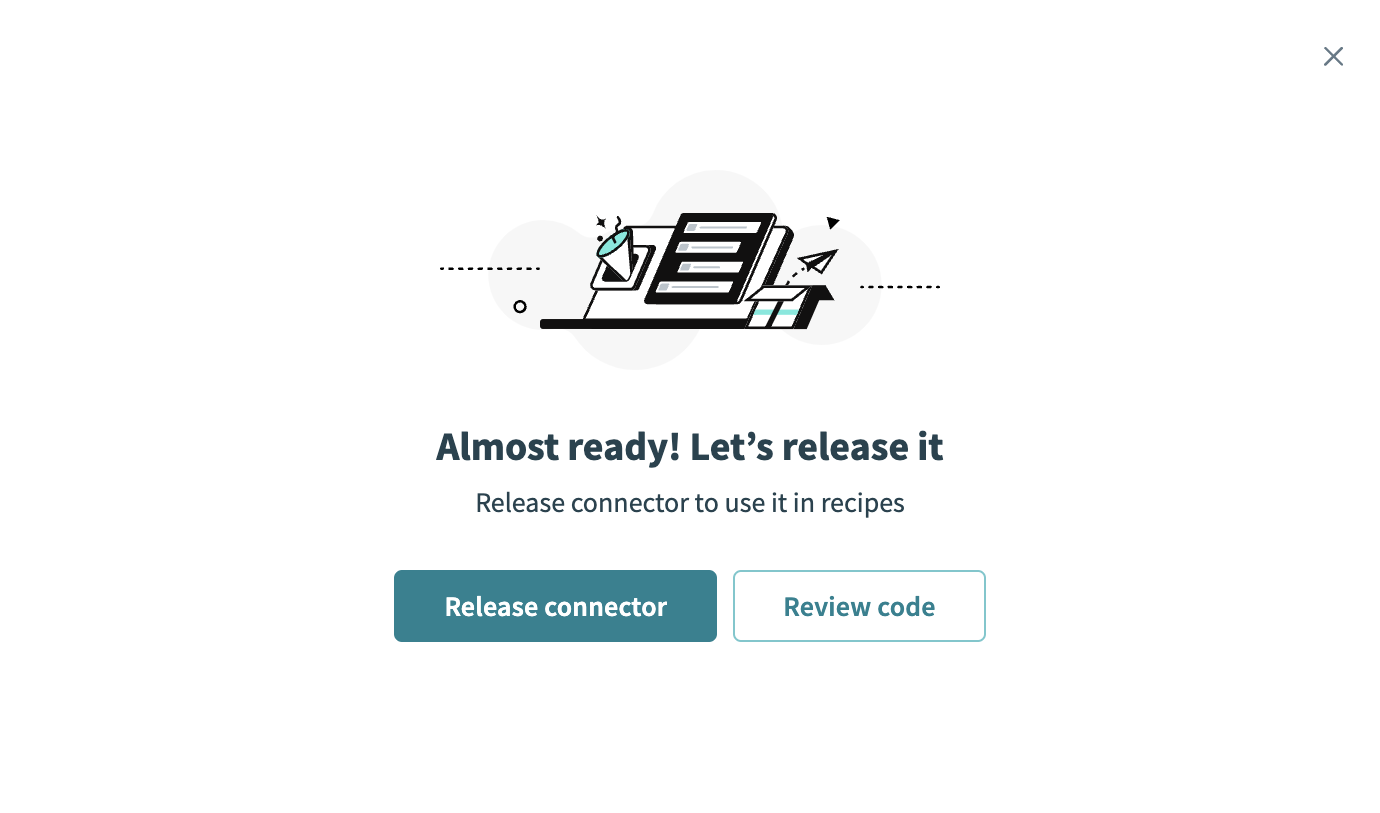 Release the connector
Summarize any changes you made to the connector, then click Release to allow workspace collaborators to use the connector in recipes.
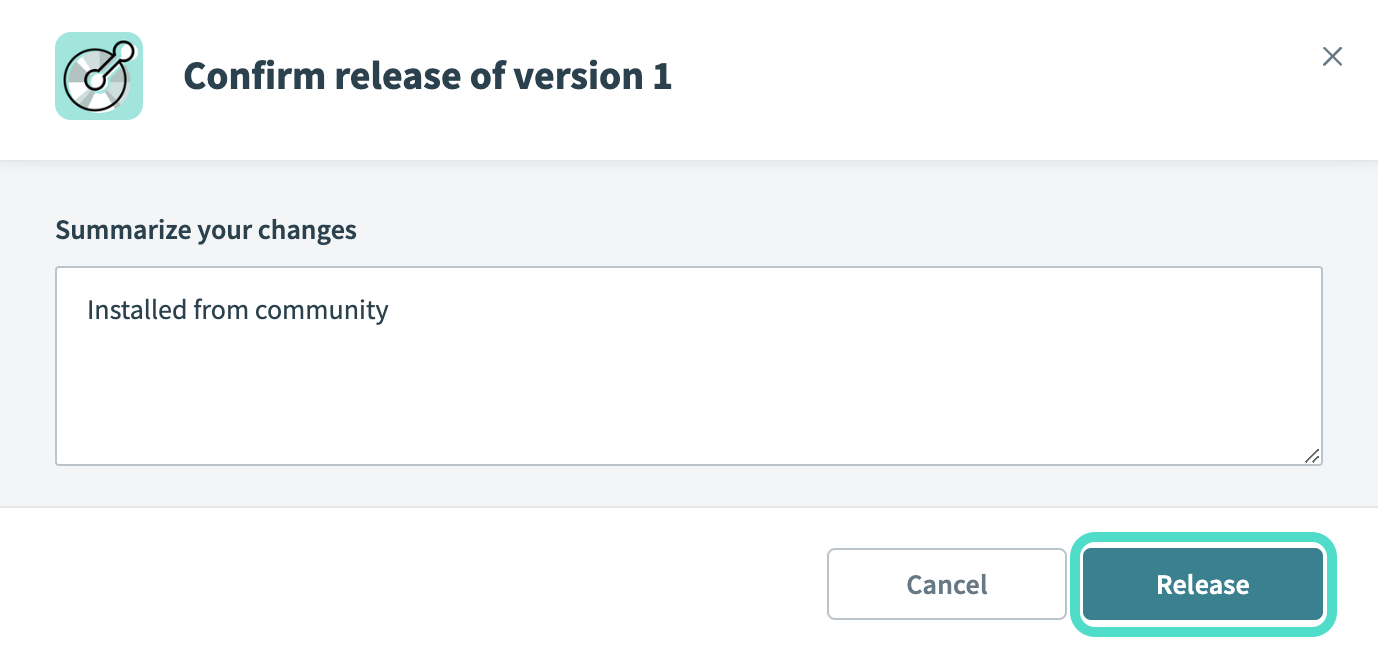 The Confirm release dialog
Complete setup in Workato
Complete the following steps to establish a connection to Google Gemini in Workato:
Click Create > Connection.
Search for and select Google Gemini as your connection in the New connection page.
Provide a Connection name that identifies which Gemini instance Workato is connected to. 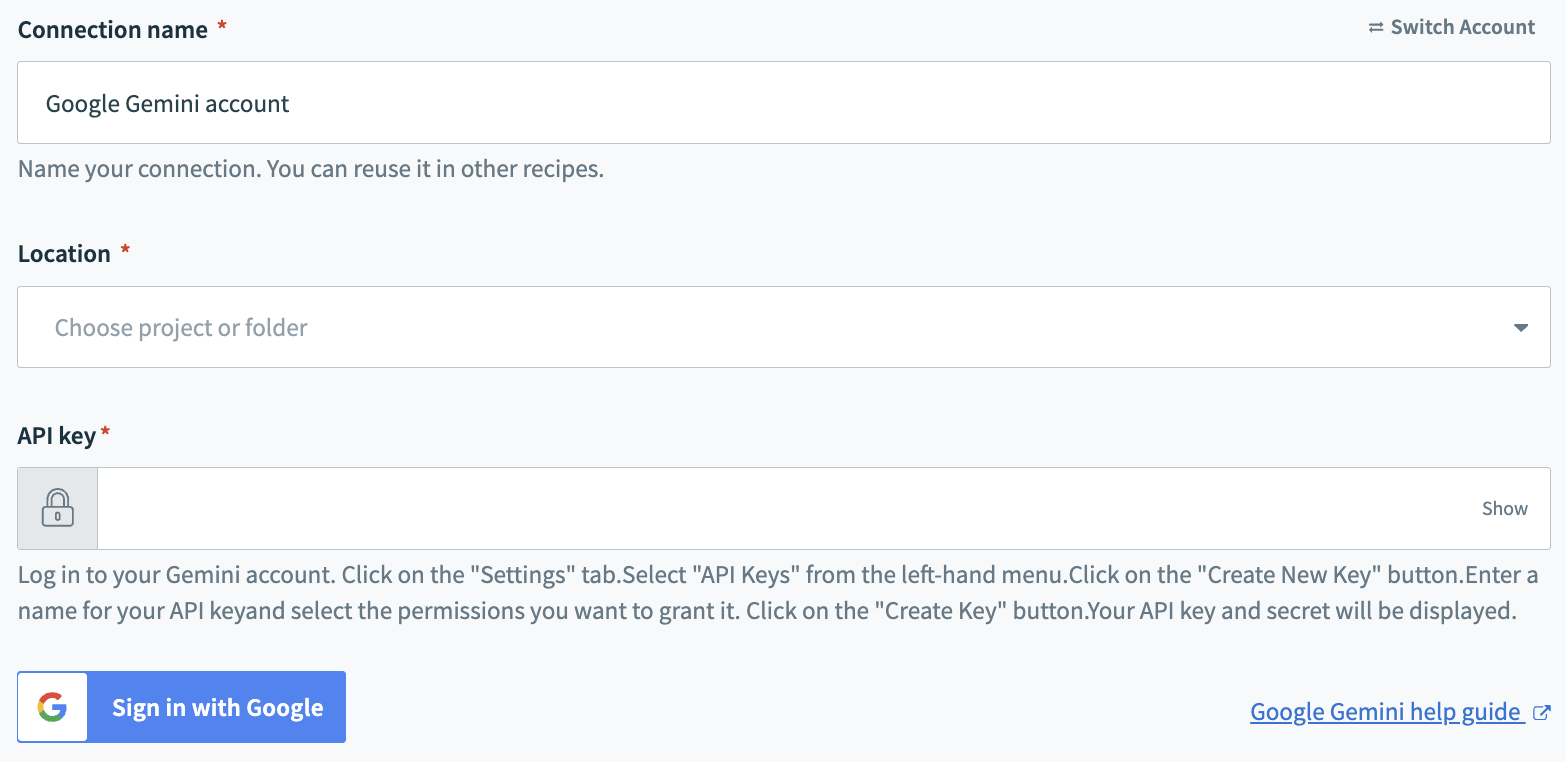 Google Gemini connection
Use the Location drop-down menu to select the project where you plan to store the connection.
Enter your Gemini API Key. Refer to the Prerequisites section to retrieve this value.
Click Sign in with Google to establish the connection.
Last updated: