OData
The OData connector is a universal connector you can use with any application that describes its API endpoints using OData. This connector parses a user-provided OData document and uses the content to generate a user interface, including actions, input and output fields, and objects in Workato. Use this connector when no app-specific connector is available and the application exposes an OData document.
API version
The connector uses the following APIs:
- OData v4 API
- OData v2 API: Select the
OData v2tab.
How to connect to
Connecting to the involves the following procedures:
Download OData from the community
Complete the following steps to install the connector from the community library:
Open the recipe editor and search for a connector. Alternatively, you can search for a connector in the community library.
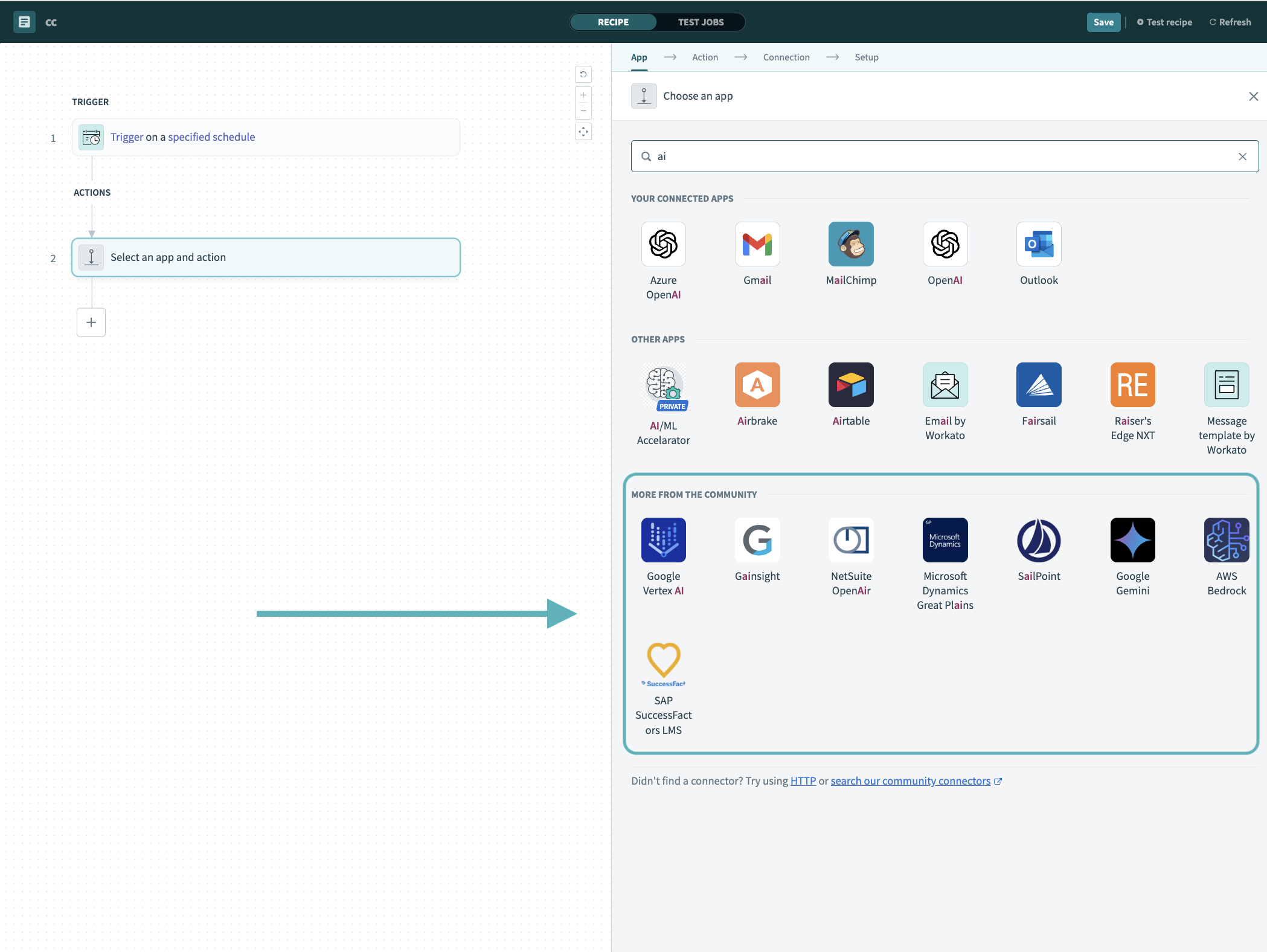 Search for community connectors in the recipe editor
Select the community connector you plan to install.
Click Install to install the connector from the community library.
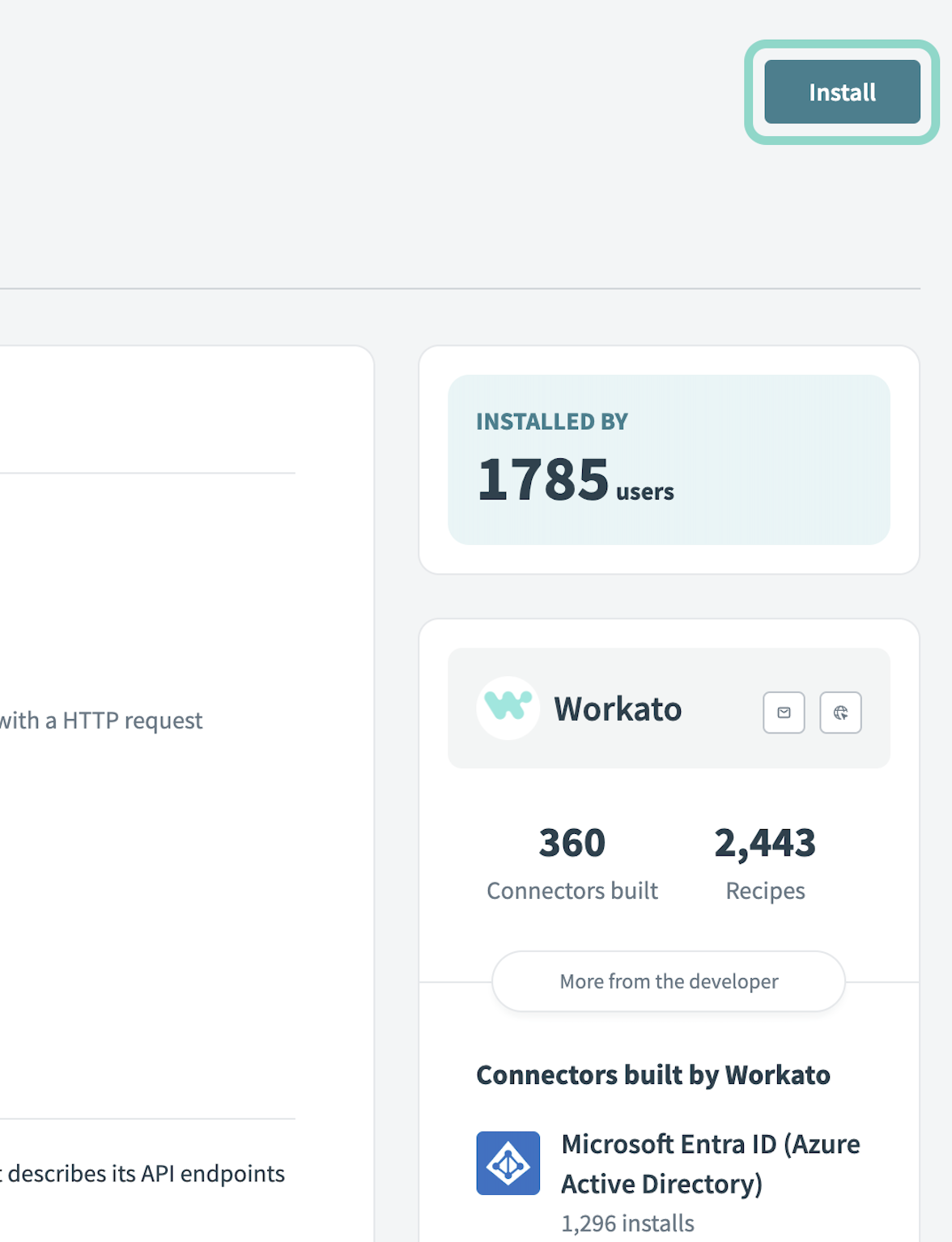 Click Install
Select Release connector. Alternatively, select Review code to review and modify the connector code before releasing it to the workspace.
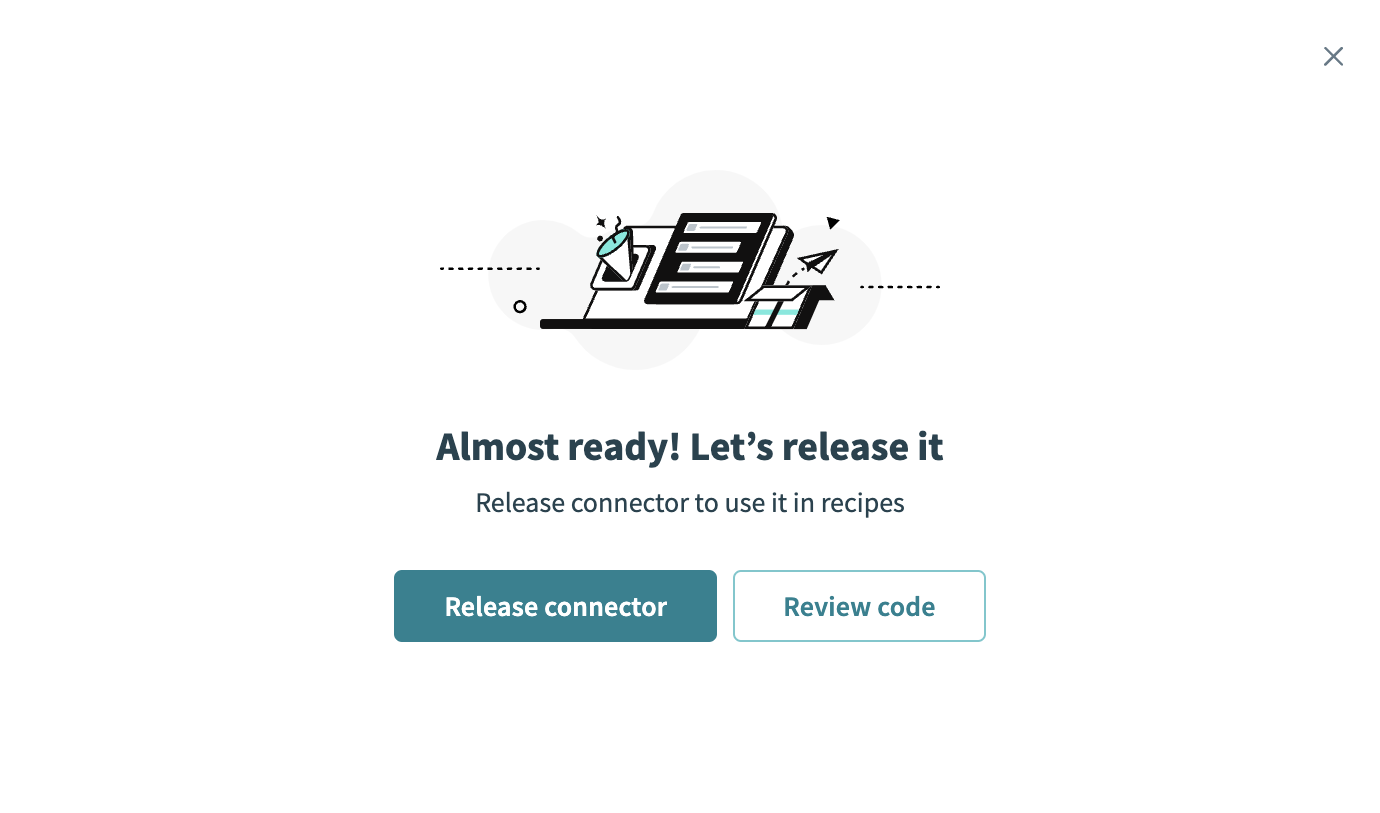 Release the connector
Summarize any changes you made to the connector, then click Release to allow workspace collaborators to use the connector in recipes.
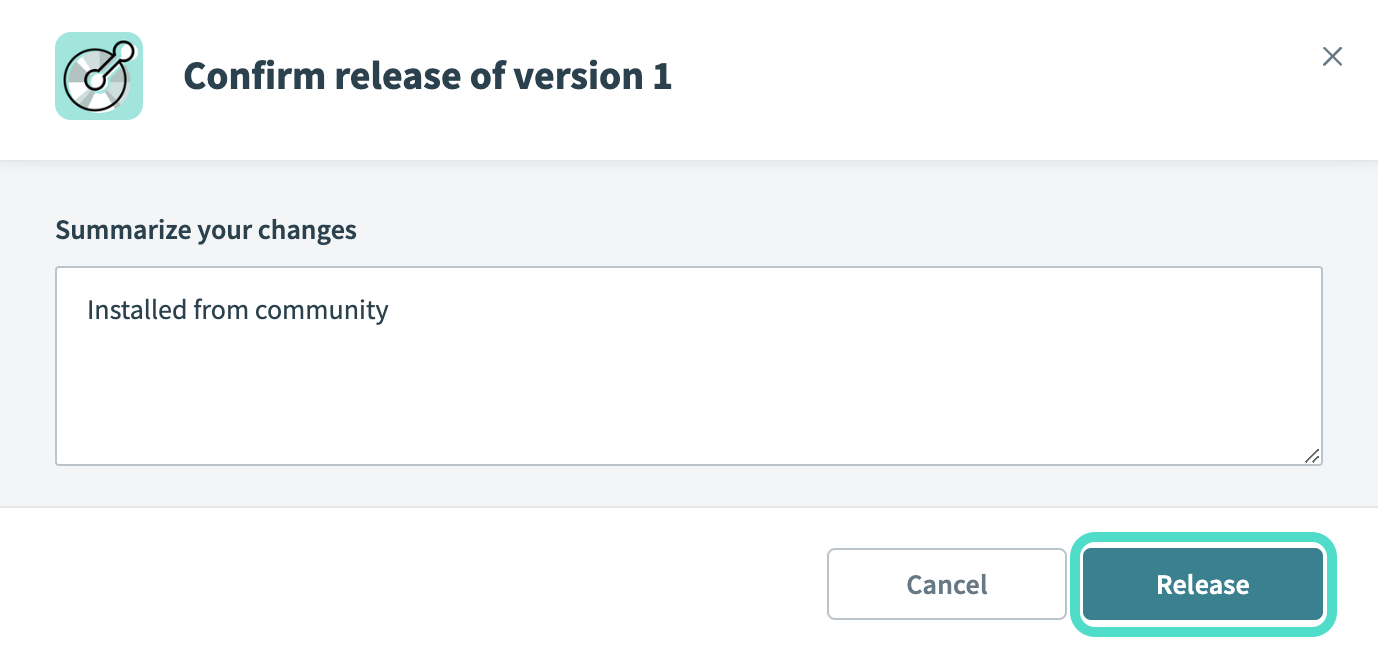 The Confirm release dialog
Authentication
You can authenticate the connector using the following methods:
- None
- Basic
- Header
- Query params
- OAuth 2.0 client credentials
- OAuth 2.0 authorization code
- Client certificate based security policy
Complete setup in Workato
Click Create > Connection.
Search for and select Connector name as your connection in the New connection page.
Provide a name for your connection in the Connection name field.
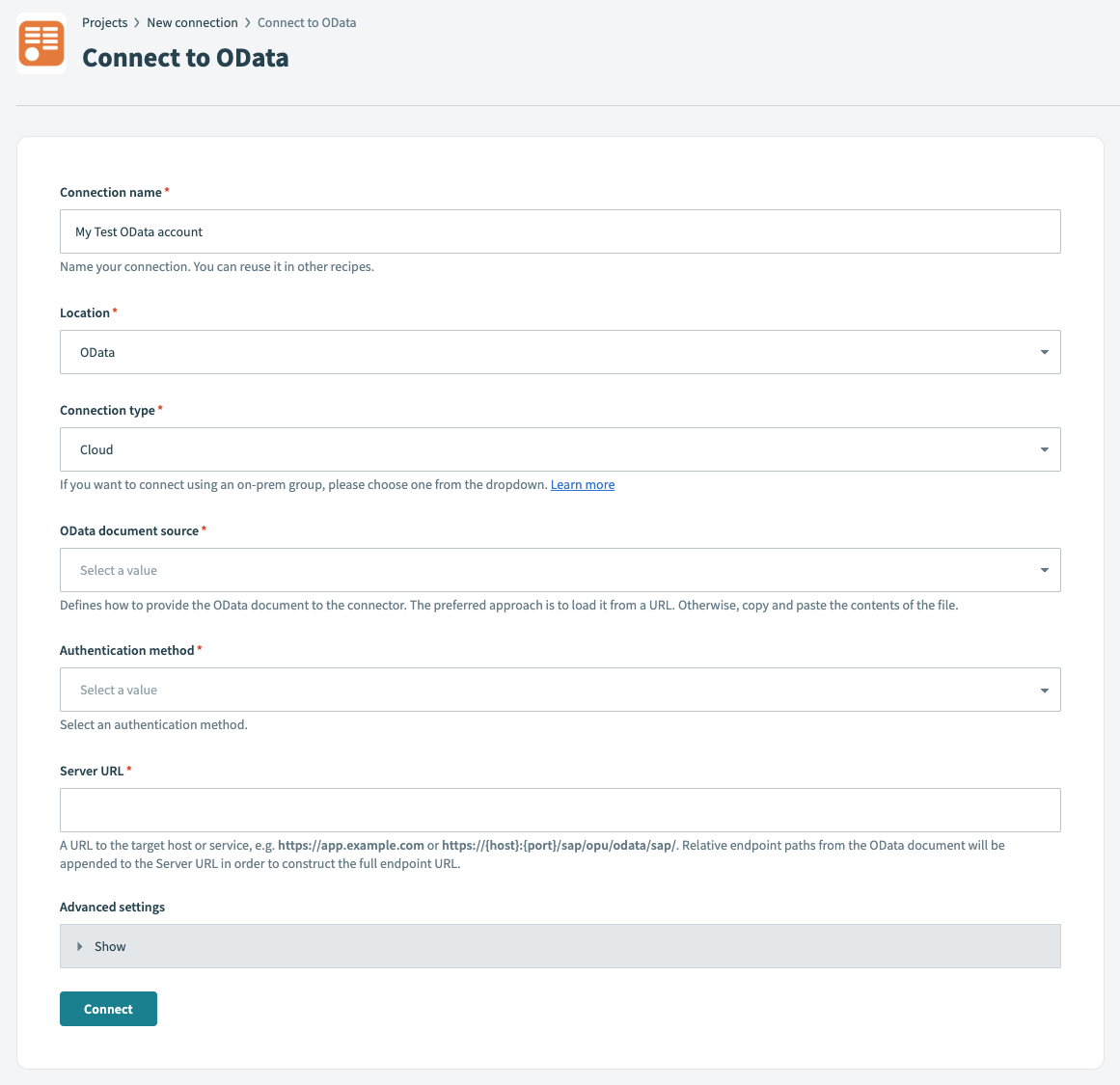 Create your connection
Use the Location drop-down menu to select the project where you plan to store the connection.
Select the Connection type from the drop-down menu to specify a cloud or on-prem connection.
Select the OData document source, such as Document URL or Document content. The document source defines how to provide the OData document to the connector. Workato recommends selecting Document URL.
Select an Authentication method from the drop-down menu. Refer to Authentication for a list of supported authentication methods.
Enter the Server URL that links to the target host or service.
Click Connect.
Last updated: