# PDF tools by Workato - Stamp PDF action
The Stamp PDF action adds text or image stamps as overlays on PDF pages while preserving the original content. You can use it to add invoice numbers, approval stamps, watermarks, or labels to PDF documents in your workflows.
Signed PDFs and PDF/A Compliance
Stamping a signed PDF invalidates all signatures in the output file. Apply stamps before signing to keep signatures valid.
If the source PDF is PDF/A compliant (archival format), the stamped output no longer maintains PDF/A conformance.
# Input
| Input field | Description |
|---|---|
| Source PDF | Provide the file content of the PDF to stamp. The maximum size is 100 MB. |
| Stamp type | Select whether to stamp text or an image onto the PDF. |
| Image file | Provide the file content of the image to stamp. Maximum size is 10 MB. Accepted formats include image/jpeg, image/png, and image/jpg.This field is available if you select Image as the Stamp type. |
| Text content | Enter the text to stamp on the PDF. This field is available if you select Text as the Stamp type. |
| Page range | Specify the pages to stamp. For example, 1-3,5,7-10. Defaults to all pages if not specified. |
| Position | Select the position of the stamp on the page. Defaults to top_right if not specified. |
| Margin from edge | Set the distance in points from the page edge. Range is 0-200. Defaults to 20.0 points if not specified. |
| Image size | Choose Large (40.0%) or Small (15.0%), or toggle to set a custom width between 1 and 100 percent of the page. Height adjusts automatically to preserve aspect ratio. Defaults to Small if not set. This field is available if you select Image as the Stamp type. |
| Text size | Enter the font size in points. The range is 6-72. Defaults to 12.0 if not specified. This field is available if you select Text as the Stamp type. |
| Text font | Specify the font style for the text stamp. Defaults to Calibri if not specified. If text contains Unicode characters outside of the supported font range, the system uses Noto Sans automatically. This field is available if you select Text as the Stamp type. |
| Text color | Specify the color of the text stamp. Defaults to black if not specified. This field is available if you select Text as the Stamp type. |
# Output
| Output field | Description |
|---|---|
| Content | The stamped PDF file as binary content. Use this output with file upload actions or storage connectors to save the modified PDF. |
# Example usage
This example recipe helps Finance teams track paid invoices. When a payment is completed, the recipe downloads the invoice PDF from Google Drive, applies a PAID stamp, and saves the stamped version back before archiving.
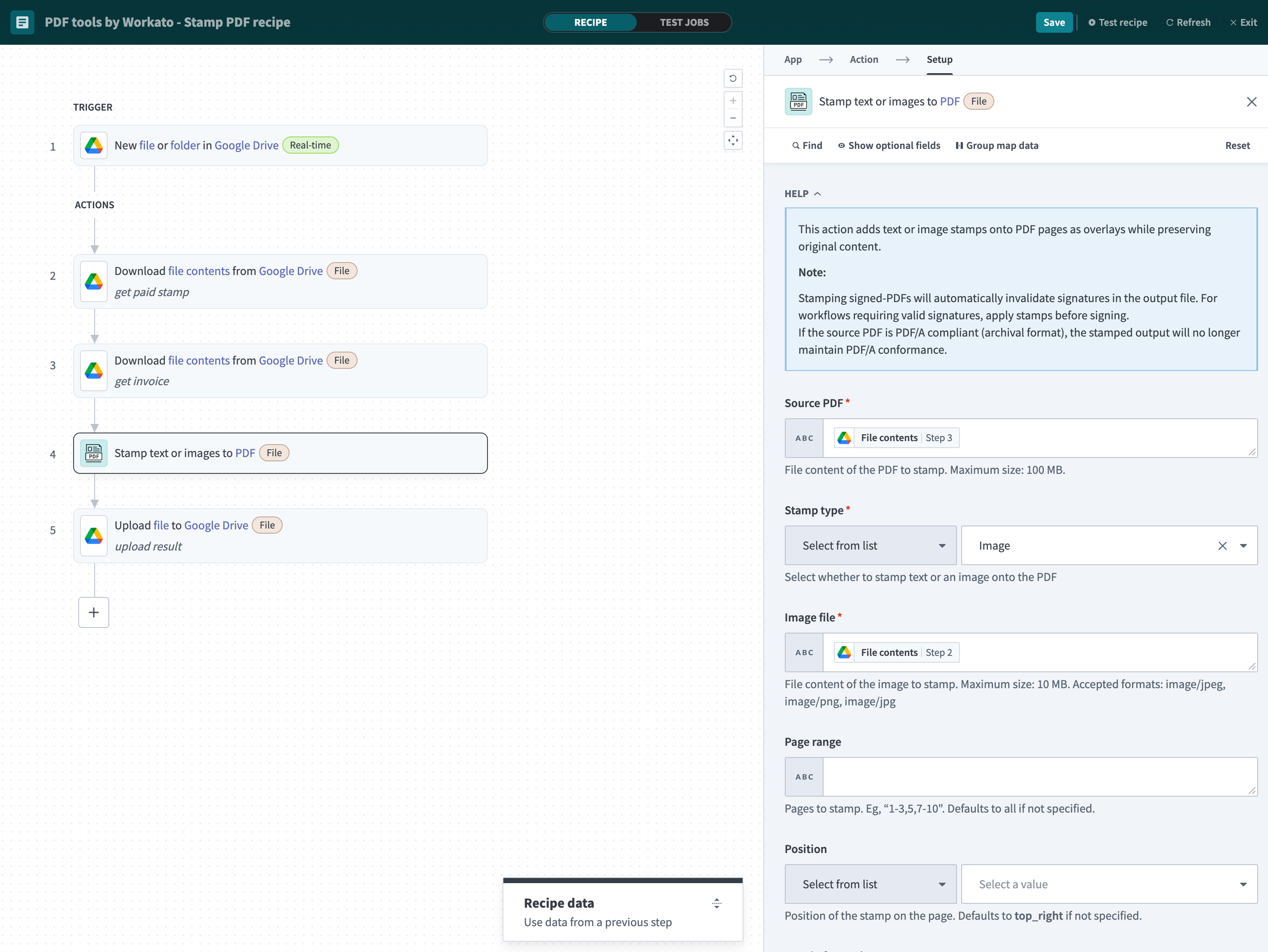 Recipe workflow showing invoice stamping process
The recipe downloads both the invoice PDF and the PAID stamp image from Google Drive, uses the Stamp PDF action to overlay the stamp in the top-right corner, then uploads the result.
The following tabs show the invoice before and after stamping:
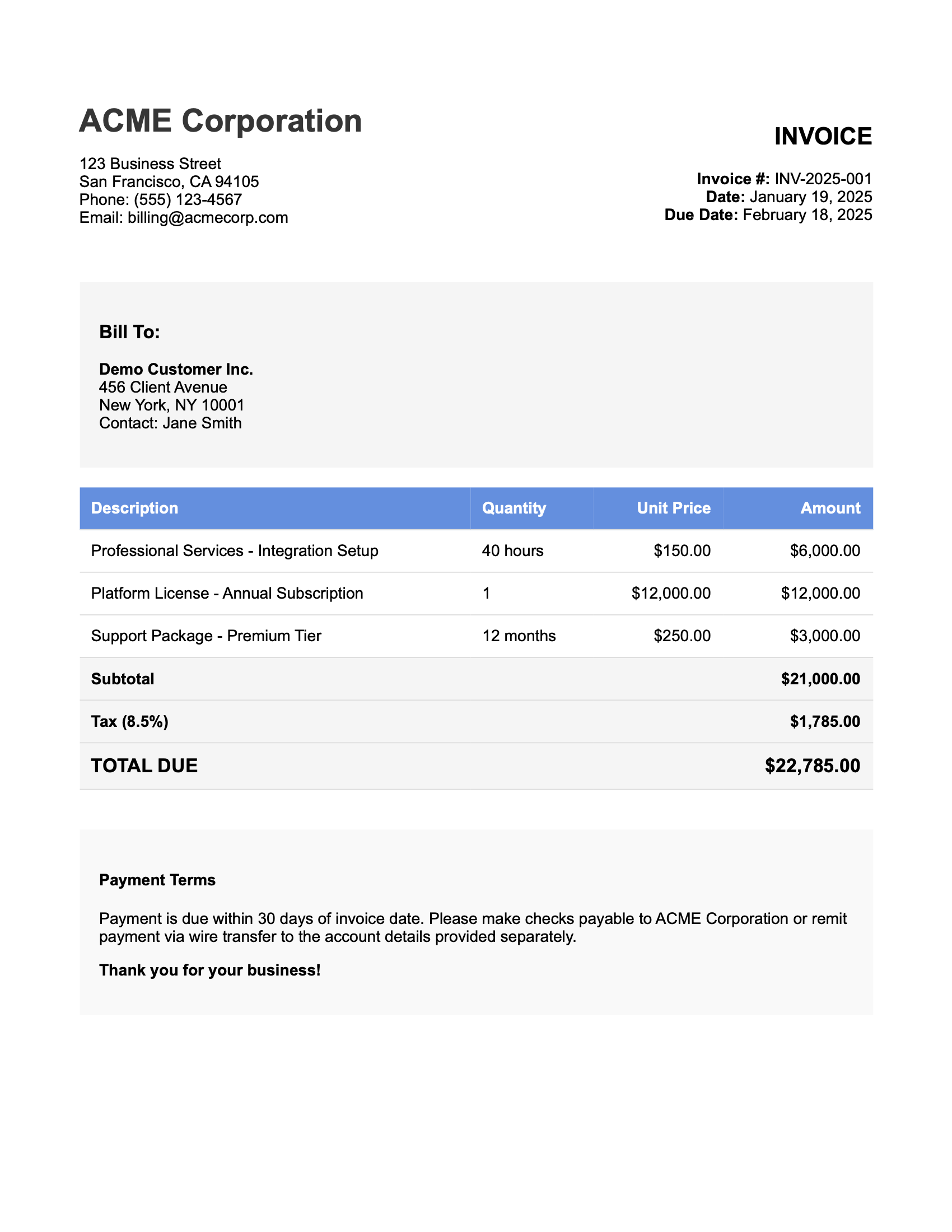 Original invoice before stamping
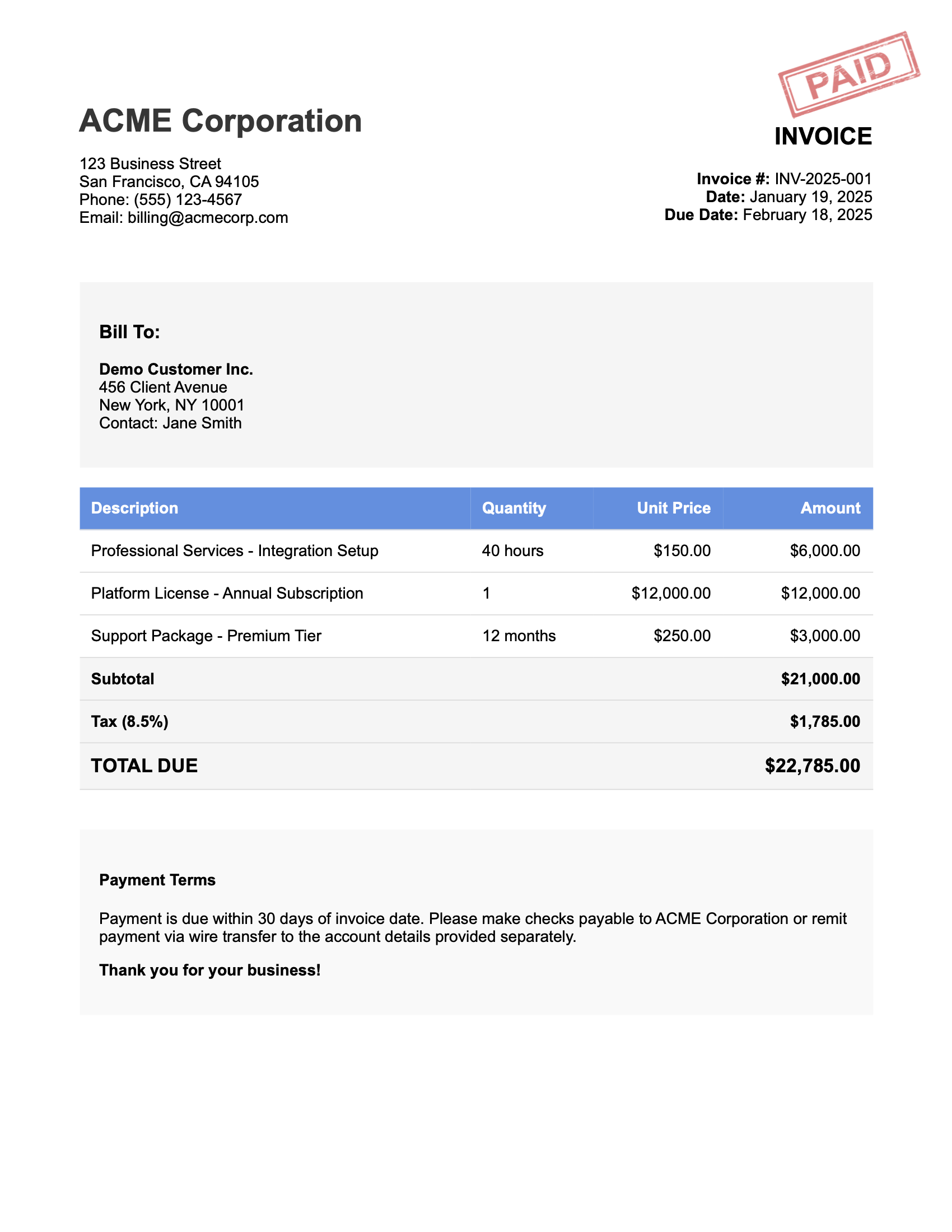 Invoice with PAID stamp applied to top-right corner
Last updated: 2/5/2026, 7:46:24 PM