Slack - Actions
Requirements
All Slack actions use the Slack Web API to perform recipe actions.
You must create a Slack app before you can use Slack actions. Refer to our Slack triggers documentation to learn how to create a Slack app.
Permission scopes
The connected Slack app performs Slack actions on behalf of the user. To perform each action, the app must have the associated permission scope. For example, the Create conversation action uses the conversations.create method, which requires the connected Slack app to have the channels:write scope.
The following table describes the minimum permissions required for optimal use.
| Token type | Scope | Reason |
|---|---|---|
| Bot | None | No bot scopes required. |
| User | channels:read | Retrieves a list of public conversations. |
channels:write | Create/update public conversations. | |
groups:read | Retrieves a list of private conversations. | |
groups:write | Create/update private conversations. | |
im:read | Retrieves a list of direct message conversations. | |
im:write | Create/update direct message conversations. | |
mpim:write | Create/update multi-party group conversations. | |
mpim:read | Retrieves a list of multi-party group conversations. | |
chat:write | Post messages as a user. | |
users:read | Get user information. | |
users:read.email | Get user information by email. |
Add or remove permission scopes
To add or remove permission scopes for your app:
Go to your Slack app's page. The URL for this page uses the following format:
https://api.slack.com/apps/{app_id}The app_id is unique to your app.
Go to OAuth & Permissions > Scopes to select your app's permission scopes.
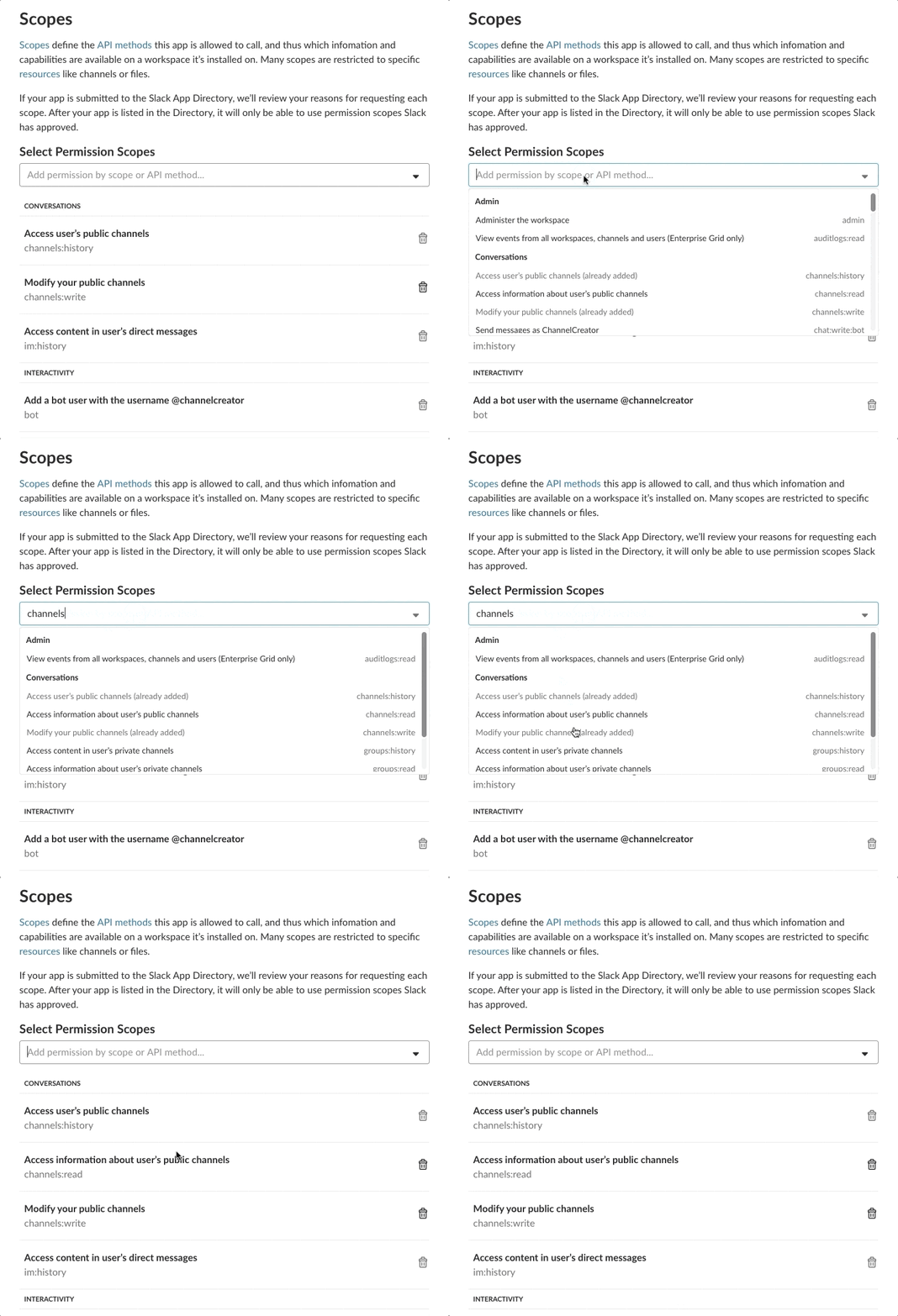 Add permission scopes
Click Save changes to save your permission scopes.
Event subscriptions and permission scopes
When you subscribe to events, Slack automatically adds the scopes that your app does not already have. This can result in your app having unintended permissions from the additional scopes. After you subscribe to events, we recommend going to OAuth & Permissions > Scopes to confirm your app's permission scopes.
Post message action
The post message action posts a message to your specified channel or user. By default, messages are posted as the authenticated user.
 Message posted as the authenticated user
Refer to our Custom OAuth profiles documentation for more information.
How it works
The messages you post can range from simple to complex. For example, you can configure this connector to post a message that contains one line of text, or configure it to include a combination of text, buttons, menus, icons and images.
Input
Channel
You can post messages to channels (public and private), or to a specific user.
If you're using channel names to post messages to a channel, prefix them with #, for example, #support-ticket-101. Otherwise, use the channel IDs and channel datapills as-is, for example, CANUXC4MU or Channel respectively.
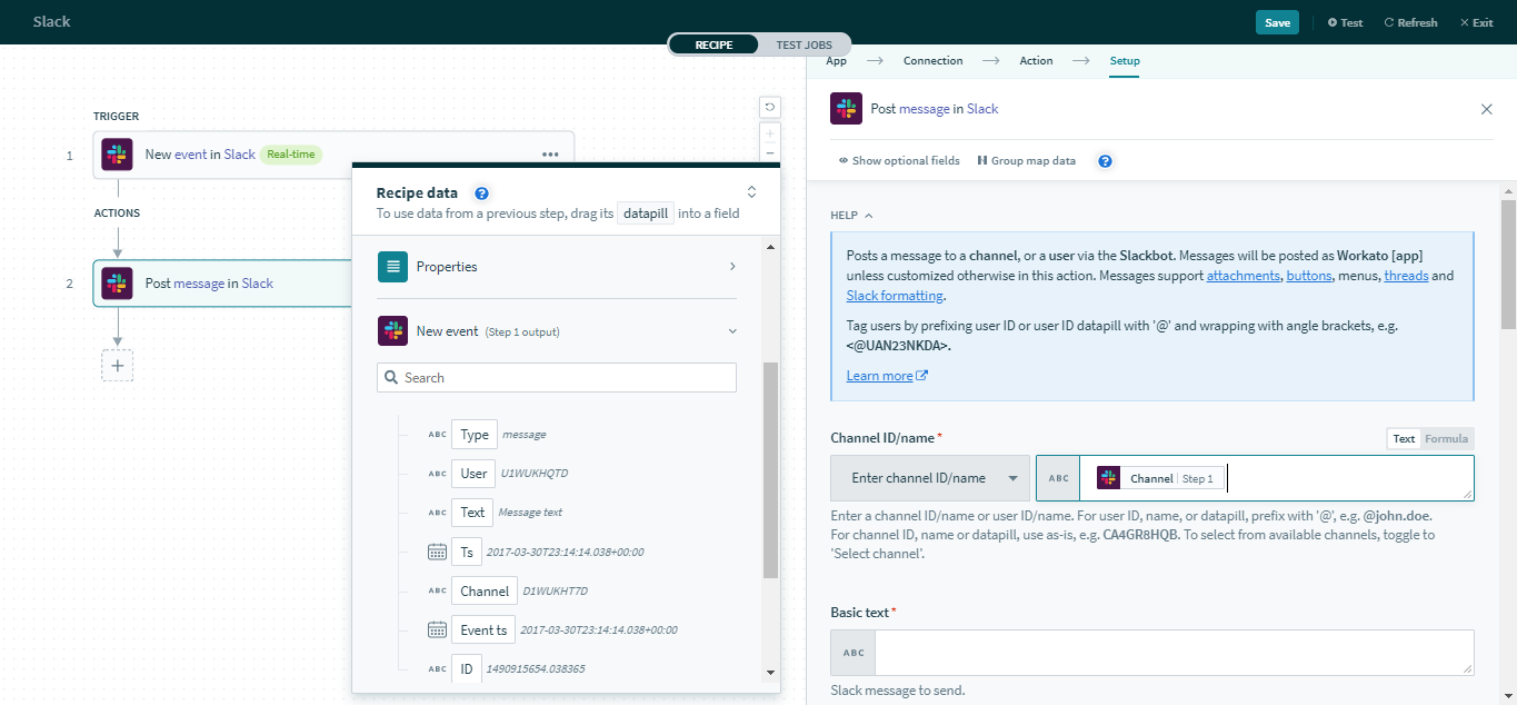 Channel datapill
Similarly, if you're using user names to post a direct message (DM) to a user, prefix them with @, for example, @johndoe. Otherwise, use user IDs and user datapills without modifying them. For example, UA12345 or User ID respectively.
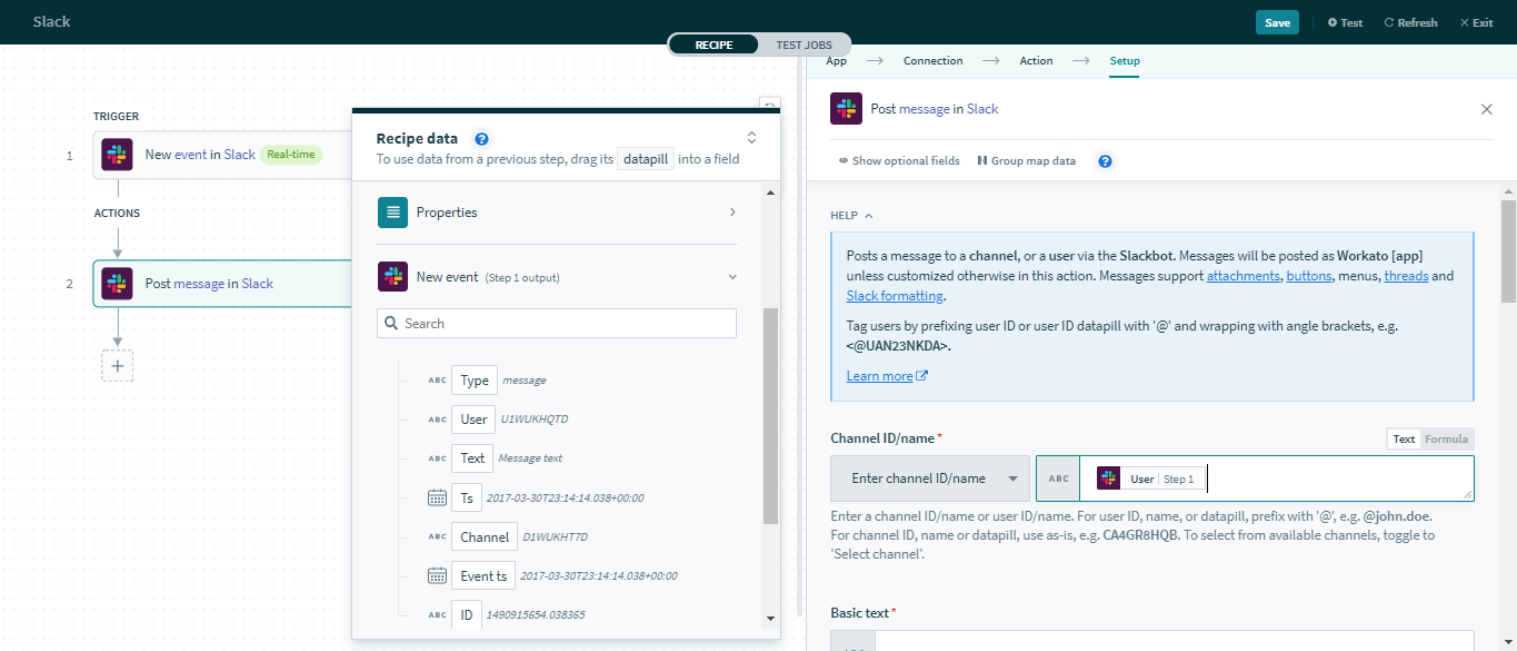 User datapill
Basic text
This is the most basic text field for a post message.
 Basic text in Slack
If Allow Slack formatting is enabled, you can tag users in the message by enclosing their user ID or user name with <@ >, for example, <@UA12345> or <@johndoe> for user ID and user name respectively.
Attachment title
This input adds an attachment title to the post message.
 Attachment title text in Slack
Attachment title link
When you provide a valid URL, this field is hyperlinked to the attachment title, redirecting users there if clicked.
 Attachment title link in Slack
USE CASE EXAMPLE
To learn how to create a recipe that shares image attachments in Slack using a downloadable link, refer to the Share image attachments from email in Slack using a public link use case.
Attachment text
This field adds attachment text to the post message, below the attachment title.
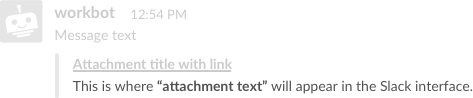 Attachment text in Slack
Attachment message fields
This field creates a two-column layout below the message text. Enter one name-value pair per line, for example, Name: John.
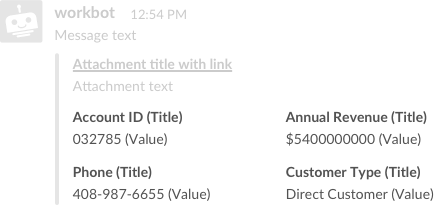 Attachment message fields in Slack
Buttons
This field adds a button to the post message. When this button is clicked, it triggers a button click event. Another recipe is required to handle this event. Refer to our Slack triggers documentation to learn more about button click triggers.
Button action handler recipes
This field lists any Slack recipes with a button click trigger. Choosing a recipe ensures that button clicks from this button trigger it.
Button actions
This field specifies certain characteristics of the button. Enter one button action on each line in this format:
action name, action ID, style, confirmation title, confirmation text, ok button title, dismiss button titleOnly the first two parameters must be filled in for non-danger-styled actions, as no popup prompt is generated. For example:
Notify BizDev, bd, , , , ,For danger-styled actions, all seven parameters must be filled in. For example:
Notify Sales, sales, danger, Confirm, Are you sure?, Yes, CancelThe following table provides a detailed description of each button parameter.
| Button definition input fields | Description |
|---|---|
| Action name | The button label visible to the Slack user interacting with the buttons. |
| Action ID | The internal value of the button. This must be unique. This value is not visible on Slack to anyone. |
| Style | Leave this field as well as the remaining four fields blank for non-danger styled actions since no pop-up is generated. Otherwise, put danger to generate a red button with a pop-up prompt, requiring the user to confirm the button click. When configuring a danger button, you must provide input for the remaining four fields. |
| Confirmation title | This value displays in the pop-up prompt as the header. |
| Confirmation text | This value displays in the pop-up prompt as the body text. |
| Ok button title | The Button label in the pop-up prompt to confirm the button click. |
| Dismiss button title | The button label in the pop-up prompt to cancel the button click. |
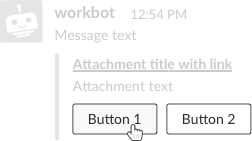 Buttons in Slack
Attachment color
This field allows you to choose the color of the vertical line to the left of the message.
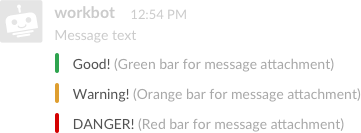 Attachment color in Slack
Thumb URL
When a valid image URL is provided, this field displays a thumb image to the right of the message.
Image URL
When a valid image URL is provided, this field will display the image at the bottom of the message. Image will be resized to max width of 400px or a max height of 500px.
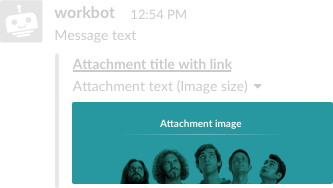 Image URL in Slack
Allow Slack formatting
When enabled, this field allows you to tag users in the message by enclosing their user ID or user name with < >, for example, <UA12345> or <@johndoe> for user ID and user name respectively.
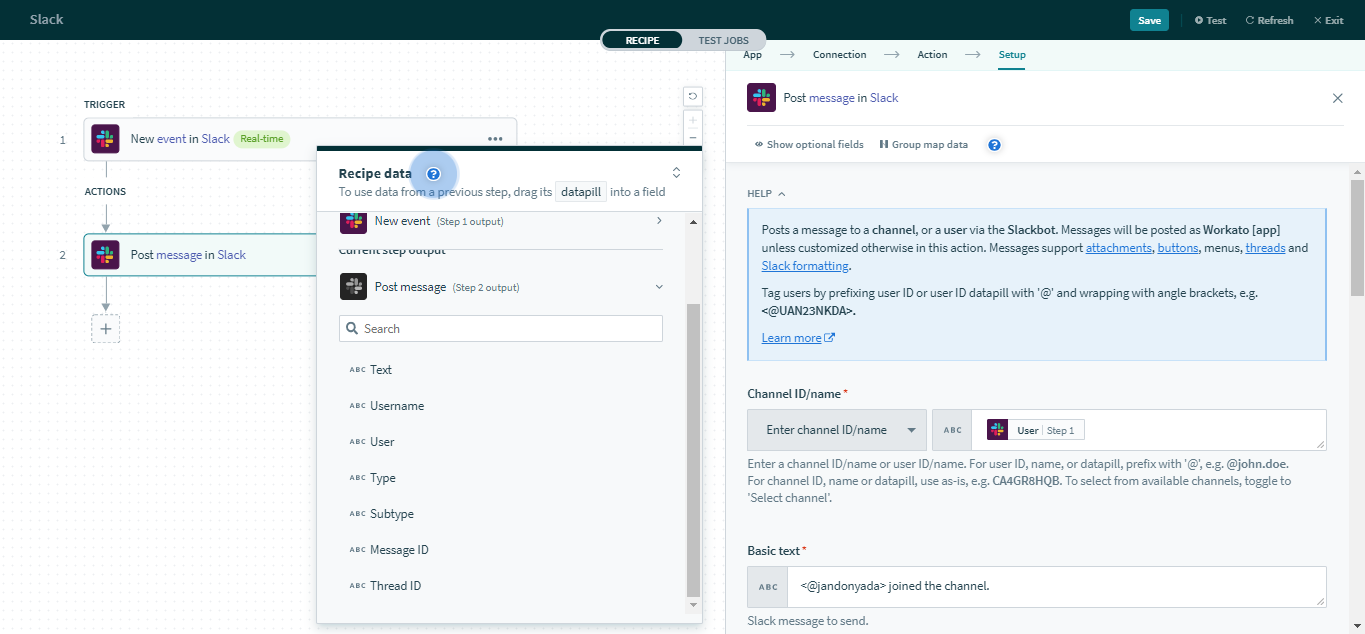 Tag users by allowing Slack formatting
Thread ID
Slack threads allow you to group related messages together, making it easier to follow conversations in Slack channels or groups.
To post a message in an existing thread, enter the Thread ID datapill in this field. Alternatively, you can pass the Message ID of the parent message.
Passing a parent message ID to continue a thread
Refer to this Button action example recipe to learn how to configure actions using the thread ID.
If a thread does not exist yet, but you plan to post a message threaded under a parent message, supply the Message ID of the parent message.
Post message as (deprecated)
This field allows you to change the name of the user who posts the message. By default, messages are posted as the authenticated user. This field only works for Classic Slack apps. Classic Slack apps are apps that were created before June 10, 2020, utilizing the old umbrella bot scope.
 How it will look like in Slack
Icon image URL (deprecated)
This field allows you to change the icon of the user by who posts the message. By default, messages are posted as the authenticated user. This field only works for Classic Slack apps. Classic Slack apps are apps created before June 10, 2020, utilizing the old umbrella bot scope.
 How it will look like in Slack
Respond to button click actions
The Respond to button click action works together with the button click (real-time) trigger to post messages in response to the button click.
How it works
By passing the Response URL pill from the output of a button click (real-time) trigger, the recipe will know which button has been clicked at run-time.
Similar to the post message action, this action can post messages that are just a simple line of text or include a combination of text, buttons, menus, icons, and images—depending on your use case.
Input
The following are the additional input fields that the Slack action Respond to button has on top of the usual input fields in the Post message action.
| Input field | Description |
|---|---|
| Button response URL | You can obtain this value from the output datatree of the Slack trigger New button action. This tells the action what button click to respond to. |
| Response type | In channel: Posts the message like a normal chat message. Ephemeral: Posts the message so that it is visible only to the user who clicked the button. |
| Replace original | If yes, the new message overwrites the original message with buttons and is posted in the same position in the channel. If no, the original message with buttons remains in the same position in the channel. The new message is added to the end of the channel conversation. |
| Delete original | If yes, the original message with buttons is removed from the channel. The new message is added to the end of the channel conversation. If no, the original message with buttons remains in the same position in the channel. The new message is added to the end of the channel conversation. |
Invite user to conversation action
The Invite user to conversation action invites a user to a conversation.
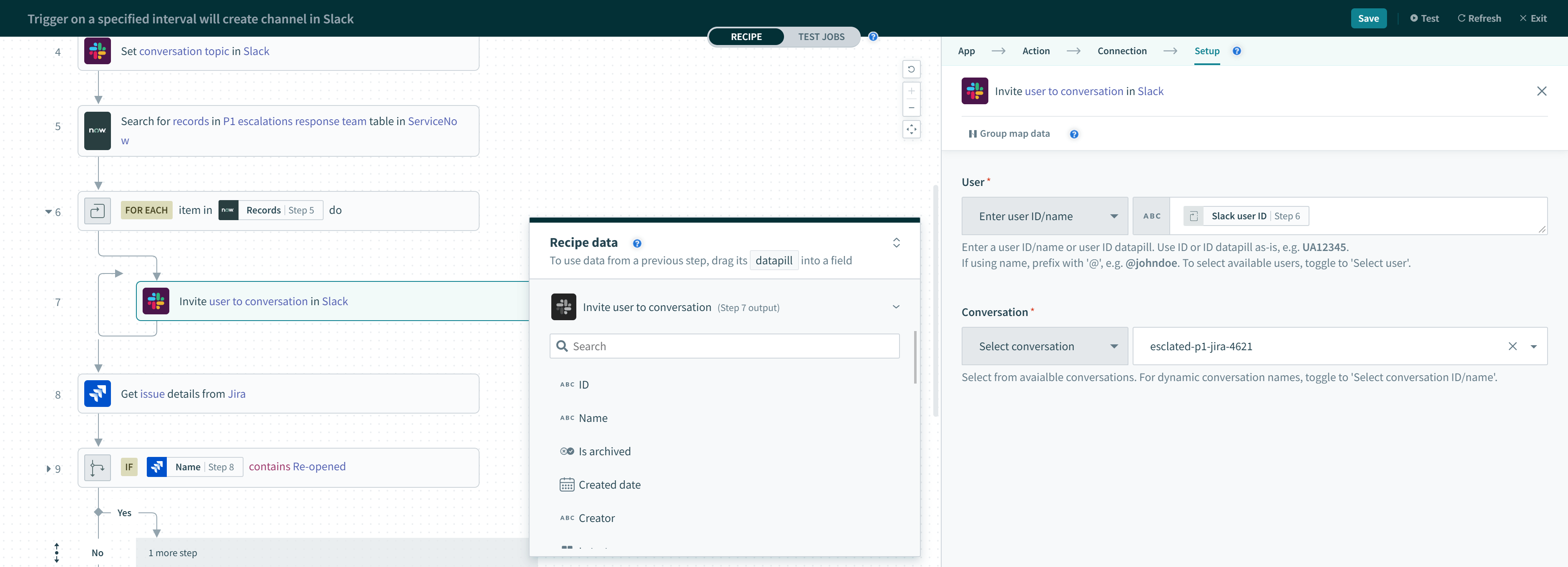
Input
User
You can use either the user ID/name or user ID datapill. Prefix user names with ‘@’, for example, @johndoe. However, use user IDs and user ID datapills as-is, for example, UA12345 or ID, without prefixing them with '@'.
To select available users, switch to Select user. 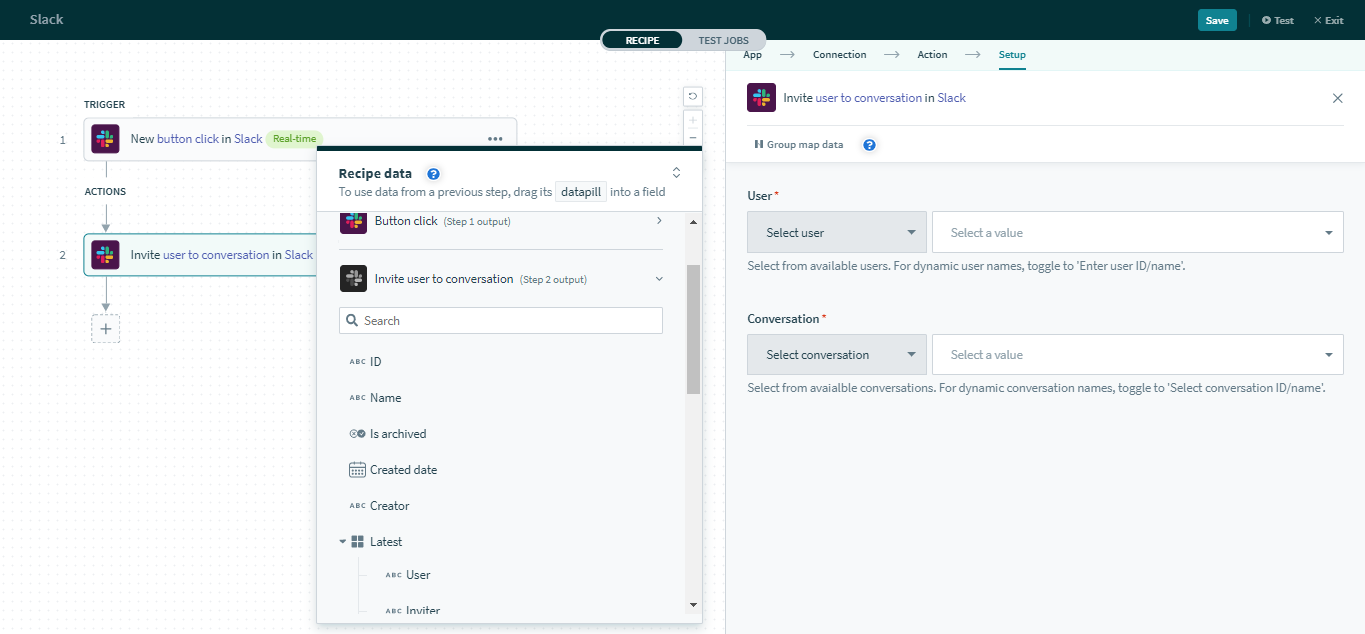
Conversation
Select the conversation to invite the user to. Alternatively, you can use a conversation ID or dynamically set one with a Channel datapill.
To select available conversations, switch to Select conversation. 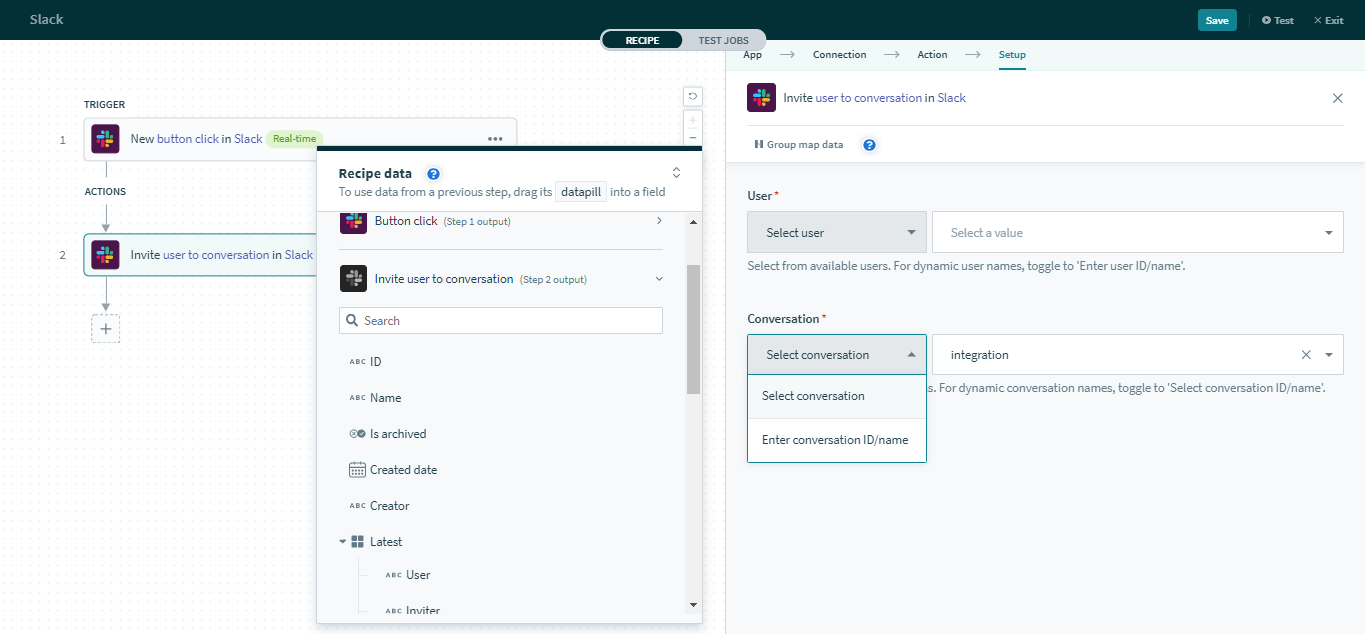
Archive conversation action
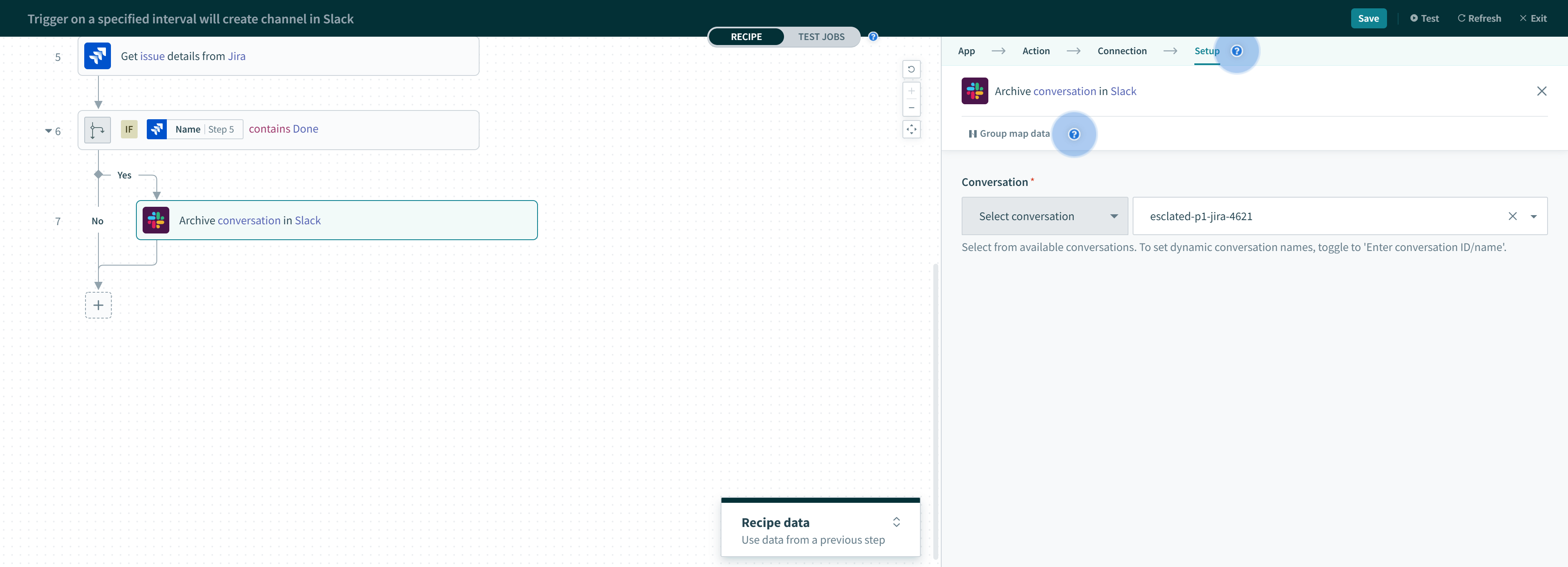
The Archive conversation action allows you to archive public, private channels, and multi-party groups to which your app has been added. Note that the #general channel of a Slack workspace cannot be archived.
Input
Conversation
Select the conversation to archive. Alternatively, you can use a conversation ID or dynamically set one with a Channel datapill.
To select available conversations, switch to Select conversation. 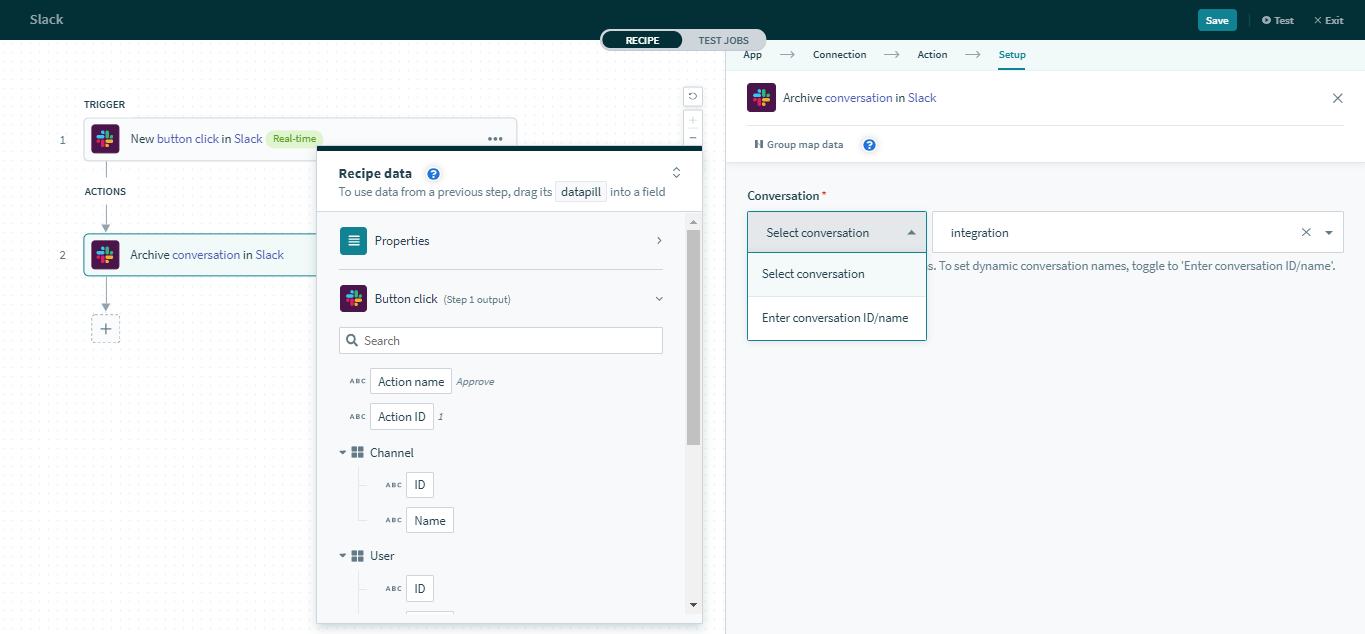 Switching to Select channel
Unarchive conversation action
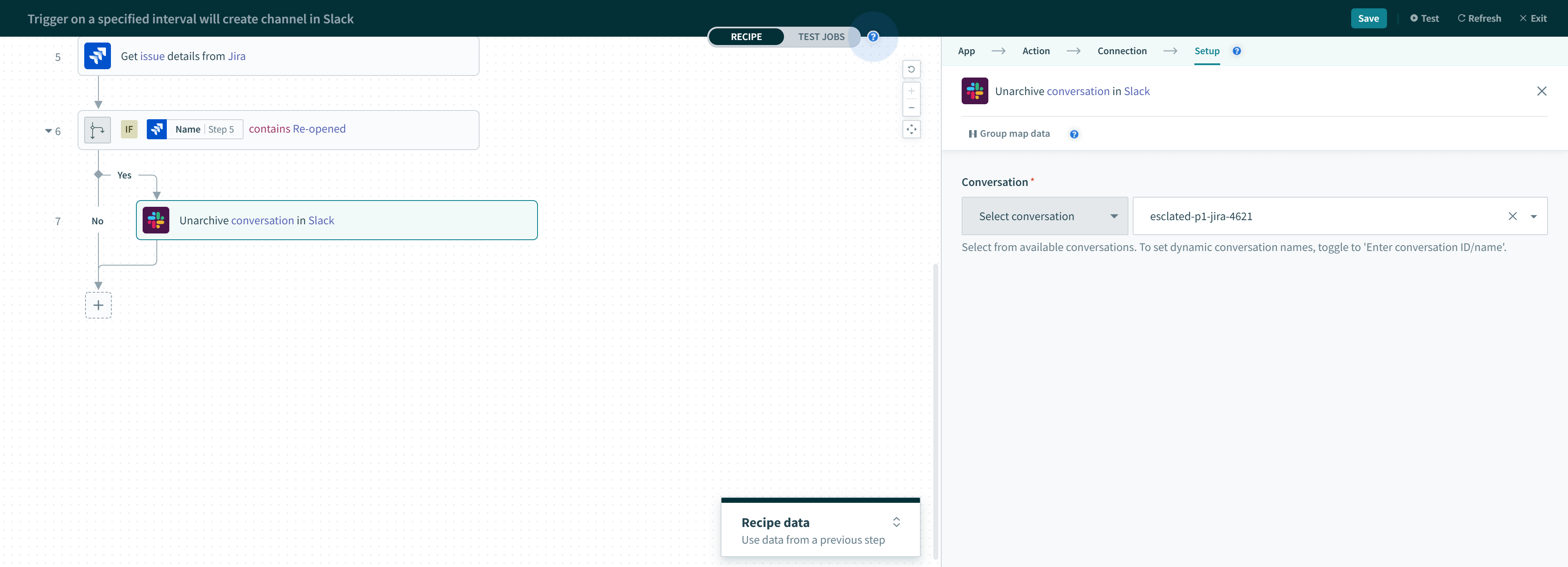
The Unarchive conversation action allows you to unarchive public and private channels.
Input
Conversation
Select the conversation to unarchive. Alternatively, you can use a conversation ID or dynamically set one with a Channel datapill.
To select available conversations, switch to Select conversation. 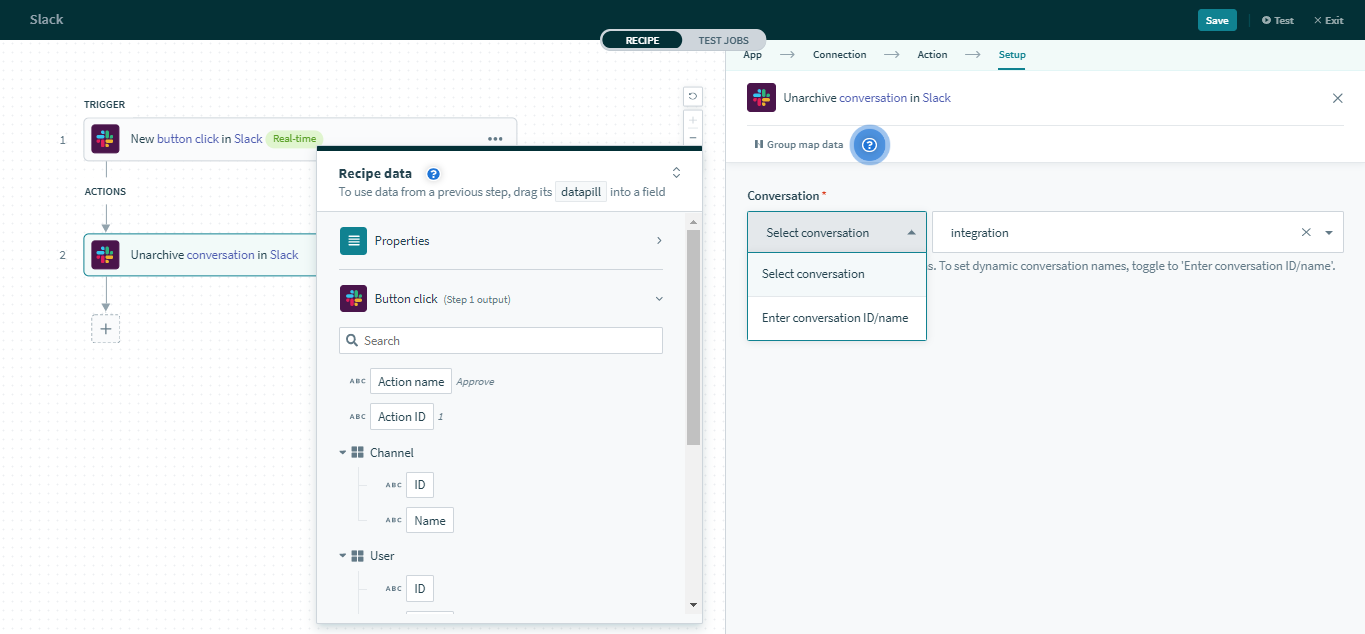 Switching to 'Select conversation'
Create conversation action
The Create conversation action creates a channel with a specified channel name. You can also create private channels. Channel names can only contain lowercase letters, numbers, hyphens, and underscores, and must be 80 characters or less.
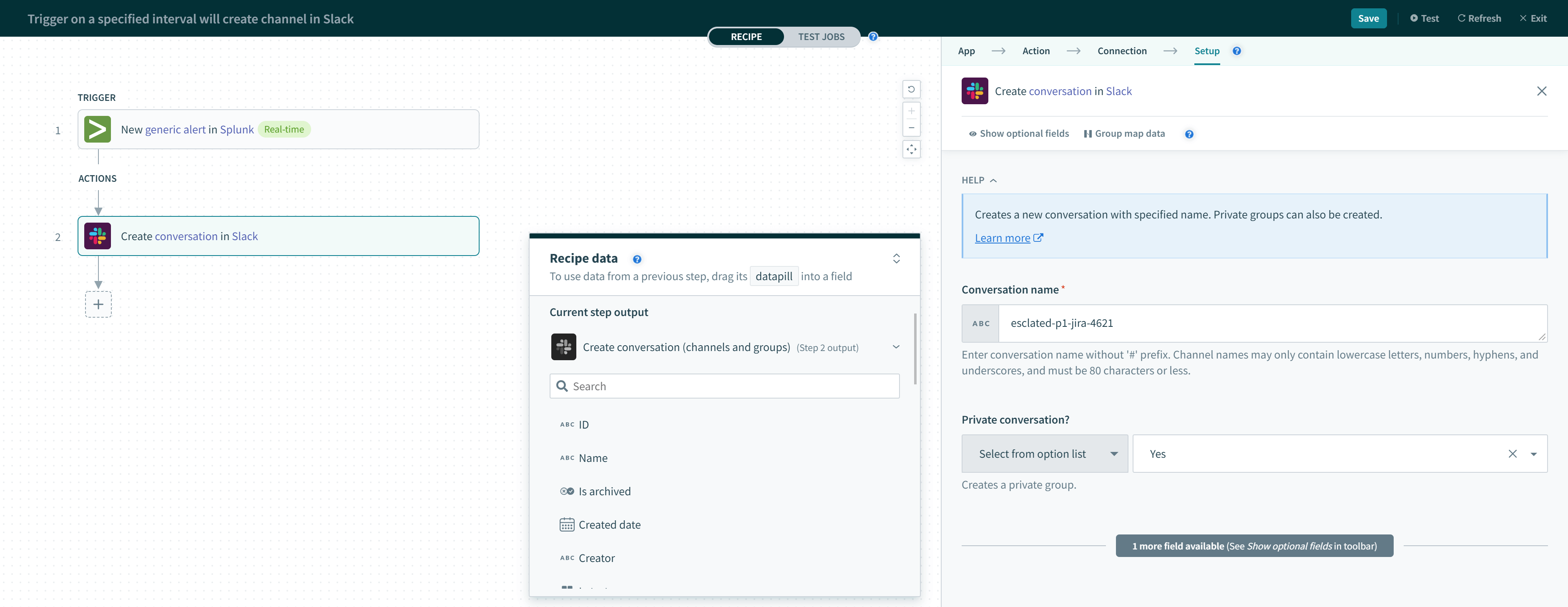 Create conversation action
Input
Private channel?
Set to Yes to create a private channel. Defaults to No.
Return channel details if already exists?
By default, if the channel already exists, this action returns an error. Set this input to Yes to prevent an error and direct Workato to return the existing channel's details instead. In workspaces with a large number of conversations, Workato only retrieves and searches through the first 1000 records. This is due to limitations imposed by the Slack API which doesn't facilitate filtering conversations by channel name. If no matching entry is found within the first 1000 records, Workato returns an error.
Set conversation purpose action
The Set conversation purpose action allows you to set the purpose of a conversation.
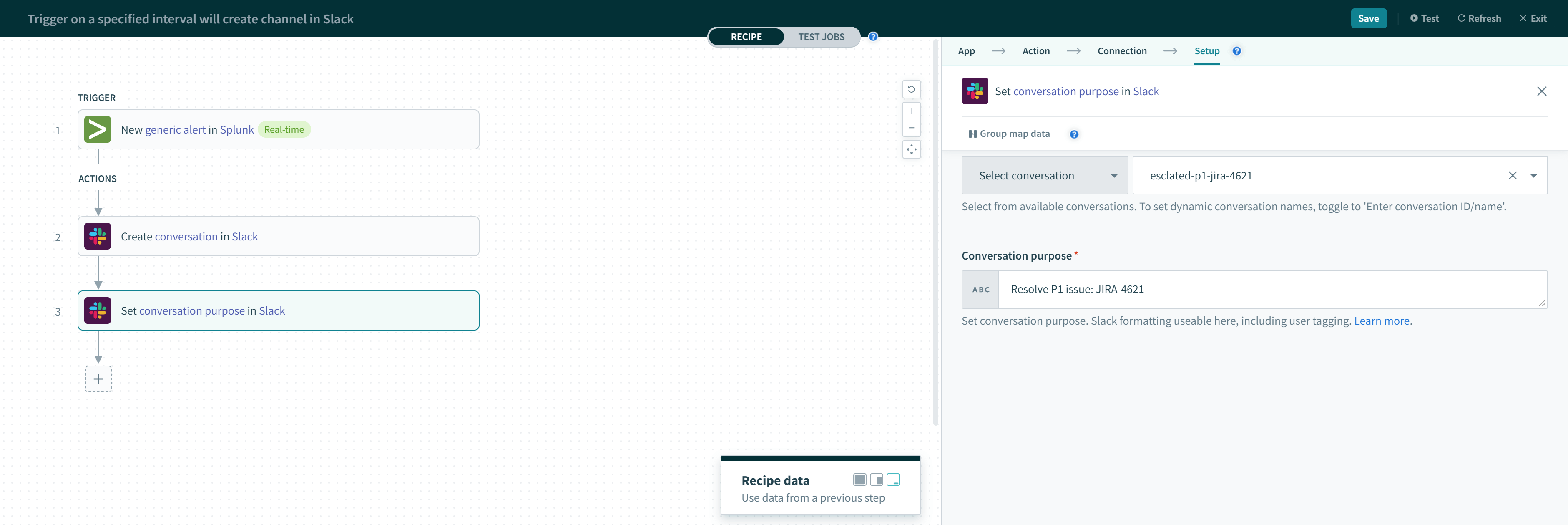 Set conversation purpose action
Input
Conversation
Select the conversation for which you plan to set the purpose. Alternatively, you can use a conversation ID or dynamically set the conversation purpose using a Channel datapill.
To select available conversations, switch to Select conversation.
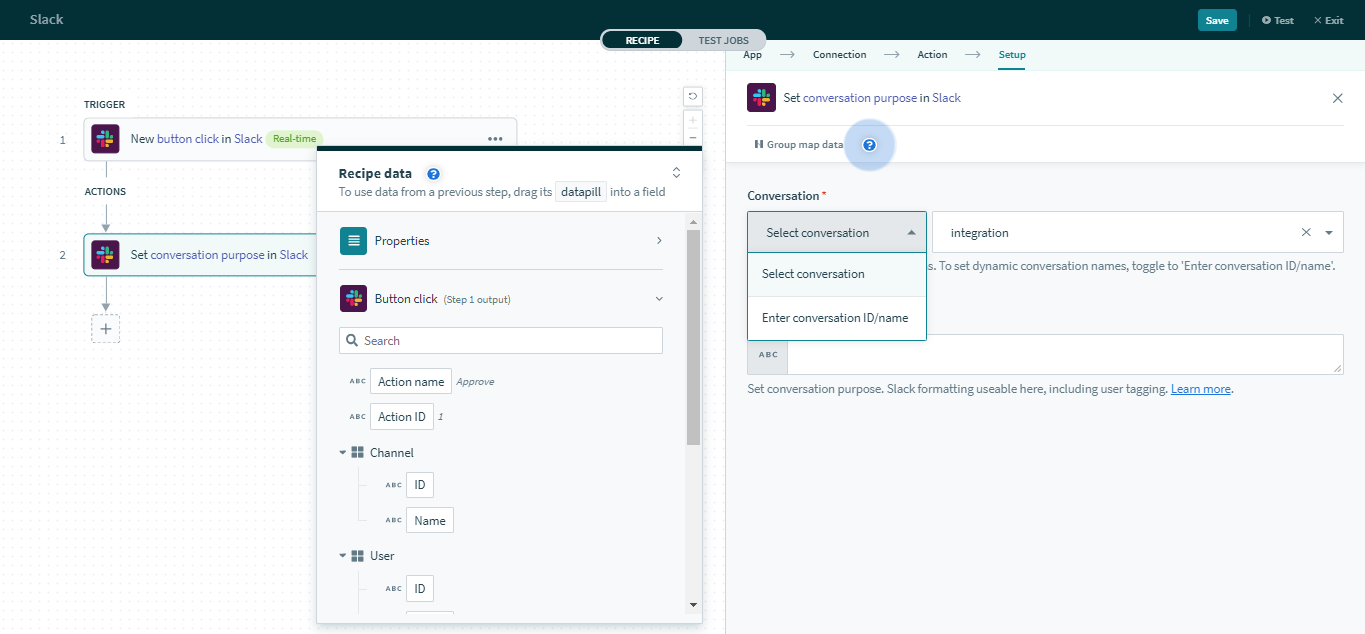 Switching to Select conversation
Conversation purpose
Set the conversation's purpose. Slack formatting works in this field, including tagging users.
For example:
Input
"Hi <@johndoe>, how are _you_ *doing*?"Output
Hi @johndoe, how are you doing?
Refer to Slack's documentation to learn more about formatting messages in Slack.
Set conversation topic action
The Set conversation topic action allows you to set the topic of a conversation.
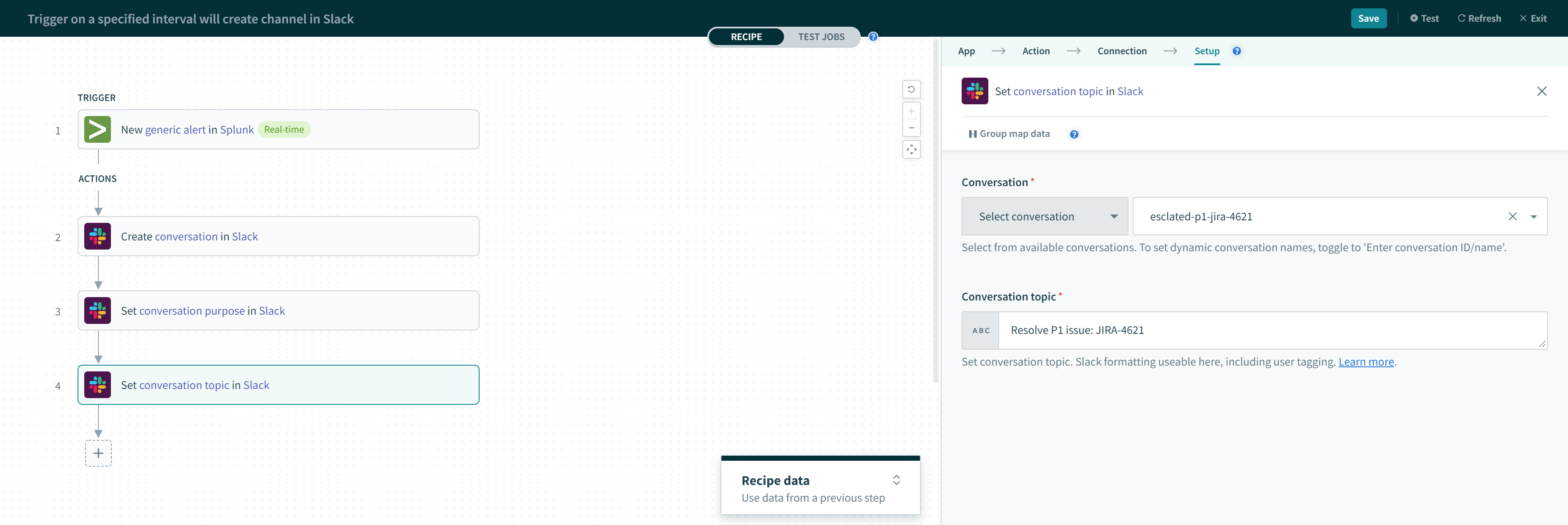 Set conversation topic action
Slack formatting works in this field, including tagging users. For example:
Input
"Hi <@johndoe>, how are _you_ *doing*?"Output
Hi @johndoe, how are you doing?
Refer to Slack's documentation to learn more about formatting messages in Slack.
Input
Conversation
Select the conversation for which you plan to set the topic. Alternatively, you can use a conversation ID or dynamically set one using a Channel datapill.
To select available conversations, switch to Select conversations. 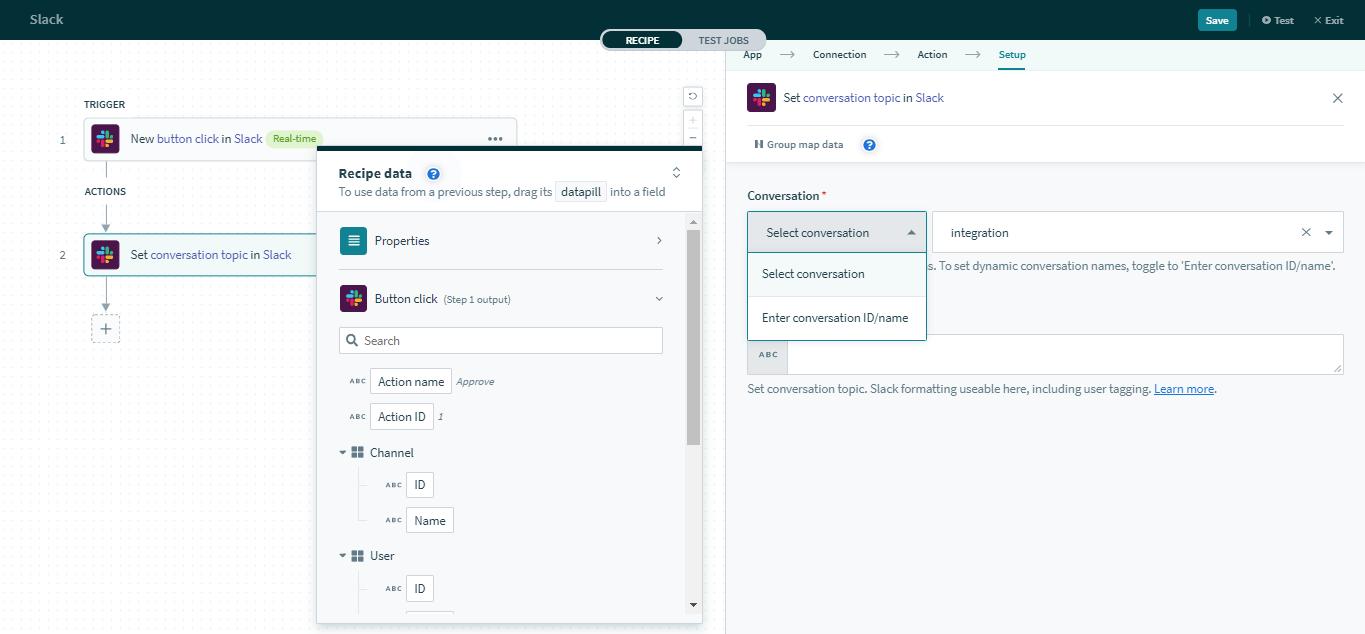 Switching to Select conversations
Conversations topic
Set the conversation's purpose. The topic must be 250 characters or less. Slack formatting works in this field, including tagging users.
For example:
Input
"Hi <@johndoe>, how are _you_ *doing*?"Output
Hi @johndoe, how are you doing?
Refer to Slack's documentation to learn more about formatting messages in Slack.
Last updated: