# Configure Databricks as your data pipeline destination
Set up Databricks as a destination for your data pipeline. This connection enables Workato to replicate data from source applications into your Databricks workspace using the source schema.
# Features supported
The following features are supported when using Databricks as a pipeline destination:
- Automatic creation of destination tables based on source schema
- Support for full and incremental data loads
- Field-level data replication without explicit field mapping
- Schema drift handling and update operations
# Prerequisites
You must have the following configuration and access:
- A Databricks workspace with access to a SQL warehouse
- Server hostname and HTTP path for your Databricks SQL endpoint
- A supported authentication method
# Connect to Databricks
Complete the following steps to connect to Databricks as a data pipeline destination. This connection allows the pipeline to replicate and load data into Databricks.
Connect to Databricks
Select Create > Connection.
Search for and select Databricks on the New connection page.
Enter a name in the Connection name field.
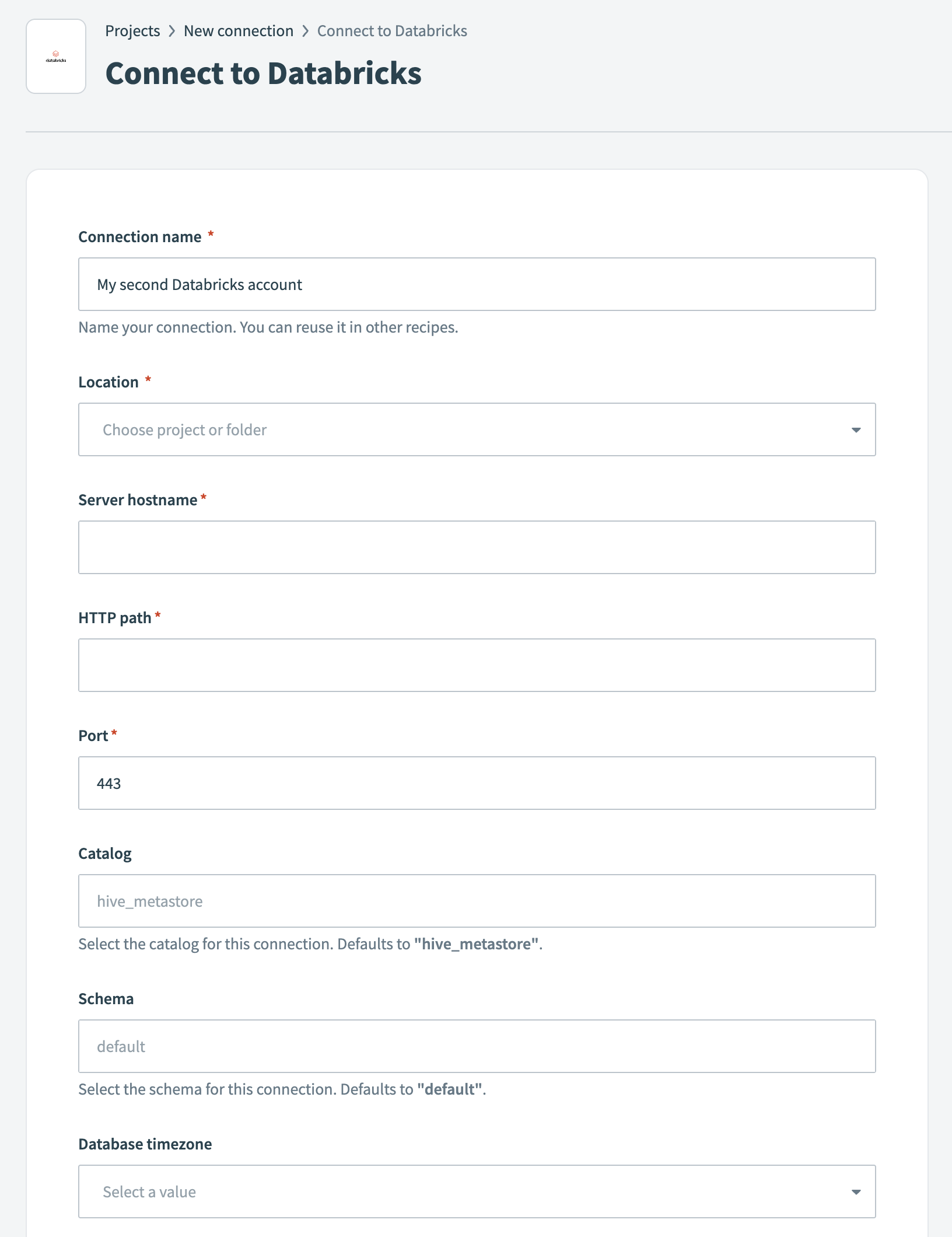 Databricks connection setup
Use the Location drop-down to select the project where you plan to store the connection.
Enter the Server hostname for your Databricks instance.
Enter the HTTP path. This path identifies the specific SQL warehouse in your Databricks environment.
Enter the Port for the connection. The default is 443.
Optional. Specify a Catalog. If left blank, the connector uses the default hive_metastore.
Optional. Specify a Schema. If left blank, the connector uses the default schema default.
Optional. Select a Database timezone. This timezone applies to timestamps during data replication.
Use the Authentication type drop-down menu to select one of the following authentication types:
- Username/Password: Enter your Databricks credentials in the Username and Password fields.
- Personal Access Token: Enter your Personal Access Token in the corresponding field.
Click Connect to verify and establish the connection.
# Configure the destination action
Before you start the pipeline, ensure the schema in Databricks is newly created and empty. This prevents errors during the initial sync and allows the pipeline to create destination tables without conflicts.
Click the Load data to target table in destination app action. This action defines how the pipeline replicates data in the destination.
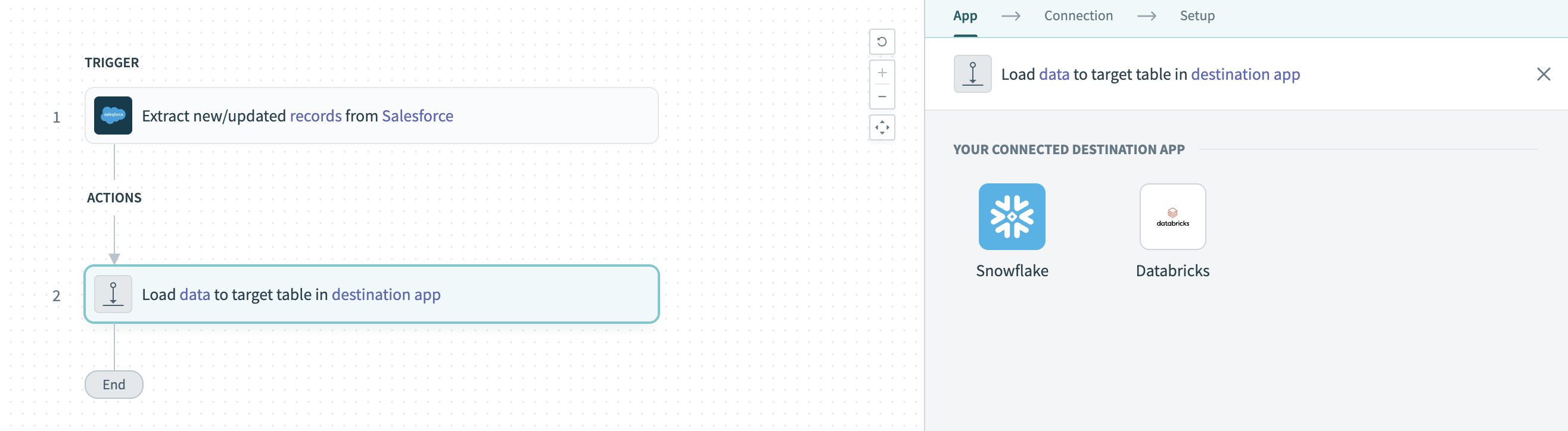 Configure the Load data to target table in destination app action
Select Databricks in the Your Connected Destination App field.
Choose the Databricks connection you plan to use for this pipeline. Alternatively, click + New connection to create a new connection.
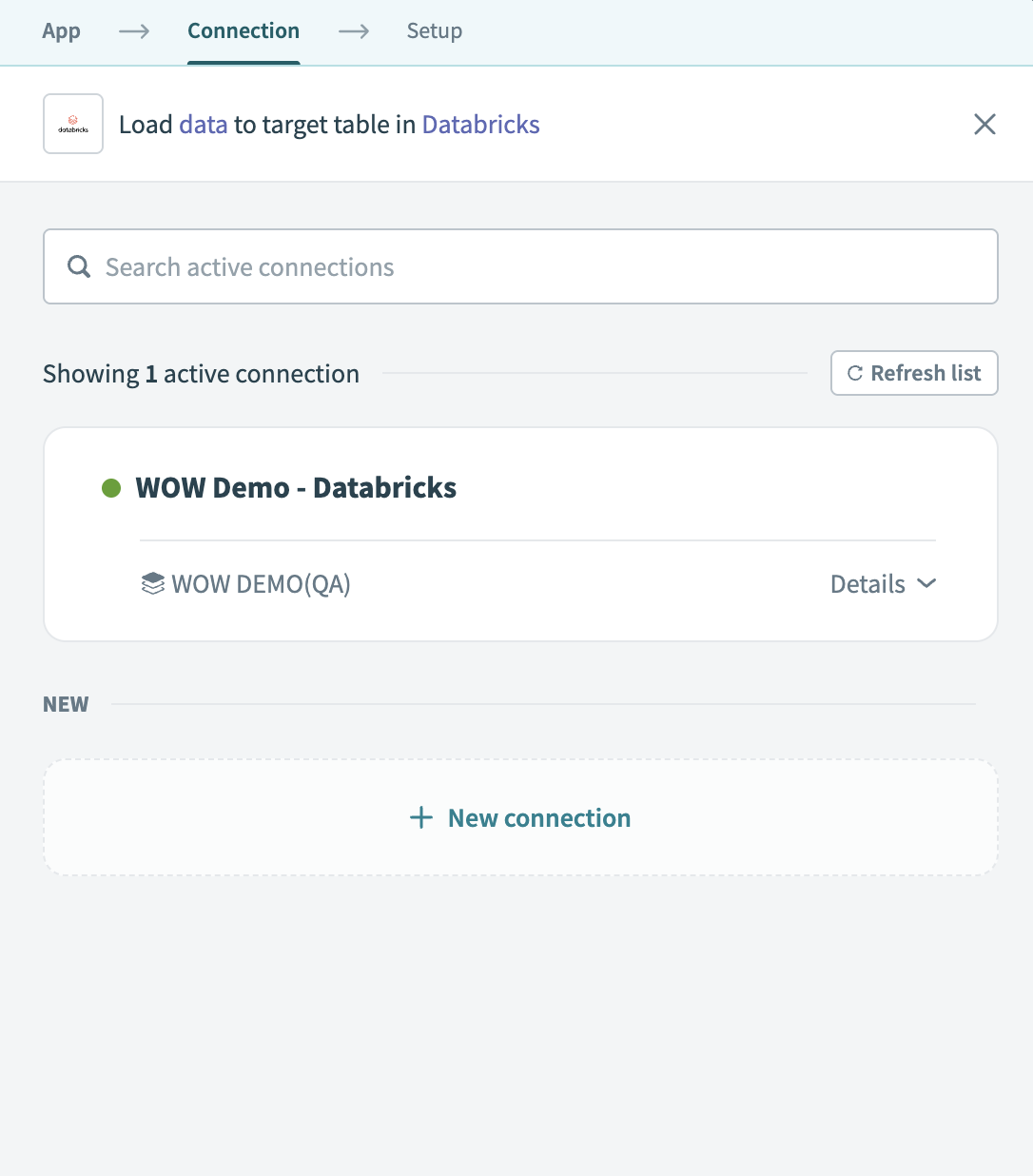 Choose a Databricks connection
The Load data to target table in destination app action automatically replicates the object schema from the source to Databricks. Explicit field mapping isn't required.
Workato pipelines automatically create destination tables based on the source schema. The pipeline also creates a stage and temporary tables to support data replication and update operations.
Select Save to save the pipeline.
# Identifier handling
Databricks uses a case-insensitive identifier system by default unless identifiers are quoted. Workato pipelines translate source column names into valid Databricks identifiers by applying the following rules:
- Column names are uppercased
- Special characters such as
$, spaces, or dashes are replaced with underscores (_)
Identifiers are wrapped in backticks (`) to support special characters and reserved words.
This ensures compatibility with Delta Lake table creation and querying behavior in Databricks.
# Example
The following source table structure:
| Source object | Source field |
|---|---|
Account | $Name$, Created Date, Limit |
Results in the following table created in Databricks:
CREATE TABLE `account` (`_NAME_`, `CREATED_DATE`, `LIMIT`)
Unquoted queries can reference columns regardless of case:
SELECT created_date FROM account;
Quoted queries must match the exact case and format:
SELECT `_NAME_` FROM `account`;
Ensure all queries follow Databricks identifier rules for consistent behavior across tools.
Last updated: 2/9/2026, 10:12:02 PM