JSON Transformations by Workato - JSON transformation action
The JSON transformation action enables you to transform one or more JSON inputs using a jq expression. You can format the result as structured JSON, CSV data, a content stream, or a file saved to FileStorage for use in downstream steps.
The JSON transformation action is a long action that enables you transform data in bulk without encountering a timeout error.
Complete the following steps to set up the action:
Search for and select JSON Transformations by Workato as your connector after you set up your trigger.
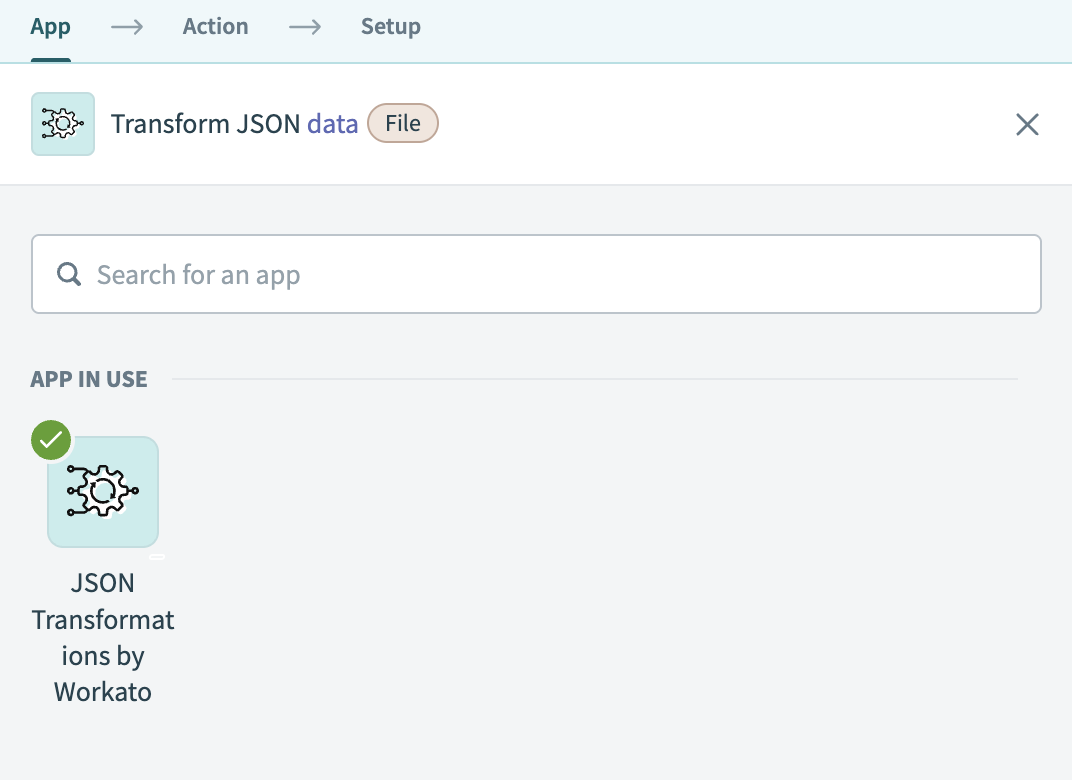 Select JSON Transformations by Workato
Select the JSON transformation action.
Click Add data source to define a source.
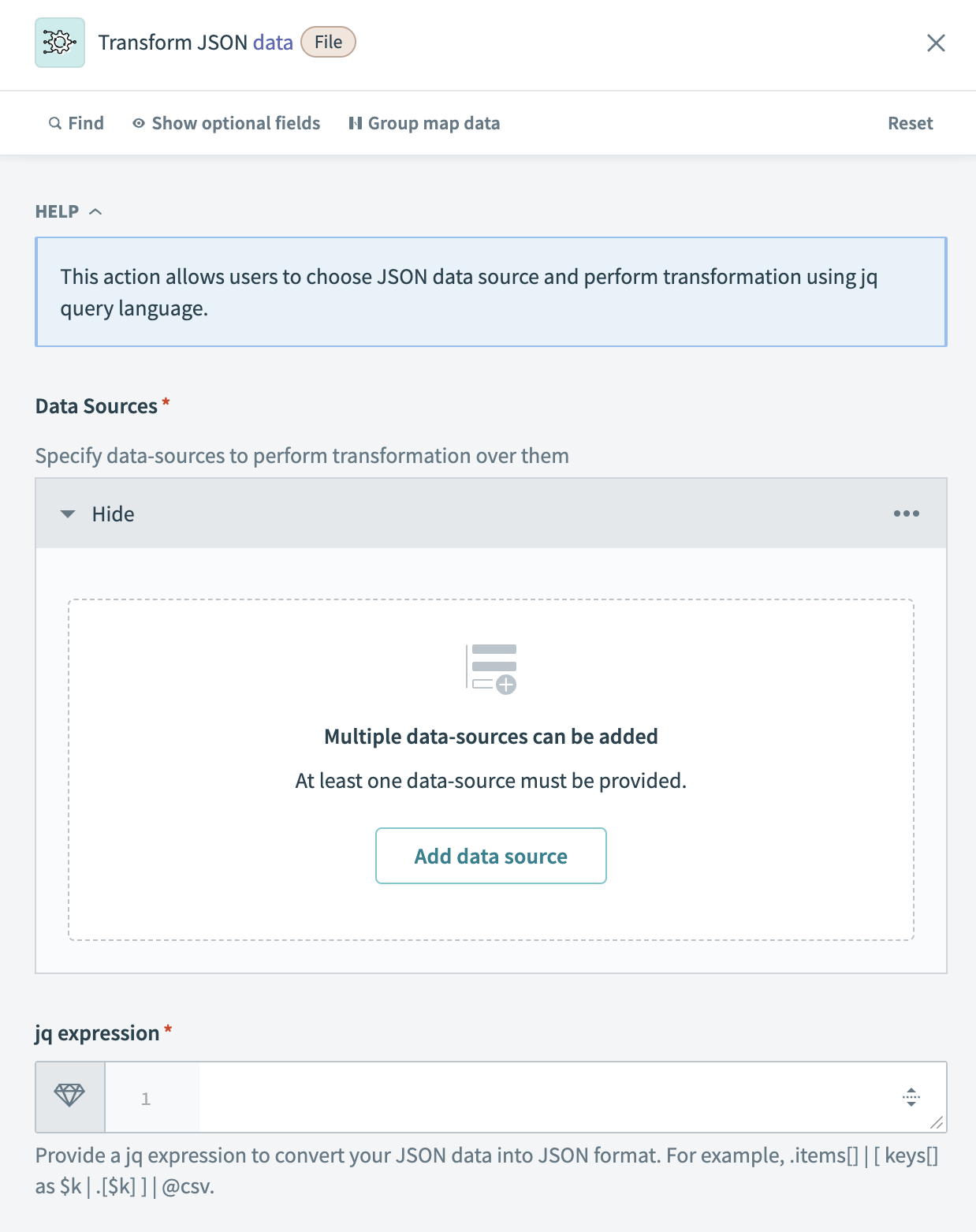 Add data source
Enter a Data source name. This name is used as an alias to reference the input in your jq expression. For example, use input1 or orders.
Select an Input format to define how the data is passed to jq.
- Input: Pass a standard JSON object (
.). - Raw file: Pass raw plain text.
- Slurp file: Load multiple JSON objects as a single array (
jq -s).
Choose a Data source type from the drop-down menu:
- Content stream: Use when an upstream trigger or action passes the JSON input as a content stream.
- FileStorage file: Use when the JSON file is stored in Workato FileStorage.
Enter the required field based on your selected Data source type:
- If you select Content stream, use a datapill that contains raw JSON. Apply
.to_jsonto convert any returned list or record into a valid JSON string. Paste this into the Content input stream field. - If you select FileStorage file, enter the full file path in the FileStorage file path field. For example,
samplepath/filename.json.
Optional. Click Add data source again to define additional inputs.
Enter your jq expression. This expression defines how the input data is transformed.
A jq expression is a lightweight query written in jq, a language that extracts, filters, and reshapes JSON data. You can reference keys, loop through arrays, format values, or convert structures into CSV. For example, .items[] | {id, name}.
Refer to the jq manual to learn more about jq syntax and explore examples.
Set Process inputs together to Yes to pass all inputs to jq as a single array using slurp mode (jq -s). This applies only to sources with the Input format.
Expand the Output section and select an Output type to define how the result is returned. Choose Content stream to return a streamable data pill for downstream use. Choose FileStorage file to save the result in Workato FileStorage. Choose JSON document to return structured JSON inline, up to 50 MB.
Configure the output fields that appear based on your selected Output type:
Output
Output fields load dynamically based on your selected Output type. For example, if you select Content stream, the output includes the following:
| Output field | Description |
|---|---|
| Contents | Transformed JSON content, returned as a stream. |
| Content size (bytes) | Size of the output in bytes. |
| Transformation execution time | Time taken to run the jq transformation. |
| Total processing time | Time taken for the full action to complete. |
Last updated: