Other formulas
This section covers formulas that work with a number of data types.
Formulas in Workato are allowlisted Ruby methods. Syntax and functionality for these formulas are generally unchanged. Most formulas return an error and stop the job if the formula operates on nulls (expressed as nil in Ruby), except for present?, presence, and blank?.
If a Ruby method is not found in the Workato documentation, it is not included in the allowlist and is therefore unsupported. Contact your Customer Success Manager to request new formulas for the allowlist.
Access nested values using square brackets
Square brackets ([]) allow you to access values in a hash in Workato. For nested hashes, you can chain lookups like data["a"]["b"]["c"]. However, this method raises a NoMethodError if any part of the chain doesn't exist (for example, if "b" is missing).
Use the safe navigation operator (&.) instead to safely access nested values without errors. For example, data["a"]&.[]("b")&.[]("c"). This returns nil if any part of the chain is nil.
null
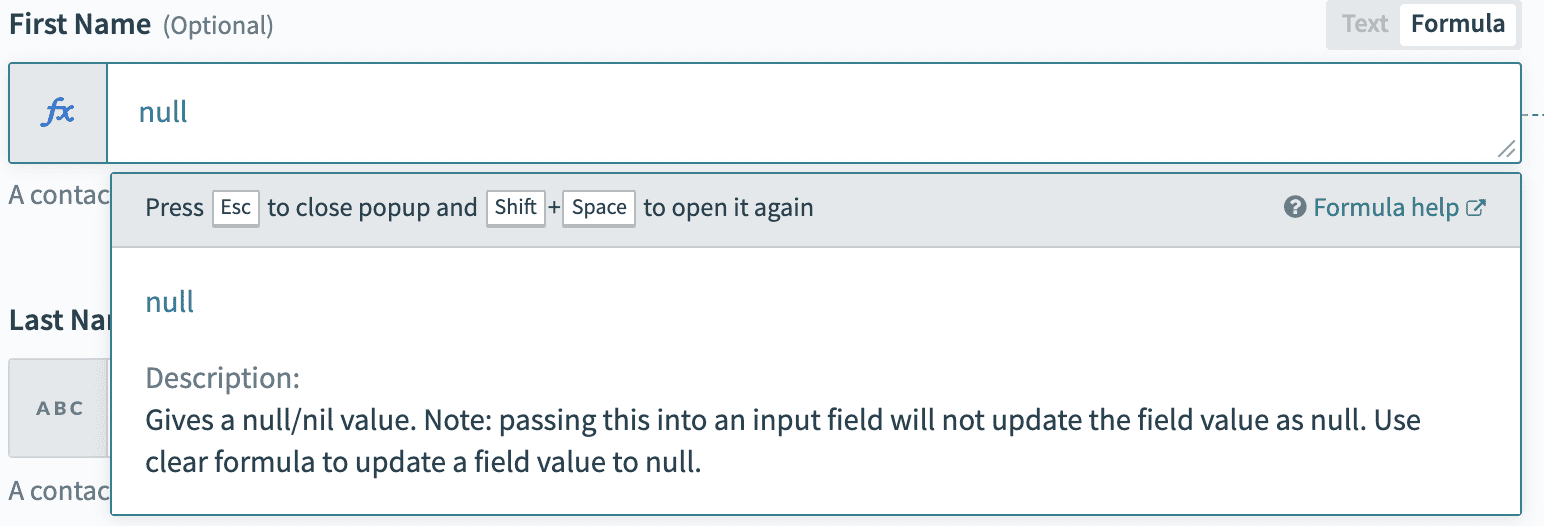
Gives a null/nil value.
USE FORMULAS TO CLEAR A FIELD
Passing null into an input field does not update the field value to null. Toggle the field to formula mode and use the clear formula to update a field value to null.
clear
Clears the value of the field in the target app to null/nil. Remember to toggle the field to formula mode.
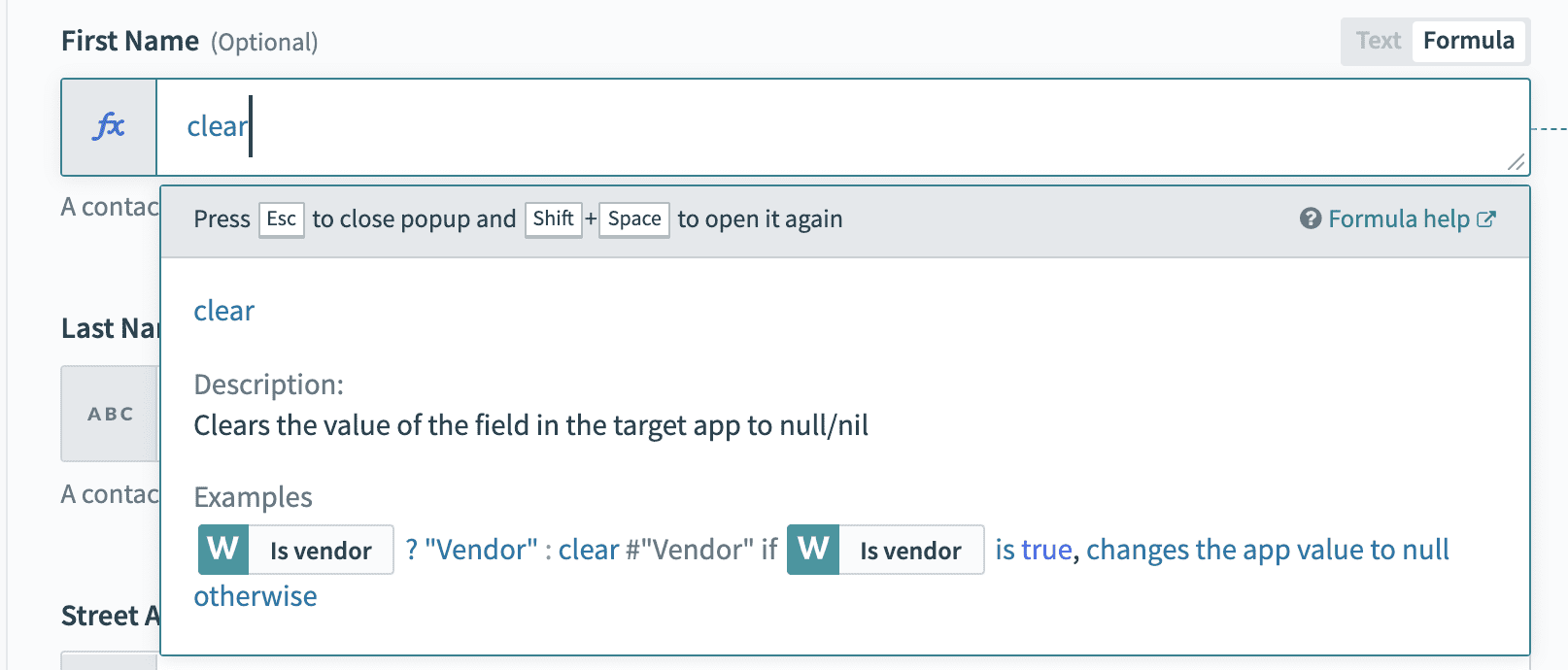 Use clear formula instead of null when looking to clear field in target app
skip
Passes nothing to the destination app for this field. If the field has an existing value, it will be left untouched.
Example
This example attempts use an updated Salesforce record to update a lead in Marketo. It checks if the Salesforce Company is present. If yes, it will output the Salesforce Company into Marketo. Otherwise, the Marketo record is left untouched.
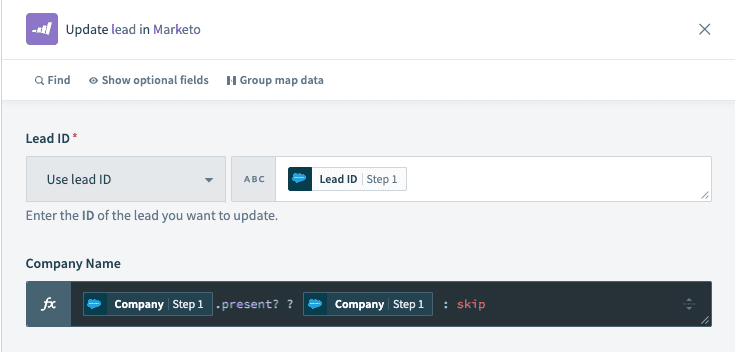 Skip formula example use case
Skip this field if update datapill is empty
Use skip formula to leave existing values untouched in an update action.
uuid
Generates an UUID.
Example
| Example | Result |
|---|---|
| uuid | "c52d735a-aee4-4d44-ba1e-bcfa3734f553" |
encrypt
Encrypts the input string with a secret key using AES-256-CBC algorithm. Encrypted output string is packed in RNCryptor V3 format and base64 encoded.
STORE ENCRYPTION KEYS USING ENVIRONMENT PROPERTIES
Do not hard code your encryption key in the recipe. Instead, use environment properties (with key or password in the name) to store encryption keys.
Example
encrypt([ssn], [encryption_key])
decrypt
Decrypts the encrypted input string with a secret key using the AES-256-CBC algorithm. The encrypted input string should be packed in RNCryptor V3 format and base64 encoded.
The Ruby decrypt method returns a byte array instead of a string by default. You can convert the decrypt method output to a string by appending the .as_string() or .as_utf8 function to your formula.
DON'T HARDCODE ENCRYPTION KEYS IN A RECIPE
The encryption key should not be hardcoded in the recipe. Use environment properties (with key or password in the name) to store the encryption keys.
Example
decrypt([encrypted_ssn], [encryption_key])
encode_sha256
Encodes a string or binary array using SHA256 algorithm
Example
"hello".encode_sha256
encode_hex
Converts binary string to its hex representation
Example
| Example | Result |
|---|---|
"0101010101011010".encode_hex | "30313031303130313031303131303130" |
decode_hex
Decode hexadecimal into binary string
Example
| Example | Result |
|---|---|
"30313031303130313031303131303130".decode_hex | "0101010101011010" |
decode_url
URL decode a string. This formula uses CGI.unescape to URL decoding.
Example
| Example | Result |
|---|---|
'https%3A%2F%2Fworkato.com%2Ffoo%3Fbar%3Dat%23anchor'.decode_url | "https://workato.com/foo?bar=at#anchor" |
'%27Stop%21%27+said+Fred"'.decode_url | "'Stop!' said Fred" |
encode_base64
Encode using Base64 algorithm
Example
| Example | Result |
|---|---|
"Hello World!".encode_base64 | "aGVsbG8gd29ybGQh" |
decode_base64
Decode using Base64 algorithm
Example
| Example | Result |
|---|---|
"aGVsbG8gd29ybGQh".decode_base64.as_utf8 | "Hello World!" |
encode_url
URL encode a string
Example
| Example | Result |
|---|---|
"Hello World".encode_url | "Hello%20World" |
encode_urlsafe_base64
Encode using urlsafe modification of Base64 algorithm
Example
| Example | Result |
|---|---|
"Hello World".encode_urlsafe_base64 | "SGVsbG8gV29ybGQ=" |
decode_urlsafe_base64
Decode using urlsafe modification of Base64 algorithm
Example
| Example | Result |
|---|---|
"SGVsbG8gV29ybGQ".decode_urlsafe_base64 | "Hello World" |
as_string
Decode byte sequence as string in given encoding
Example
| Example | Result |
|---|---|
"SGVsbG8gV29ybGQ=".decode_base64.as_string('utf-8') | "Hello World" |
as_utf8
Decode byte sequence as UTF-8 string
Example
| Example | Result |
|---|---|
"SGVsbG8gV29ybGQ=".decode_base64.as_utf8 | "Hello World" |
to_hex
Converts binary string to its hex representation
Example
| Example | Result |
|---|---|
"SGVsbG8gV29ybGQ=".decode_base64.to_hex | "48656c6c6f20576f726c64" |
SHA1
Encrypts a given string using the SHA1 encryption algorithm. Refer to the Ruby SHA1 documentation for more information.
Example
| Example | Result |
|---|---|
"abcdef".sha1.encode_base64 | "H4rBDyPFtbwRZ72oS4M+XAV6d9I=" |
HMAC formulae
Creates a HMAC signatures with a variety of signing algorithms
Example
| Signing algorithm | Example |
|---|---|
| SHA-256 | "username:password:nonce".hmac_sha256("key") |
| SHA-1 | "username:password:nonce".hmac_sha1("key") |
| SHA-512 | "username:password:nonce".hmac_sha512("key") |
| MD5 | "username:password:nonce".hmac_md5("key") |
md5_hexdigest
Accepts a string and creates message digest using the MD5 Message-Digest Algorithm
Example
| Example | Result |
|---|---|
"hello".md5_hexdigest | "5d41402abc4b2a76b9719d911017c592" |
jwt_decode
Decodes a JSON web token (JWT) using one of the following algorithms - RS256, RS384, RS512, HS256, HS384, HS512, ES256, ES384, or ES512.
Example
| Example | Result |
|---|---|
workato.jwt_decode( "eyJhbGciO...", "PEM key", 'RS256') | "{"payload" => {"sub"=>"123", "name"=>"John", ...}, "header" => {"typ"=>"JWT", "alg"=>"RS256"}}" |
workato.jwt_decode( "eyJhbGciO...", "PEM key", 'RS512') | "{"payload" => {"sub"=>"123", "name"=>"John", ...}, "header" => {"typ"=>"JWT", "alg"=>"RS512"}}" |
workato.jwt_decode( "eyJhbGciO...", "my$ecretK3y", 'HS256') | "{"payload" => {"sub"=>"123", "name"=>"John", ...}, "header" => {"typ"=>"JWT", "alg"=>"HS256"}}" |
jwt_encode
Creates a JSON web token (JWT) using one of the following algorithms - RS256, RS384, RS512, HS256, HS384, HS512, ES256, ES384, or ES512. Adds other named parameters to the header, such as kid in the following example:
Example
| Example | Result |
|---|---|
workato.jwt_encode({ name: "John Doe" }, "PEM key", 'RS256') | "eyJhbGciO..." |
workato.jwt_encode({ name: "John Doe" }, "PEM key", 'RS512', kid: "24668") | "eyJ0eXAiO..." |
workato.jwt_encode({ name: "John Doe" }, "my$ecretK3y", 'HS256', kid: "24668") | "eyJ0eXAiO..." |
workato.jwt_encode({ name: "John Doe" }, "my$ecretK3y", 'HS256') | "eyJ0eXAiO..." |
workato.jwt_encode({ name: "John Doe" }, "ECDSA Key", 'ES256') | "eyJhbGciOiJ..." |
parse_yaml
Parse a YAML string. Supports true, false, nil, numbers, strings, arrays, hashes
Example
| Example | Result |
|---|---|
workato.parse_yaml("---\nfoo: bar") | "{ "foo" => "bar" }" |
workato.parse_yaml("---\n- 1\n- 2\n- 3\n") | "[1, 2, 3]" |
render_yaml
Render an object into a YAML string.
Example
| Example | Result |
|---|---|
workato.render_yaml({ "foo" => "bar" }) | "---\nfoo: bar\n" |
workato.render_yaml([1,2,3]) | "---\n- 1\n- 2\n- 3\n" |
lookup
This formula allows you to lookup values from your Workato lookup tables using a key. The lookup formula is datatype-sensitive and case-sensitive.
If you use a datapill in the lookup formula, we recommend that you convert the data to the correct format. For example, convert integer-type datapills to a string with a .to_s formula if you plan to compare a column that contains both integers and strings.
Syntax
Use the following syntax to structure the formula:
lookup('Lookup table name', 'Match column': 'Match value')['Return column']This formula searches for a row in the specified lookup table where Match column matches the Match value. It then returns the value from the specified Return column in that row.
The formula includes the following parameters:
Lookup table name: The lookup table to query.Match column: The column used as the lookup key.Match value: The value that identifies the row in the key column.Return column: The column that provides the result.
Example
For example, let's use the following lookup table with name Department Code with an ID of 6:
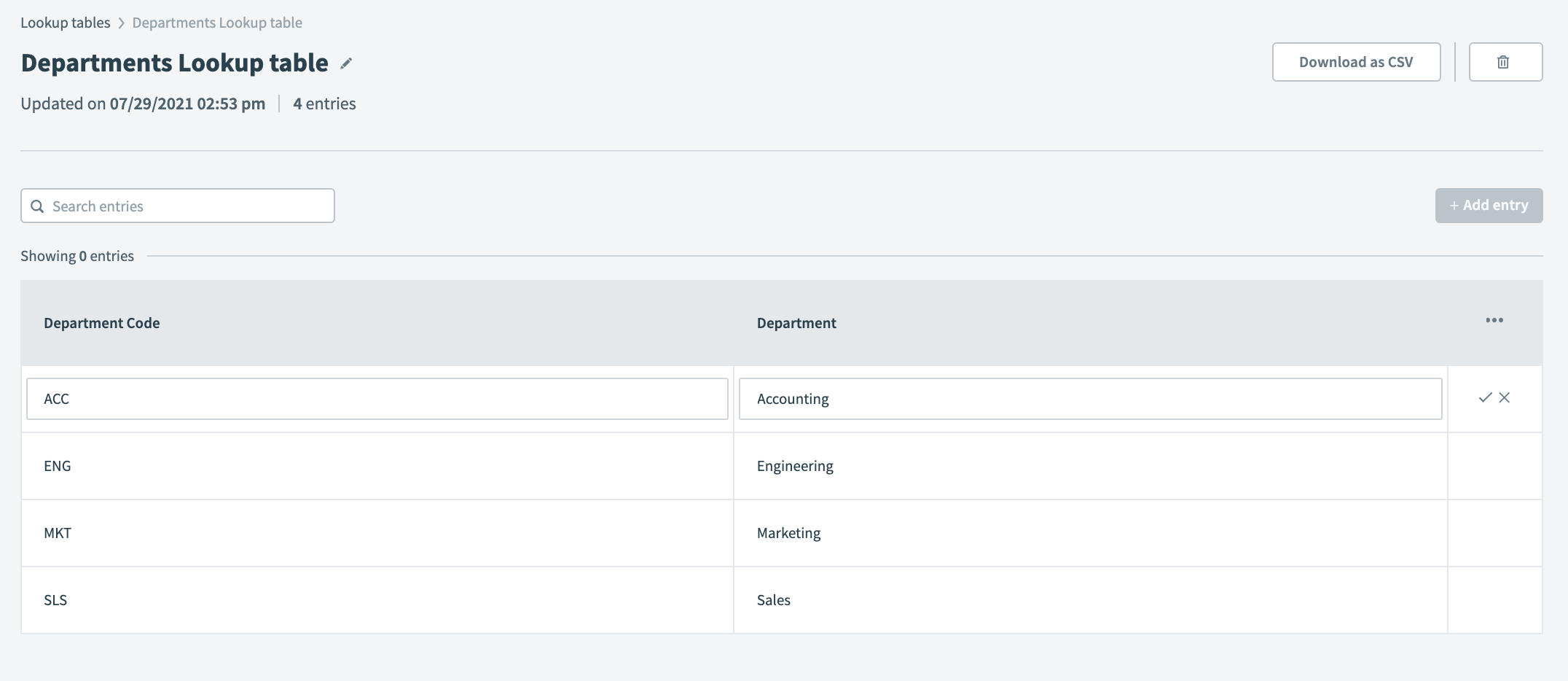 Sample department codes lookup table
| Example | Result |
|---|---|
lookup('Department Lookup table', 'Department Code': 'ACC')['Department'] | "Accounting" |
lookup('Department Lookup table', 'Department Code': 'SLS')['Department'] | "Sales" |
lookup('Department Lookup table', 'Department': 'Marketing')['Department Code'] | "MKT" |
lookup('Department Lookup table', 'Department': 'marketing')['Department Code'] | nil Matching is case sensitive, unable to find value "marketing" |
lookup('Department Lookup table', 'Department': 'Marketing')['Department code'] | nil Matching is case sensitive, unable to find column "Department code" |
lookup('6', 'Department code': 'ACC')['Department'] | "Accounting" Note: Remember to enclose the lookup table ID in quotes "". |
Using Lookup ID
You can use the lookup table name and lookup table ID interchangeability. You can find the lookup table ID in the URL.
For example:
https://app.workato.com/lookup_tables/<lookup_table_id>lookup_table
This formula allows you to create a static lookup table and define the keys and values. It is case-sensitive and datatype-sensitive.
Example
| Example | Result |
|---|---|
{"key1" => "value1", "key2" => "value2", "key3" => "value3"}["key2"] | "value2" |
{"High" => "urgent", "Medium" => "mid", "Low" => "normal"}["Low"] | "normal" |
{"High" => "urgent", "Medium" => "mid", "Low" => "normal"}["low"] | nil |
{"High" => "urgent", "Medium" => "mid", "Low" => "normal"}["normal"] | nil |
{1 => "1", 2 => "2", 3 => "3"}[2] | "2" |
{1 => "1", 2 => "2", 3 => "3"}[2.0] | nil |
{1 => "1", 2 => "2", 3 => "3"}["2"] | nil |
data_table_lookup
This formula allows you to look up values from your data tables using a key. The lookup formula is case-sensitive and datatype-sensitive.
If you use a datapill in the lookup formula, we recommend that you convert the data to the correct format. For example, convert integer-type datapills to a string with a .to_s formula if you plan to compare a string-typed column.
Ensure that project name, table name, lookup key, and lookup criteria are written exactly the way they are stored in the data table, including proper capitalization.
Syntax
Use the following syntax to structure the formula:
data_table_lookup('Project name', 'Table name', 'Column name': 'Value to search on')['Return column']This formula searches for a row in the specified data table where Column name matches the Value to search on. It then returns the value from the specified Return column in that row.
The formula includes the following parameters:
Project name: The project that holds the data table.Table name: The specific data table to query.Column name: The column used to find the match.Value to search on: The value that identifies the row in the key column.Return column: The column that provides the result.
Example
For example, let's use the following data table with name Wedding Guests inside the Wedding project:
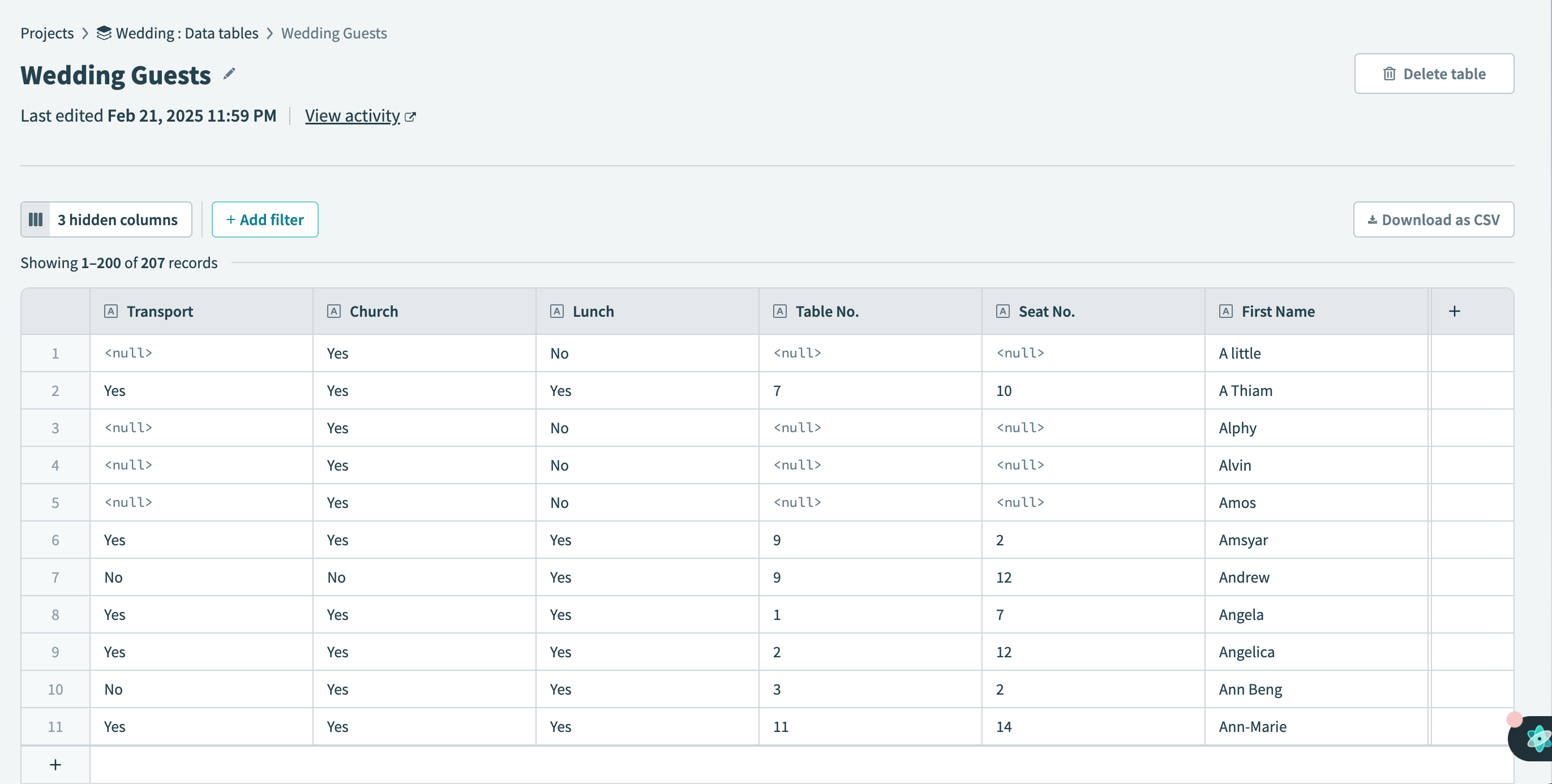 Sample "Wedding Guests" Data table
| Example | Result |
|---|---|
data_table_lookup('Wedding', 'Wedding Guests', 'Transport': 'Yes')['Seat No.'] | "10" |
data_table_lookup('Wedding', 'Wedding Guests', 'Lunch': 'No')['First Name'] | "A little" |
data_table_lookup('Wedding', 'Wedding Guests', 'First Name': 'Angela')['Table No.'] | 1 |
data_table_lookup('Wedding', 'Wedding Guests', 'First Name': 'angela')['Table No.'] | nil Matching is case sensitive, unable to find value "angela" |
data_table_lookup('Wedding', 'Wedding Guests', 'First Name': 'Angela')['Table no.'] | nil Matching is case sensitive, unable to find column "Table no." |
data_table_lookup('Wedding', 'Wedding Guests', 'first name': 'Angela')['Table No.'] | nil Matching is case sensitive, unable to find column "first name" |
:::
Last updated: