Navigate Insights
This guide provides an overview of Insights' layout. It covers its distinct interfaces and their UI components to help you navigate Insights easily.
Insights includes the following distinct interfaces:
- Insights homepage: This is the central hub for managing your dashboards. You can view, rename, download, create, and delete all dashboards within your workspace on this page.
- Dashboard editor: This editor enables you to add charts and filter groups to your dashboard, as well as customize your dashboard's appearance by adding text blocks, containers, and dividers.
- Chart editor: This editor enables you to edit chart data using a WYSIWYG (what-you-see-is-what-you-get) interface. You can select data sources, query for data, apply transformations, and create various chart types in this interface.
Insights homepage
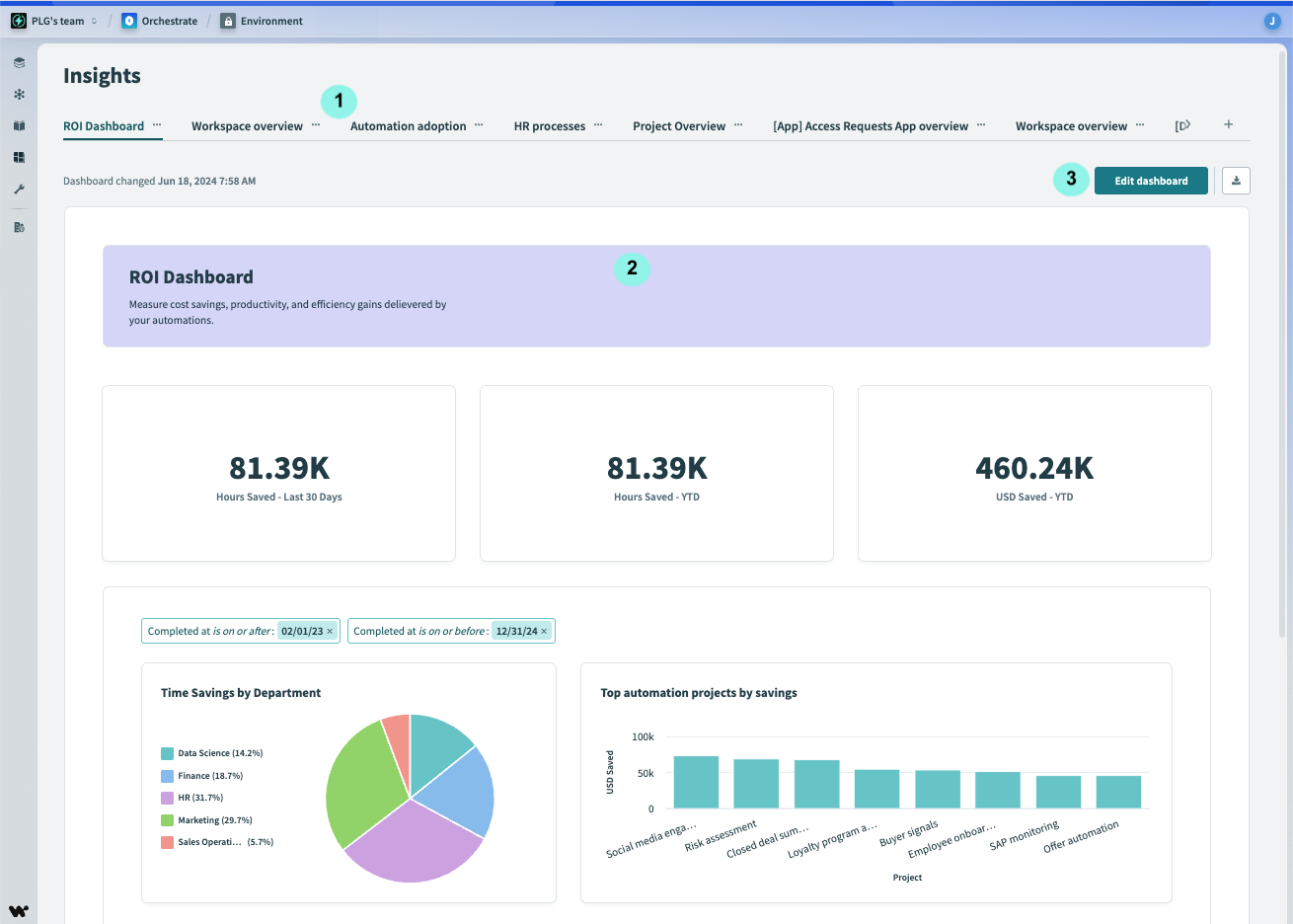
The Insights homepage provides the following components to enable you access and organize your data:
 Insights homepage
Dashboard tabs
The titles and tabs for all your existing dashboards appear here.
- Drag and drop tabs to re-organize them.
- Click the ... (ellipsis) to clone, rename, or delete a dashboard.
- Click a dashboard to view it.
- Click the > to navigate across different dashboard tabs.
- Create a new dashboard by clicking +.
Dashboard
The center of the interface displays the selected dashboard (highlighted in the dashboard tabs). The dashboard is view-only on the dashboard homepage.
Dashboard buttons
Dashboard buttons enable you to manipulate your dashboard.
- Use the Edit dashboard button to open the dashboard editor.
- Use the download dashboard button to download the dashboard as an image. A downloaded dashboard doesn't include its underlying dataset.
Dashboard editor
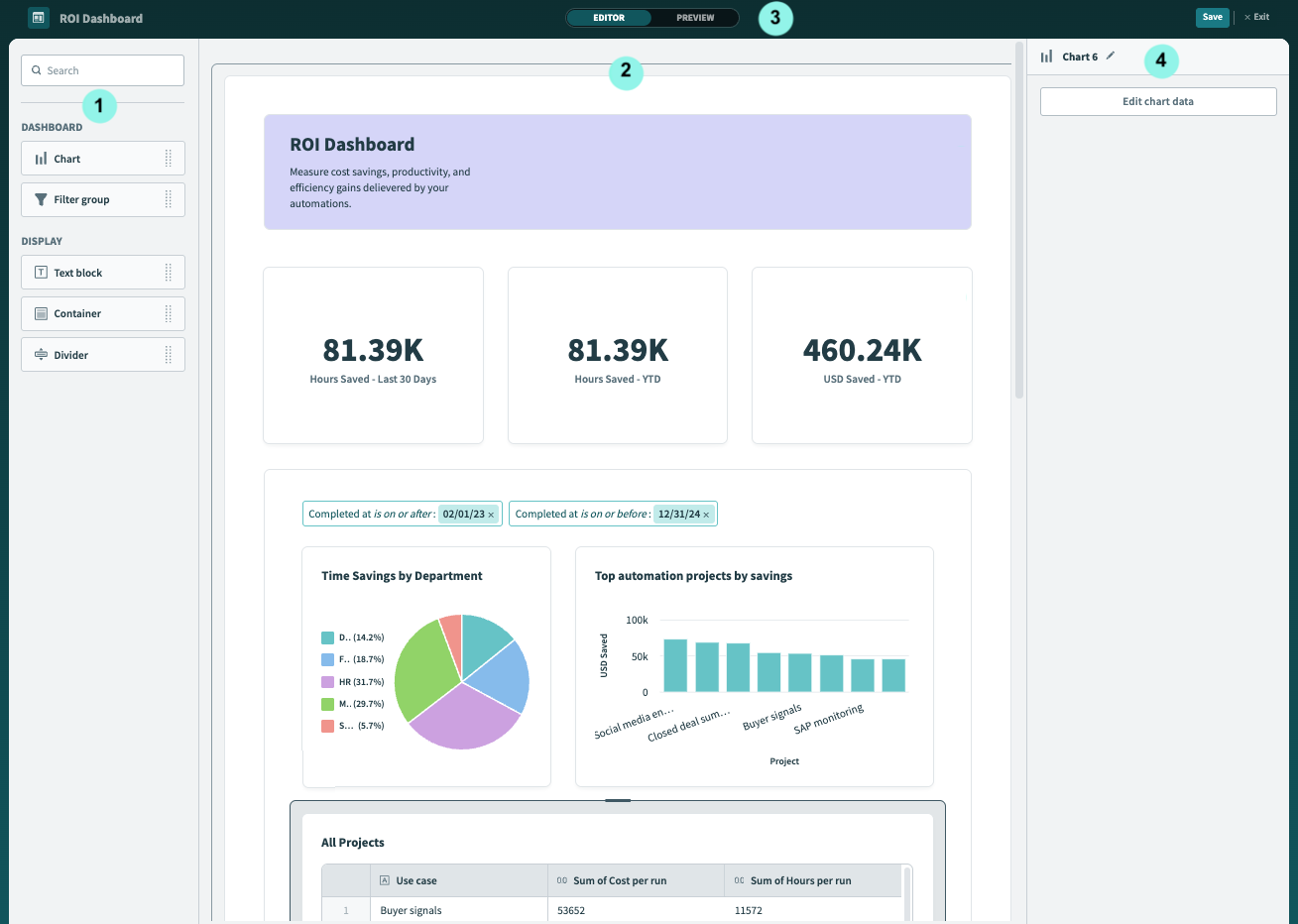
The Dashboard editor enables you to edit and organize your data. The Dashboard editor consists of the following components:
 Dashboard editor
Components panel
This section of the dashboard editor includes all available dashboard and display components.
- Drag and drop components onto the dashboard canvas to use them.
The following components are available:
- Display: Determine the look and feel of your dashboard with Text block, Container, and Divider components.
- Dashboard: Visualize your data using Chart components. You can apply interactive Filter group components to enable end-users to look into specific datasets.
Dashboard canvas
This section of the editor is the dashboard canvas and is the area that displays to your end users. You can click a component to edit, resize, arrange, or delete it.
Editor panel
This panel contains buttons that allow you to preview, edit, save, and exit the dashboard.
- Click Editor or Preview to switch between edit and preview modes.
- Click Save to save your dashboard. This must be done in addition to saving individual chart components.
- Click Exit to leave the dashboard editor and return to the Insights homepage.
- Click the title to rename the dashboard.
Component properties panel
This section of the editor enables you to customize your components. You must select a component before you can customize it. The actions available in this panel vary based on the type of component you select.
- If you select a Display component, such as Text block, Container, or Divider, you can customize the component's style properties, including color, and text.
- If you select a Filter group component, you can configure filters.
- If you select a Chart component, you can click Edit chart data to access the chart editor.
- If you select a Chart component, you can click the edit, clone, or delete icons to edit, clone, or delete it.
Chart editor
The Chart editor enables you build and edit charts with the following components:
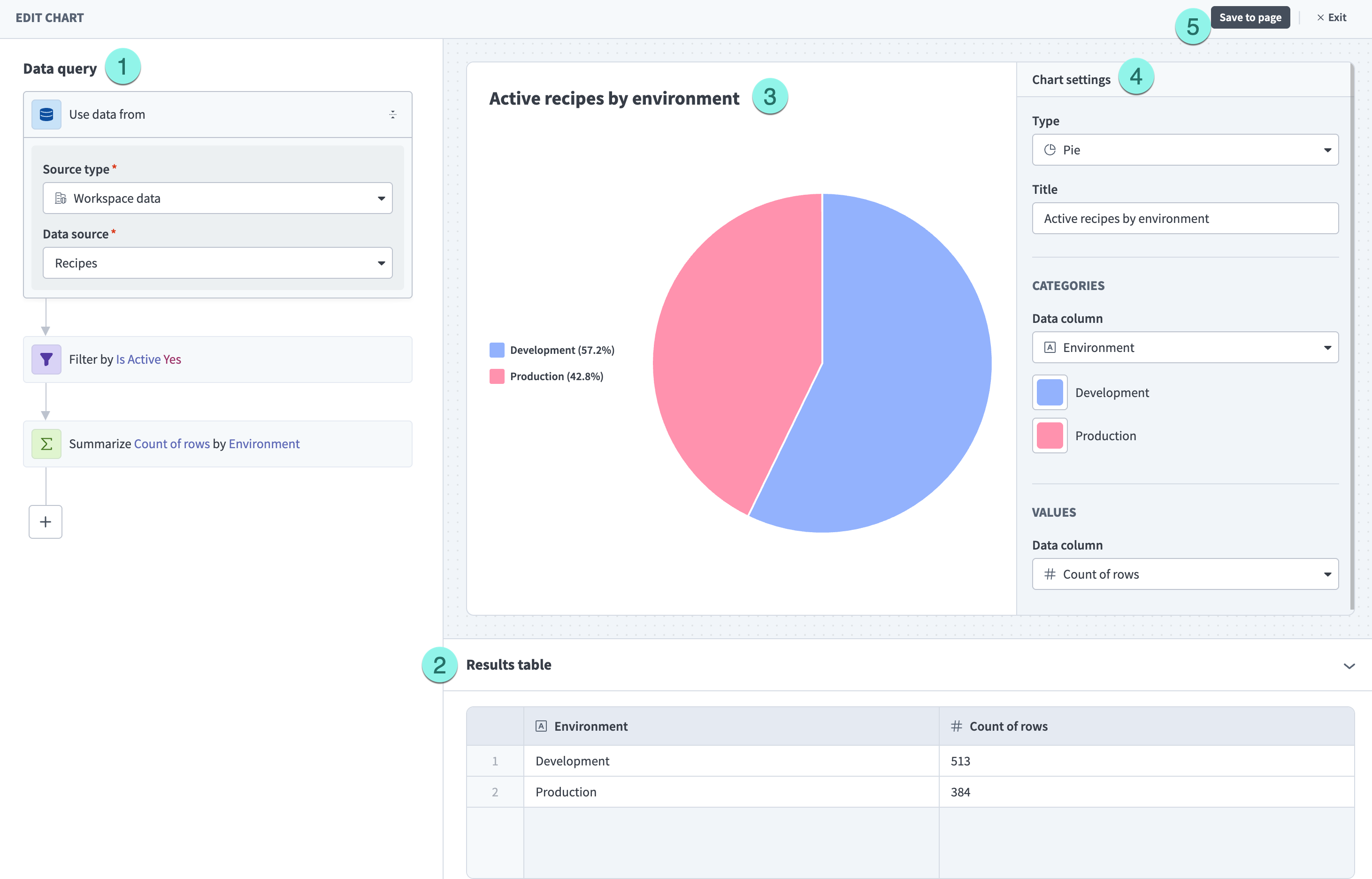 Chart editor
Query builder panel
This panel enables you to select a data source and build queries. You can apply multiple query components using AND to chain them.
The following query components are available:
- Filter
- Summarize
- Join
- Sort
- Row limit
- Calculated column
Results table
This section displays the results table, which shows the outcome of your queries on the data.
Chart preview
This section displays a preview of your chart. A table displays by default.
Chart settings
This section controls how your charts display in your dashboard. You can perform the following actions:
- Change the chart type.
- Change the chart title.
- Select the data to display (measure).
- Select data column to use to contextualize your data (dimension).
- Customize the x-axis and y-axis labels.
- Select a data column to use to breakdown, or segment your data.
- Customize chart colors.
- Select the columns that display in tables.
- Rearrange the order in which data columns display in tables.
Chart editor buttons
These buttons enable you to save your chart and exit the chart editor.
- Click Save to save your chart. You must also save your work at the dashboard-level for your changes to take effect.
- Click Exit to leave the chart editor and return to the dashboard editor.
Last updated: