File servers
Workato MFT file servers are managed endpoints hosted by Workato. External partners and systems connect to these servers to upload and download files securely.
File servers differ from SFTP and FTP connectors. Connectors let Workato act as a client and connect to external servers. File servers let external systems connect to Workato as a host.
FILESTORAGE
Workato FileStorage works with MFT file servers to manage the full file lifecycle. FileStorage automatically stores files for processing, archival, or distribution when they arrive at your SFTP or FTP(s) servers.
Workato FileStorage work with file servers to provide complete file management capabilities.
Files are automatically stored in FileStorage for further processing, archival, or distribution when they arrive at Workato SFTP or FTP(s) endpoints. You can also use the FileStorage Connector to manage the files in FileStorage.
SFTP server
Workato's SFTP (SSH File Transfer Protocol) server supports secure, encrypted file transfer using the SSH protocol on port 22. SFTP encrypts all data in transit to protect both files and credentials from interception. This option is recommended for all external partner integrations and internet-facing file transfers.
Workato SFTP server allows you to:
Provide secure upload and download endpoints for partners and legacy systems.
Authenticate users with SSH keys (recommended) or passwords.
Restrict access to specific IP addresses or ranges. Use this when your partner uses static IPs and you plan to block unauthorized attempts.
Create isolated user accounts with folder-level access control.
Monitor connections and file activity with detailed logs.
Set up an SFTP endpoint
Complete the following steps to enable SFTP server in your workspace:
Go to Platform > Managed File Transfer > File Services > SFTP server.
Click Enable SFTP server.
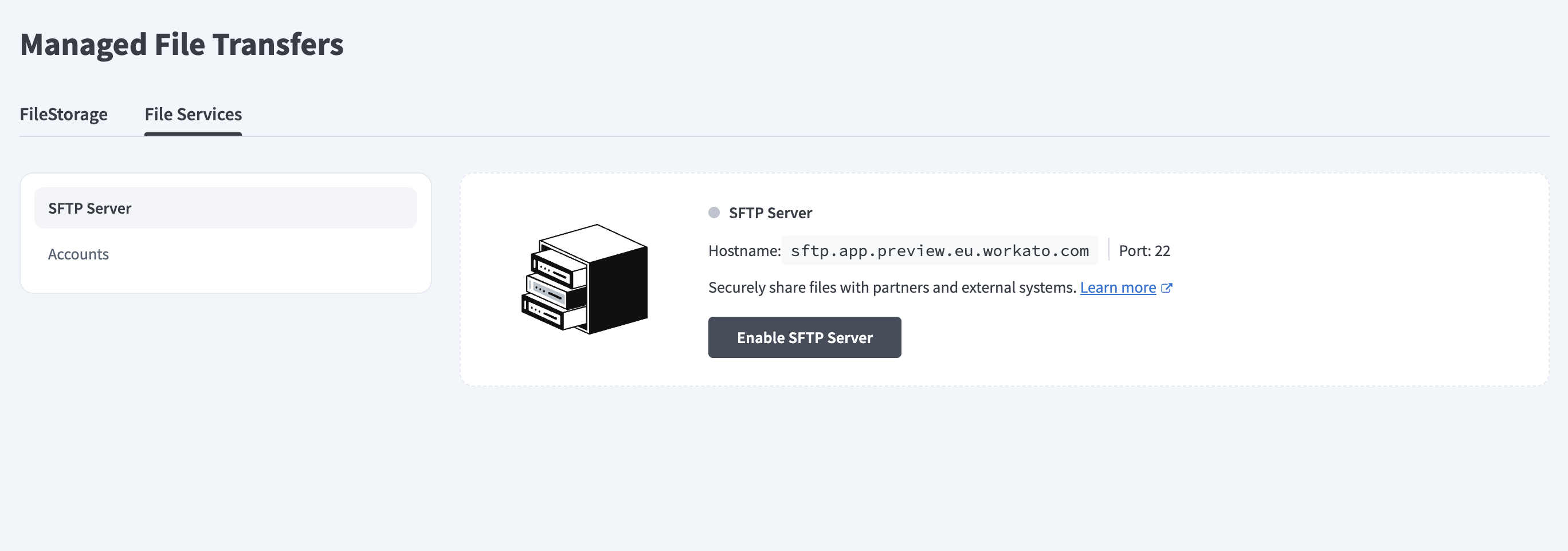 Enable SFTP server
Enter a unique workspace identifier in the Set up identifier dialog. This identifier is permanent and must be unique within your Workato workspace.
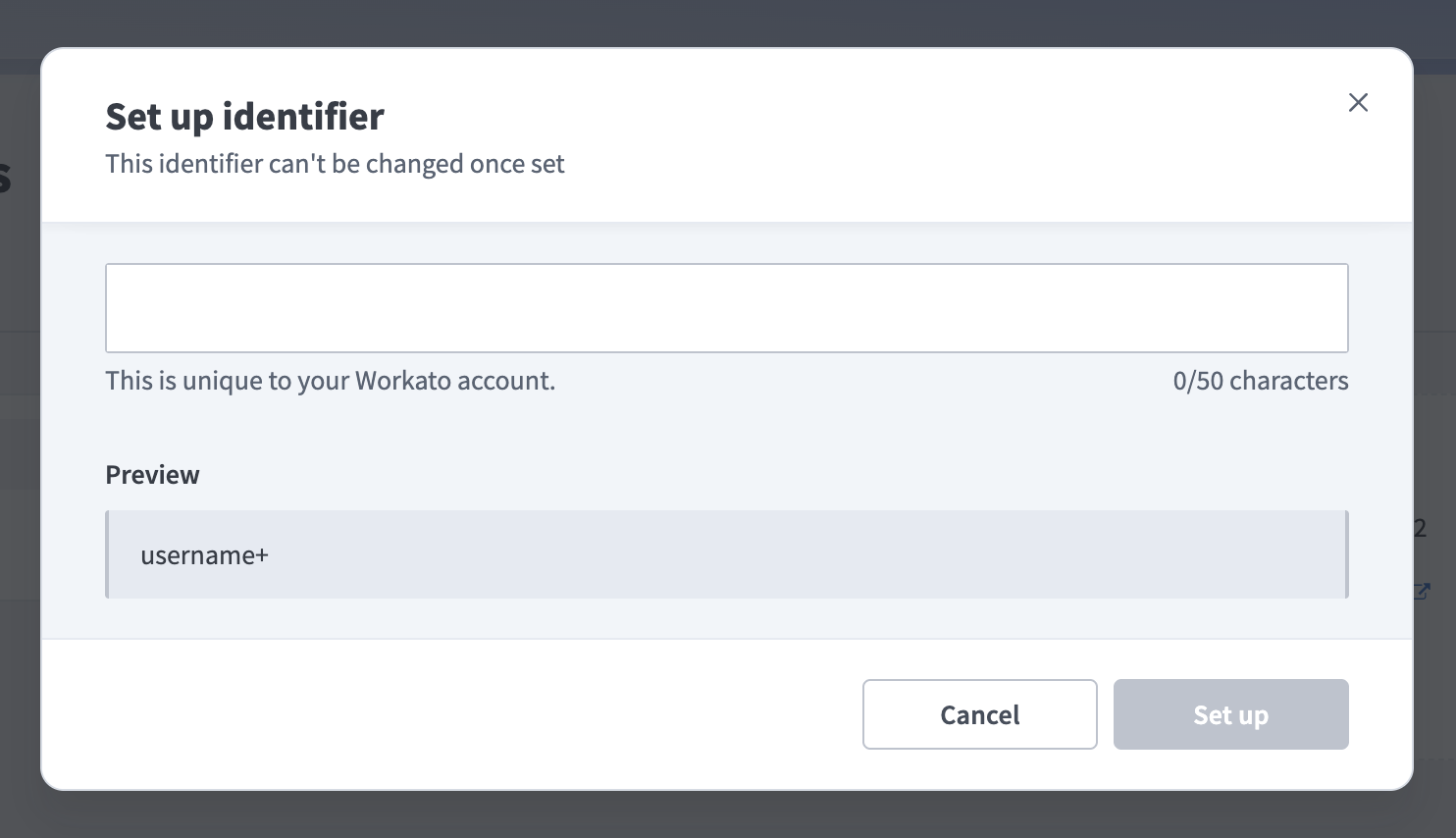 Set up workspace identifier
The preview shows the final identifier format.
Click Set up to confirm and save your identifier.
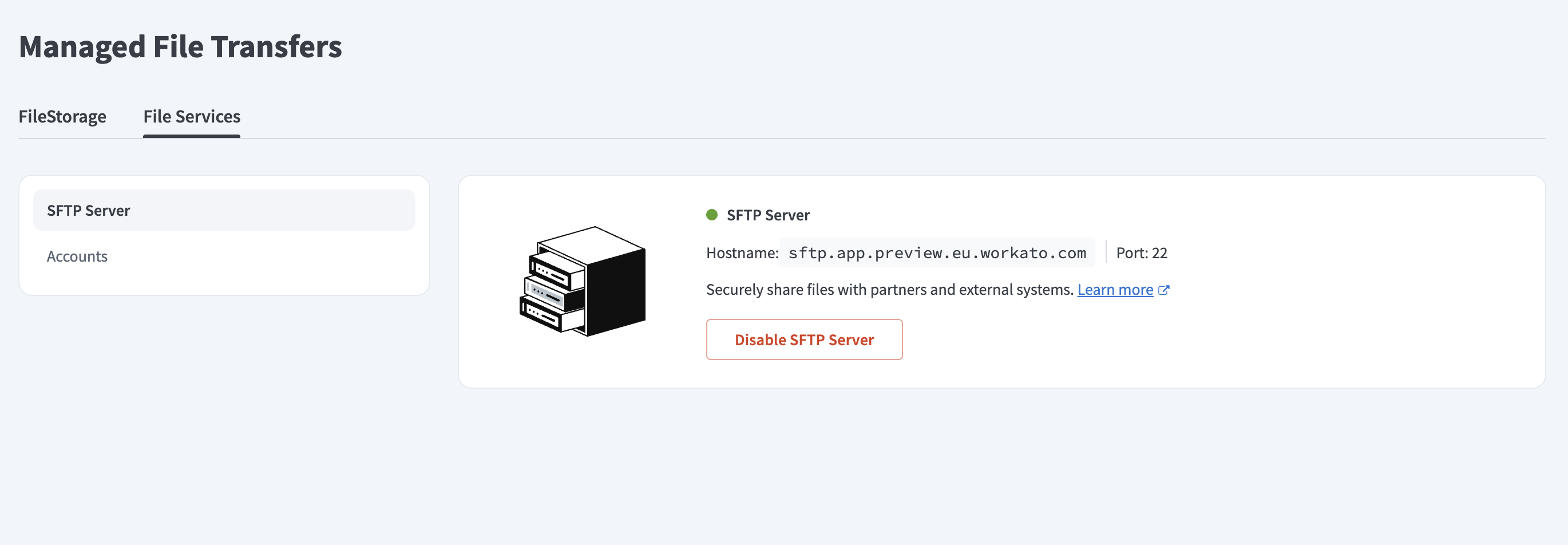 Enabled SFTP server
The server is enabled immediately, and the connection details, including hostname and port, display on the page.
Create an SFTP account
You can create user accounts to grant external entities access to the SFTP server after the workspace identifier is configured. Each account has isolated access to the folders you specify.
Complete the following steps to create an SFTP account:
Go to Platform > Managed File Transfer > File Services > Accounts.
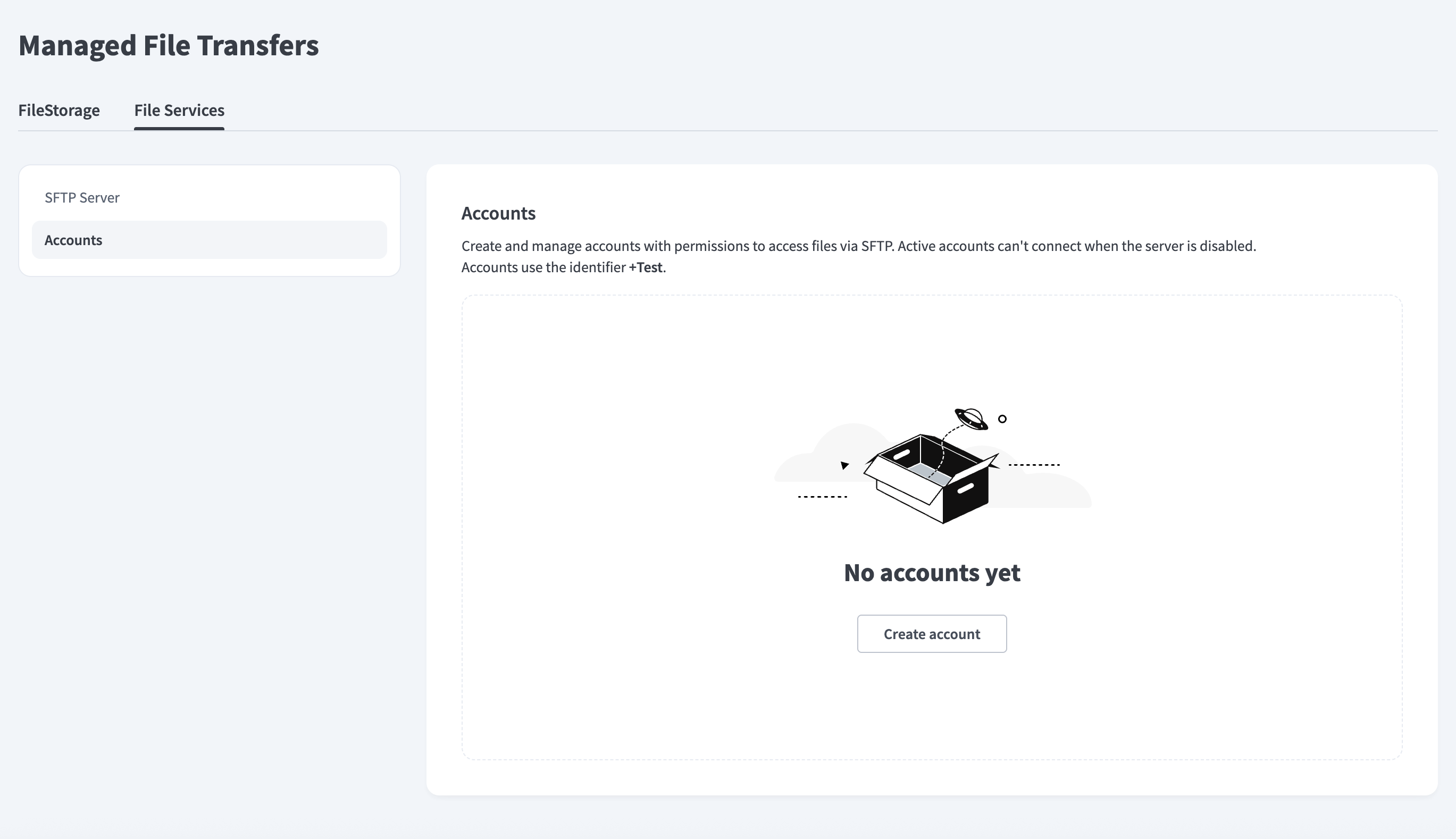 The Accounts page
Click Create account. The Create an account modal opens.
Enter a Username for the SFTP account. The username must be between 3 and 32 characters and only use alphanumeric characters. Workato automatically appends your workspace identifier to create the full username. For example: name@workspace-identifier.
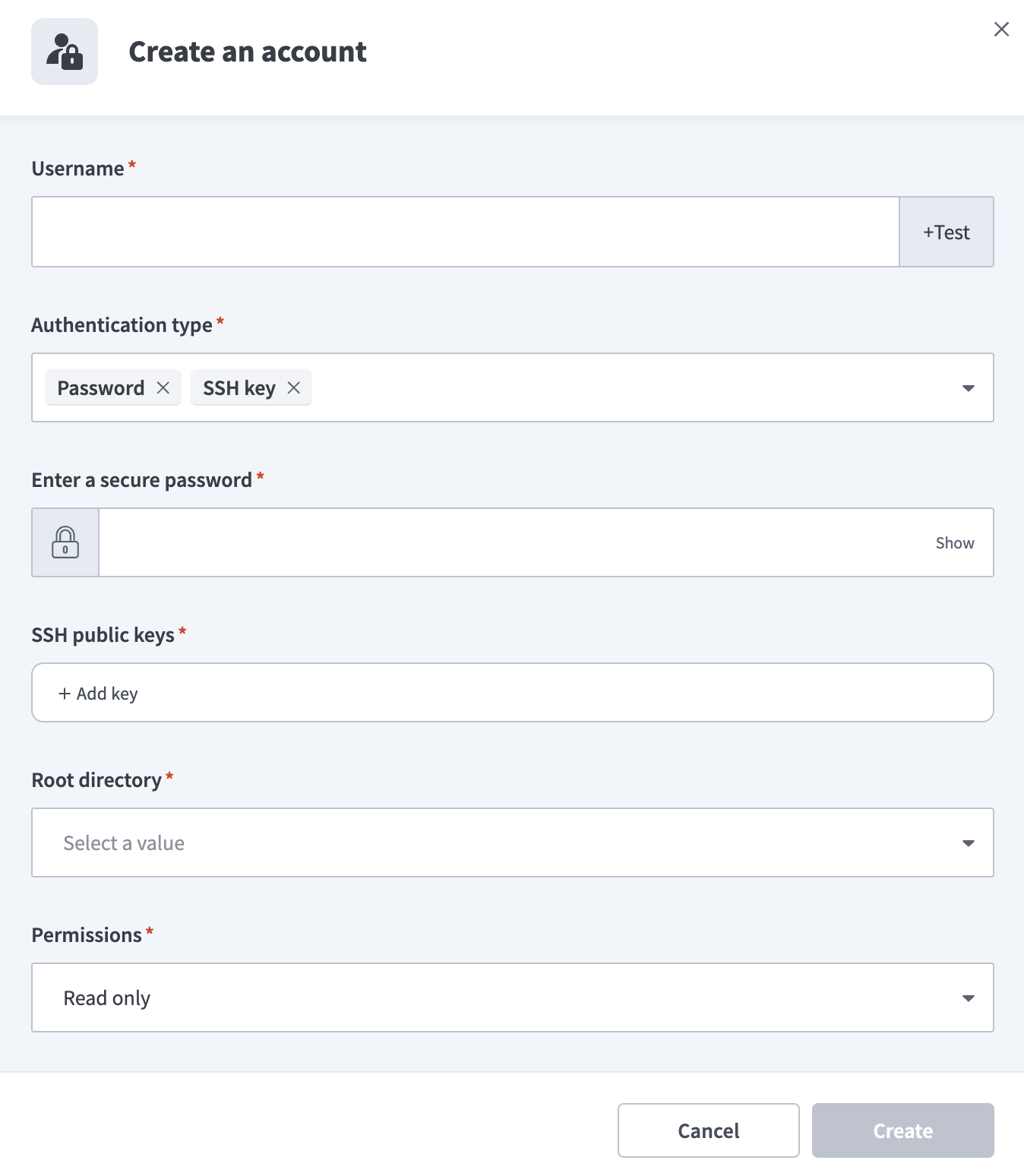 Create an account
Use the Authentication type drop-down menu to select one or both authentication methods. Refer to the following tabs for configuration steps for each option:
Use the Root directory drop-down to select a directory. Your selection becomes the user's home directory. Users can't navigate above this directory.
Use the Permissions drop-down menu to select a permission level for the account.
Permission levels
Configure the operations the account can perform using the following permissions levels:
- Read - Download and list files: Users can view folders and download files.
- Create - Upload new files and folders: Users can upload files and create new directories.
- Modify - Edit existing files: Users can overwrite existing files or rename them.
- Delete - Delete files: Users can remove files and folders.
Optional. Use the IP access list to restrict access by IP or country. Click + Add rule to define access rules:
- Set the Action field to Allow or Block
- Use the Filter by field to choose IP address or Country.
- Enter a Value ,such as an IP address (192.168.1.1) or subnet (192.168.1.0/24) in CIDR (Classless Inter-Domain Routing) notation.
Click Create to save the account.
FTP(s) server
Workato supports systems that require FTP-based file transfer:
FTPS (FTP Secure): Uses TLS and SSL to encrypt file transfer. FTPS provides security similar to HTTPS.
FTP (legacy): The Workato on-prem agent supports standard, unencrypted FTP protocol for internal network transfers.
Server logs
Workato's logging service captures detailed information for every server activity in Tools > Logs. Use these logs to view successful and failed connections, track file uploads and downloads, and troubleshoot errors across file transfers.
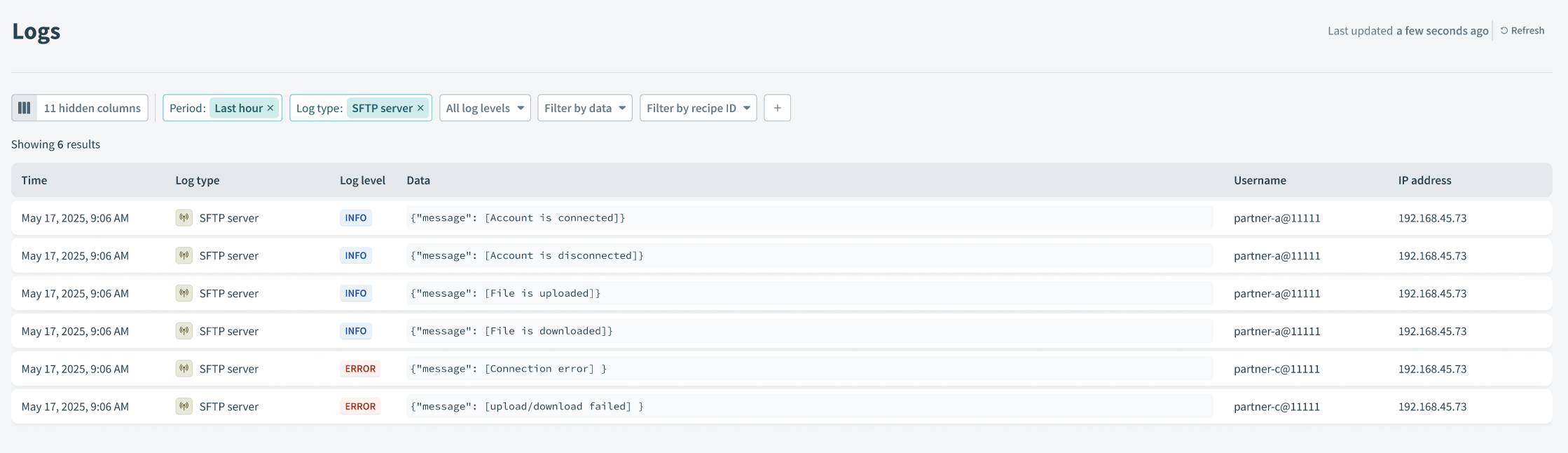 Server logs
Workato logs the following event types:
Authentication events: Displays whether authentication succeeded or failed, the username, IP address, and reason of failure (if applicable).
File operations: Record upload, download, and delete activity, including the username, file path, size, IP address, and failure reason (if applicable).
Use the following filters to locate specific logs:
Period: Select a preset such as
Last 30 daysor define a custom date range.Log type: Select
File Serversto view logs related to MFT file server activity.Log level: Select
INFOto view successful events orERRORto investigate failures.
FEATURE AVAILABILITY
Contact your Customer Success Manager for information about access to Workato MFT.
Last updated: