JIT provisioning
Just-in-Time (JIT) provisioning automatically creates user accounts when users first authenticate through SAML-based single sign-on. This eliminates the need for administrators to manually pre-create accounts and ensures user information stays current with your identity provider.
JIT provisioning behavior scenarios
Workato behaves differently depending on whether the user already exists in the workspace: When a user who doesn't exist in Workato signs in for the first time:
- A new user account is created automatically
- User name and email fields are populated from SAML attributes
- User is granted access to JIT-enabled environments
When a user account already exists in Workato:
- Workato doesn't update the user profile from SAML attributes
- Existing permissions and group memberships are preserved
- User is authenticated normally
Default user permissions
JIT-provisioned users receive the following default settings:
- Account status: Active
- Authentication method: SAML-based SSO (required)
- Environment access: All environments where JIT provisioning is enabled
- Group membership: SAML group memberships are synced on initial creation
- Permissions: Based on the environment's default end-user permissions
Enable JIT provisioning
You can configure Just-in-Time (JIT) provisioning and select which users require SAML-based authentication. You can customize authentication methods for each environment. For example:
Dev: Password authTest: SSOProd: SSO
NOT FOR WORKFLOW APPS SAML-BASED SSO
This documentation is specific to Workato Identity. Refer to SAML-based single sign-on authentication to configure SAML authentication for Workflow apps.
Complete the following steps to configure SAML settings for your environment authentication:
Sign in to your Workato account and go to Workspace admin.
Click Authentication & Groups in the sidebar.
Select the environment you plan to configure. The environment End-user group page displays by default.
ENVIRONMENT AVAILABILITY
Workspaces without Environments provisioned only have one environment available.
Select the Authentication tab.
Ensure that the SAML-based SSO authentication toggle is enabled.
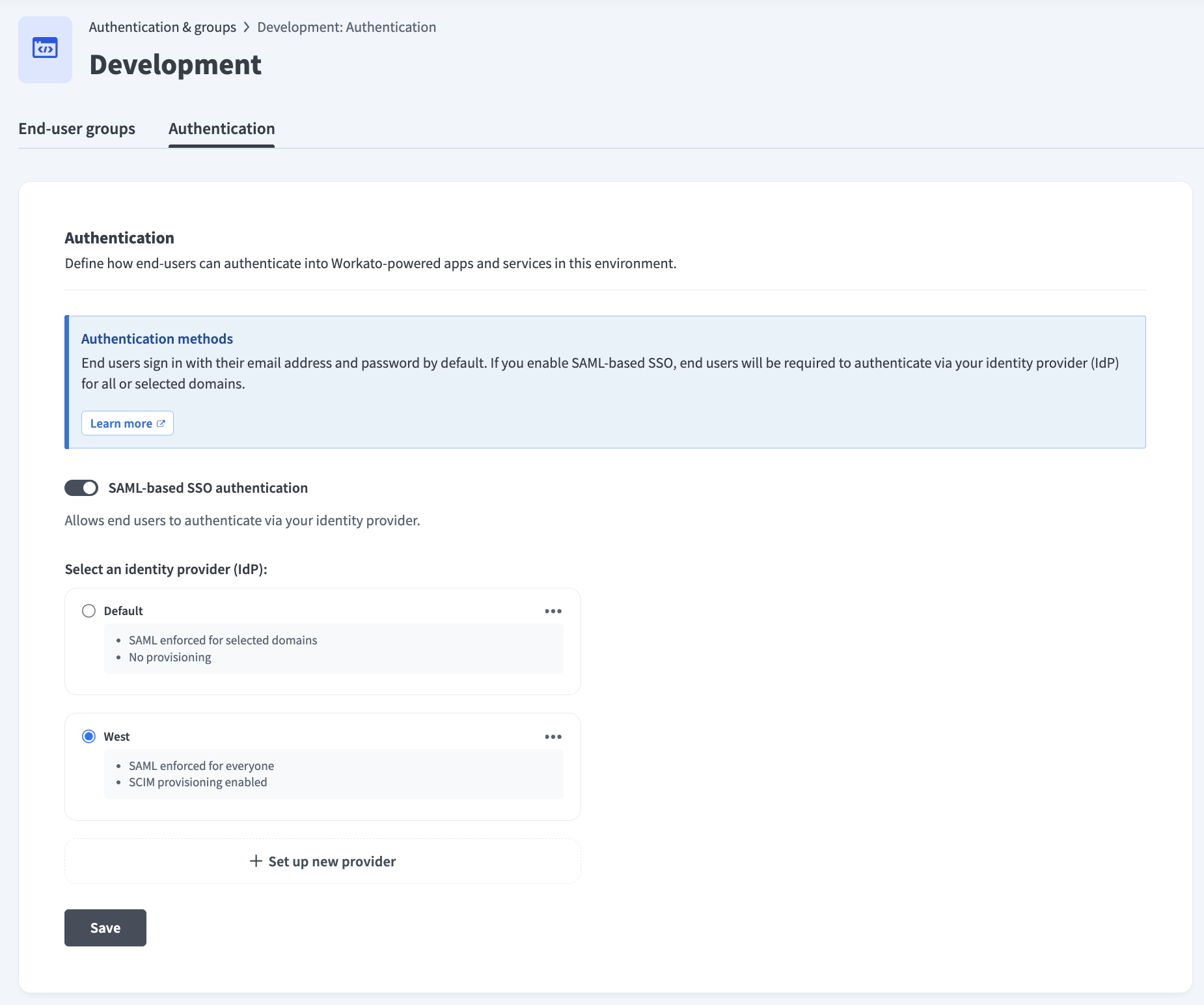 Ensure the SAML-based SSO authentication toggle is enabled
Go to the Select an identity provider (IdP) section and click + Set up new provider.
Provide a name for your IdP in the Identity provider (IdP) name field. For example: Okta Prod.
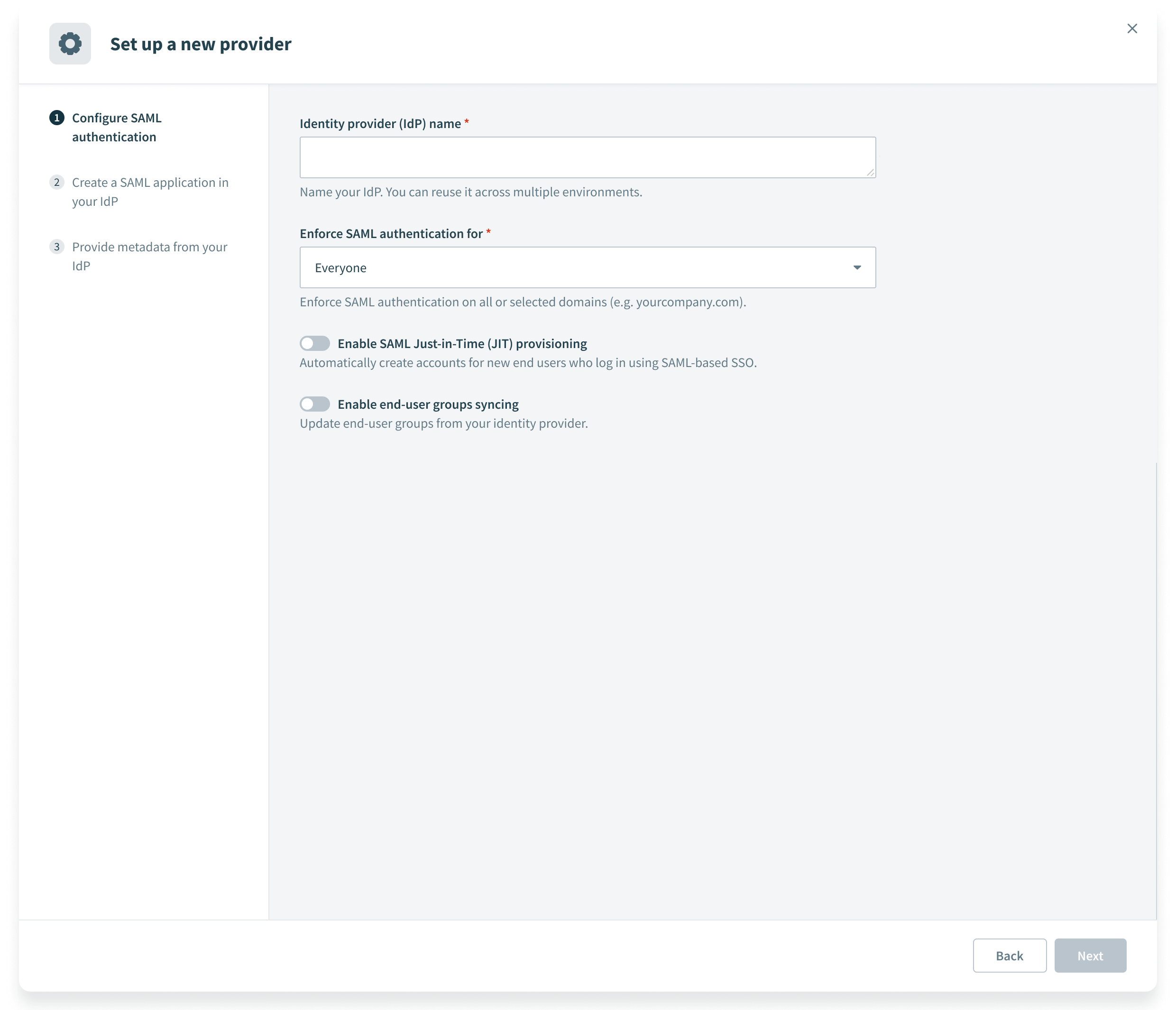 Configure SAML authentication
Use the Enforce SAML authentication for drop-down menu to select who is required to use SAML-based authentication.
Click the Enable SAML Just-in-Time (JIT) provisioning toggle to automatically create accounts for new users who sign in using SAML-based SSO.
AUTOMATED ACCOUNT ENVIRONMENT ACCESS
User accounts are created with access to the environments you selected in the preceding steps by default.
Click the Enable user groups syncing toggle to update user groups from your identity provider. Refer to User group syncing for more information.
USER GROUP SYNCING ONLY SUPPORTED BY WORKATO GO
User group syncing is only available in Workato GO. The sync process triggers when users log in. Slack and Microsoft Teams users remain authenticated through their platform sessions without re-login prompts, preventing the user group sync from triggering.
Click Next.
Copy the Specify Single sign-on URL and Service provider (SP) entity ID values and paste each value into your IdP to enable access to Workato-powered apps and services.
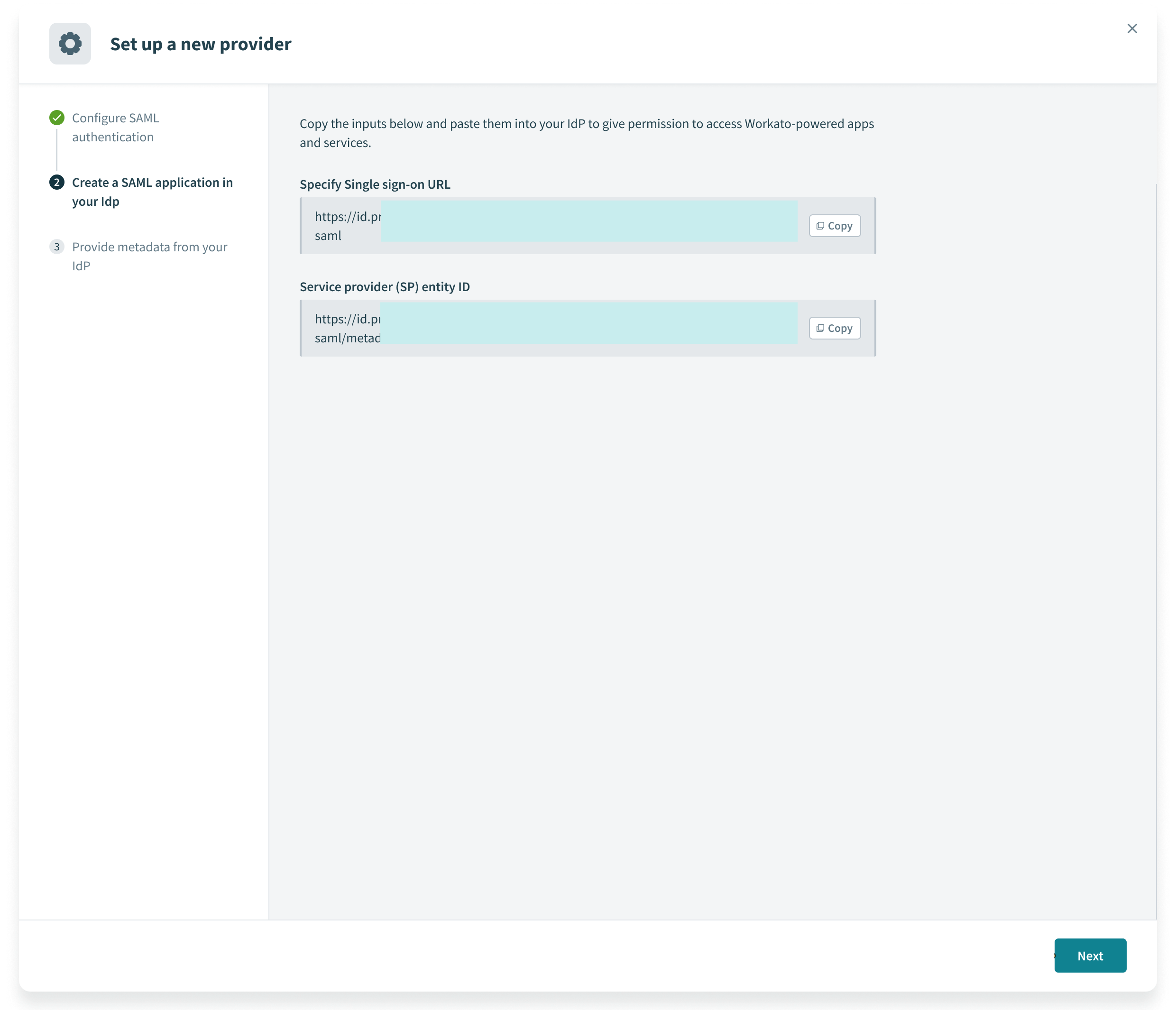 Copy the Specify Single sign-on URL and Service provider (SP) entity ID values
Click Next.
Locate the Do you have your identity provider metadata URL? field and select Yes or No depending on whether you have access to your IdP metadata URL.
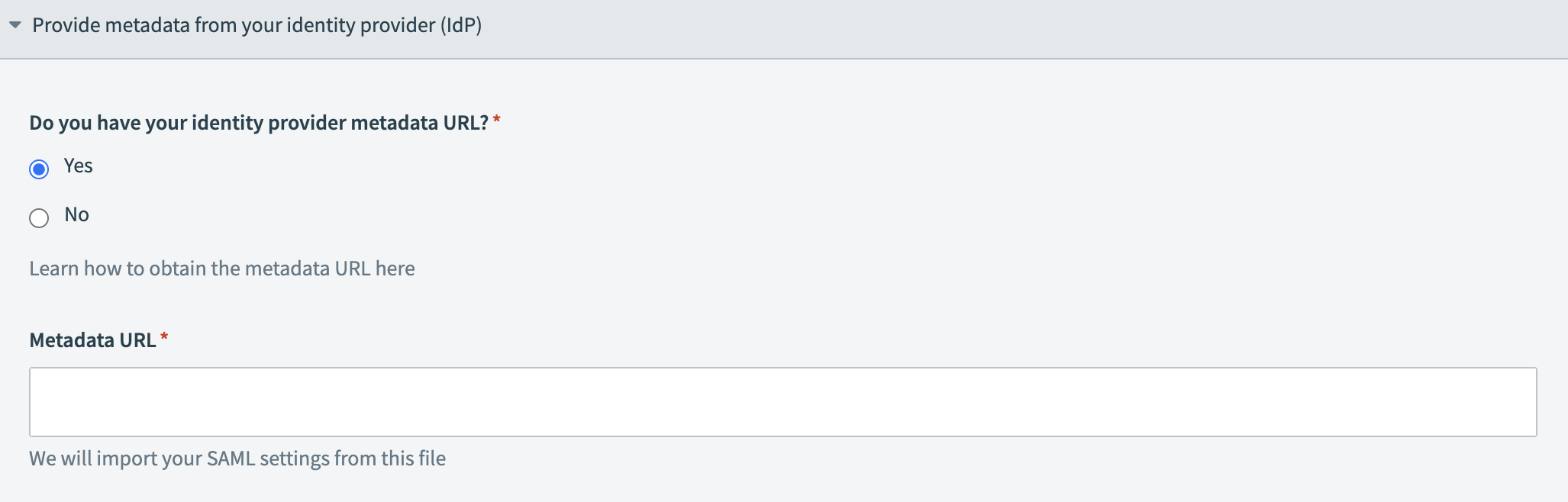 Provide your metadata URL
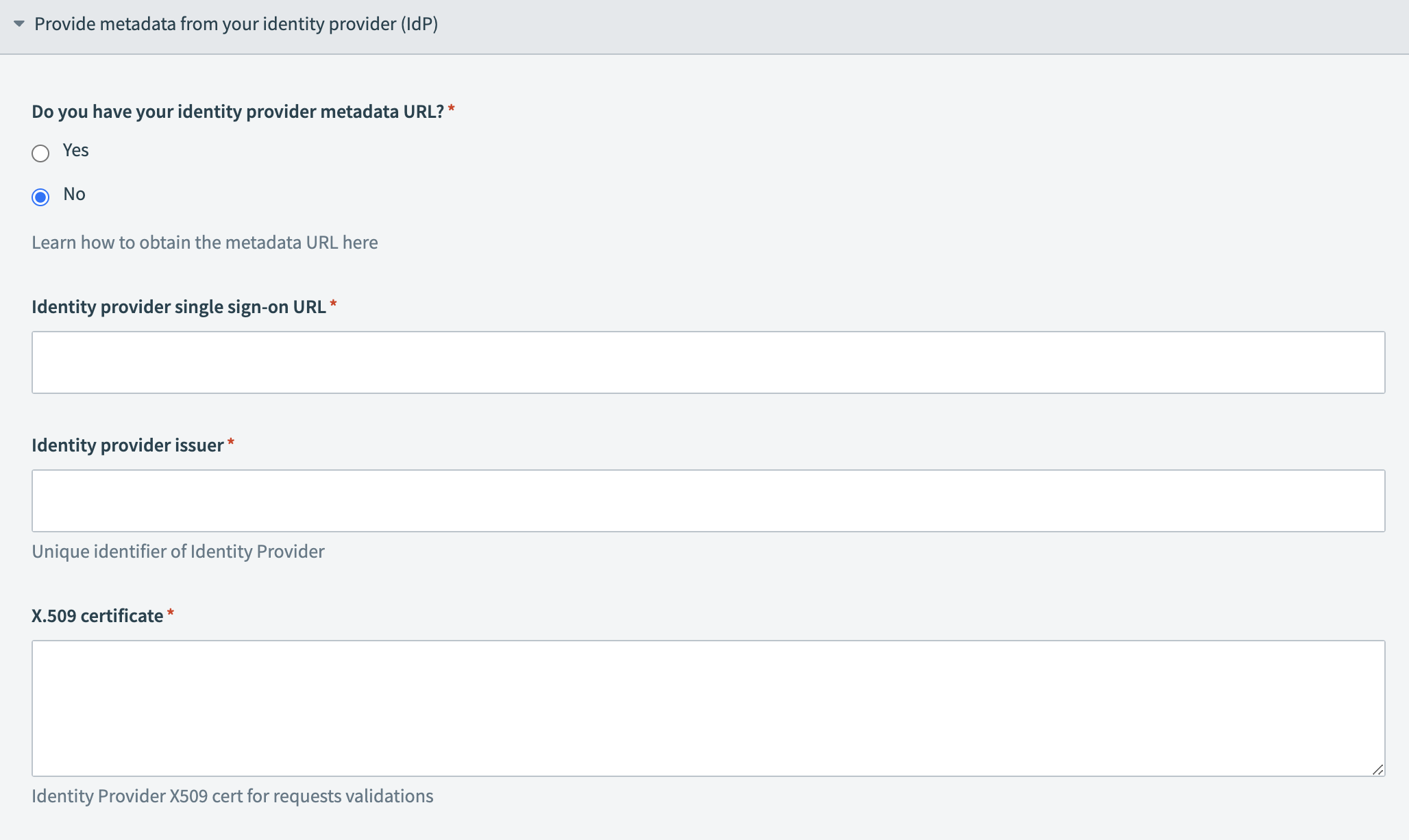 Provide your IdP information
Click Set up.
Last updated: