User group syncing
Group syncing automatically updates user group memberships in Workato based on group information from your identity provider. This ensures access permissions remain synchronized with your organization's directory.
WORKATO GO REQUIREMENT
Group syncing is only available when using Workato GO. Users accessing applications through Slack or Microsoft Teams may not trigger group syncs due to their platform's persistent authentication sessions.
User group sync workflow
Workato syncs user groups using the following workflow:
- Initiation: The user signs in to a Workato application using SAML-based SSO.
- IdP authentication: Workato redirects the user to the configured IdP to enter credentials.
- SAML assertion generation: The IdP validates the user's credentials and generates a SAML assertion containing user attributes and group membership information.
- Group extraction: Workato receives the SAML assertion and extracts group names from the configured group attribute, such as
groups,memberOf, orgroupMembership. - Membership comparison: Workato compares the user's current group memberships in the environment with the groups provided in the SAML assertion.
- Sync group memberships: Workato adds the user to new groups that appear in the SAML assertion and removes the user from groups that are no longer present.
- Apply permissions: Updated group memberships and associated permissions take effect immediately for the user's session.
- Complete authentication: The user is logged in and redirected to the requested Workato application with current group-based permissions.
The following diagram illustrates the group syncing workflow:
Enable user group syncing
Complete the following steps to enable user group syncing:
Sign in to your Workato account and go to Workspace admin.
Click Authentication & Groups in the sidebar.
Select the environment you plan to configure. The environment End-user group page displays by default.
ENVIRONMENT AVAILABILITY
Workspaces without Environments provisioned only have one environment available.
Select the Authentication tab.
Ensure that the SAML-based SSO authentication toggle is enabled.
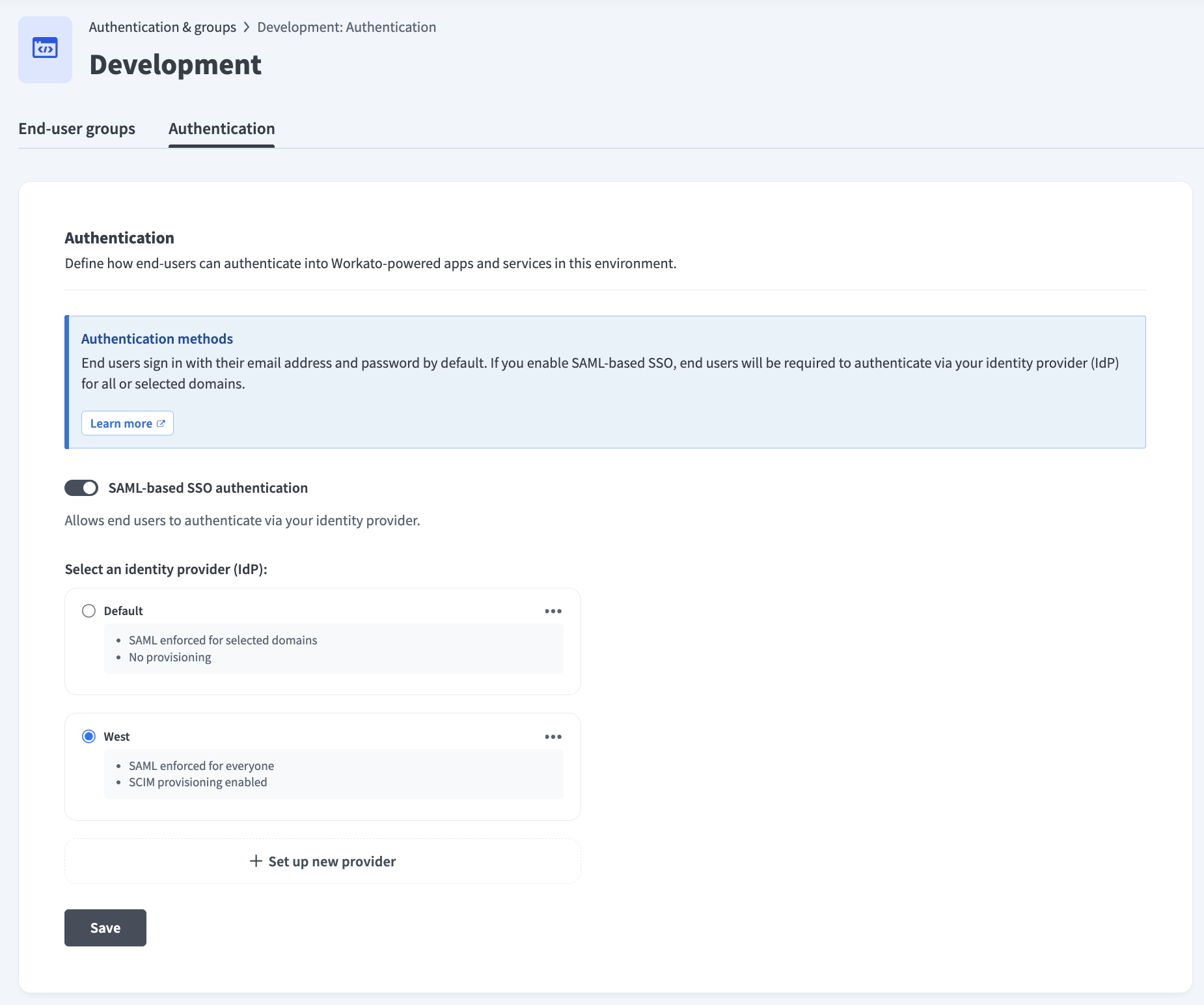 Ensure the SAML-based SSO authentication toggle is enabled
Go to the Select an identity provider (IdP) section and click + Set up new provider.
Click the Enable end-user groups syncing toggle to update user groups from your identity provider.
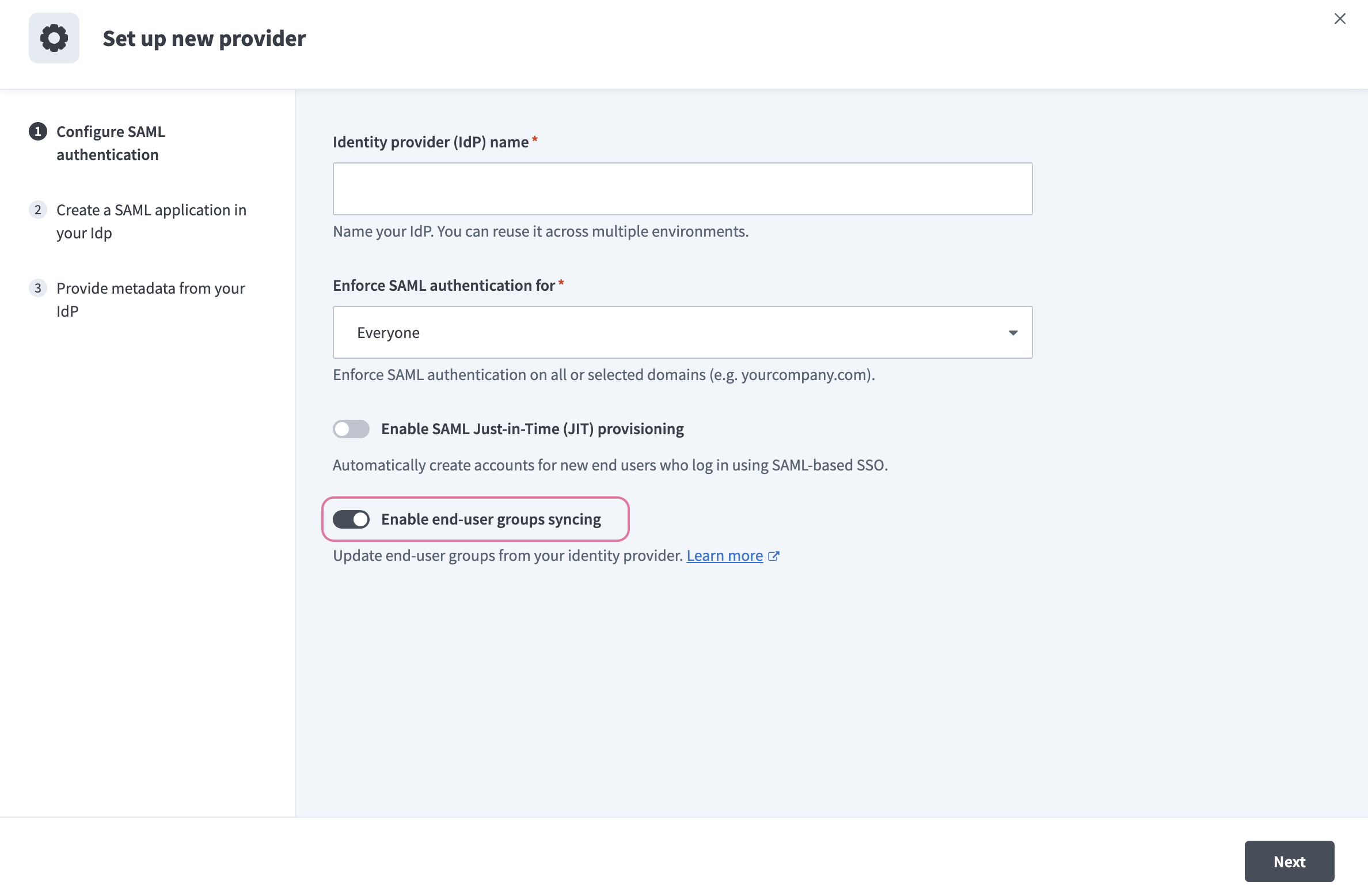 Click the Enable end-user groups syncing toggle
Last updated: