Block kit in Workbot for Slack
Block Kit is Slack's UI framework, which offers more control and flexibility when building messages for Slack.
You can stack blocks, customize their order and appearance, and customize the elements within each block. The following table describes the different types of blocks and the actions that support them.
Blocks can be used in the following Slack surfaces:
| Surface | Applicable actions |
|---|---|
| Messages | Post message, Post command reply |
| Modals | Open/update or push modal |
| App home | Publish app home view |
Compatibility with message attachments
Post message and post command reply previously used message attachments to construct messages. Blocks can be used together with message attachments.
You can optionally provide secondary attachments, which will display below any defined blocks.
Behavior of blocks when used with message attachments
When both blocks and message attachments are defined, blocks will always appear above message attachments.
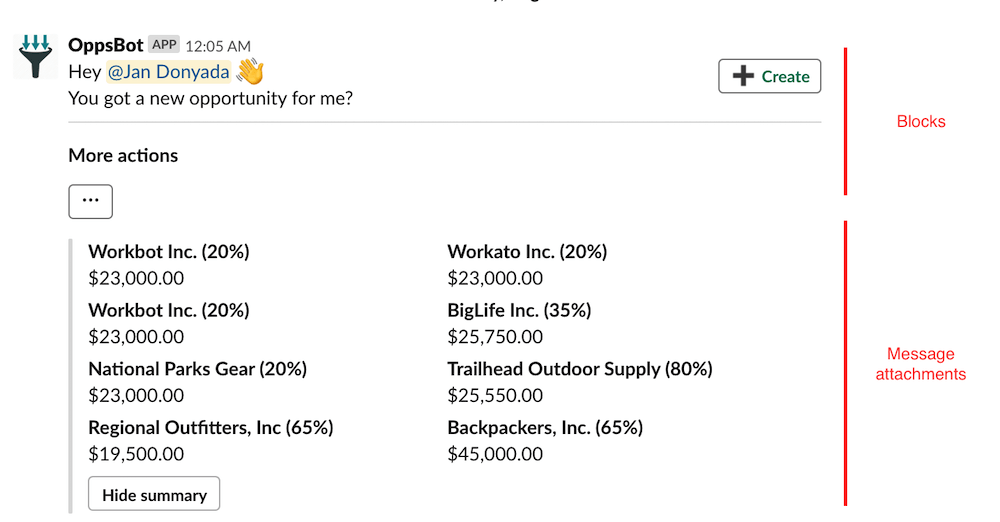
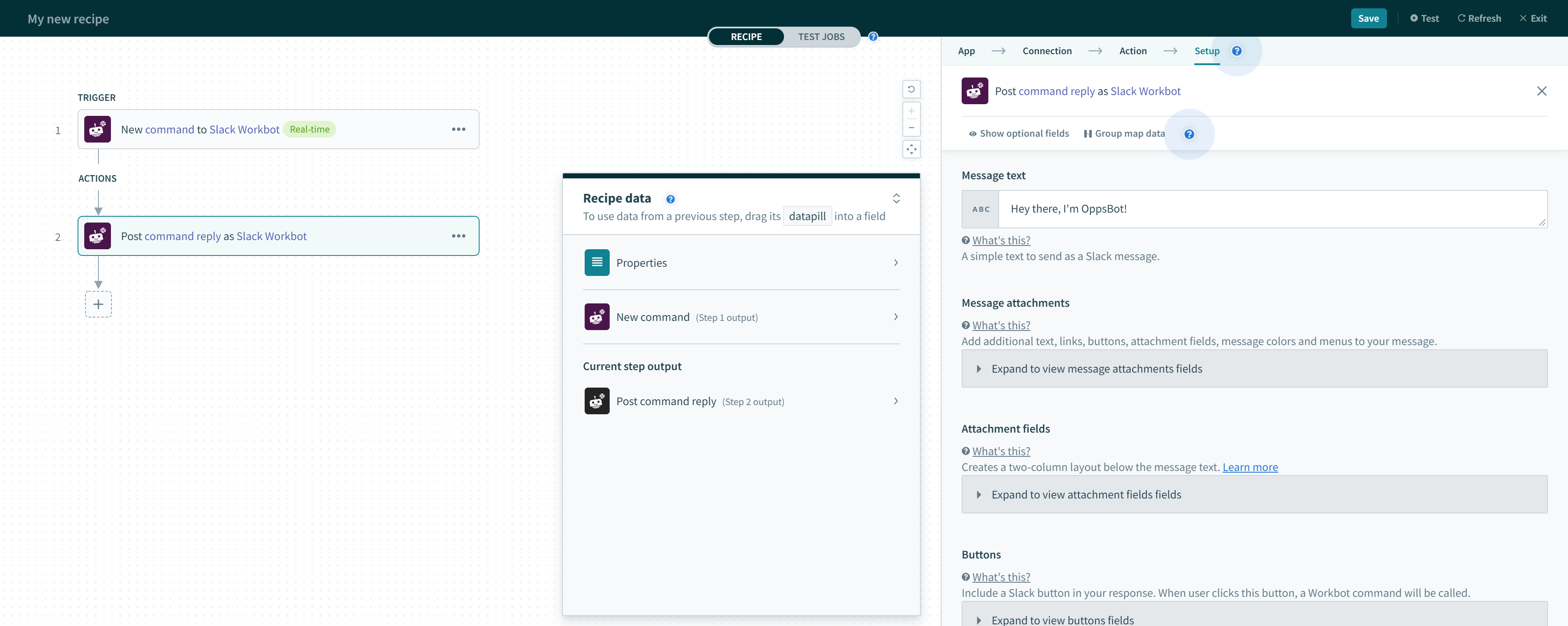
When any blocks are defined, any input in the Message text field will be used as the Slack notification message.
Supported blocks
Workbot for Slack supports the following block types:
| Blocks | Description |
|---|---|
| Section with text | Displays text. |
| Section with image | Displays text alongside an image thumbnail. |
| Section with button | Displays text alongside a button. You can configure Workato to take one of the following actions on button-click: continue recipe, run a bot command, or open a URL. |
| Section with fields | Displays text, along with an array of title-value fields, rendered in 2 columns beneath the section text. Maximum number of fields is 10. Maximum length for the text in each field is 2000 characters. |
| Section with select menu | Displays text, alongside a select menu. Supports Slack's built-in dynamic menus such as Select user, Select conversation, Select channel. You can also define your own custom dynamic menu. On submission, a menu option invokes another recipe and passes on any command input values it has. |
| Section with overflow menu | Displays text, alongside an overflow menu. Supports static or dynamically generated overflow menu options. On submission, an overflow menu option invokes another recipe and passes on any command input values it has. |
| Section with date picker | Displays text, alongside a date picker. On date selection, a date picker invokes another recipe and passes on the selected date via a date parameter. You can customize the name of this date parameter. You can optionally pass additional command input values together with the date parameter. |
| Repeat block group | This a special block type that's available only on the Workato bot platform. The repeat block group allows you to define a set of blocks to use as a pattern. By iterating through an existing list and mapping the list fields to the fields of the blocks in the pattern, you can dynamically generate repeat blocks. |
| Divider | A content divider, like an <hr>, used to split up different blocks inside of a message. |
| Image | Displays an image using a provided public URL. |
| Actions | A block that can hold multiple interactive elements like buttons, overflow menus, select menus, and date pickers. |
| Context | Displays message context, which can include both images and texts. All images and texts will be joined together into a single string, in the order they appear in. |
Limitations
Max number of blocks
The following table shows the max number of blocks that Slack allows you to publish on a surface.
| Surface | Max no. of blocks |
|---|---|
| Messages | 50 |
| Modals | 100 |
| App home | 100 |
Character limits in block kit elements
When posting to surfaces on Slack, Workbot uses the value & action_id fields to pass bot commands and parameters. These fields have character limits. While bot commands & command input values are exposed to the user for use, Workbot reserves 9 characters for internal use. Additionally, spaces also contribute to the character count.
WARNING
Since Submit button/menu option commands, Command input values, spaces & 9 characters (Workbot internal use) are combined and passed through value or action_id, they share the same character limit.
The following table shows the character limits found in block kit elements.
| Block kit elements | Character count contributors | Character limit | Field used in payload | Surfaces |
|---|---|---|---|---|
| Section with button Actions: Button |
| 2000 | value |
|
| Section with select menu |
| 255 | action_id |
|
| Actions: select menu |
| 75 | value |
|
| Section with overflow menu Actions: Overflow menu |
| 75 | value |
|
| Section with date picker Actions: Date picker |
| 255 | action_id |
|
| Select menu input *Types: Custom, Dynamic* | Value to pass when this option is selected | 75 | value | Modals only |
| Section with radio buttons |
| 75 | value | Modals only |
| Checkboxes input | Value | 75 | value | Modals only |
| Radio buttons input | Value | 75 | value | Modals only |
Character types
The Open/update or push modal view action does not support CamelCase characters or comma-separated name-value pairs as Command input values for Modal submissions. Use JSON to define these values, for example, {"account_id": "12345"}. However, CamelCase parameters are supported within JSON, for example, {"AccountID": "12345"}. Command input values also support passing JSON arrays and objects as parameters. Learn more about Command input values in modals.
Last updated: