New shortcut trigger (real-time)
The New shortcut trigger is a powerful way to kickstart your workflows. Launch a workflow from a global shortcut, or turn any Slack message into a task or a ticket using a message shortcut. This trigger works for both Global & Message shortcuts. To use this trigger, you'll need to create shortcuts in your Enterprise bot.
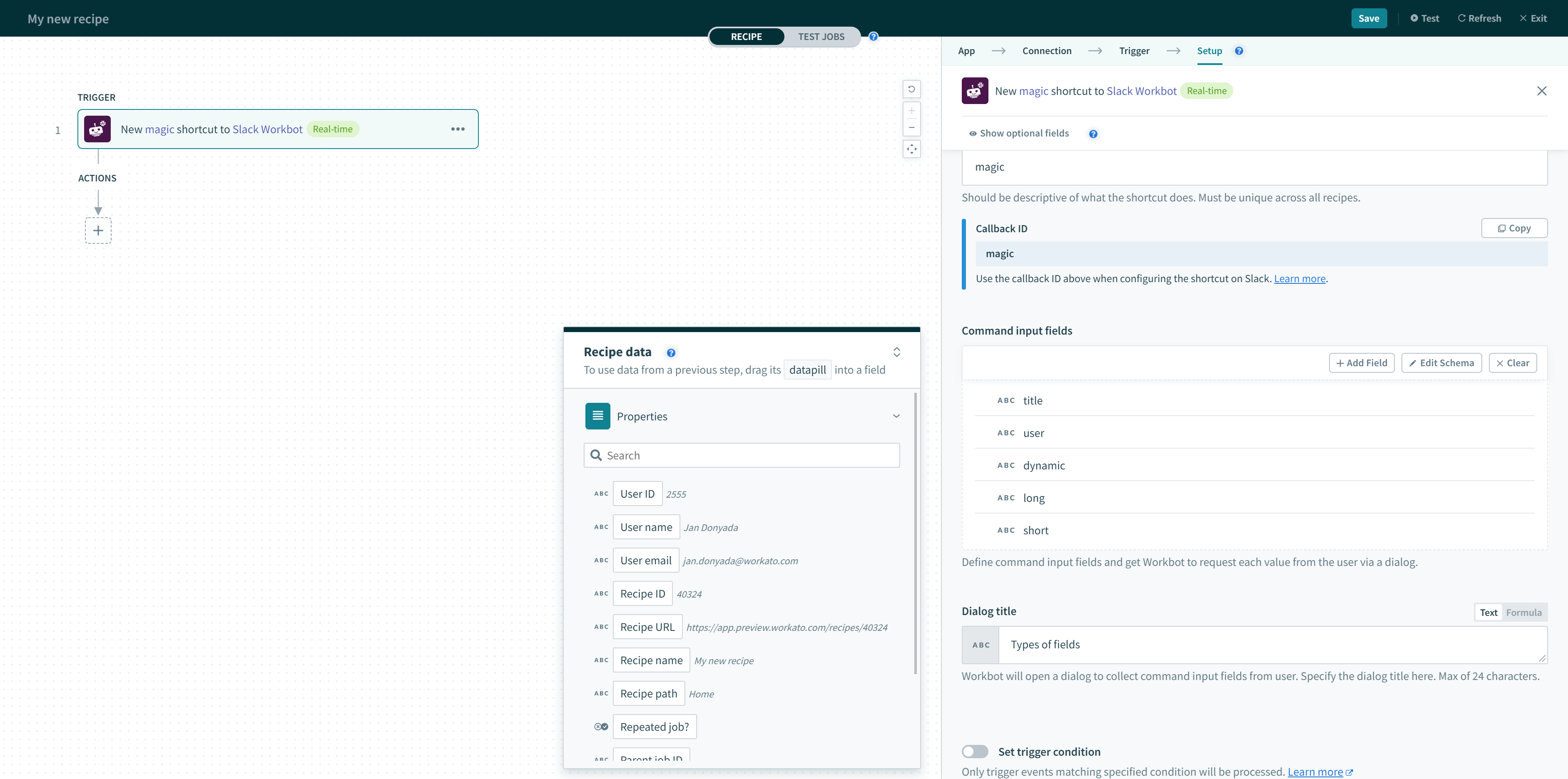 New shortcut trigger
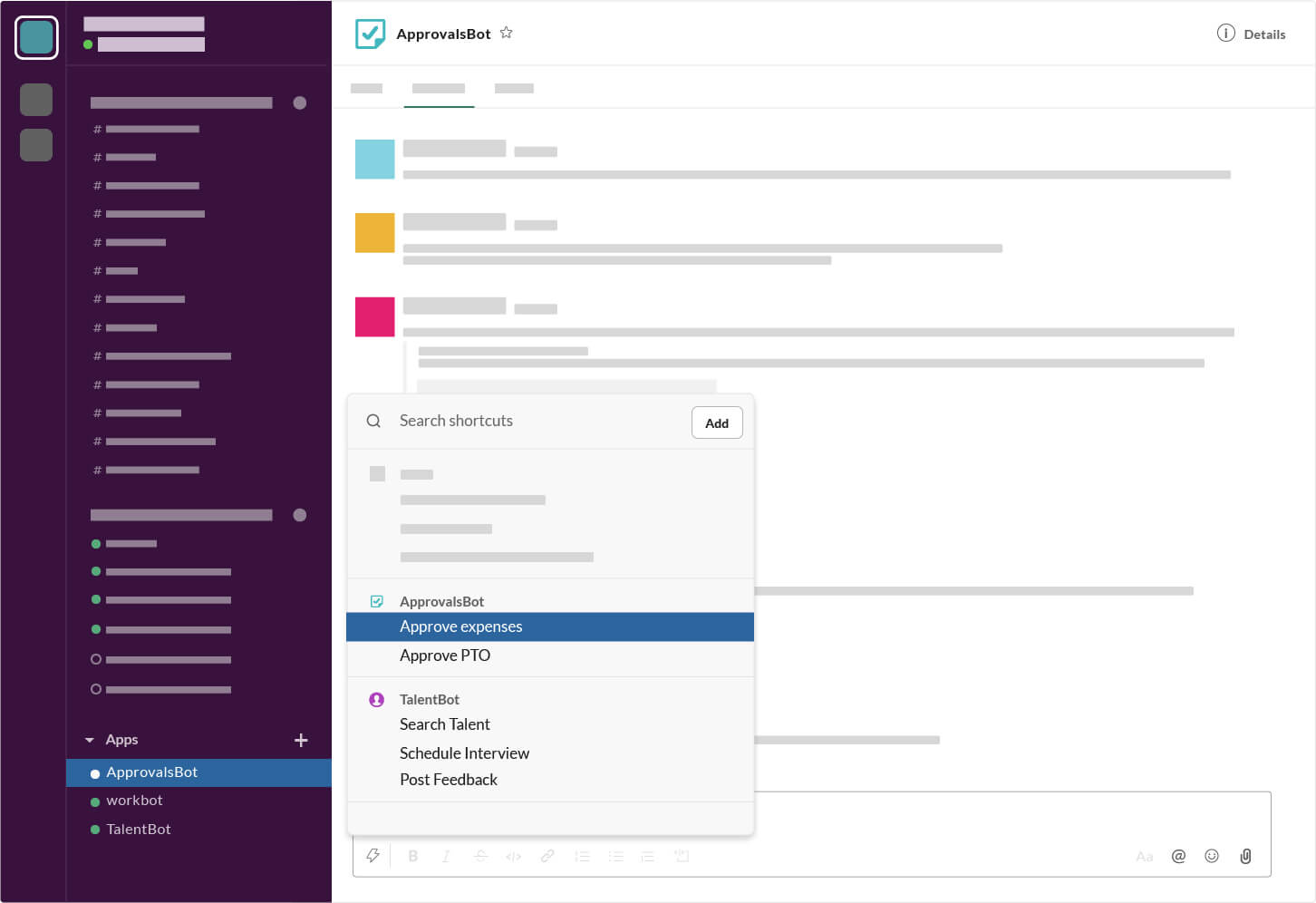 Shortcut example
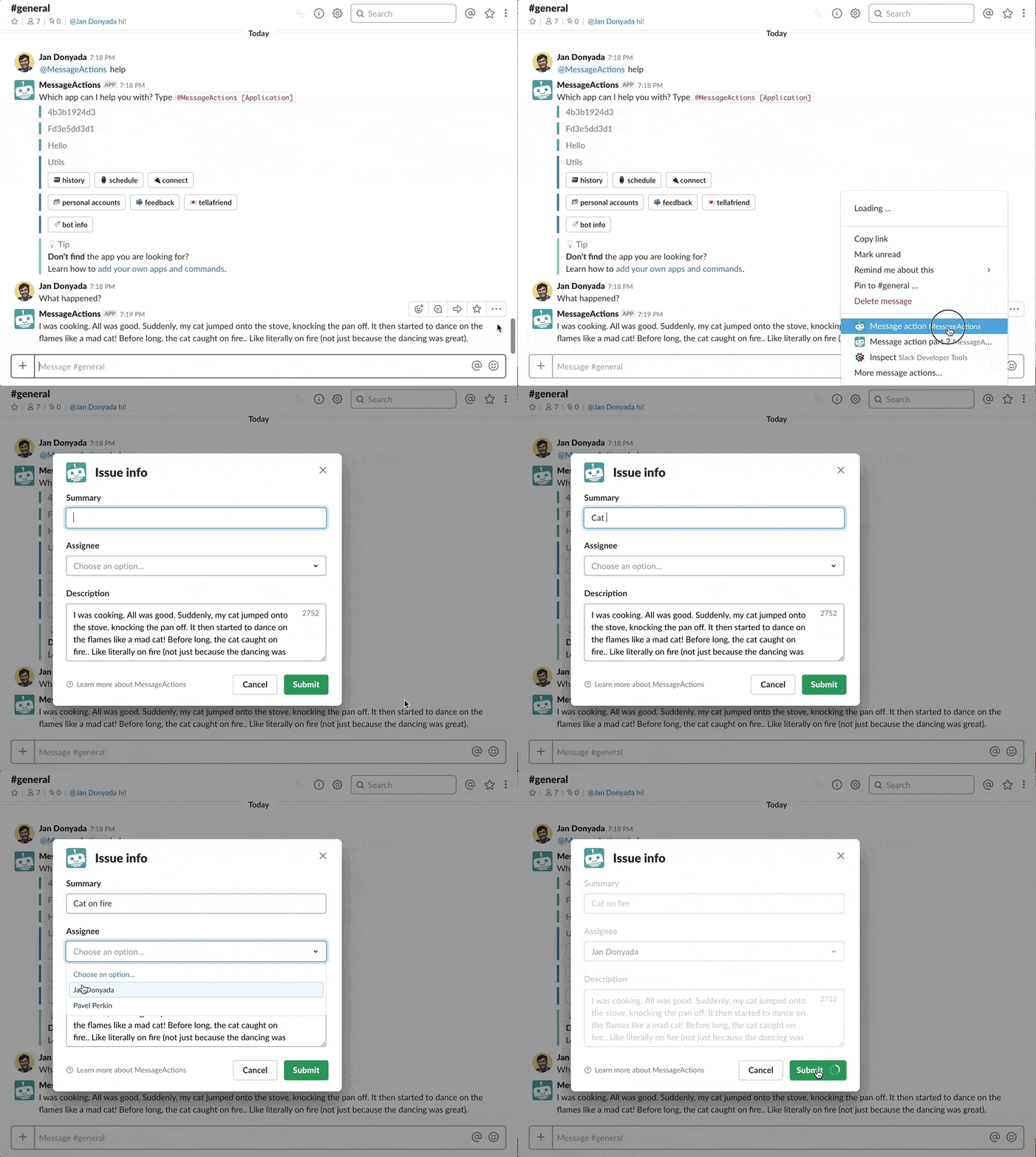 Message shortcut in action
Similar to the Post command trigger, command input fields can be defined if you need user input for follow-up actions. If command input fields are specified, shortcuts will launch a dialog to get user input.
How global shortcuts work
Shortcuts can be triggered from the shortcuts menu or the search bar.
Select the shortcuts menu or search for your shortcut in the search bar at the top of your Slack UI.
Accessing shortcuts from Slack
How message shortcuts work
Message shortcuts can be triggered on any message in any channel, direct message, or multi-party message that your Enterprise bot is a member of.
Hover on a message and select the horizontal ellipsis menu to bring up a list of actions. Message shortcuts that you've created can be found at the bottom of the list.
If you don't see your message shortcut, select More message shortcuts from the same menu to view all message menus in your Slack team.
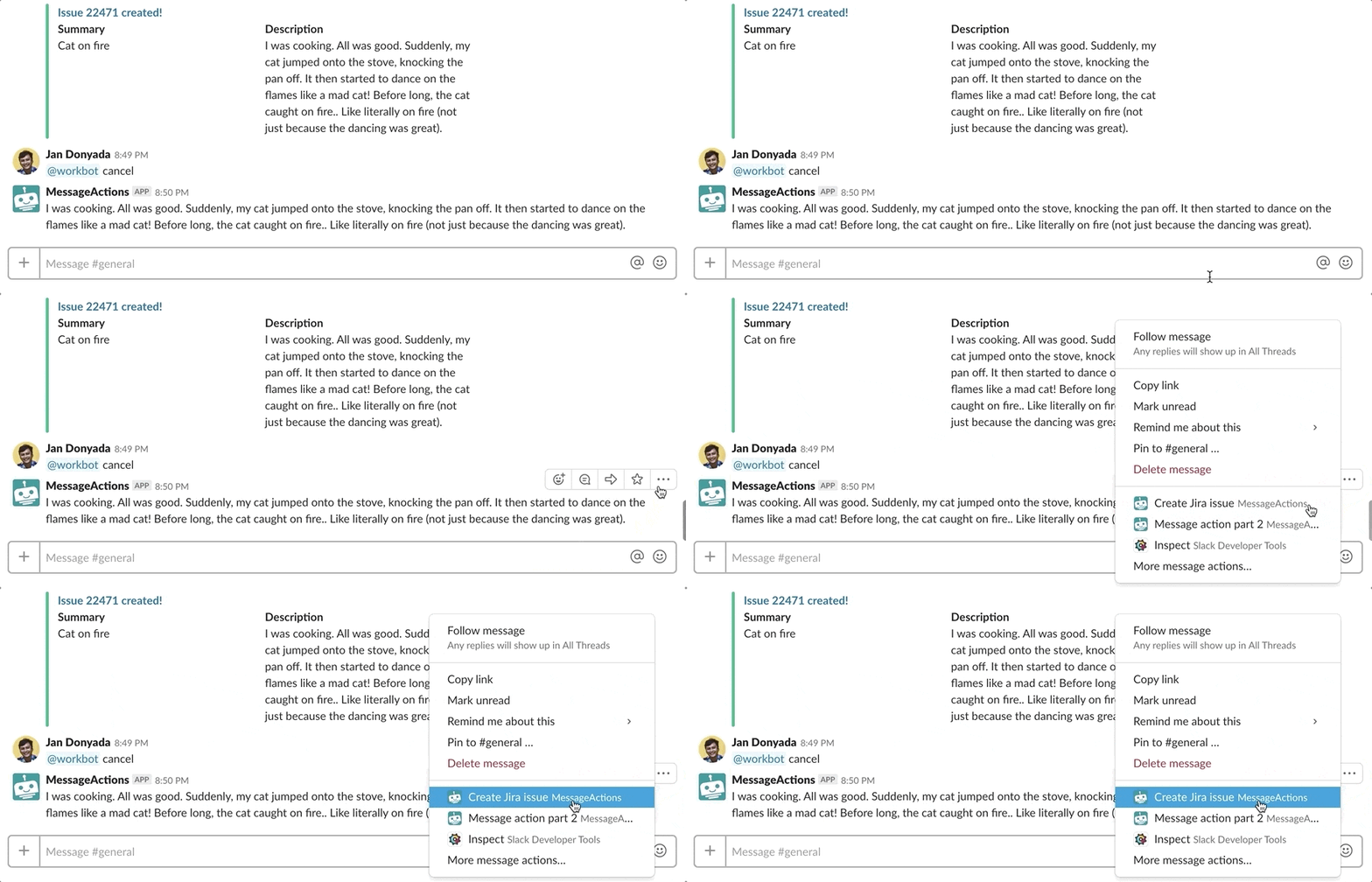 Accessing message shortcuts from Slack
What's unique about message shortcuts is that the content of the message (which the message shortcut was performed on) can be used in follow-up actions. Combined with the dialog (for collecting structured user input), you can transform any conversation into tasks, tickets, and more.
Requirements: Enterprise bot
To use shortcuts, you first need to create a Enterprise bot. If you haven't done so already, head over to our Enterprise bot documentation to learn how to do it.
The message shortcut must be added and configured under an Enterprise bot in Slack before they can be used in Workato.
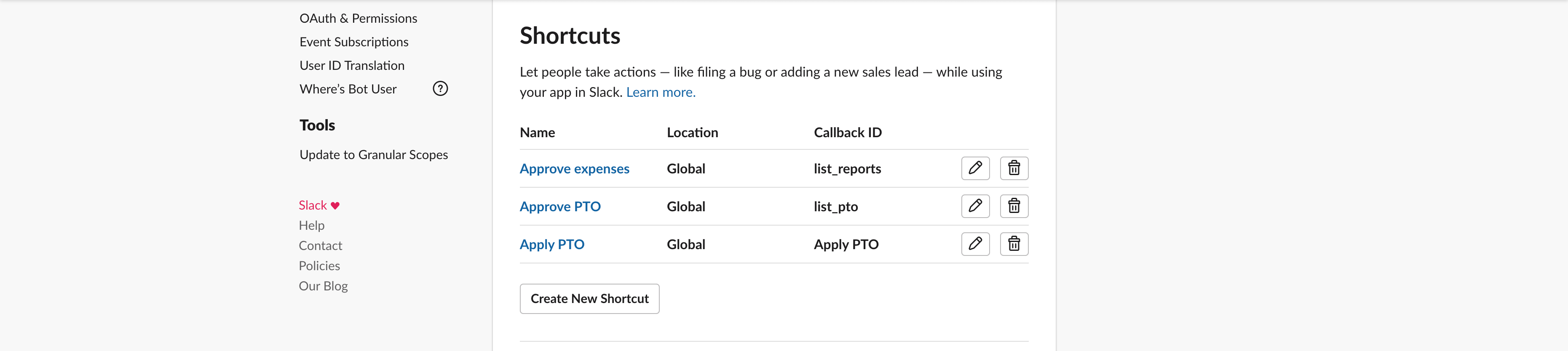 Shortcuts created under Interactive Components
If you already have an Enterprise bot, proceed on to learn how to use shortcuts with your Enterprise bot.
Configuring a shortcut trigger
In this section, we will go through how to configure a shortcut trigger.
Shortcuts trigger fields
The table below shows the input schema for the shortcuts trigger.
| Field | Explanation | What goes in here |
|---|---|---|
| Shortcut type | Global or message | Triggers when Global or Message shortcuts are invoked in Slack. Global shortcuts have team & user context. Message shortcuts have team, channel, and message context. You can also copy the original message text into a command input value. |
| Shortcut name | Name of the shortcut | The name of the shortcut should be descriptive of its function, for example, Create Jira ticket. The shortcut name also doubles as a Callback ID, which is used in configuring the corresponding shortcut in Slack. Shortcut names should be unique across all recipes. |
| Command input fields | Fields you need from the user | Often, you need your bot to obtain more information from users before it can carry out subsequent recipe actions. If you've defined any command input fields, the Enterprise bot will automatically launch a dialog for users to key in each input field. Define up to 10 command input fields. |
| Dialog title | Title of the dialog that is launched | Define the title of the dialog that launches when collecting user input for command input fields. Maximum of 24 characters. |
Callback ID
When shortcuts are triggered from Slack, the Callback ID is used to match the trigger event with the correct recipe.
 Callback ID generated from Shortcuts name
Callback ID is generated from the shortcut's name — so make sure that the name you choose is unique.
Callback ID is required to configure your shortcuts in Slack. More on this in a later section.
Dialog for command input fields
If you've defined any command input fields, a dialog is automatically launched to collect values for each of them from the user. Up to 10 command input fields can be defined for each shortcut trigger.
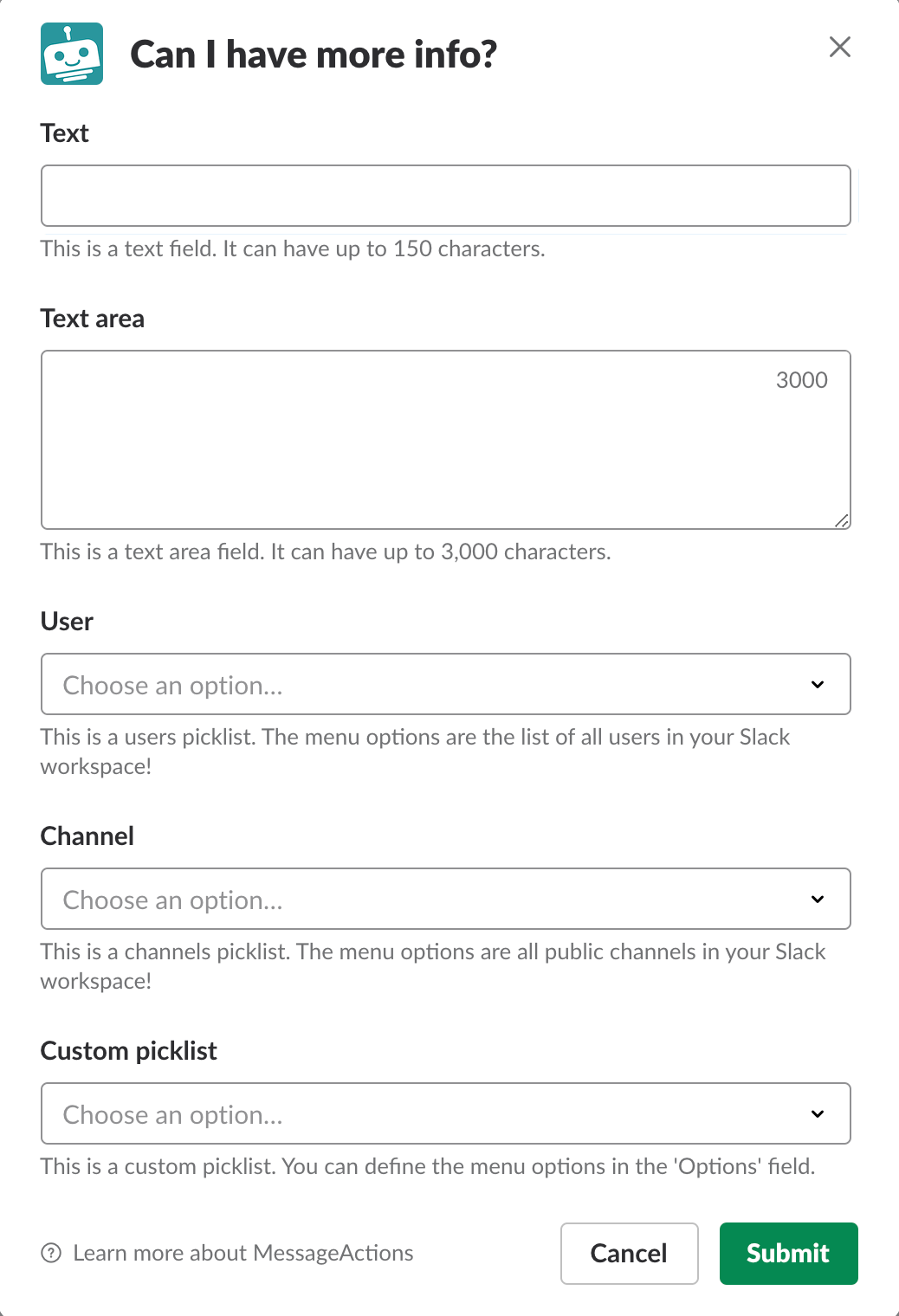 Message action dialog in Slack, with 5 different fields
Each time you add a command input field, you can control how it shows up in the dialog.
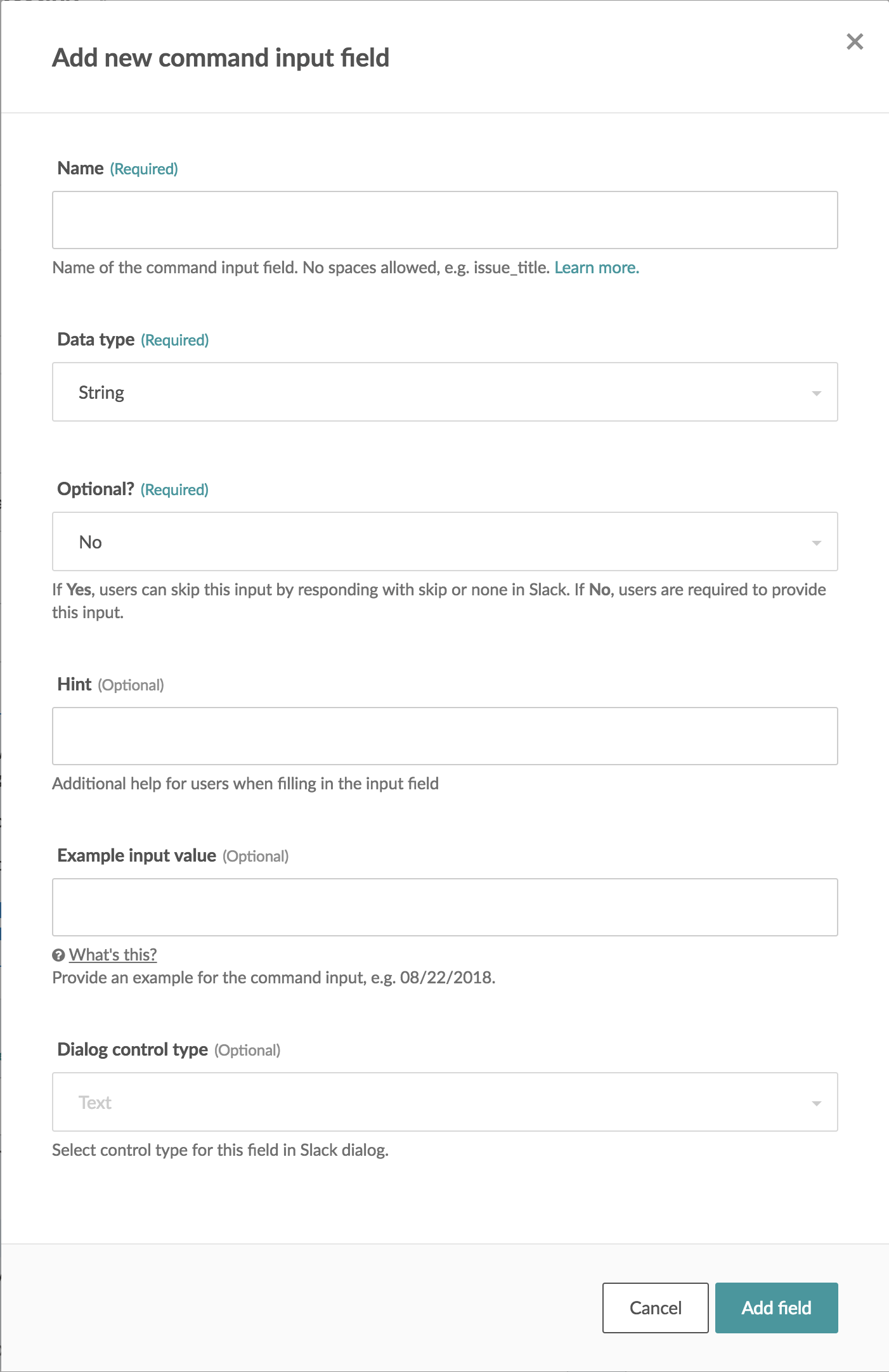 Adding a command input field
Display text field in dialog
Under Dialog control type, choose text to display a text field.
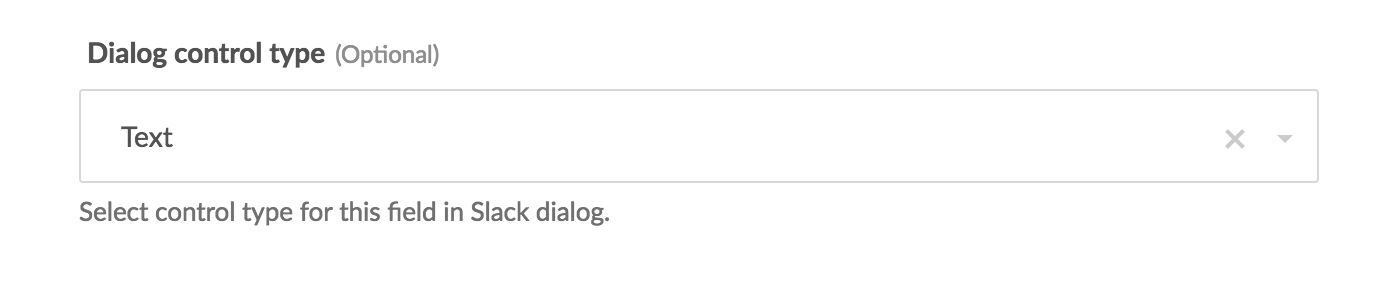 Text control type in command input field
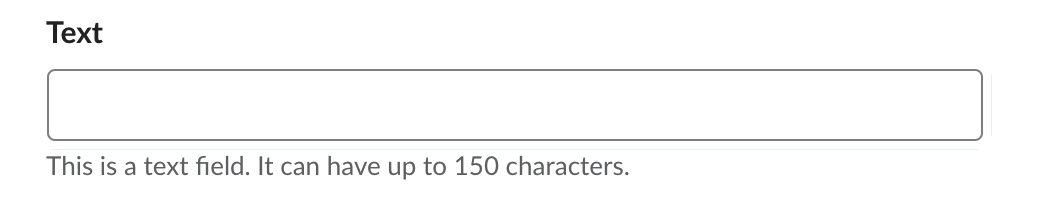 Example text field in a Slack dialog
Text fields are capped at 150 characters. If you're copying original messages into this input field, the original field cannot be longer than 150 characters. To avoid this issue, choose text area as your control type.
Display textarea field in dialog
Under Dialog control type, choose text area to display a text area field. Text area fields are capped at 3,000 characters. This control type is useful when copying original messages that are up to 3,000 characters long into this input field.
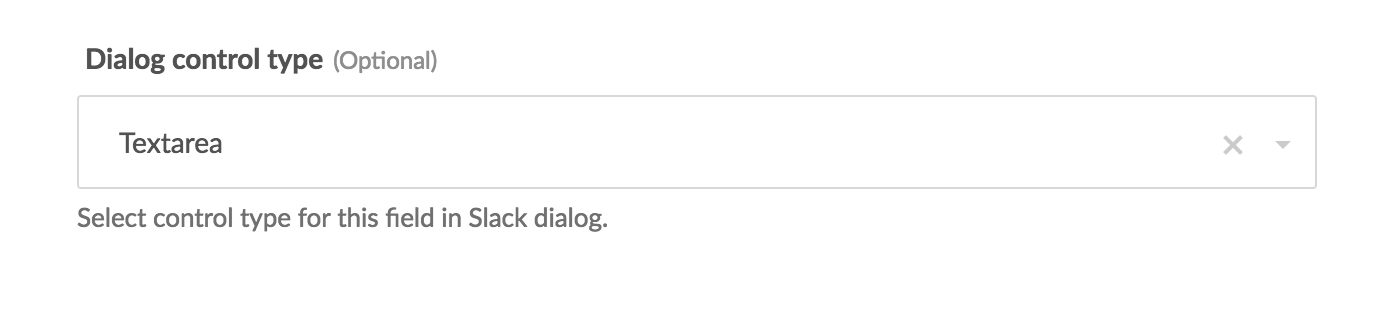 Text area control type in command input field
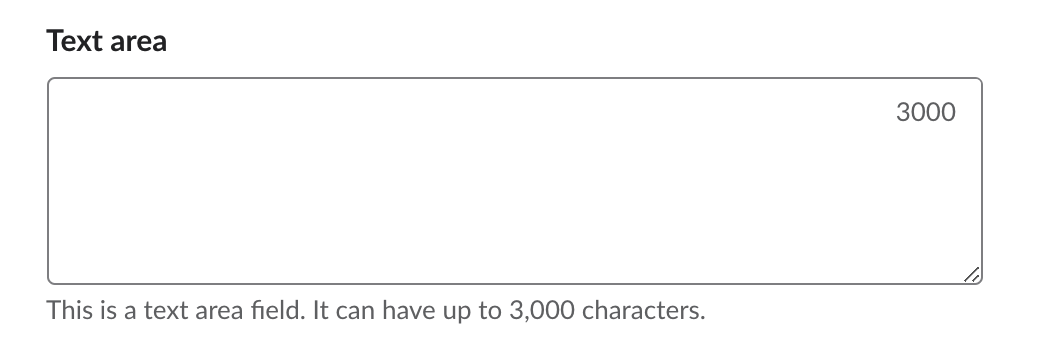 Example text area field in a Slack dialog
Display a select menu in dialog
Under Dialog control type, choose select to display a select menu with menu options. This enables a new setting called Select menu options type.
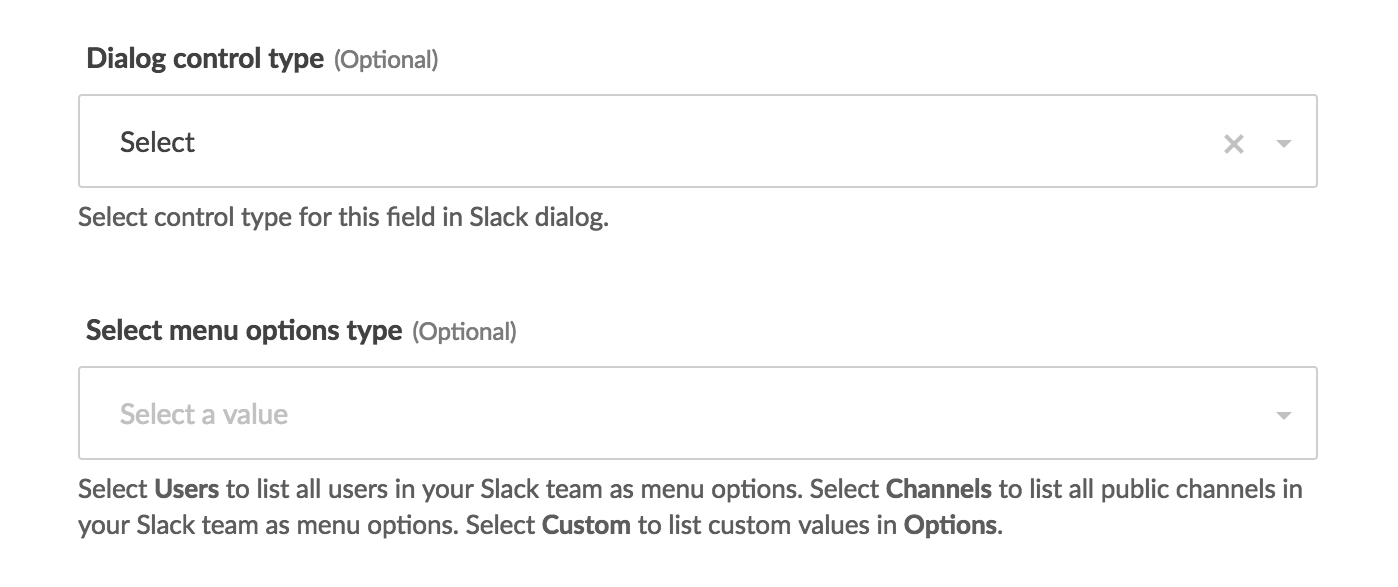
You can choose from 3 different types of select menus. Each differs by the menu options displayed:
- Channels displays the list of all public channels in your Slack workspace.
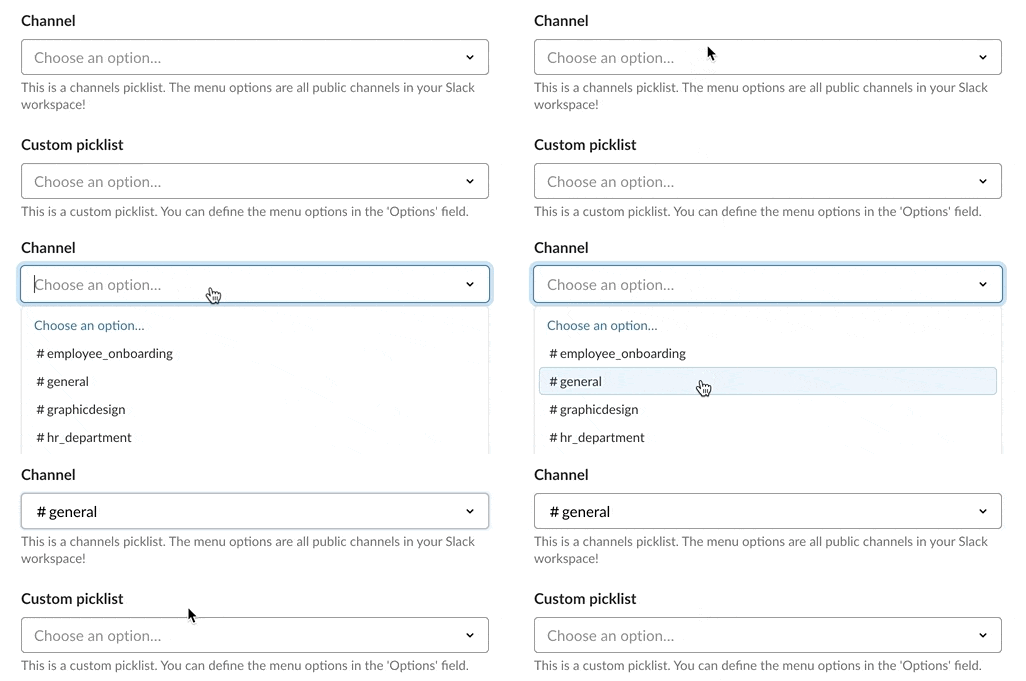 Example of a channels menu in a Slack dialog
When a channel is selected, the channel ID is returned, for example, CA83MDSK0.
Users displays the list of all users (including bots) in your Slack workspace.
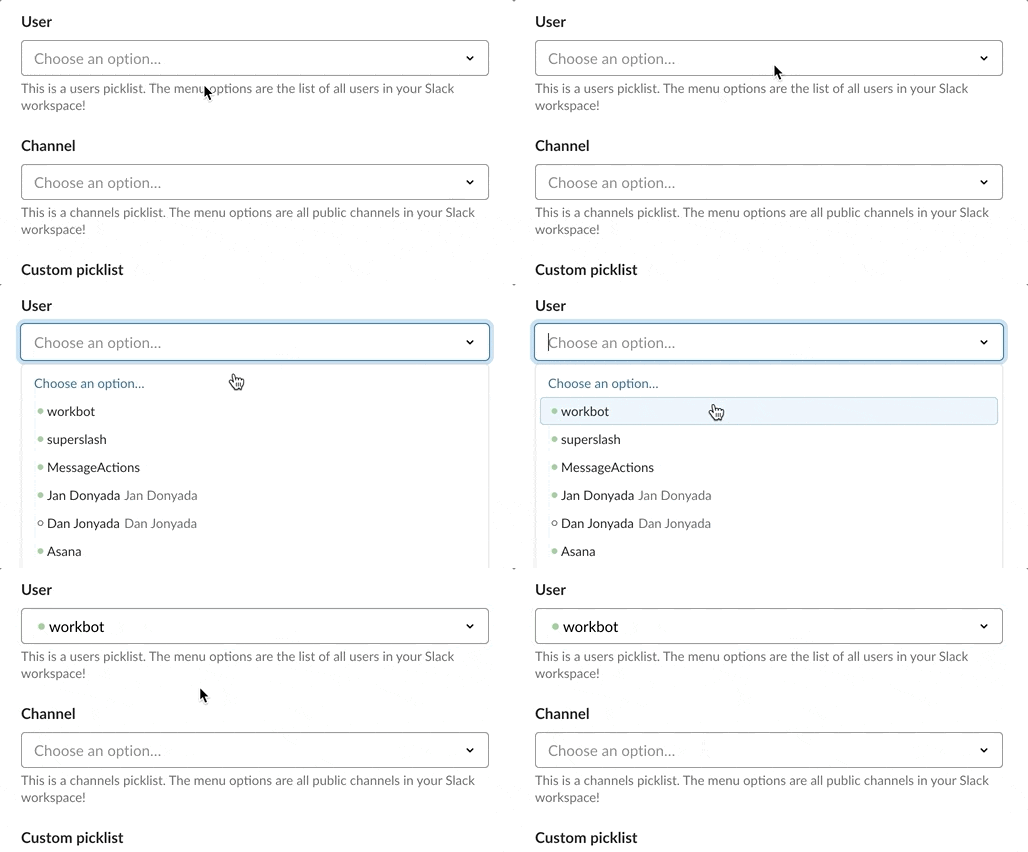 Example of a users menu in a Slack dialog
When a user is selected, the user ID is returned, for example, UBTDVPFMM.
Custom allows you to define a list of comma-separated menu options in the Options field. The menu option themselves cannot contain commas.
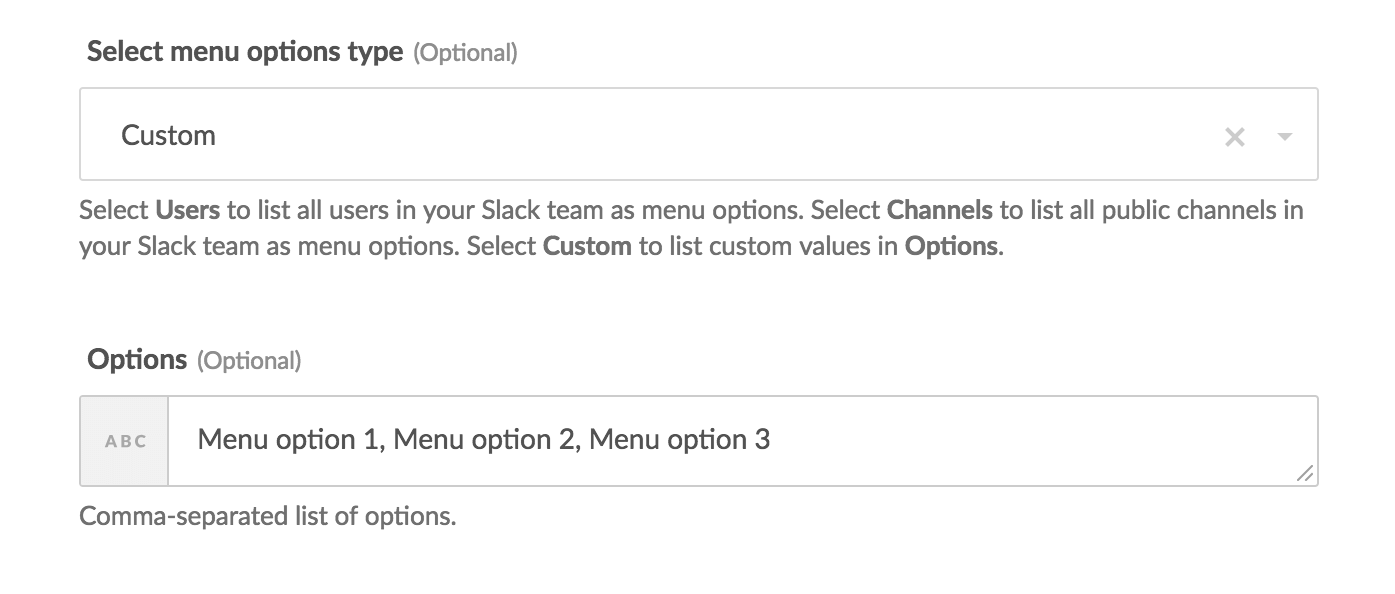 Custom menu config
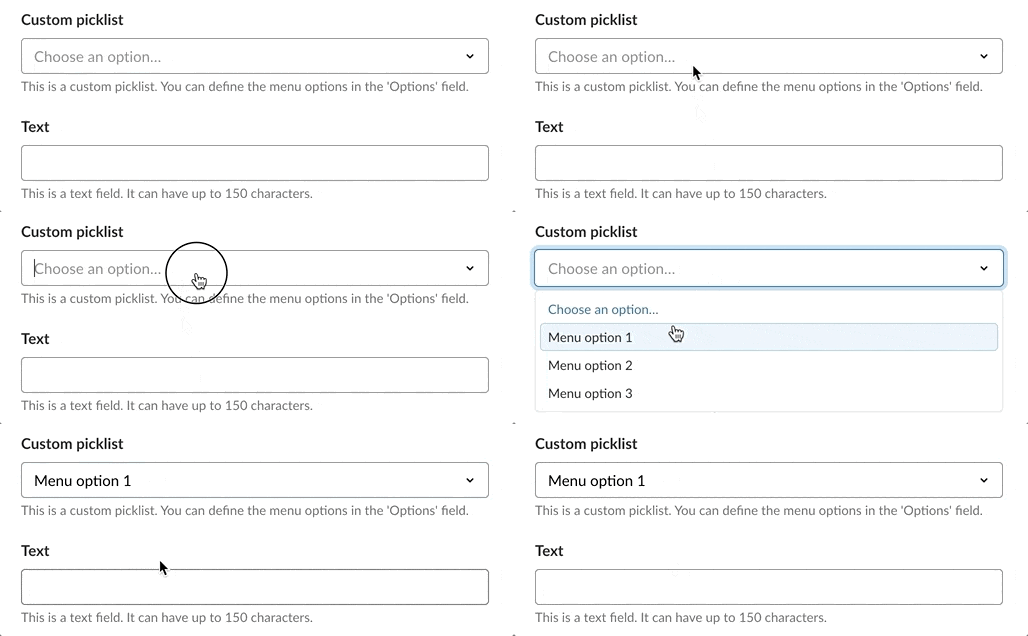 Example of a custom menu in a Slack dialog
Copy original text into dialog field
You can also choose to copy the original message into a defined command input field so that it shows up in the dialog. You can do so by selecting a command input field from the picklist in the Copy original text into dialog field.
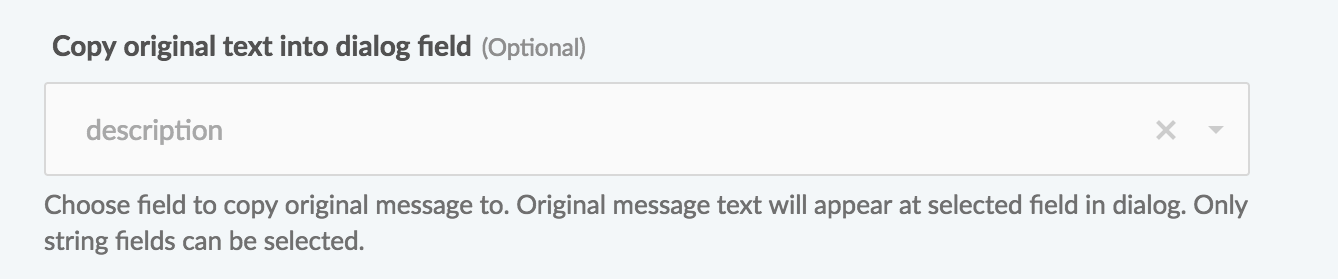 Copying original message into the 'description' command input field
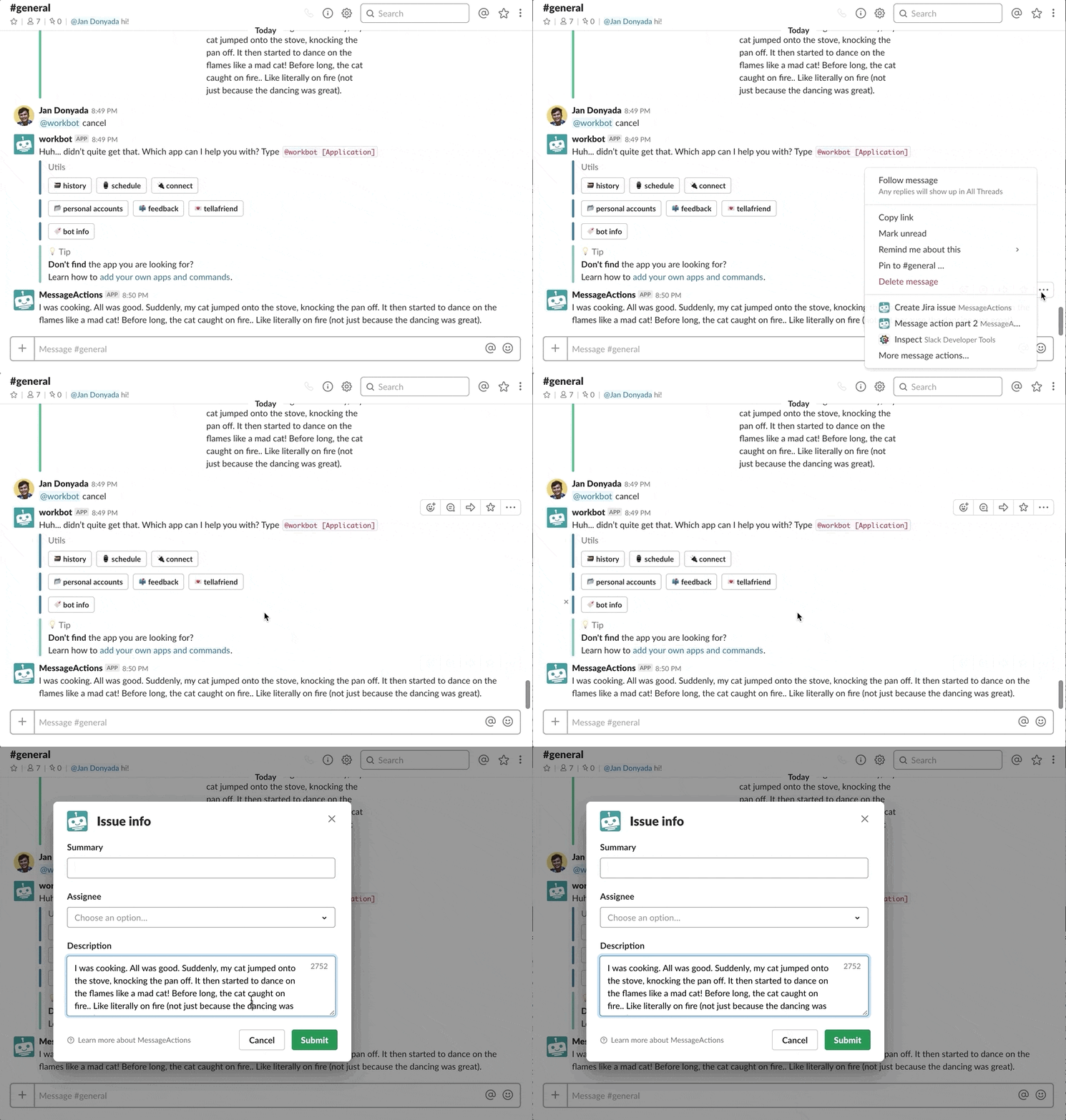 Original text copied onto 'description' field in dialog
Note that only fields of type string are selectable.
After configuring your shortcut trigger, you'll need to create the shortcut in Slack.
Creating shortcuts on your Enterprise bot in Slack
Head to https://api.slack.com/apps and go to your Enterprise bot.
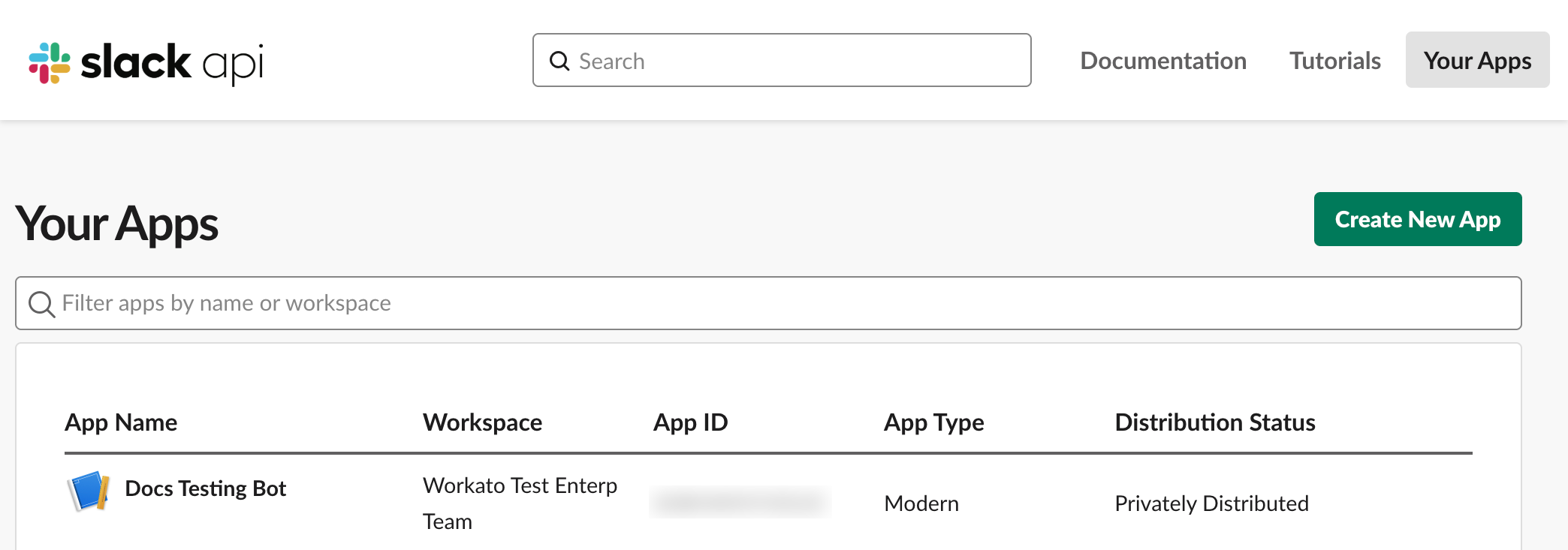 Select your Enterprise bot
Under Interactive components, select Create New Shortcut.
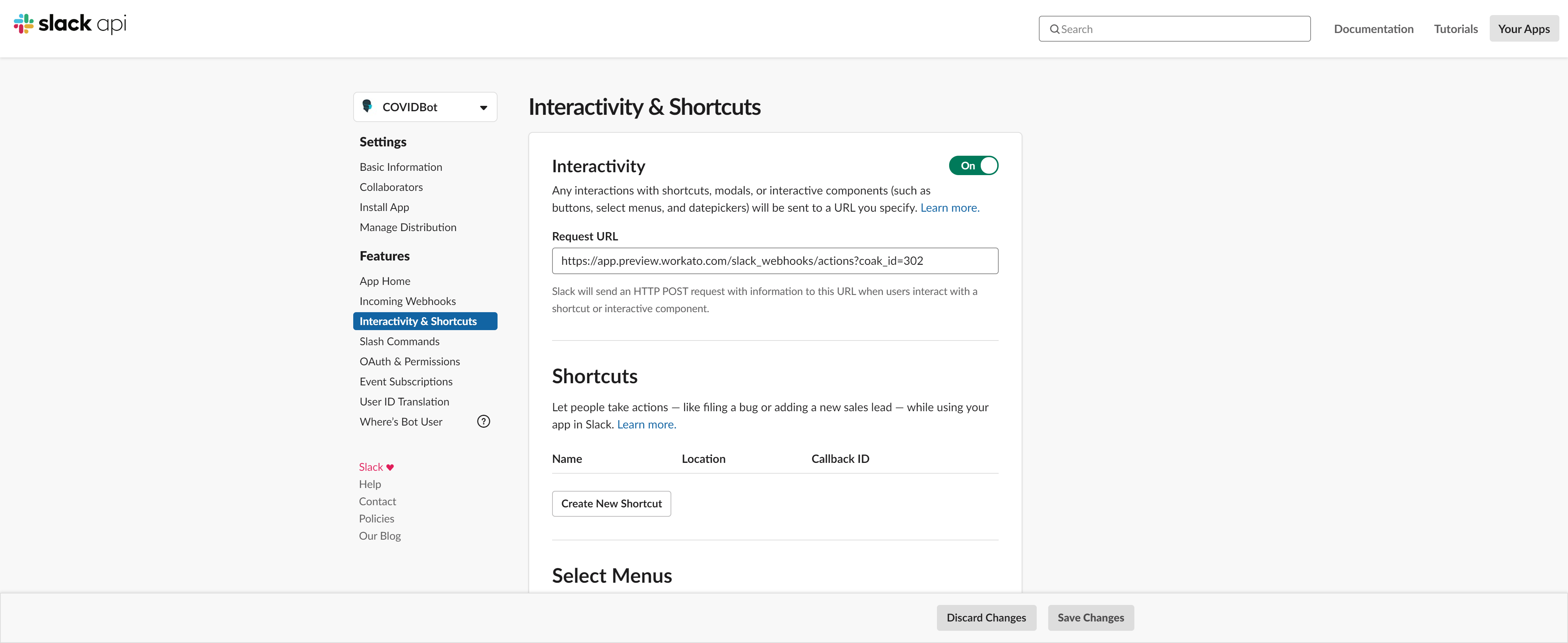 Select Create New Shortcut
On the next page, choose Global.
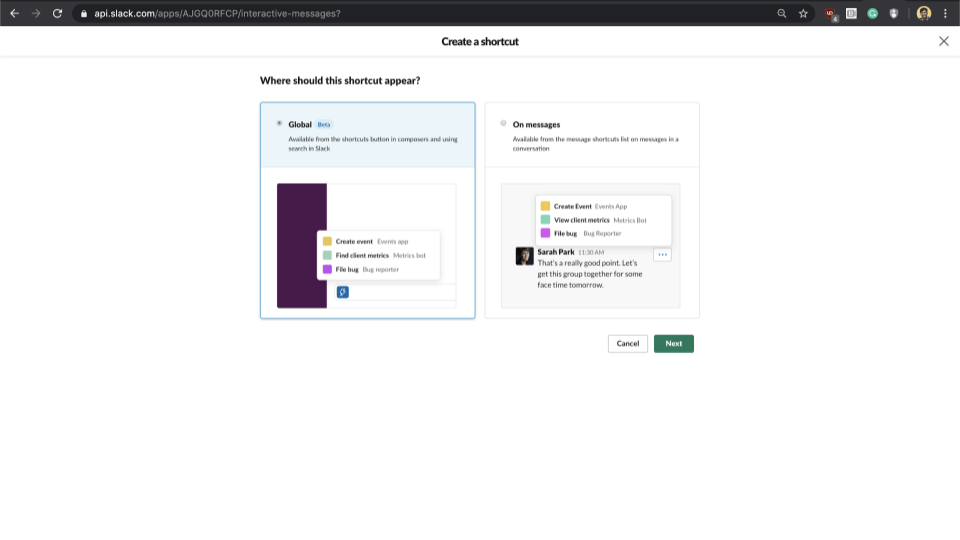 Select Global
In the shortcuts configuration, choose a descriptive name for your shortcut, a short description of its function, followed by the Callback ID.
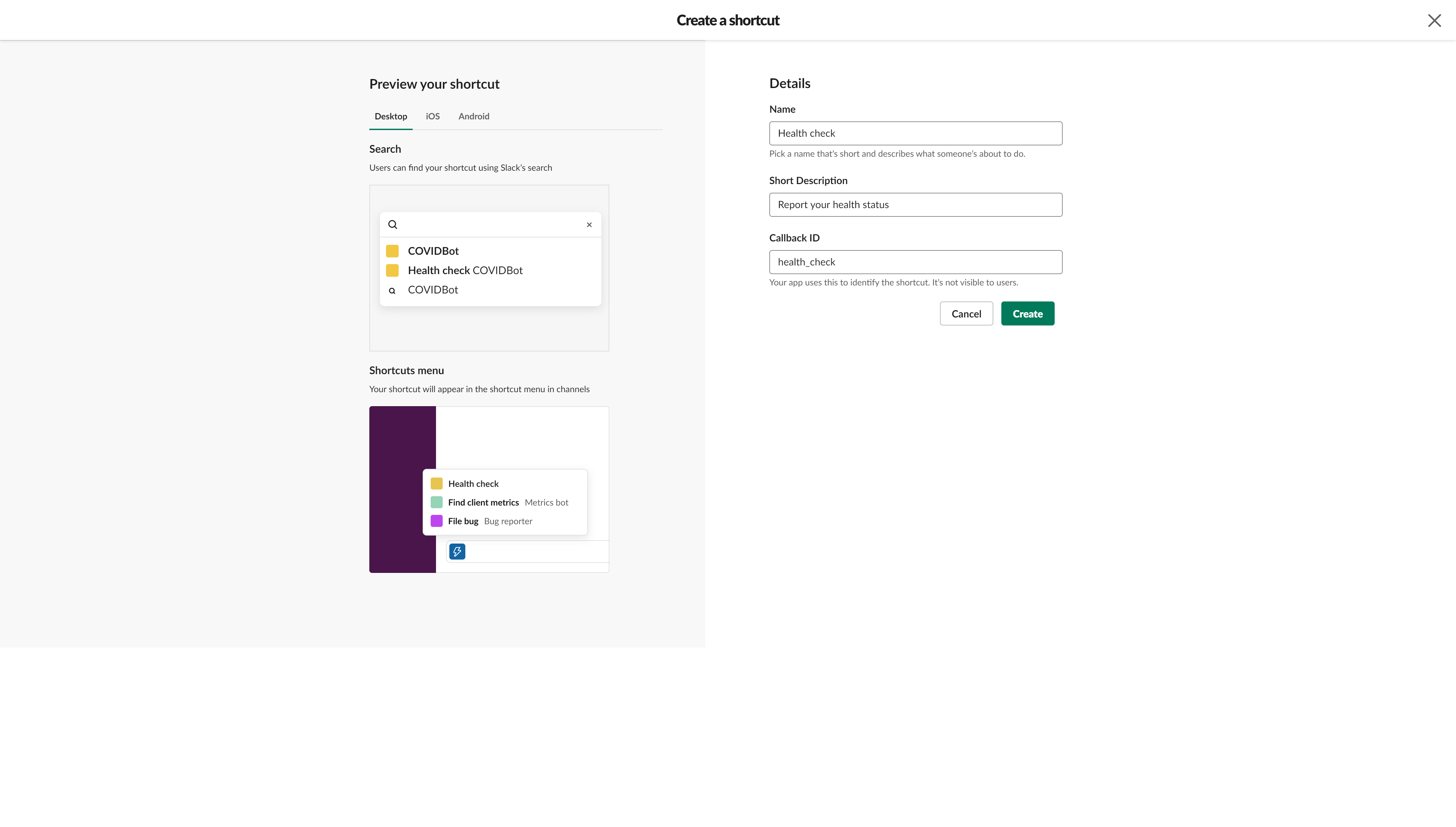 Shortcuts config
As mentioned above, the Callback ID used here must be identical to the Callback ID in the shortcuts trigger.
Callback ID generated from shortcut name
Click Create to finish setting up the shortcut on Slack. You can test it out by using the shortcut from the shortcut menu in the Slack UI.
Troubleshooting
Unable to see shortcut in shortcut menu
Reinstall your bot if you are unable to see your shortcut in the shortcut menu.
Shortcut does not do anything after clicking
Make sure your shortcut recipe has been started, and that the callback ID is unique across your Workato workspace.
Last updated: