Reset/reload components
You can configure your page to reset or reload page components as required. For example, you can configure your application to clear all values after a user submits data so that the app can be used again.
How it works
Reset/reload components actions can be configured to clear the entire page or only specific components. This action can be set up as a follow up action for components configured with a Run recipe action or as the primary action for button components.
The following diagram explains how follow up actions work in conjunction with Run recipe actions.
Compatible components
The following table describes reset/reload actions, trigger events, and compatible components:
| Component | Trigger event | Action description |
|---|---|---|
| Page | Follow up action | Reset/reload components after a Run recipe action completes. |
| Button |
| Configure a button to reset/reload components as its primary action or reset/reload components after a Run recipe action completes. |
| Single-select and multi-select drop-down components | Follow up action | Reset/reload components after a Run recipe action completes. |
| Table | Follow up action | Reset/reload components after a Run recipe action completes. |
Reset/reload components
Complete the following steps to configure a follow-up action that resets/reloads component values:
Select a component configured with a Run recipe action, such as a drop-down, table, or button.
Go to the Action panel.
Use the Follow up action drop-down to select Reset/reload components.
Use the Components field to select one or more component values to reset or reload.
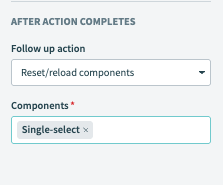 Reset/reload a component
Click Save.
Last updated: