# Configure collection settings
You can configure API recipe, API proxy, and AI gateway collection settings, URL settings, sharing settings, and settings to sync to Postman. Complete the following steps to configure options for an API recipe collection, API proxy collection, or AI gateway collection:
Go to Platform > API platform > API collections and select the API collection you plan to configure.
Click the Settings tab and then select one of the following interfaces:
# Collection settings
Complete the following steps to update the version and description of your API collection:
Go to Platform > API platform > API collections and select the API collection you plan to configure.
Click the Settings tab.
Select Collection settings from the sidebar.
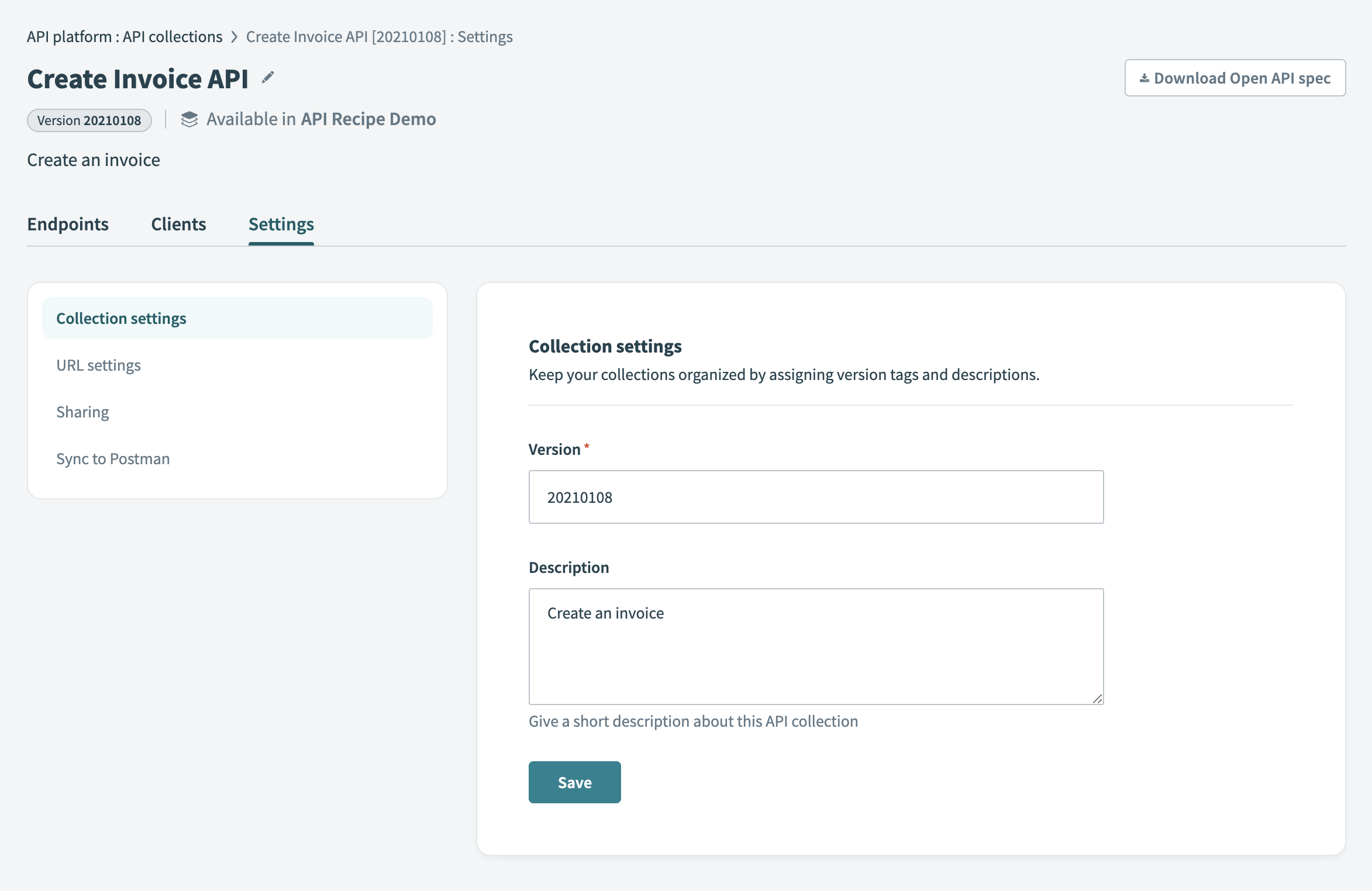 API collection settings tab
Enter a Version number. This must be a unique 1–10 character identifier. Collections with the same name but different versions are treated as separate objects.
Add a Description to describe the purpose or usage of the collection.
# URL settings
You can use the URL settings to customize the path for your API collection. Available options vary based on the collection type.
OAUTH2 IS A RESERVED NAMESPACE
oauth2 is a reserved namespace. A collection path can't begin with oauth2.
# API proxy collection
Complete the following steps to configure URL settings for an API proxy collection:
Go to Platform > API platform > API collections and select the API proxy collection you plan to configure.
Click the Settings tab.
Select URL settings.
Define a custom URL path for this collection in the Collection path field. The Proxy URL preview updates as you type. Use this field to distinguish collections by function (for example, sales, marketing, or HR). The domainand path prefix prefixare configured through the API Platform's Settings tab, not the collection settings.
Click Switch in the Target HTTP connection section to select a different HTTP connection. The Target URL preview updates based on your selection.
# API recipe collection
Complete the following steps to configure URL settings for an API recipe collection:
Go to Platform > API platform > API collections and select the API recipe collection you plan to configure.
Click the Settings tab.
Select URL settings.
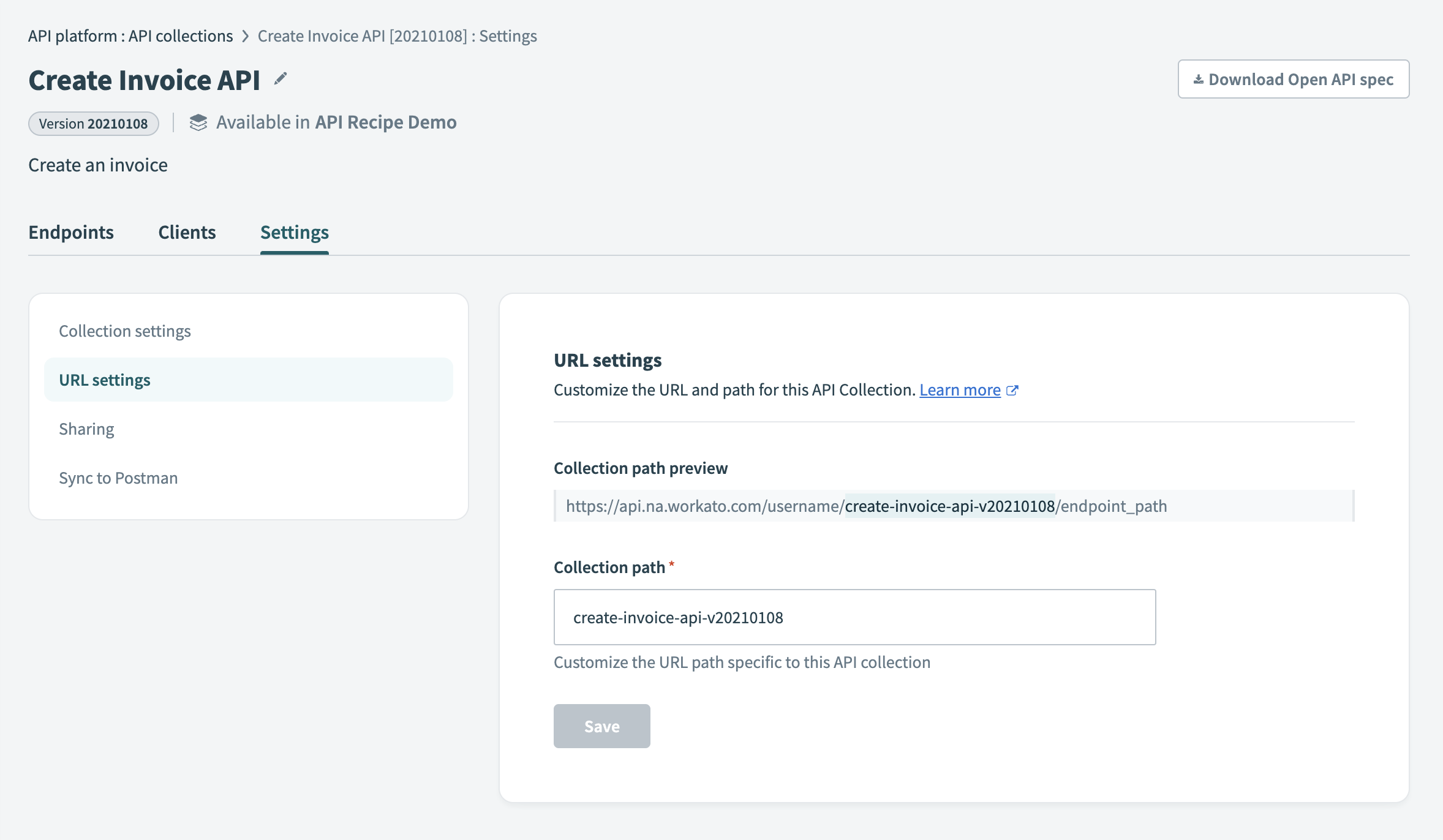 API recipe collection URL settings
Define a custom URL path for this API recipe collection in the Collection path field. You can use this field to distinguish collections by team or use case. The domainand path prefix prefixare configured through the API Platform's Settings tab, not the collection settings.
# Sharing
New collections are hidden from the API library by default. Complete the following steps to update the visibility of your collection:
Go to Platform > API platform > API collections and select the collection you plan to manage.
Click the Settings tab, then select Sharing.
View the current visibility status. The message Hidden from this workspace's API library appears by default.
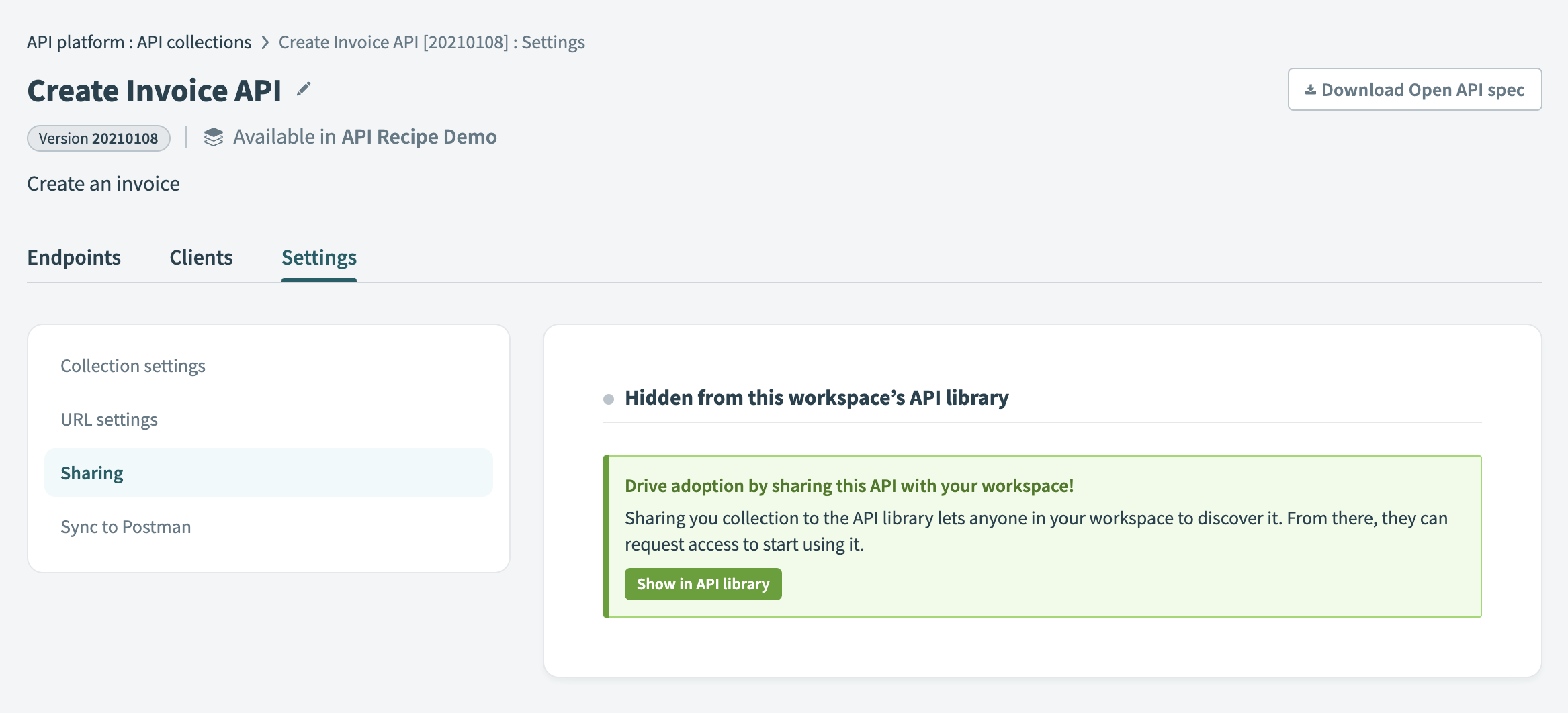 API collection is hidden from the API library
Click Show in API library to make the collection discoverable to everyone in your workspace. This enables users to find the collection and request access to use it.
The UI updates to display the message Discoverable in this workspace's API library and lists the users who can see the collection.
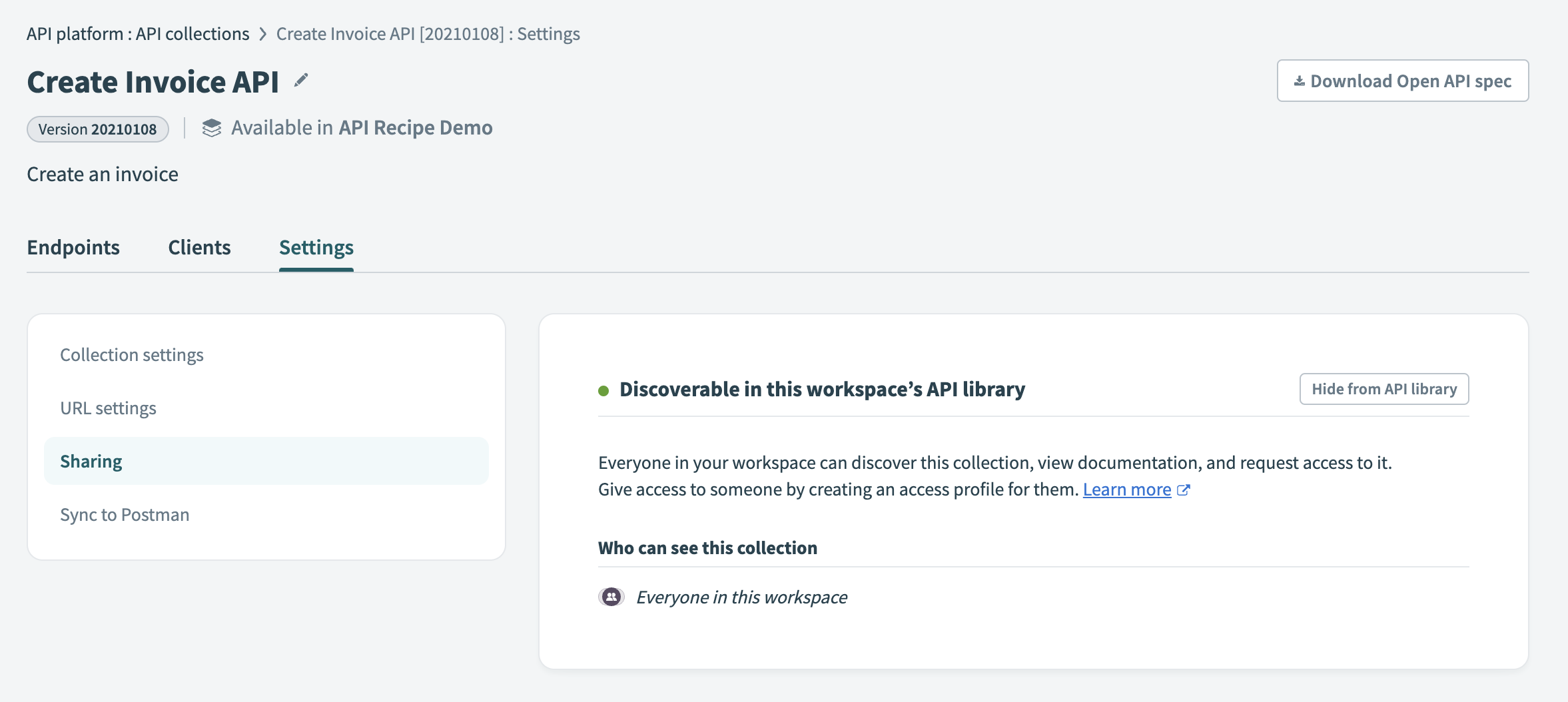 API collection is discoverable in the API library
Select Hide from API library to hide the collection again.
Last updated: 2/10/2026, 9:26:06 PM