# API proxy collections
An API proxy collection forwards incoming requests to your existing API backend. Each proxy endpoint acts as a secure intermediary between the client and your API server.
You can use proxy collections to perform the following:
- Add monitoring and access control to existing APIs
- Secure internal APIs with proxy authentication
- Minimize latency for high-volume traffic
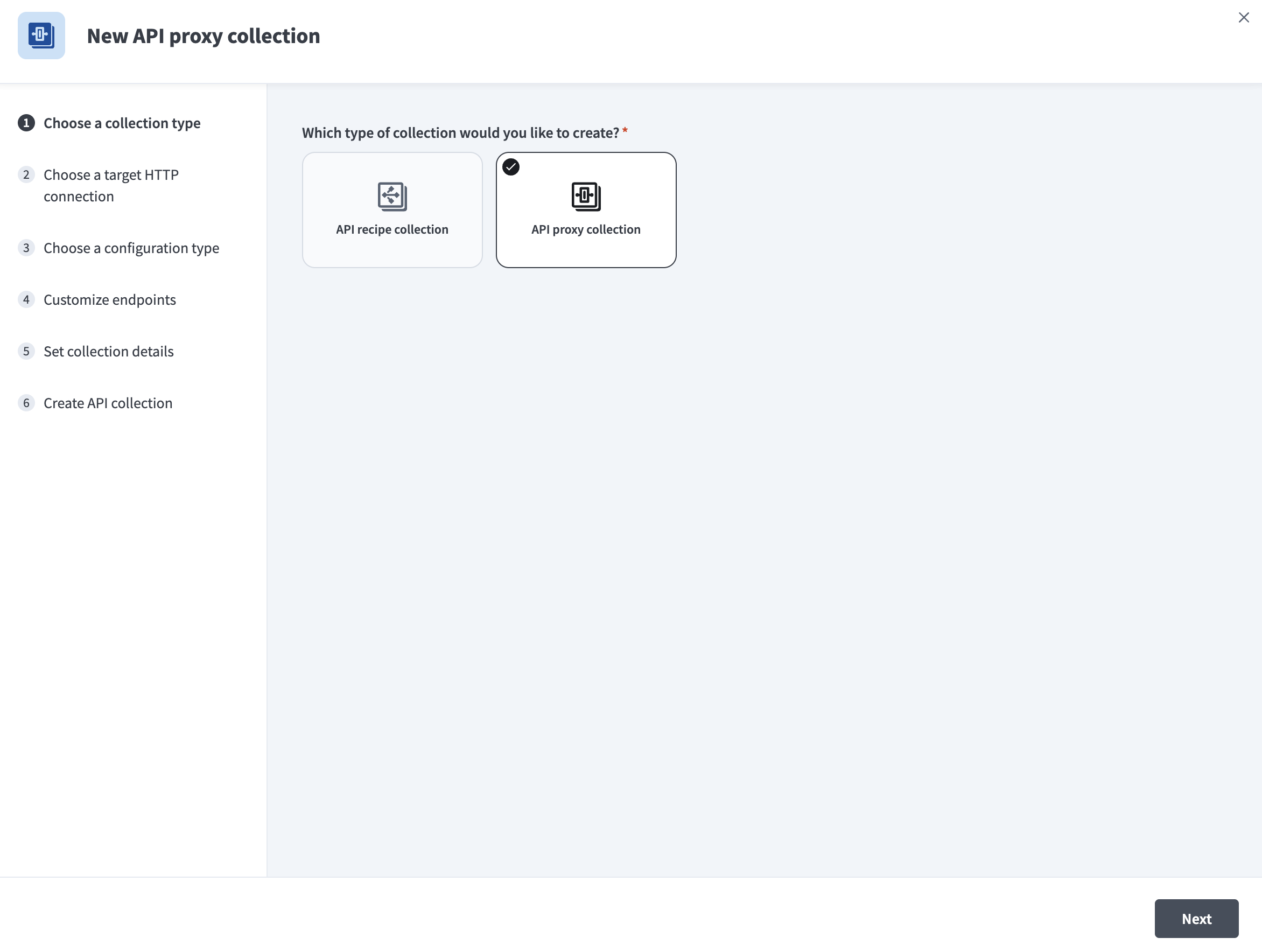 API proxy collection interface
COLLECTION TYPES
Refer to Choose a collection type to compare proxy, recipe, and AI gateway collections.
# Prerequisites
Complete the following setup before creating an API proxy collection:
- Create a project or select an existing project.
- Create an HTTP connection to forward requests.
# Create an API proxy collection
Complete the following steps to create an API proxy collection:
Sign in to your Workato account.
Go to Platform > API platform > API collections.
Select + Create new collection.
Go to the Which type of collection would you like to create? field and select API proxy collection.
Select API proxy collection
Use Choose a target HTTP connection to select an existing HTTP connection from the list or create a new one. You can select Details to view a connection's configuration.
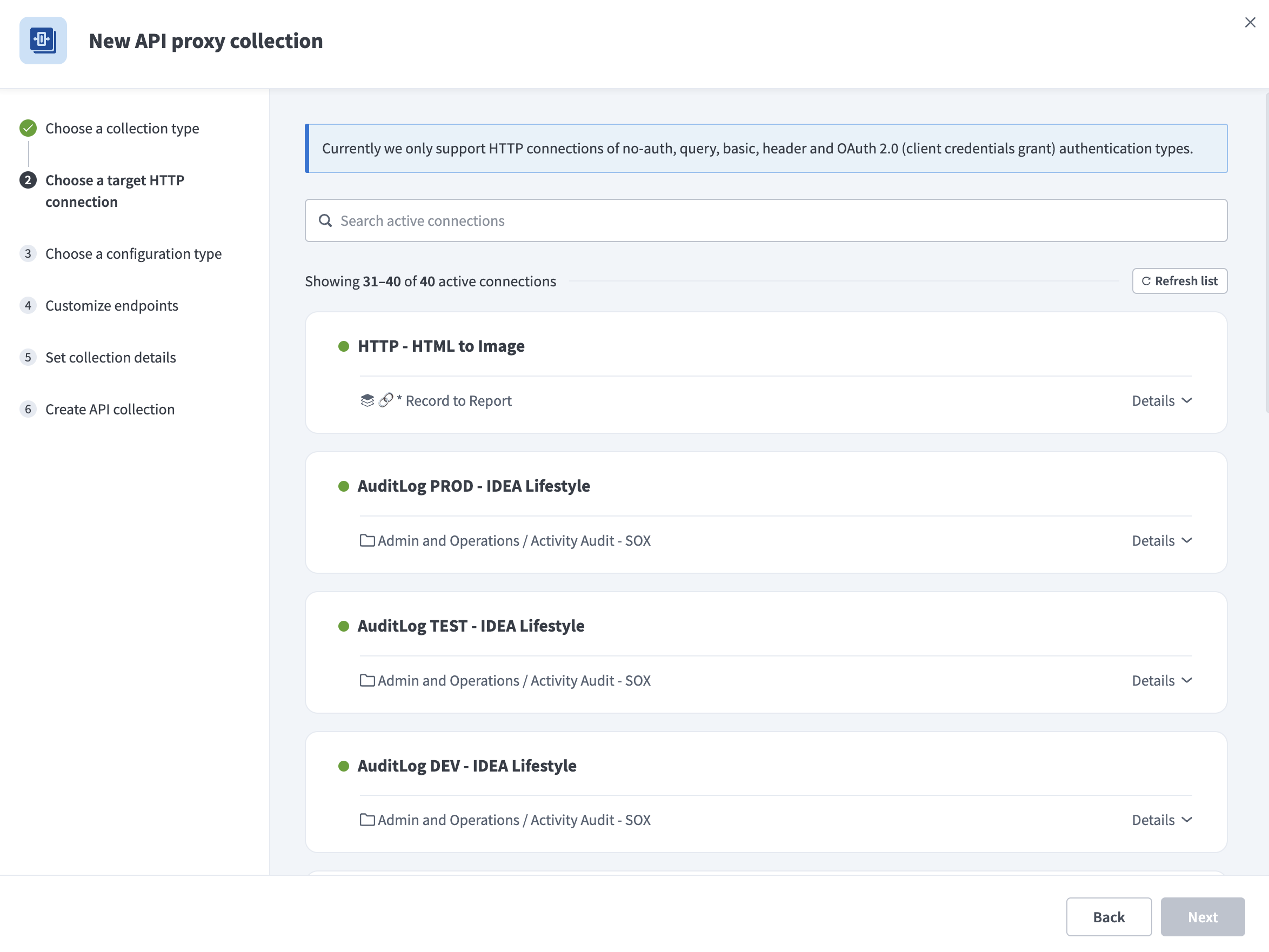 Choose HTTP connection to forward requests to
SUPPORTED AUTHENTICATION TYPES
API proxy collections support the following HTTP connection authentication types:
- No auth
- Query
- Basic
- Header
- OAuth 2.0 (Client credentials grant)
Workato displays an Unsupported authentication type error message if you select an unsupported auth type.
Choose a configuration type to specify the configuration you plan to use in your proxy collection:
Import OpenAPI Specification: Upload a JSON or UTF-8 encoded YAML OpenAPI 3.0 (opens new window) file, or enter its URL. Workato uses this specification to generate endpoint schemas automatically. Time values must be enclosed in quotes. For example, use
"2024-07-18T10:00:00Z"instead of2024-07-18T10:00:00Z.Manual configuration: Workato creates an empty collection to which you can add endpoints later. Refer to Configure the schema for details.
OPENAPI ONLY
This step applies only if you imported an OpenAPI specification during setup.
Go to Customize endpoints and select the checkbox next to each endpoint you plan to add to the collection.
Optional. Select Edit details next to an endpoint to configure its settings:
Enter an Endpoint name.
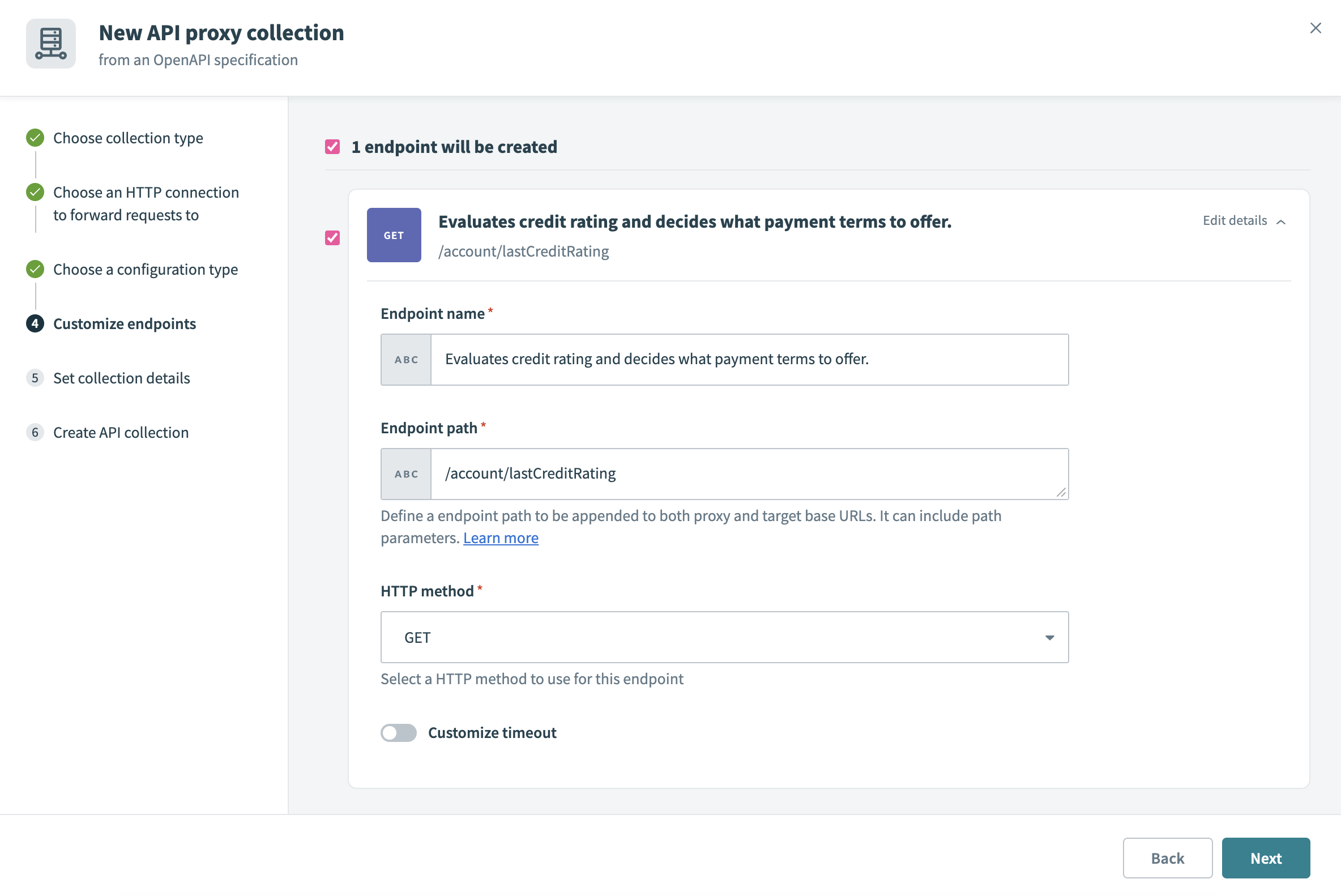 Customize API proxy collection endpoints
Define a path for the endpoint in the Endpoint path field. You can include path parameters. Ensure that you follow the endpoint path guidelines.
Select the HTTP method to use for the endpoint.
Required when you toggle Customize timeout. Customize the time that a request is given to complete in the Request timeout field. The default value is 30 seconds and the maximum value is 240 seconds.
Click Next to go to the Set collection details page and enter the following:
Enter a Collection name for the API collection.
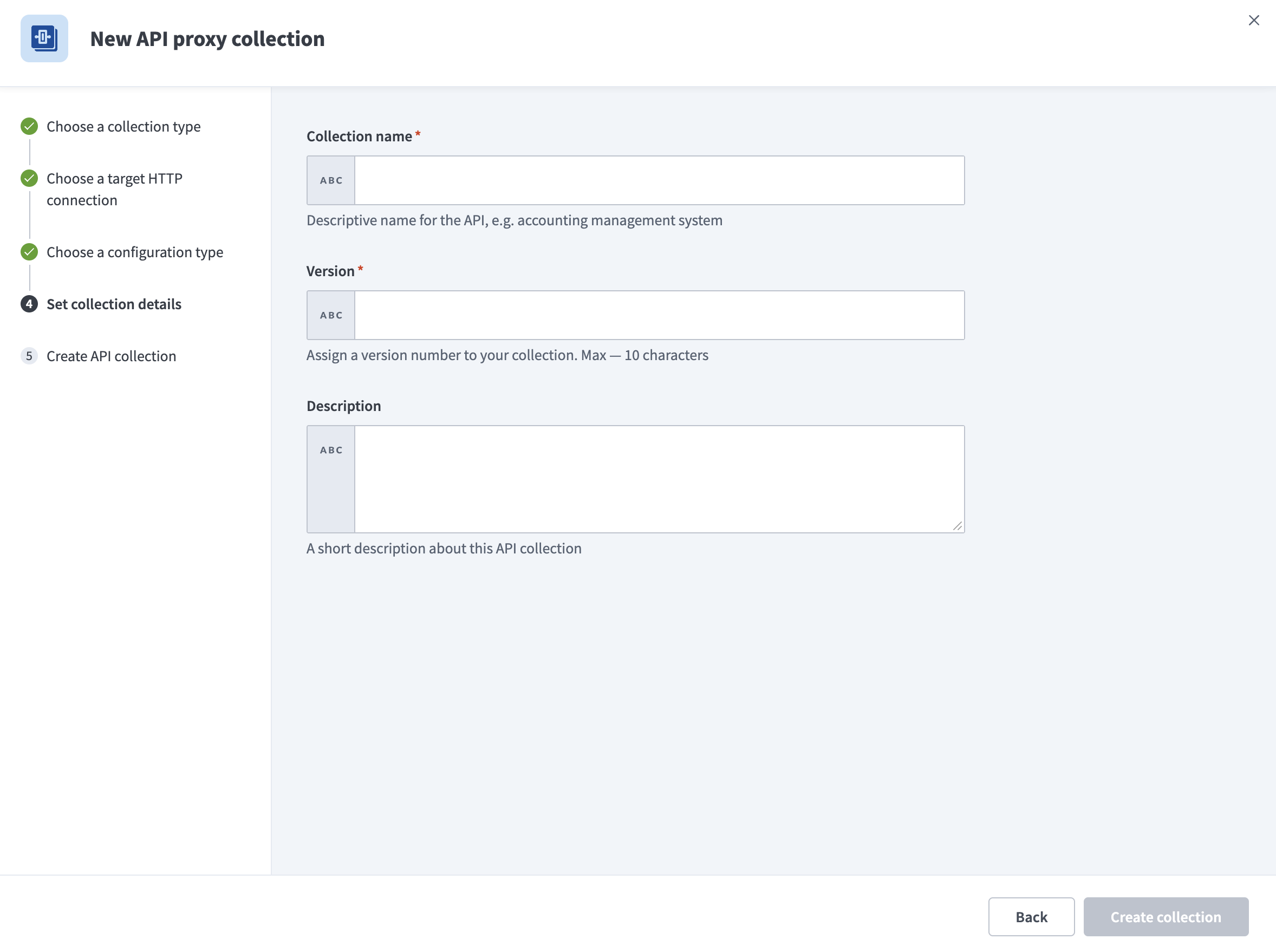 Set collection details
Enter a Version. Use a unique identifier between 1–10 characters. Collections with the same name but different versions are treated as separate objects.
Enter a Description for the API collection.
Select Create collection. Workato creates the collection and shows the number of endpoints added.
Select View API collection.
Toggle the Inactive button to activate the endpoints you plan to use in your new collection.
NEW ENDPOINTS INACTIVE BY DEFAULT
All new endpoints are inactive by default. You must activate an endpoint before recipes or apps can call it.
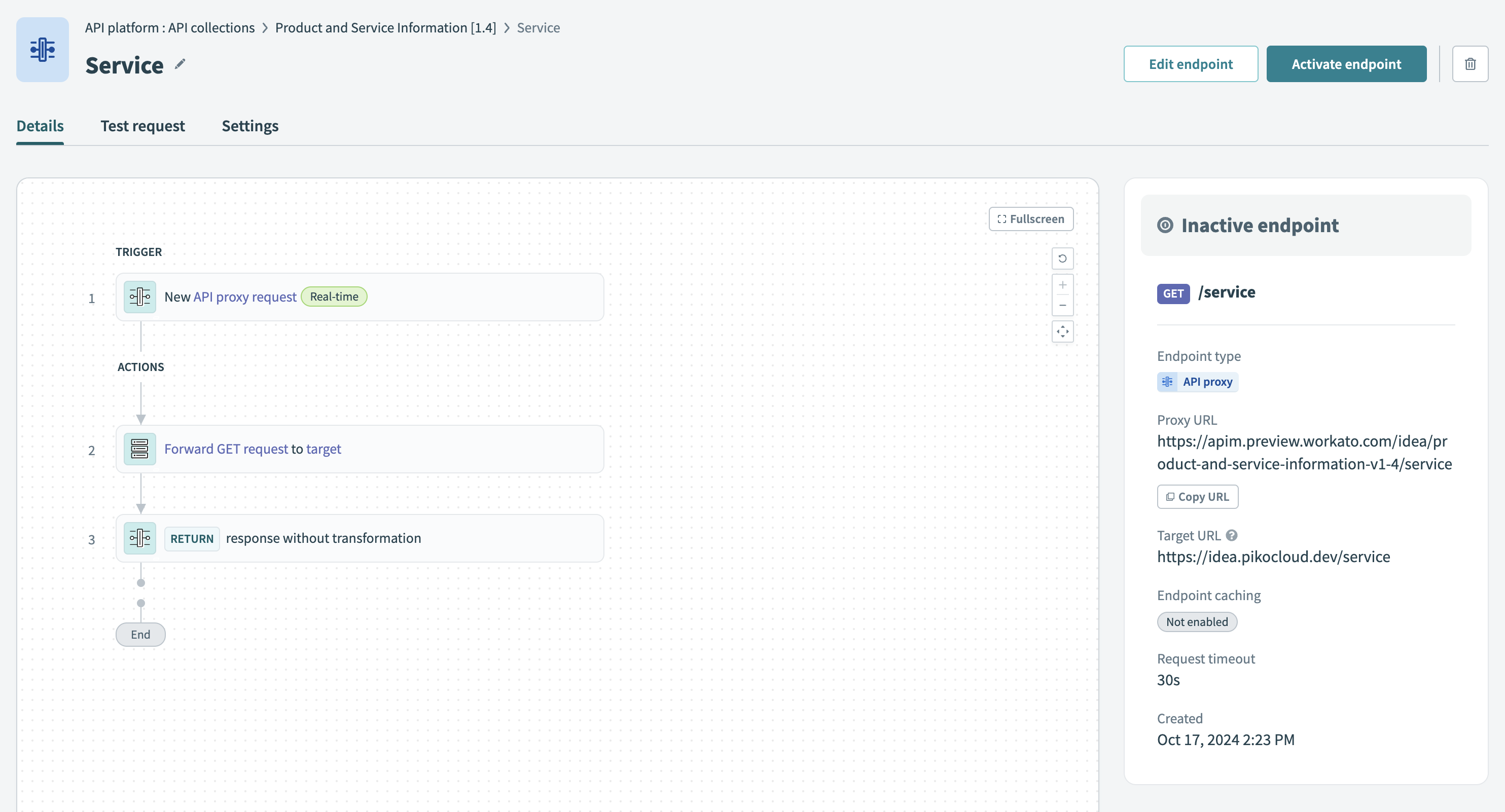 Activate API proxy endpoint in a collection
Refer to Activating or deactivating an endpoint for more information about activating endpoints.
Assign this collection to a client access profile to grant access to specific users or apps. Learn how to create a new access profile.
Last updated: 2/10/2026, 9:26:06 PM