Dropbox - CSV file actions
This section will highlight the actions that you can perform on CSV files in Dropbox.
Update CSV file
This action allows you to update the content of a selected file in Dropbox. Do note that the size of the file after appending should not exceed 150 MB.
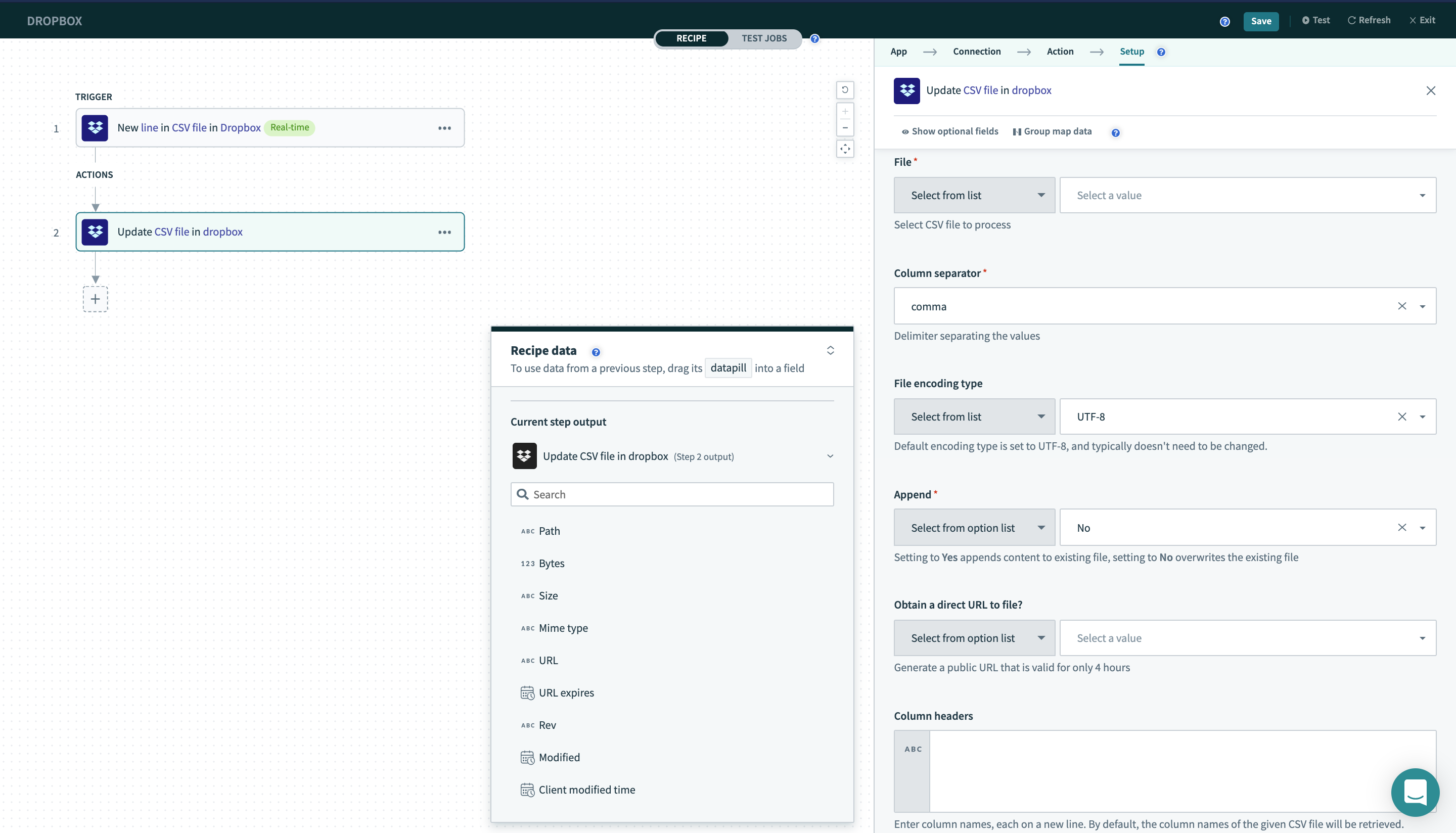 Update CSV file action
Input
| Field name | Description |
|---|---|
| File | The CSV file that you wish to process. You can either select the specific file from the directory provided or type out the name of the file. |
| Column separator | The delimiter separating the values. |
| File encoding type | Default encoding type is set to UTF-8, and typically doesn't need to be changed. |
| Append | Setting to Yes appends content to existing file, setting to No overwrites the existing file. |
| Obtain a direct URL to file? | Whether or not to generate a public URL that is valid for 4 hours. |
| Column headers | Enter column names, each on a new line. By default, the column names of the given CSV file will be retrieved. |
Output
| Field name | Description |
|---|---|
| Path | The path the CSV file that has been updated. |
| Bytes | File size in bytes. |
| Size | File size in string format. |
| Mime type | The Mime type of this file. |
| URL | File's public URL. Can be used to download file using the Workato file connector. |
| URL expires | Date/time the file's public URL will expire. |
| Rev | A unique identifier for the current revision of the file. |
| Modified | Date/time the file was last modified. |
| Client modified time | This is the modification time set by the desktop client when the file was added to Dropbox. Since this time is not verified (the Dropbox server stores whatever the desktop client sends up), this should only be used for display purposes (such as sorting) and not, for example, to determine if a file has changed or not. |
Read CSV file
This action allows you to expose the content of a selected CSV file according to the value of each column and row.
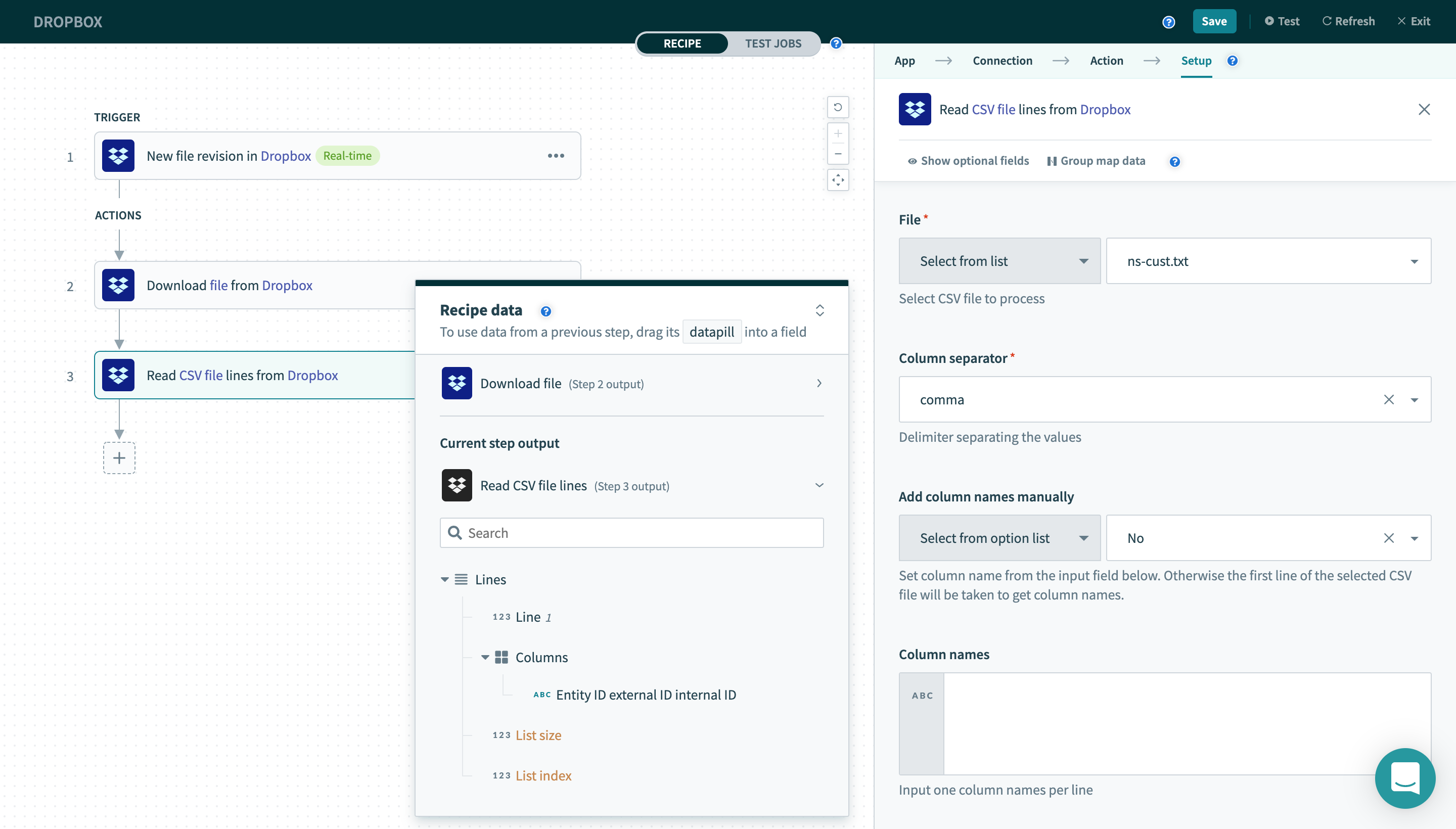 Read CSV file action
Input
| Field name | Description |
|---|---|
| File / File path | The CSV file to process. |
| Column separator | The delimiter separating the values. |
| Add column names manually | Set column name from the input field below. Otherwise the first line of the selected CSV file will be taken to get column names. |
| Column names | Input one column name per line. |
Output
The output fields of this trigger correspond to the values of the columns and rows of the selected CSV file.
Last updated: