Dropbox - Upload file actions
This section features that various methods in which you can upload your files unto Dropbox via the Dropbox connector.
Upload file using file contents
Upload a file to Dropbox by providing the file contents. If a file with the same name already exists in the folder, action will fail.
The following image is an example of uploading a file using File contents from the action Download file
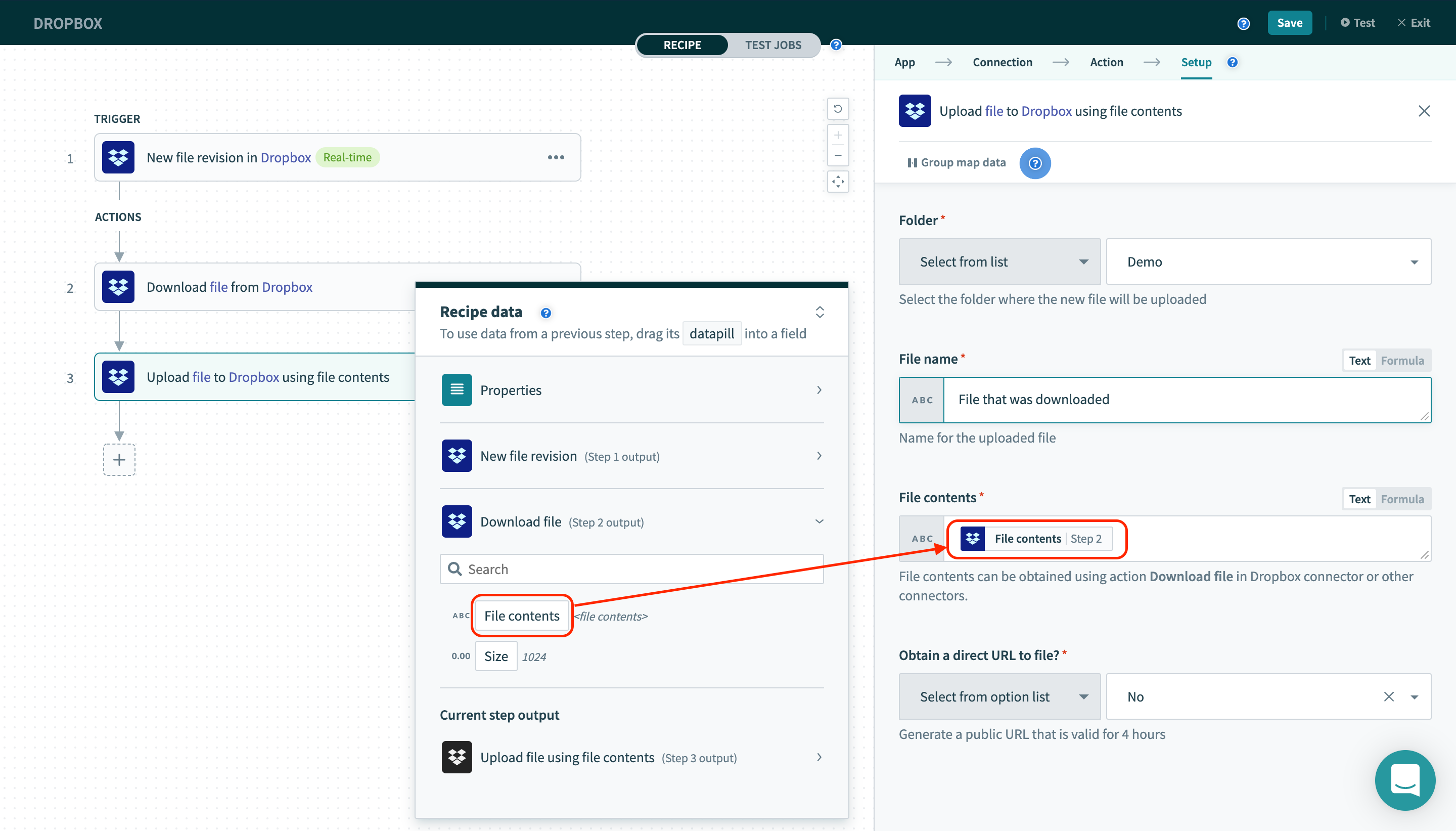 Download & upload file in Dropbox
Input
| Field name | Description |
|---|---|
| Folder | The folder where the new file will be uploaded |
| File name | Name for the uploaded file. |
| File contents | File contents can be obtained using action Download file in Dropbox connector or other connectors. |
| Obtain a direct URL to file | Whether to generate a public URL that lives for 4 hours. |
Output
| Field name | Description |
|---|---|
| Path | File path. |
| Bytes | File size in bytes. |
| Size | File size in string format. |
| Mime type | The Mime type of this file. |
| URL | File's public URL. Can be used to download file using the Workato file connector. |
| URL expires | Date/time the file's public URL will expire. |
| Rev | A unique identifier for the current revision of the file. |
| Modified | Date/time the file was last modified. |
| Client modified time | This is the modification time set by the desktop client when the file was added to Dropbox. Since this time is not verified (the Dropbox server stores whatever the desktop client sends up), this should only be used for display purposes (such as sorting) and not, for example, to determine if a file has changed or not. |
Upload file from URL
Upload a file to Dropbox by providing as input the public URL where the file can be found. If a file with the same name already exists in the folder, action will fail.
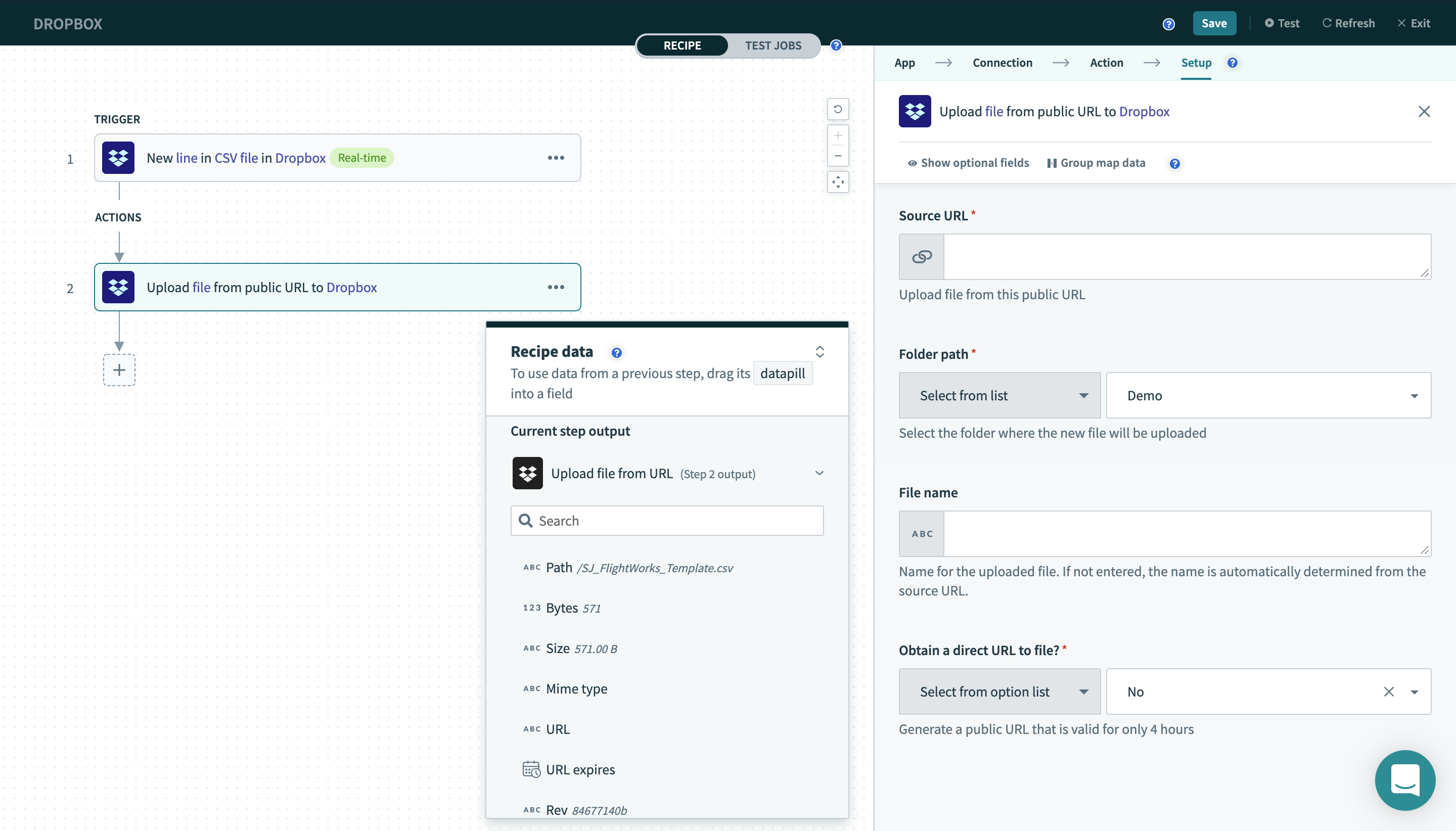 Upload file from URL
Input
| Field name | Description |
|---|---|
| Source URL | Upload file from this public URL. |
| Folder path | The folder where the new file will be uploaded to. |
| File name | Name for the uploaded file. If not entered, the name is automatically determined from the source URL. |
| Obtain a direct URL to file? | Whether or not to generate a public URL that is valid for 4 hours. |
Output
| Field name | Description |
|---|---|
| Path | File path. |
| Bytes | File size in bytes. |
| Size | File size in string format. |
| Mime type | The Mime type of this file. |
| URL | File's public URL. Can be used to download file using the Workato file connector. |
| URL expires | Date/time the file's public URL will expire. |
| Rev | A unique identifier for the current revision of the file. |
| Modified | Date/time the file was last modified. |
| Client modified time | This is the modification time set by the desktop client when the file was added to Dropbox. Since this time is not verified (the Dropbox server stores whatever the desktop client sends up), this should only be used for display purposes (such as sorting) and not, for example, to determine if a file has changed or not. |
Upload multiline file
This action allows you to upload a multiline file with details from your input.
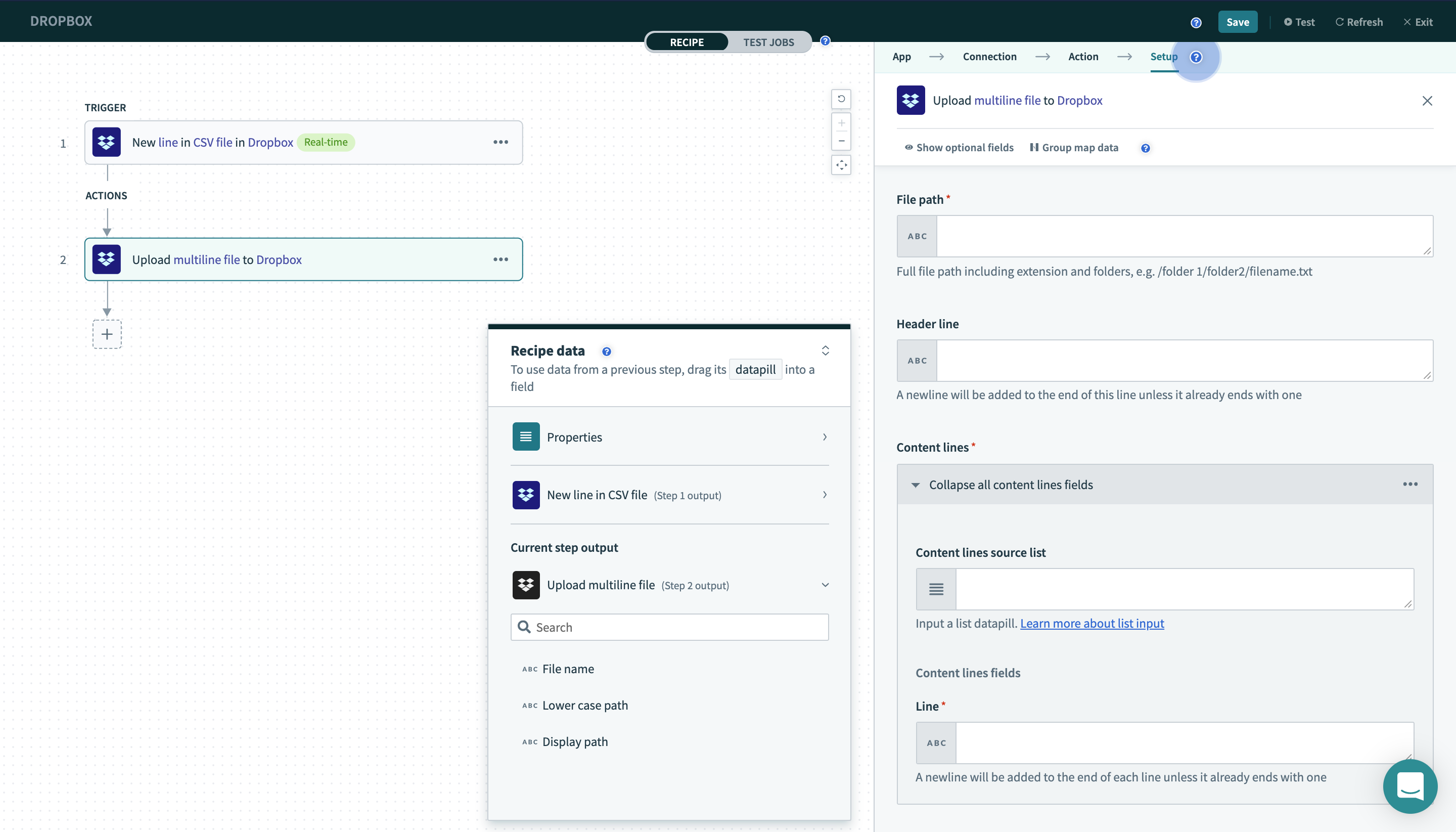 Upload multiline file
Input
| Field name | Description |
|---|---|
| File path | The folder where the new file will be uploaded to. Full file path including extension and folders, for example, /folder 1/folder2/filename.txt |
| Header line | The line that you wish to add as a header to your multiline file. A newline will be added to the end of this line unless it already ends with one. |
| Content lines | The details of the lines that you wish to upload. |
| - Content lines source list | The source list of the lines that you wish to upload. |
| - Line | The name of a single line to be uploaded. A newline will be added to the end of each line unless it already ends with one. |
Output
| Field name | Description |
|---|---|
| File name | The name of the uploaded multiline file. |
| Lower case path | The lower case path of the uploaded file. |
| Display path | The display path of the uploaded file. |
Last updated: