Google Sheets - Add row action
This action adds a new row to a Google Sheet you select.
LIMITATION WITH GOOGLE SHEETS ACTIONS
Avoid including a colon (:) in the names of sheets you plan to use with the Add row action. A colon in the sheet name causes an Unable to parse sheet error. This is a known limitation within Google Sheets. Specifically, attempting to update multiple cells in a sheet with a colon in its name results in an error, allowing only one cell to update successfully.
Input
| Input field | Description |
|---|---|
| Google Drive | Select either your personal drive or a team drive. Your personal drive is selected by default. |
| Spreadsheet | Choose the spreadsheet where you plan to add the new row. |
| Enforce top-left insert | Choose to insert the new row into the leftmost logical table if multiple tables exist on the same sheet. The default is set to No. |
| Sheet | Specify the sheet where you plan to add the new row. Ensure the sheet contains at least one header row and one data row. |
| Columns | Enter the values for the new row. |
Output
| Output field | Description |
|---|---|
| Spreadsheet ID | The unique identifier of the spreadsheet. |
| Spreadsheet name | The name of the spreadsheet. |
| Sheet name | The name of the sheet within the spreadsheet. |
| Updated range | The range of updated cells, as specified in A1 notation. |
| Updated rows | The number of updated rows. |
| Updated columns | The number of updated columns. |
| Updated cells | The total number of updated cells. |
How to use this action
Complete the following steps to set up and use the Add row action:
Set up the Google Sheet
To retrieve sheet data, the sheet must include at least one header row and one data row:
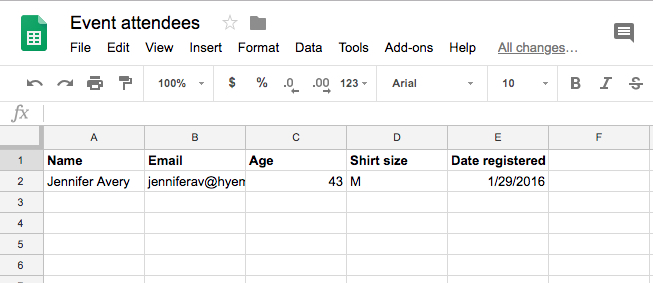 Sample Google Sheet with one header row and one data row
Configure the action
Complete the following steps to configure the action:
Select the Add row action.
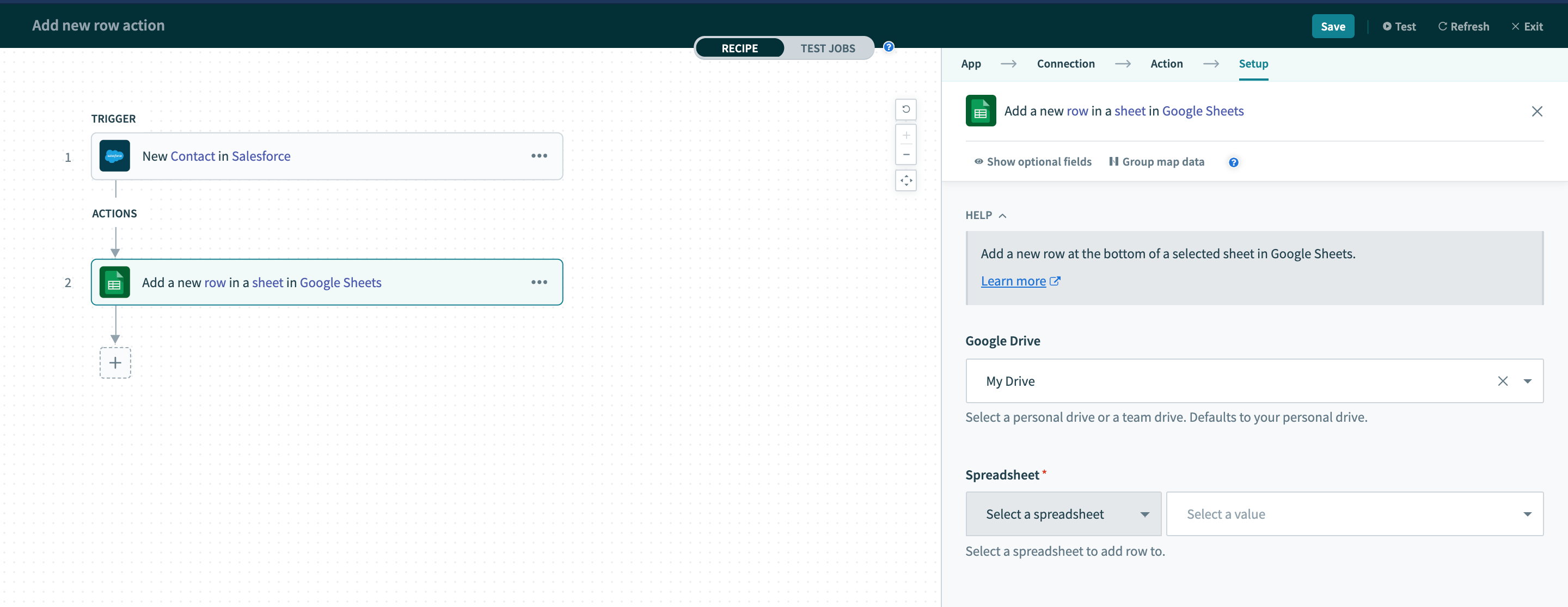 Use the add row action
Select a spreadsheet in the Spreadsheet drop-down menu to dynamically generate the list of sheets in your spreadsheet.
Select a sheet in the Sheet drop-down menu to dynamically generate the input fields for the Columns field.
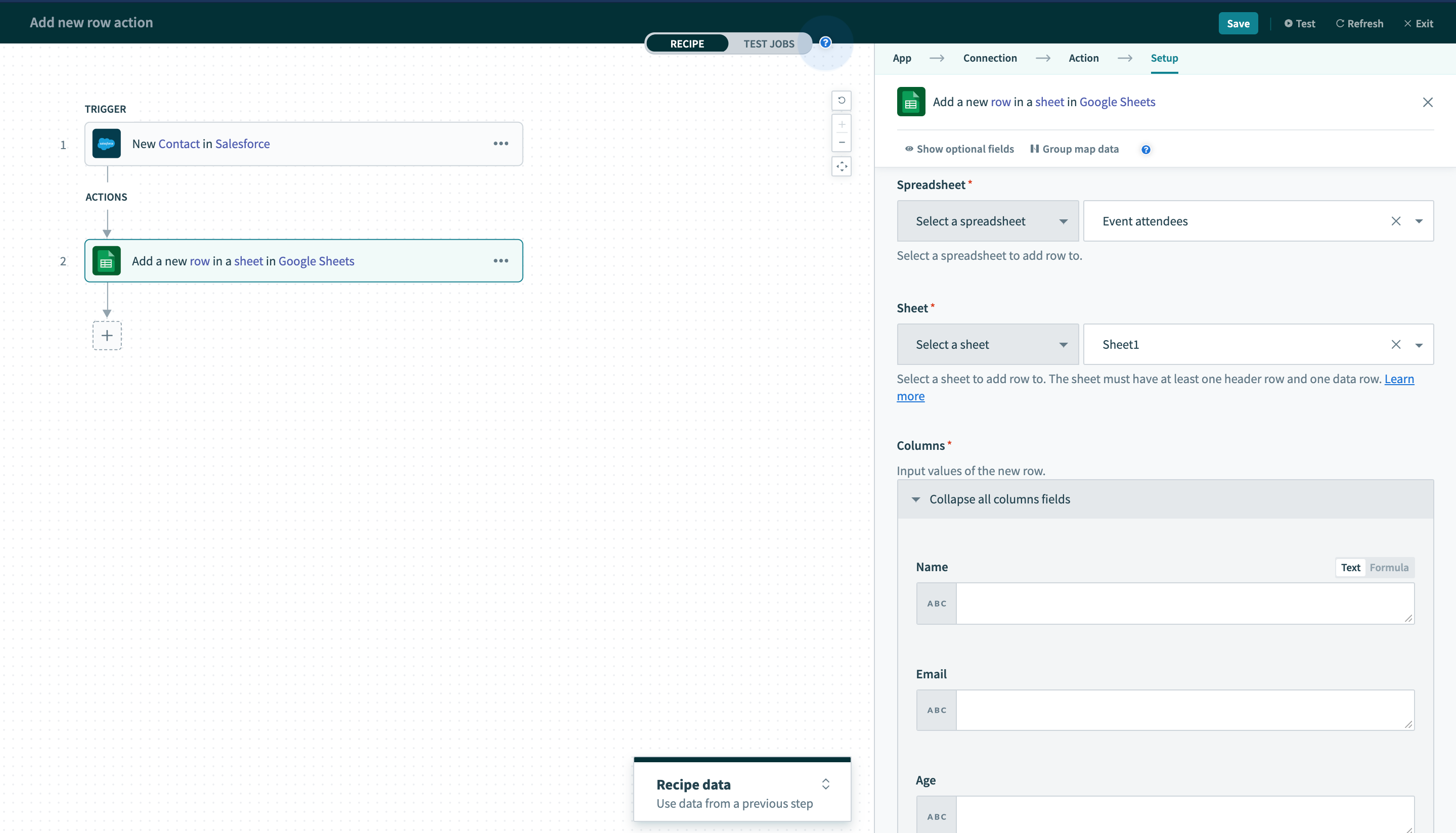 Configured row actions
Example scenario
In this scenario, we plan to transfer new contacts created in Salesforce to Google Sheets.
The following outlines the data mapping configuration used to direct data from Salesforce to the corresponding fields in Google Sheets:
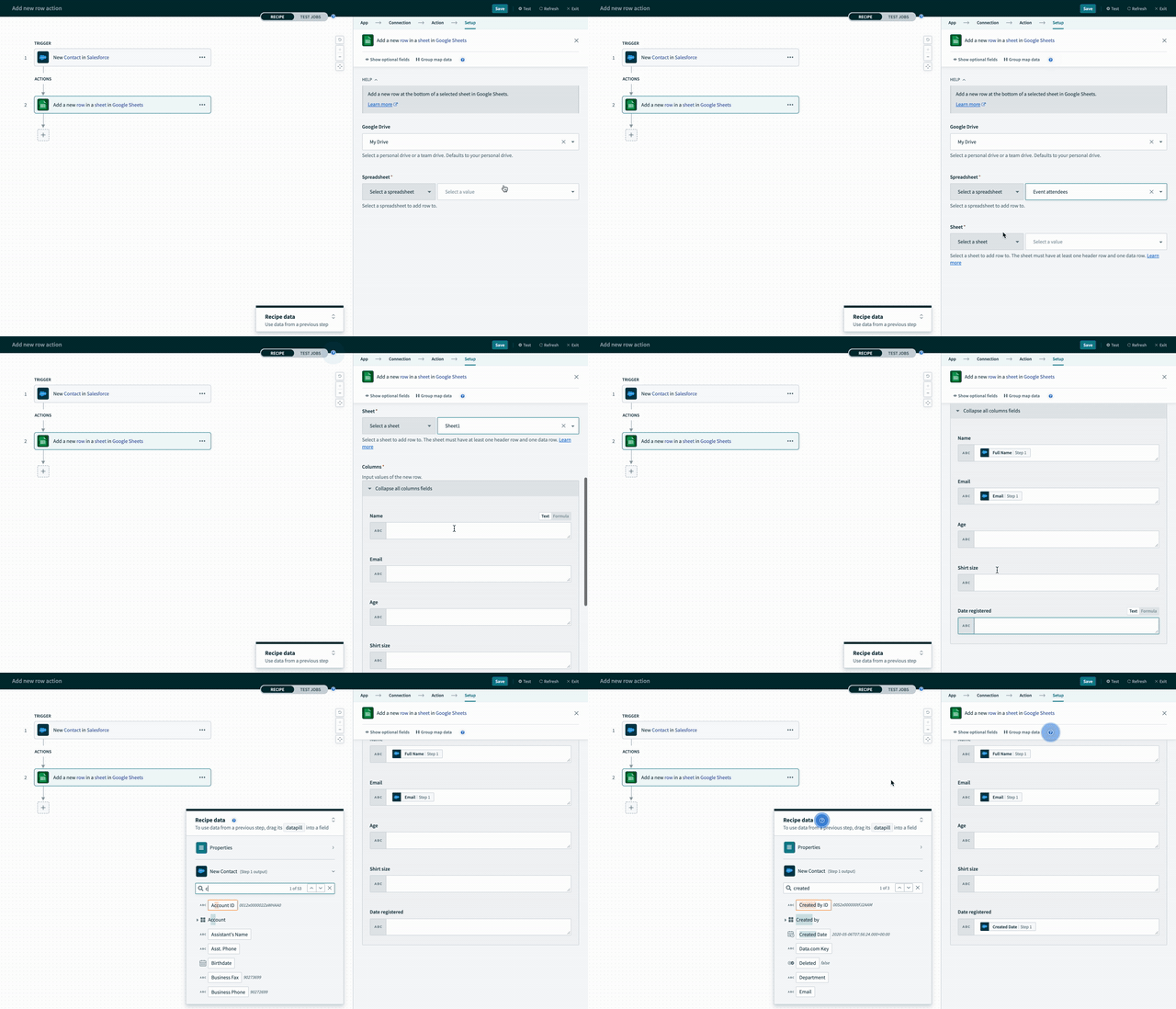 Available columns are derived from the selected Google Sheet in the trigger
Test the action
After configuring the trigger and action, you can finalize and run the recipe.
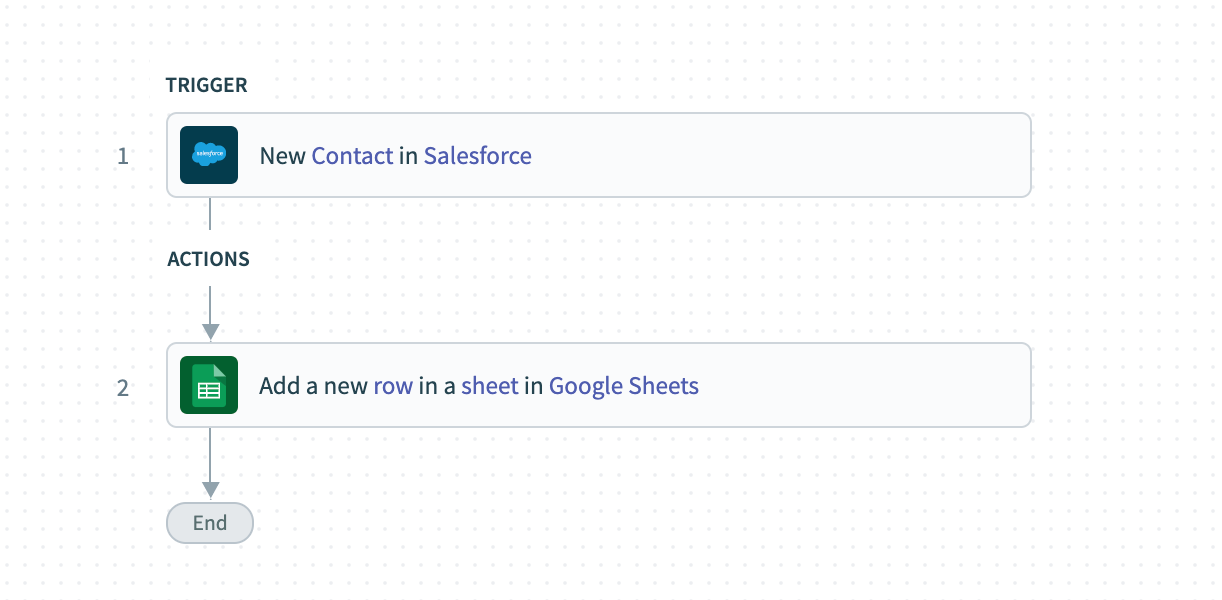 Configured recipe for testing
After running the recipe, the trigger detected a new contact named Anna Sharpay created in Salesforce. We mapped Name, Email, and Date created in the recipe, and these values were passed to the Add row action.
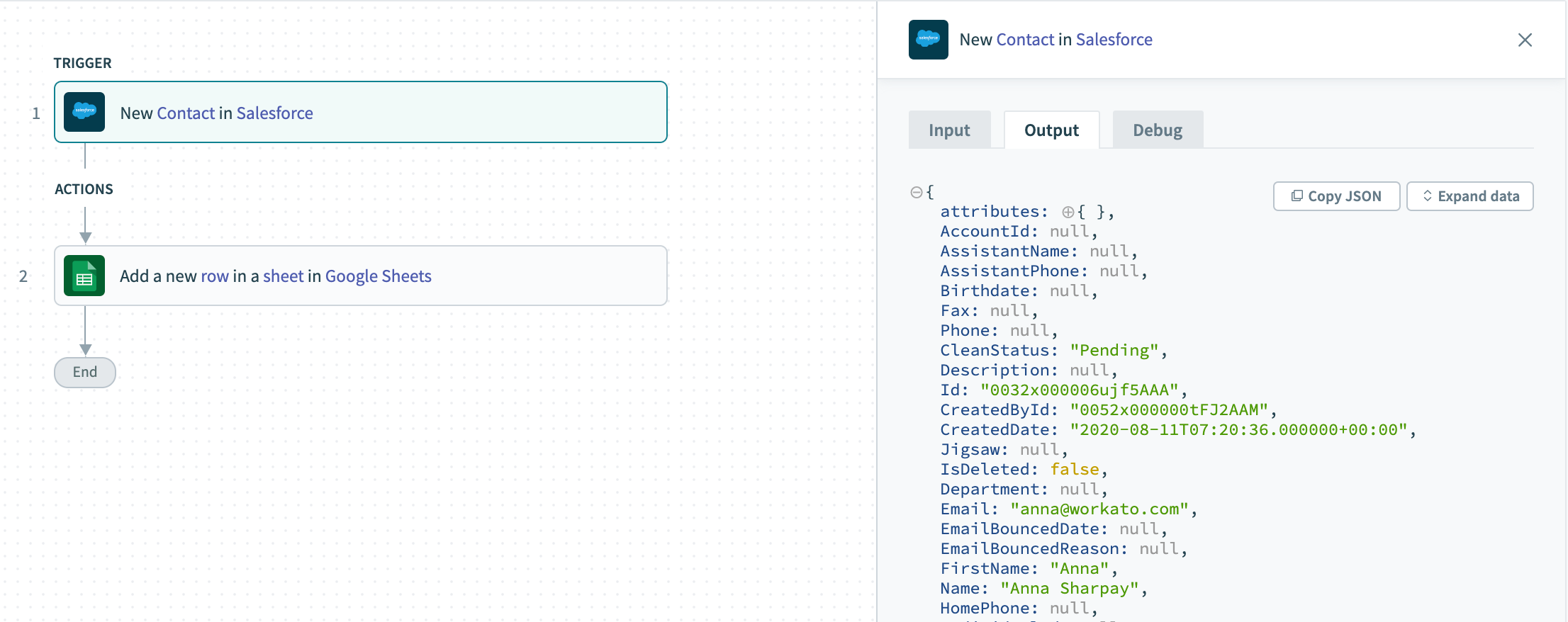 The trigger data received for a specific contact, as viewed in the job details page output tab
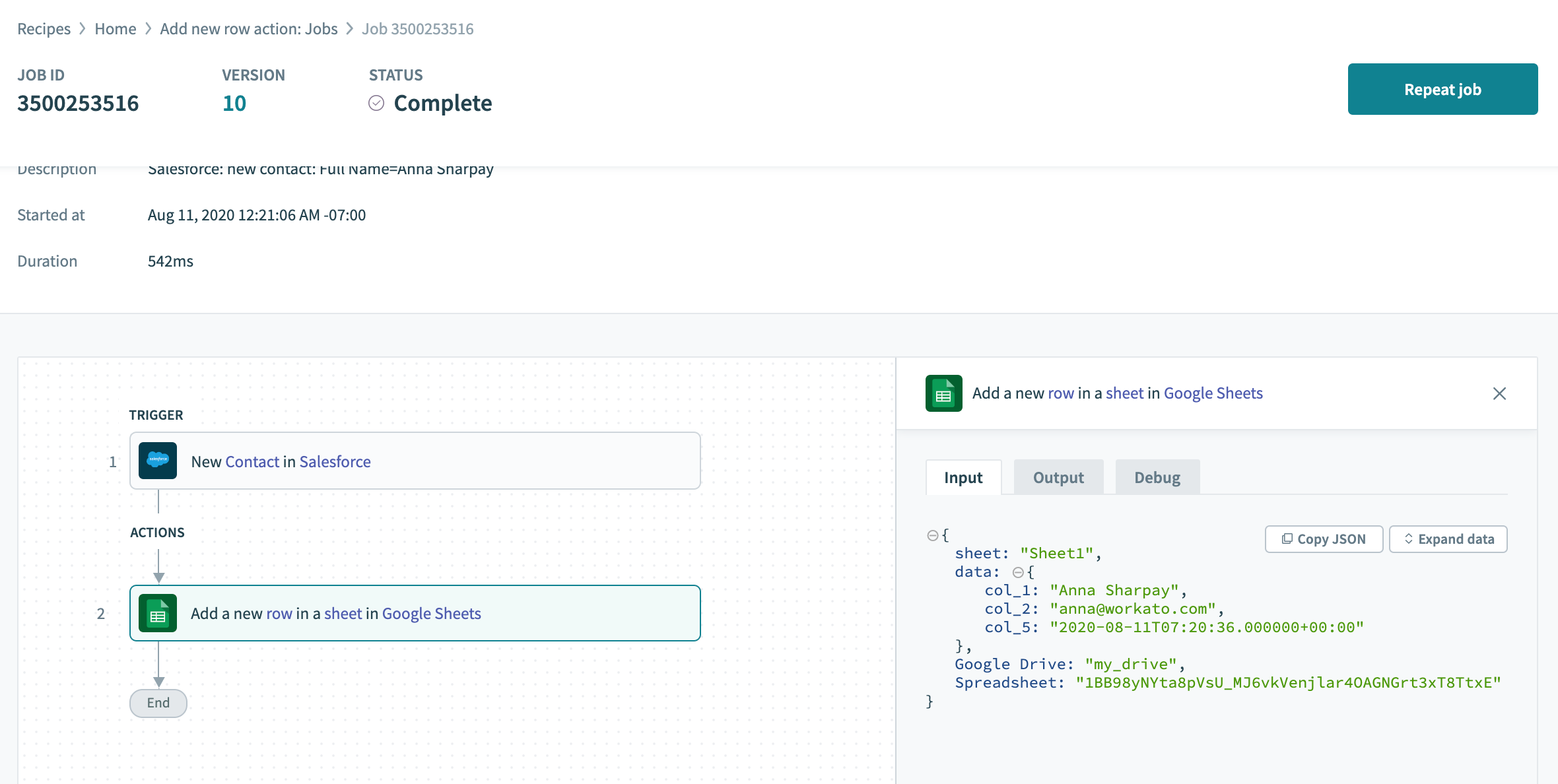 The data input into the create row action, as viewed from the job details page input tab
The recipe output appears as an added row in Google Sheets:
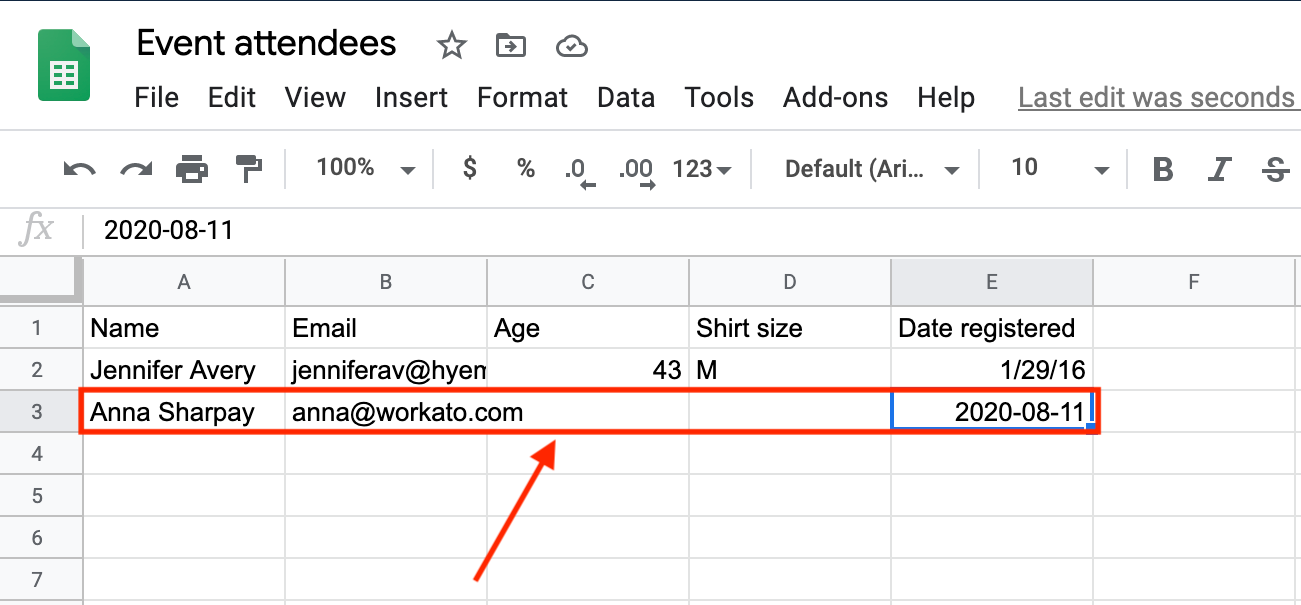 Edited sample sheet with added row
Last updated: