Slack - Triggers
Requirements
You must create a Slack app and install it within your Workato workspace before you can begin building Slack recipes.
Complete the following steps to create a Slack app:
Go to Slack API > Your Apps and select Create New App.
Choose a name for your Slack app and select your workspace to create your app.
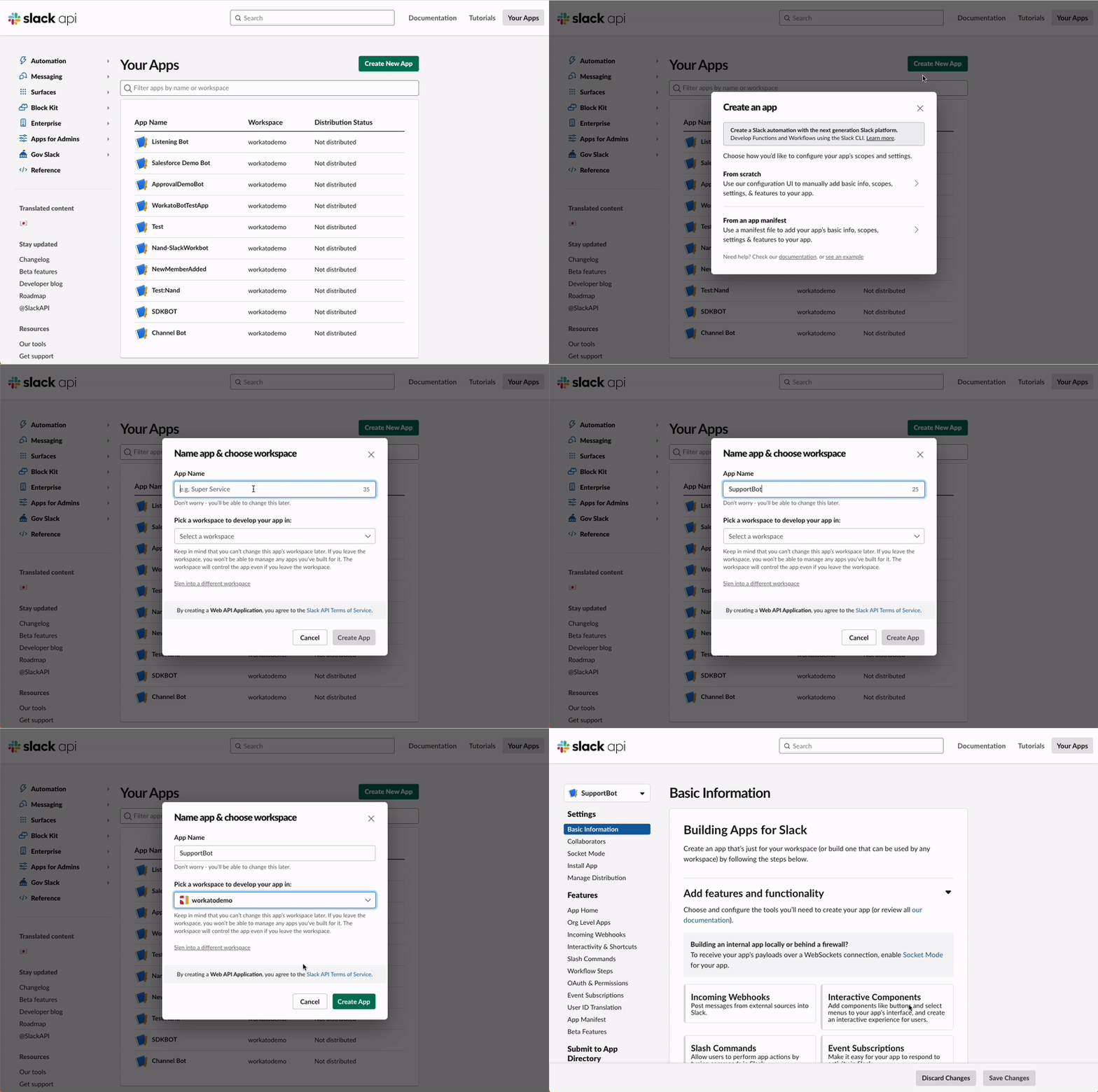 Create a Slack app
You must define at least one permission scope before you can install your app in your workspace. Slack automatically adds required permission scopes when you subscribe to events. Refer to the following section for more information on event subscriptions.
Enable event subscriptions
For the trigger to pick up events, your Slack app needs to know where to send these events to. That's why the New event trigger comes with a target URL, generated after you enter an Event name. After your app sends events to your recipe's target URL, the recipe can take over and execute your recipe's actions.
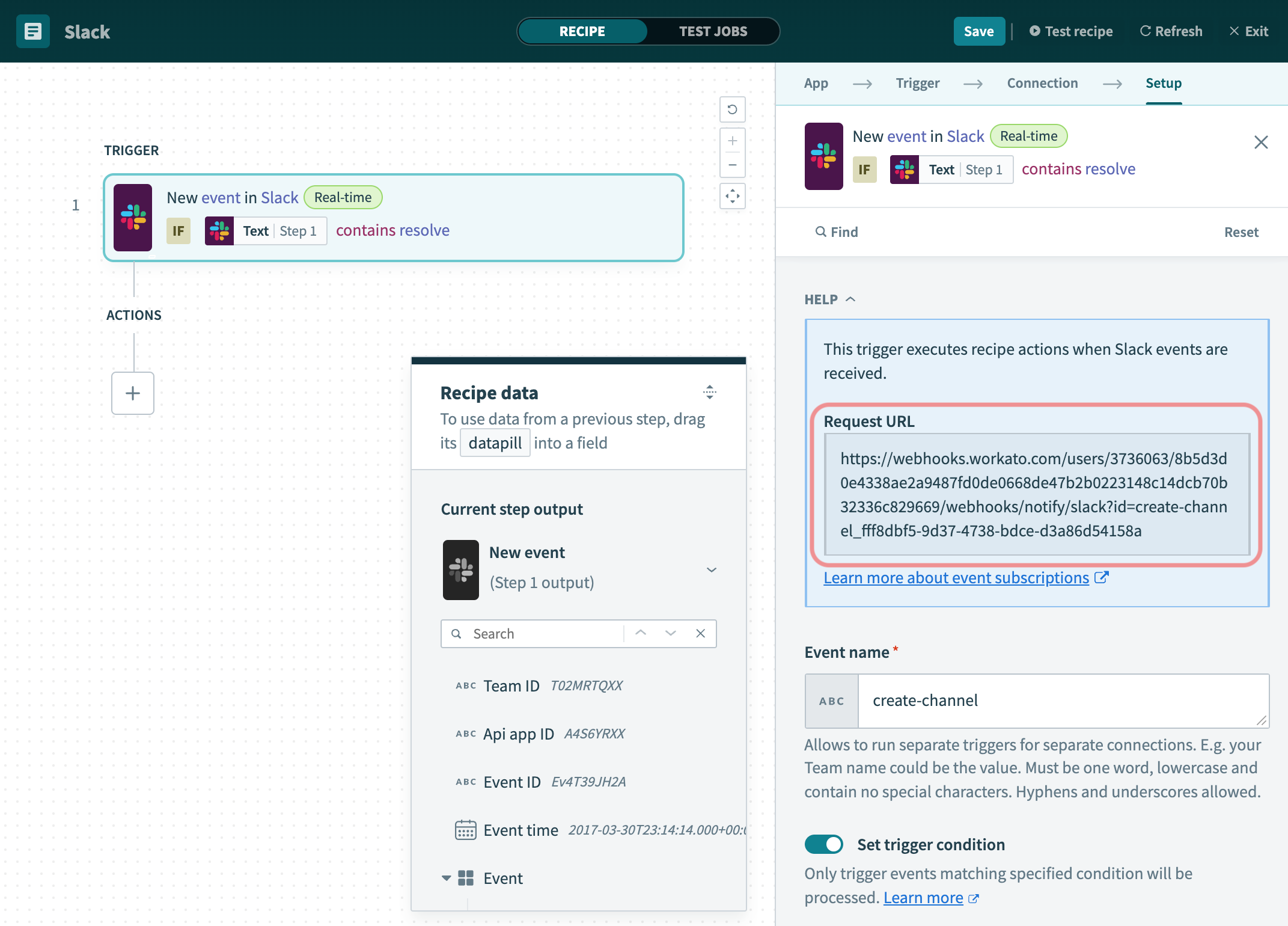 Target URL for your app to send events to
Event names don't have to be unique in your Workato workspace. You can use the same event name in multiple Slack recipes. This allows you to trigger multiple recipes with the same event name using a single event.
Complete the following steps to enable event subscriptions:
Go to your Slack app page, locate the Features section, and click Event Subscriptions.
SLACK APP ID
Your Slack app page should look something like:
https://api.slack.com/apps/{your_app_id}Go to Event Subscriptions and click the Enable Events toggle.
Go to your Workato workspace and copy the target URL from your New event in Slack trigger.
Go to your Slack app page and paste the target URL into the Request URL field.
Click Save.
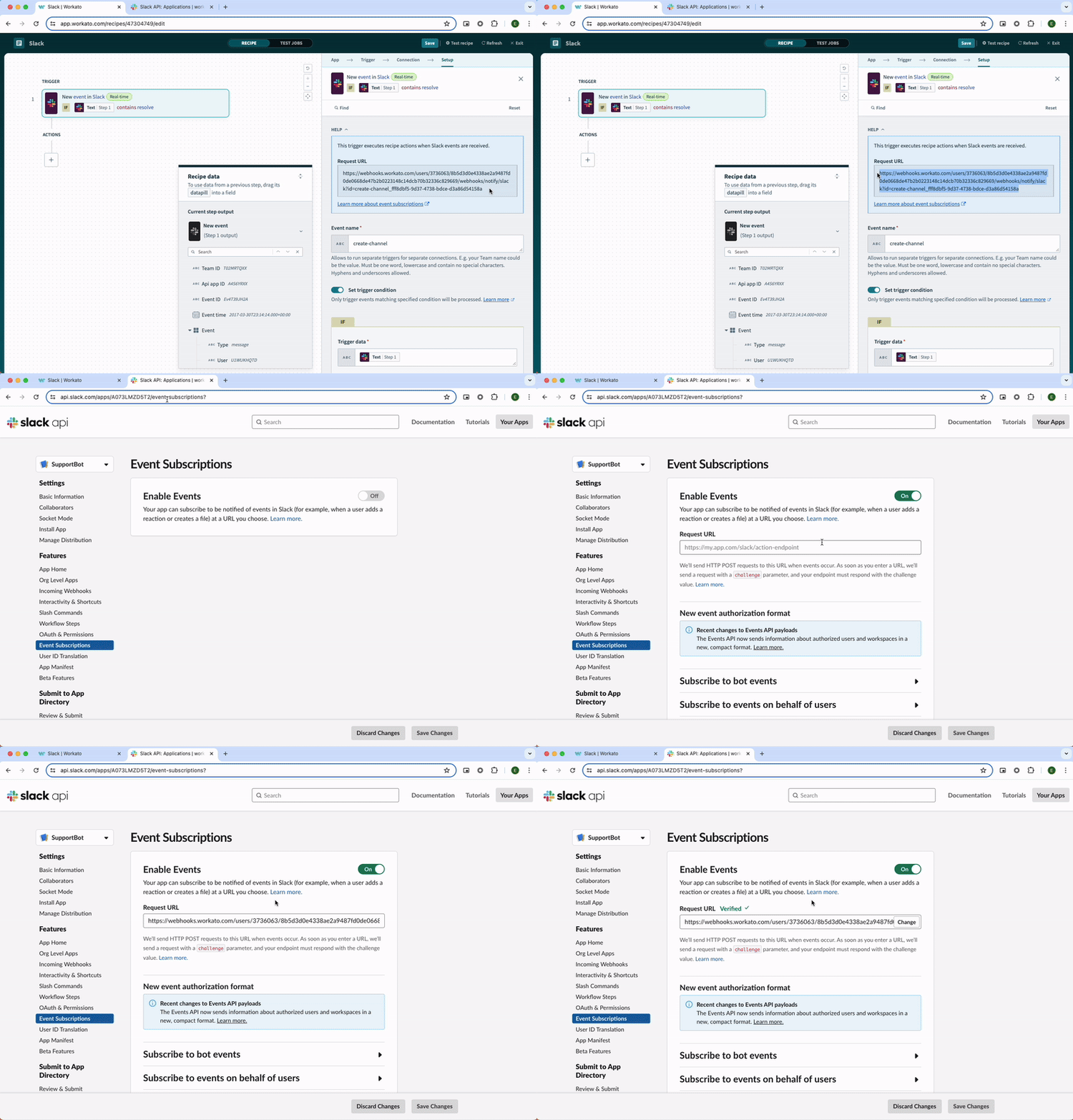 Enable event subscriptions
Subscribe to bot events
Slack provides a list of bot events you can subscribe to and use to trigger your recipe.
In this example, customer success users are given the option to create a private channel between themselves and their customers whenever messages containing the word 'resolve' are posted in certain channels and direct messages (DMs). This example uses the following events as triggers:
message.channelsmessage.groupsmessage.im
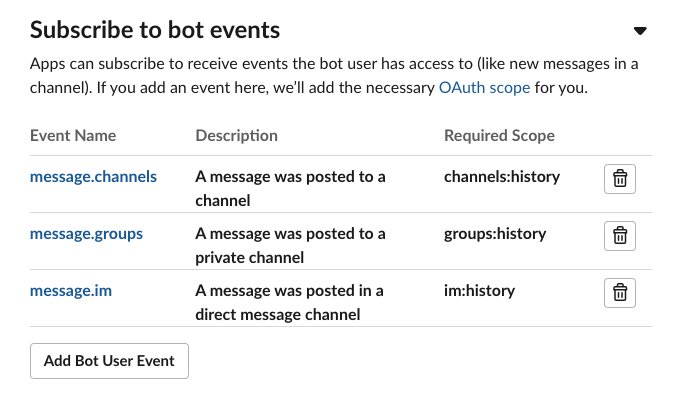 An event is sent to the recipe when a message is posted to a channel, a private channel, or a DM
Your Slack app must have permission scopes to use Event subscriptions. Slack automatically adds required permission scopes when you subscribe to events.
Install your app
Slack automatically adds a permission scope to your app when you subscribe to at least one bot event. You can now install the app in your workspace.
New event trigger (real-time)
The New event trigger detects all bot events in your connected Slack instance. Each new event trigger comes with a target URL, generated after you enter an Event name. This target URL is used to enable event subscriptions.
Input
Event name
Enter an Event name to generate a unique target URL for subscribing to bot events. The Event name should describe the events you're subscribing to.
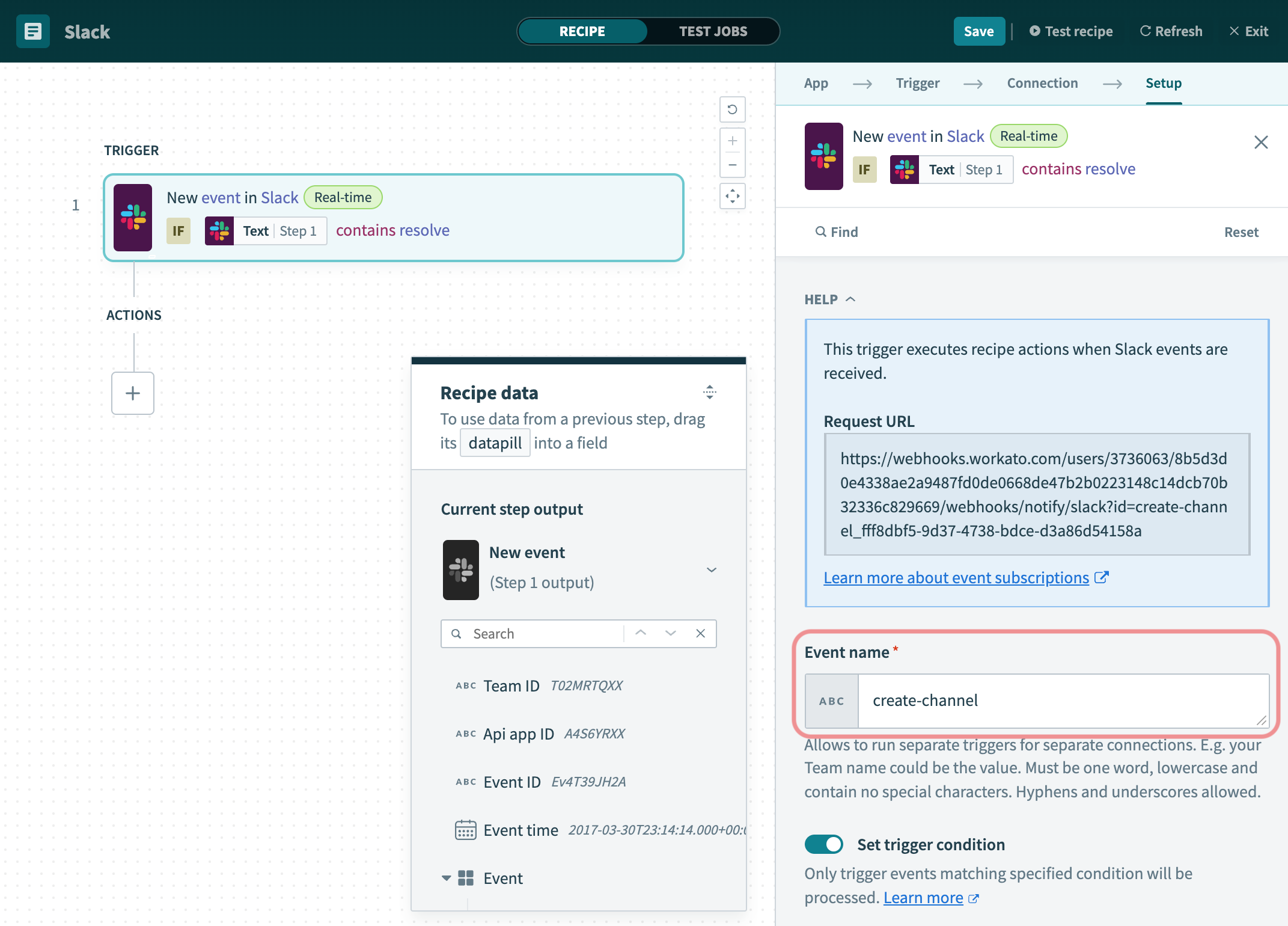 The target URL used for subscribing to bot events is generated when you enter the event name
Output
| Input fields | Description | |
|---|---|---|
| Team ID | ID of Slack workspace. | |
| API app ID | ID of your Slack app that's subscribed to the bot event. | |
| Event ID | ID of event. | |
| Event time | Timestamp of event. | |
| Event | Type | Type of event. |
| User | User ID of user who triggered the event. | |
| Text | Message content of text. | |
| Ts | Timestamp of event. | |
| Channel | Channel ID where event occurred. | |
| Event ts | Timestamp of event. | |
Button click (real-time)
The Button click trigger handles button clicks. These button clicks come from another recipe that posts a message with buttons to the user. Learn more about using buttons in our Using Slack message buttons document.
Input
There are no input fields.
Output
| Output fields | Description | |
|---|---|---|
| Action name | Button label visible to Slack user interacting with the buttons. | |
| Action ID | Internal value of the button. | |
| Channel | ID | ID of channel where button was clicked. |
| Name | Name of channel. | |
| User | ID | User ID of user who clicked the button. |
| Name | Name of user who clicked the button. | |
| Team | ID | ID of Slack workspace. |
| Domain | Domain of Slack workspace. | |
| Action timestamp | Timestamp when button was clicked. | |
| Message ID | ID of message that contained the button that was clicked. | |
| Attachment ID | ID of the button that was clicked. Buttons are a form of message attachments in the context of Slack. | |
| Response URL | URL for responding to button clicks, used in the Respond to button click action. | |
Last updated: