# Configure Google Drive as your data pipeline source
Set up Google Drive as a data pipeline source to extract and sync records into your destination. This guide includes connection setup, pipeline configuration, and key behavior for working with .csv files stored in Google Drive folders.
# Features supported
The following features are supported when using Google Drive as a data pipeline source:
- Extract and sync data from
.csvfiles in Drive folders - Support for full and incremental sync through file detection
- Field-level selection for data extraction
- Schema drift detection and handling
- Field-level data masking
# Prerequisites
You must have the following configuration and access:
- A Google account with access to the required Drive folders
- OAuth or service account credentials for authentication
- Folder paths and file patterns for the files to sync
# Connect to Google Drive
Complete the following steps to connect to Google Drive as a data pipeline source. This connection enables the pipeline to extract and sync records from files in your Drive.
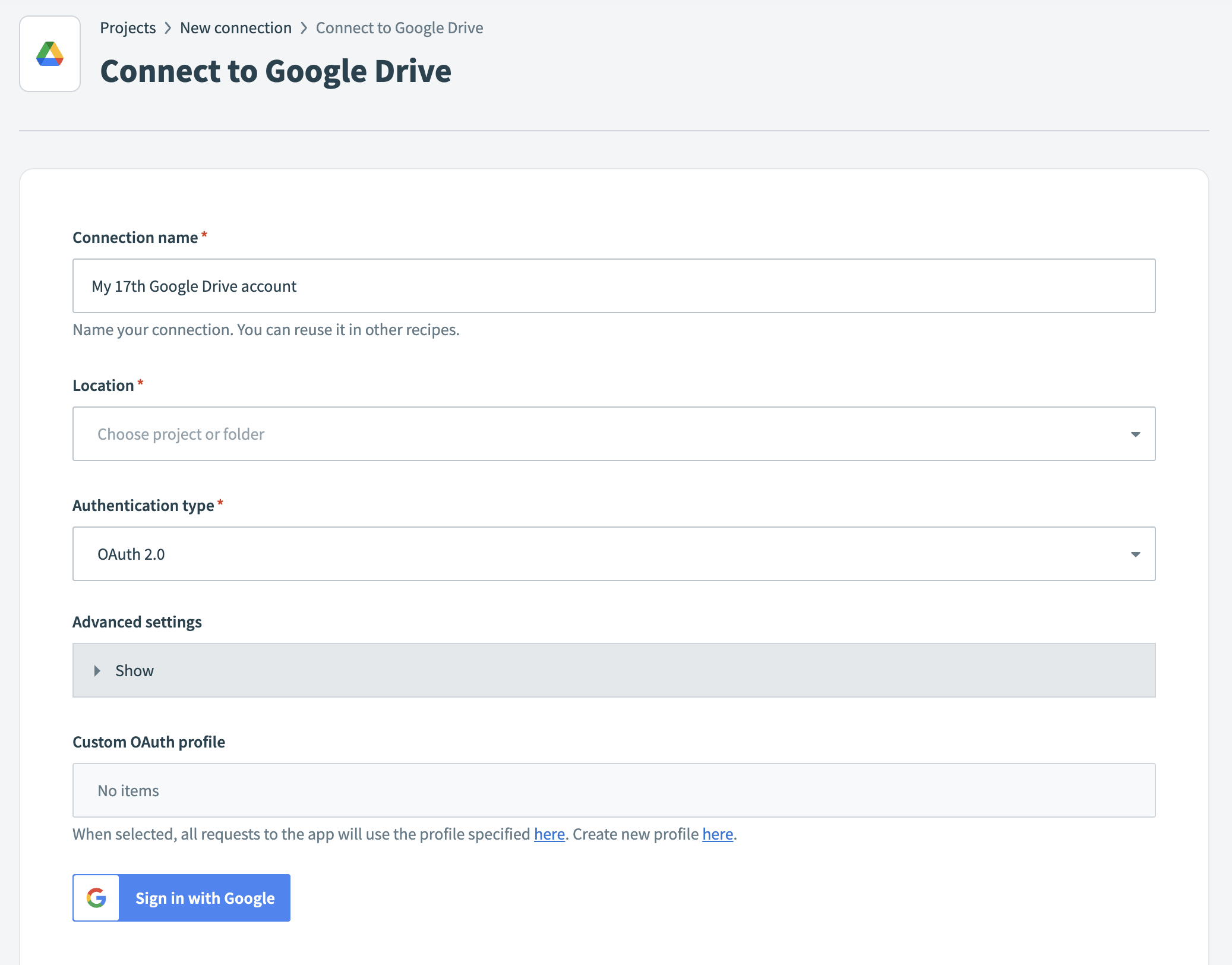
Select Create > Connection.
Search for and select Google Drive on the New connection page.
Enter a name in the Connection name field.
 Google Drive
Use the Location drop-down to select the project where you plan to store the connection.
Select an Authentication type:
- OAuth 2.0: Use this method to authenticate with a Google user account.
- Service account: Use this method to authenticate using a service account JSON key from your Google Cloud Project.
Configure the following additional fields based on your Authentication type:
Optional. Expand Advanced settings and select Requested permissions.
Optional. Use a Custom OAuth profile if you manage OAuth settings externally.
Click Sign in with Google and complete the OAuth consent flow.
# Configure the pipeline
Complete the following steps to configure Google Drive as your data pipeline source:
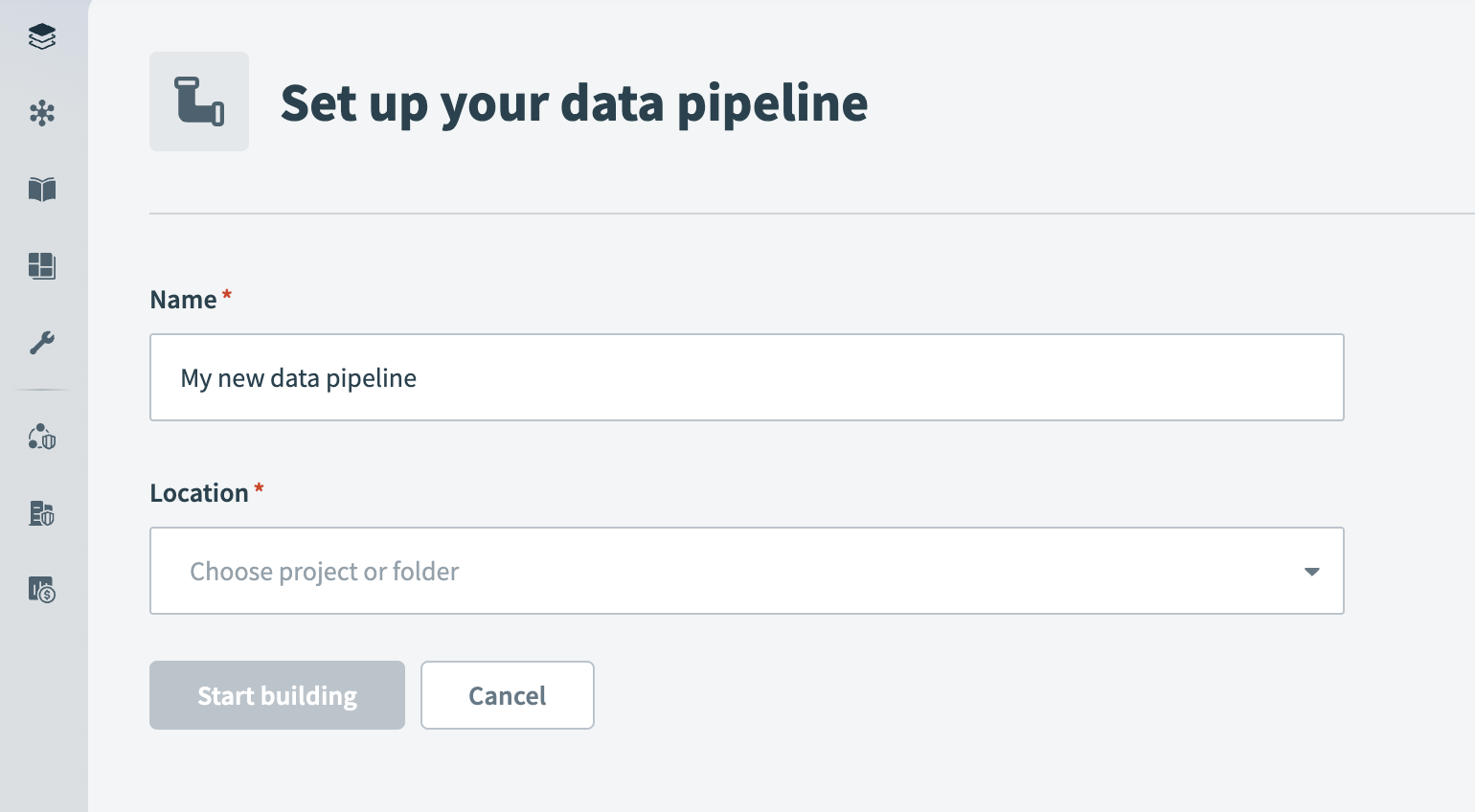
Select Create > Data pipeline.
Provide a Name for the data pipeline.
 Data pipeline setup
Use the Location drop-down menu to select the project where you plan to store the data pipeline.
Select Start building.
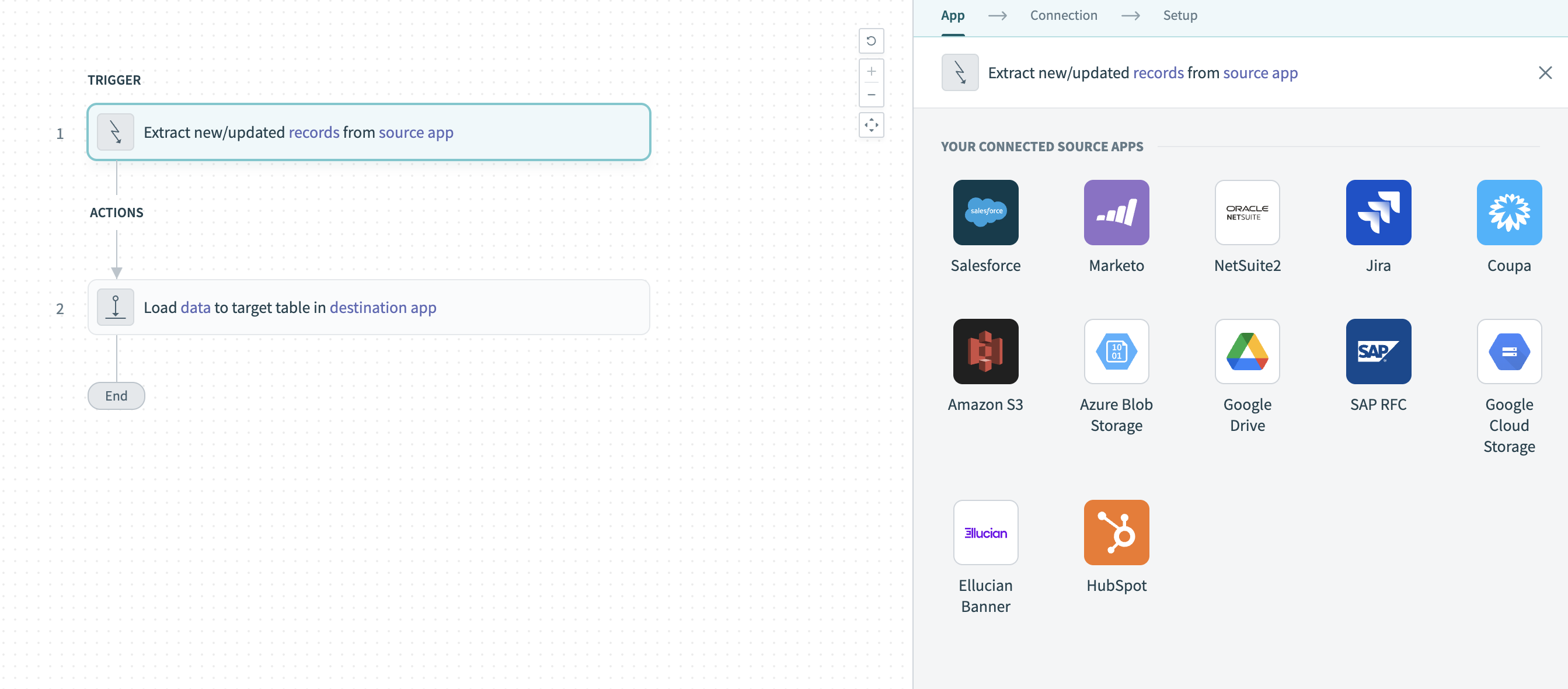
Click the Extract new/updated records from source app trigger. This trigger defines how the pipeline retrieves data from the source application.
 Configure the Extract new/updated records from source app trigger
Select Google Drive from Your Connected Source Apps.
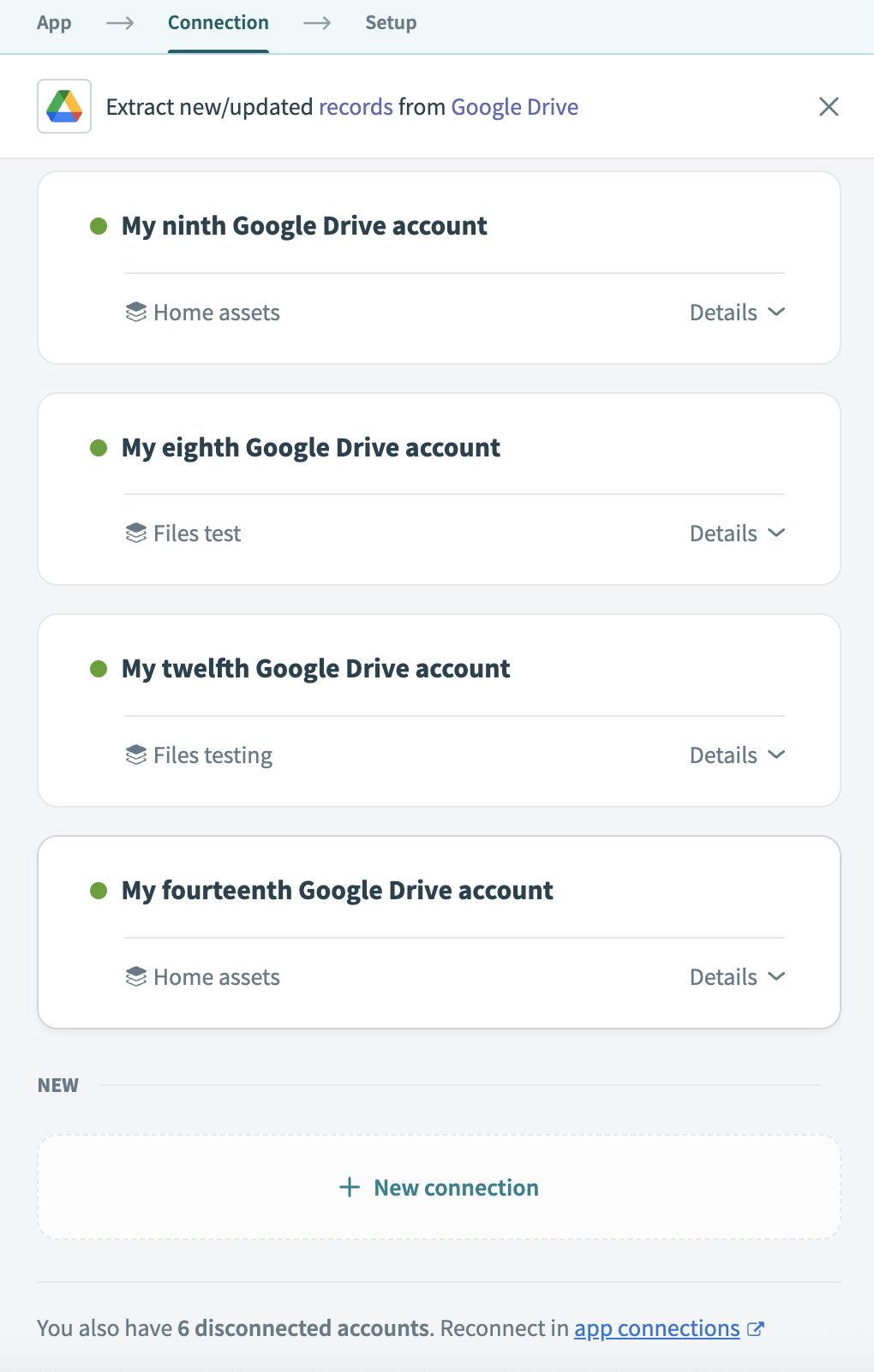
Choose the Google Drive connection you plan to use for this pipeline. Alternatively, click + New connection to create a new connection.
 Choose a Google Drive connection
Click Add object to configure files you plan the pipeline to monitor and sync.
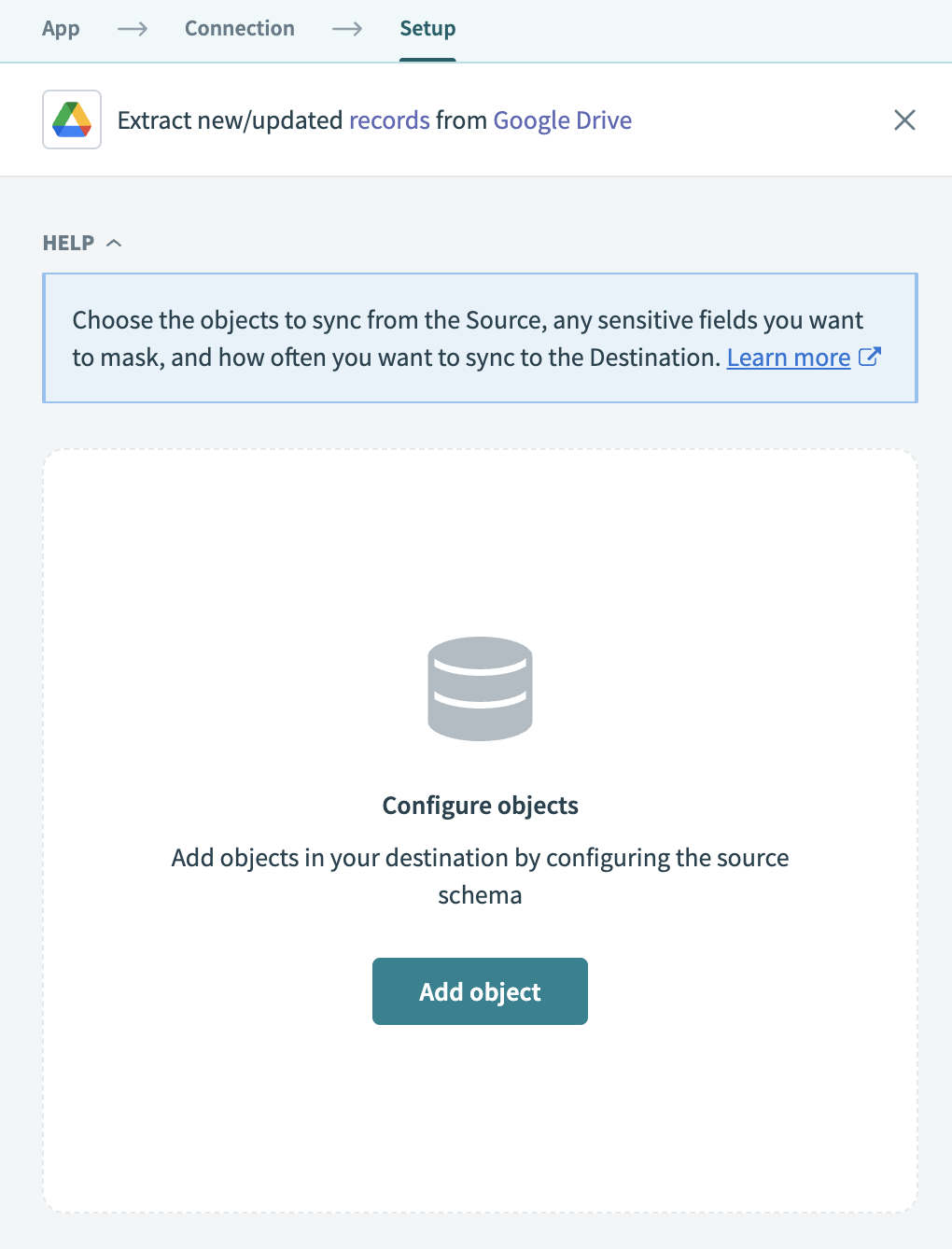 Add Google Drive objects
Enter the folder path to monitor in the Source Folder path field. The pipeline supports .csv files only.
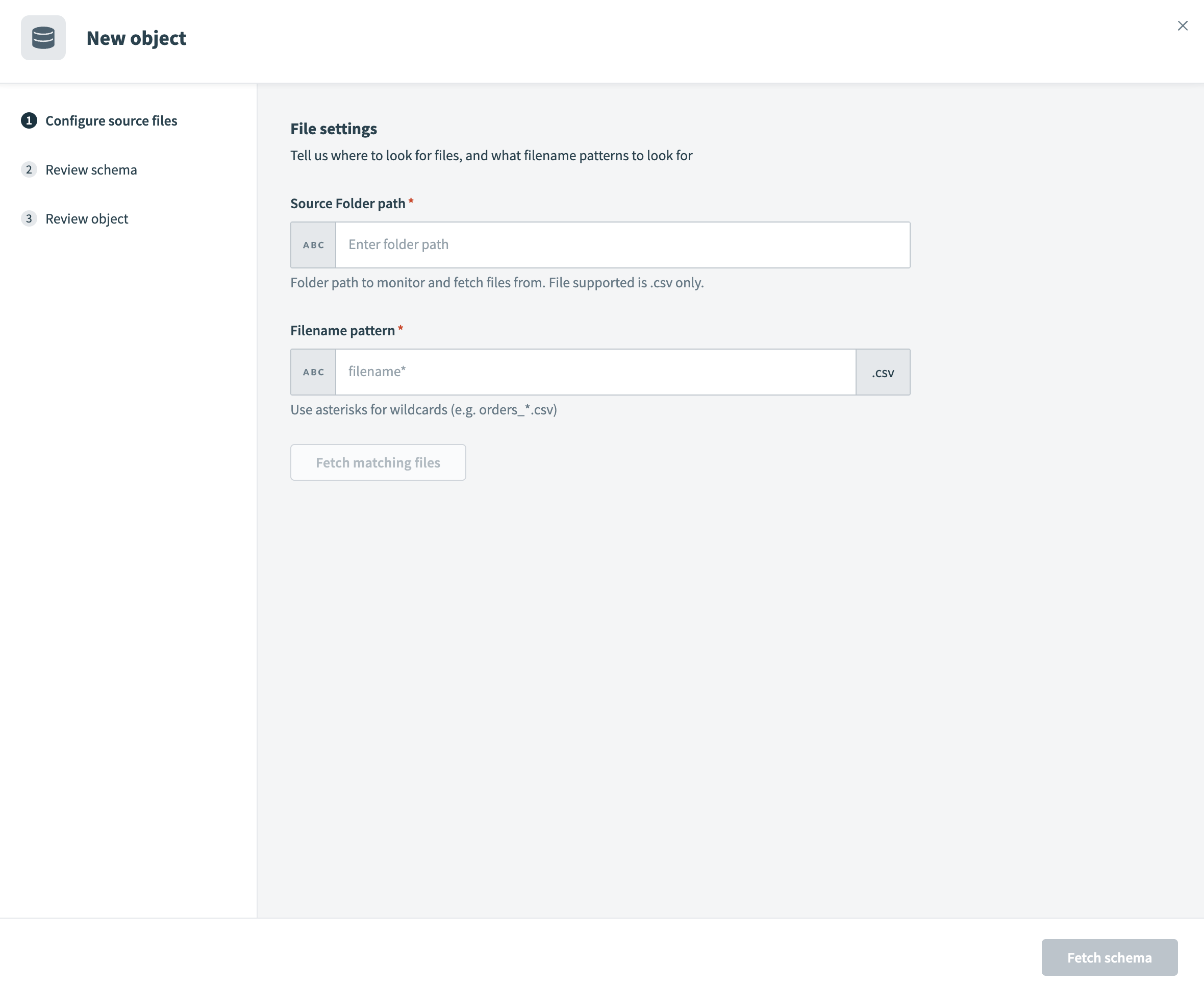 Configure file settings
NESTED FOLDER LIMITATION
The Google Drive connector doesn't fetch files from nested subfolders. It only monitors and fetches .csv files located directly within the folder specified in the Source Folder path field.
If your pipeline expects to include files in subfolders, move those files to the top-level folder. Support for nested folders in Google Drive is planned for a future update.
Define which files to fetch using a pattern in the Filename pattern field. Use wildcards such as orders_*.csv to include multiple files.
Click Fetch matching files to preview files matching the defined pattern.
Select a Reference file to define the schema for your destination table.
Configure CSV settings:
Set whether the CSV includes a header in the Does CSV file include a header line? field.
Choose a delimiter in the Column delimiter field.
Set the Force quotes field to True to quote all values.
Click Fetch schema to retrieve the schema from the reference file.
Review the schema to ensure it matches your expected table structure.
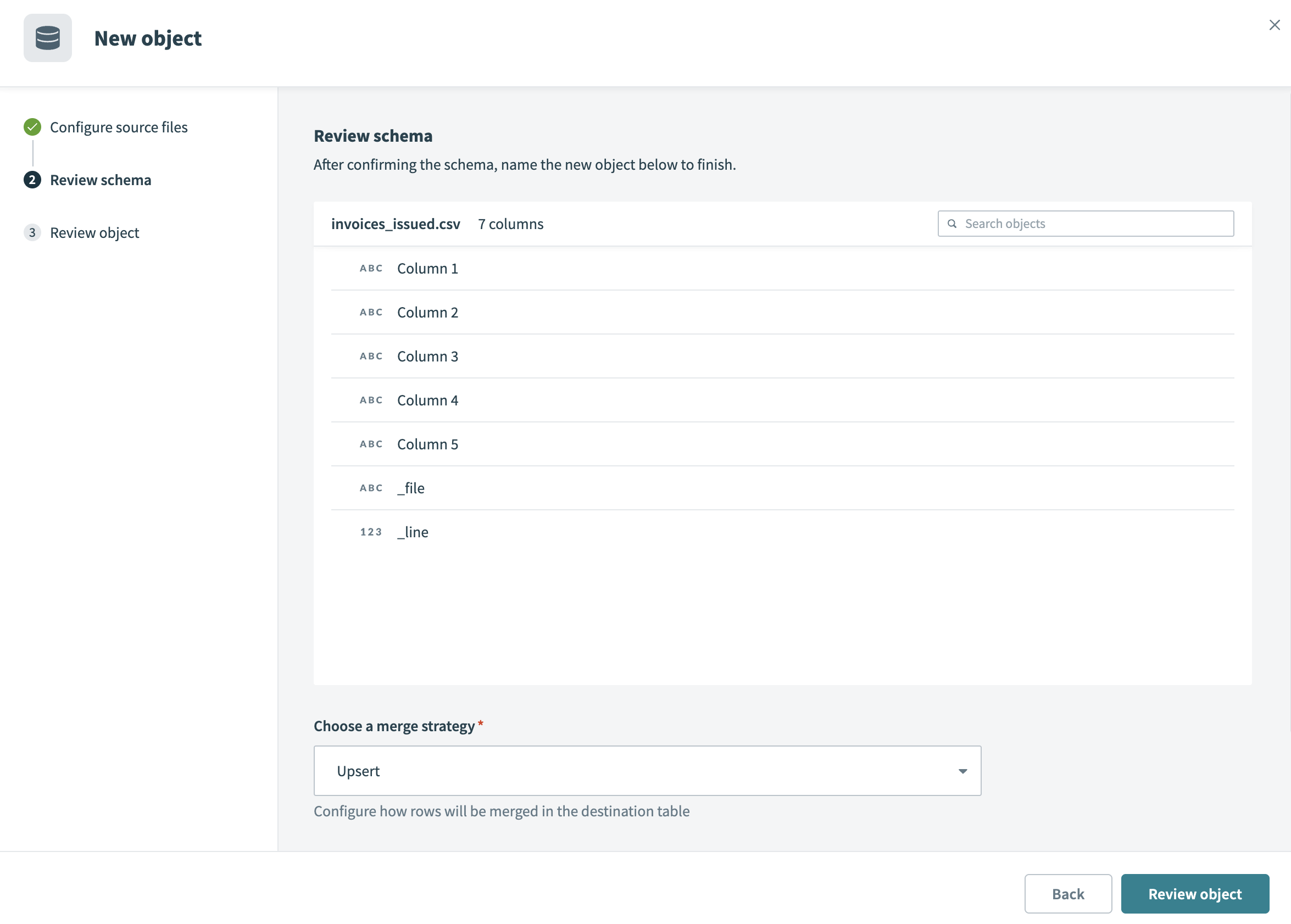 Review schema
Configure how rows are merged in the destination table in the Choose a merge strategy field. Workato supports the following merge strategies:
- Upsert: Inserts new rows and updates existing rows. When you choose Upsert, the Merge method field appears. You must select a column that uniquely identifies each row. This key is used to determine whether a row exists in the destination and whether it's updated or inserted.
- Append only: Inserts all rows without attempting to match or update existing records. When you choose Append only, the pipeline doesn't match on a key and doesn't update existing rows.
Click Review object to confirm your setup. This screen displays your file settings, CSV options, and merge details.
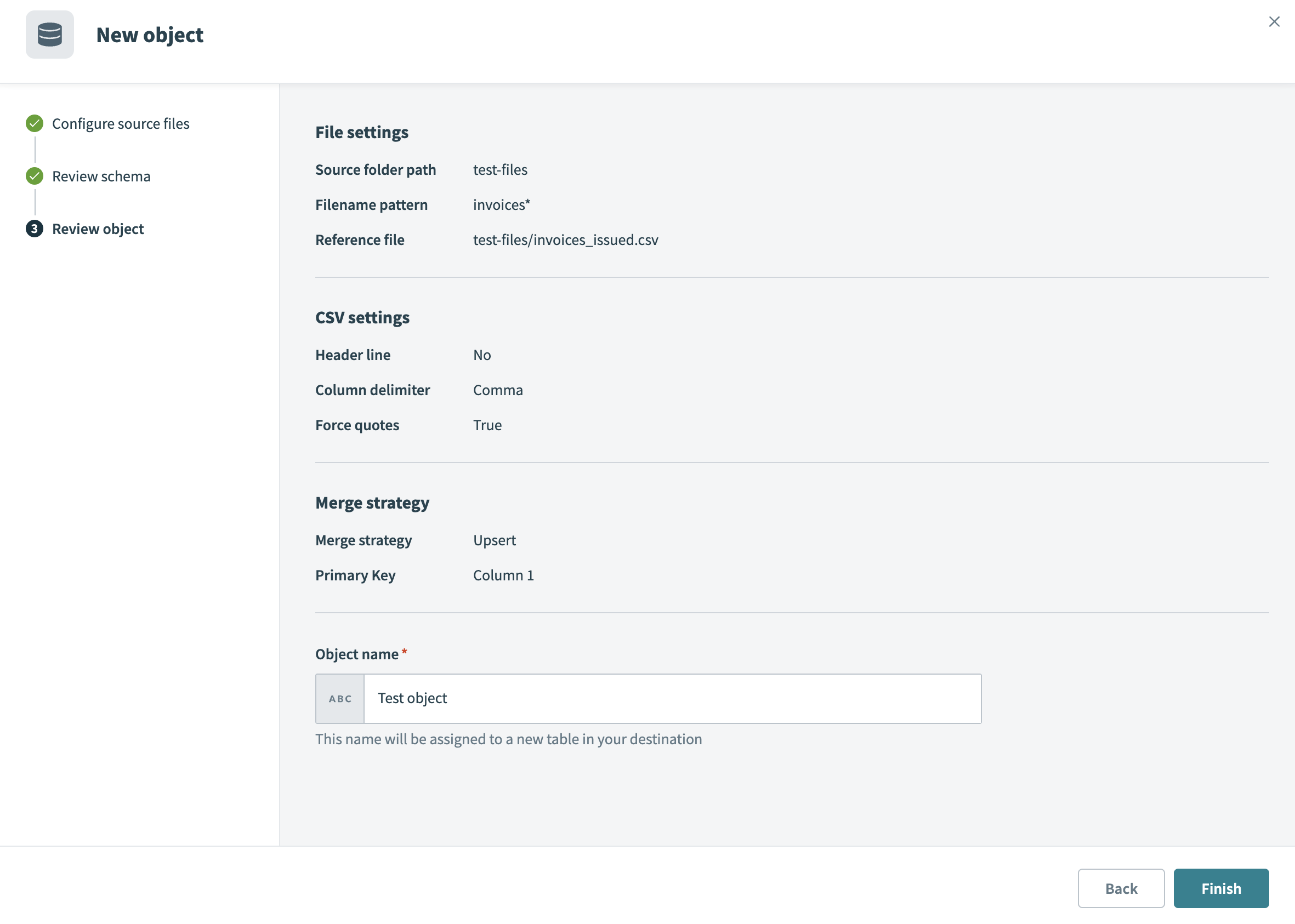 Review object
Enter an Object name. This name defines the destination table name.
Click Finish to save the object configuration.
Review and customize the schema for each selected object. When you select an object, the pipeline automatically fetches its schema to ensure the destination matches the source.
Expand any object to view its fields. Keep all fields selected to extract all available data, or deselect specific fields to exclude them from data extraction and schema replication.
Optional. Configure field-level data protection. After you expand an object, choose how to handle each field:
- Replicate as is (default): Data values at the source are replicated identically to the destination.
- Hash: Hash sensitive data values in the column before syncing to your destination.
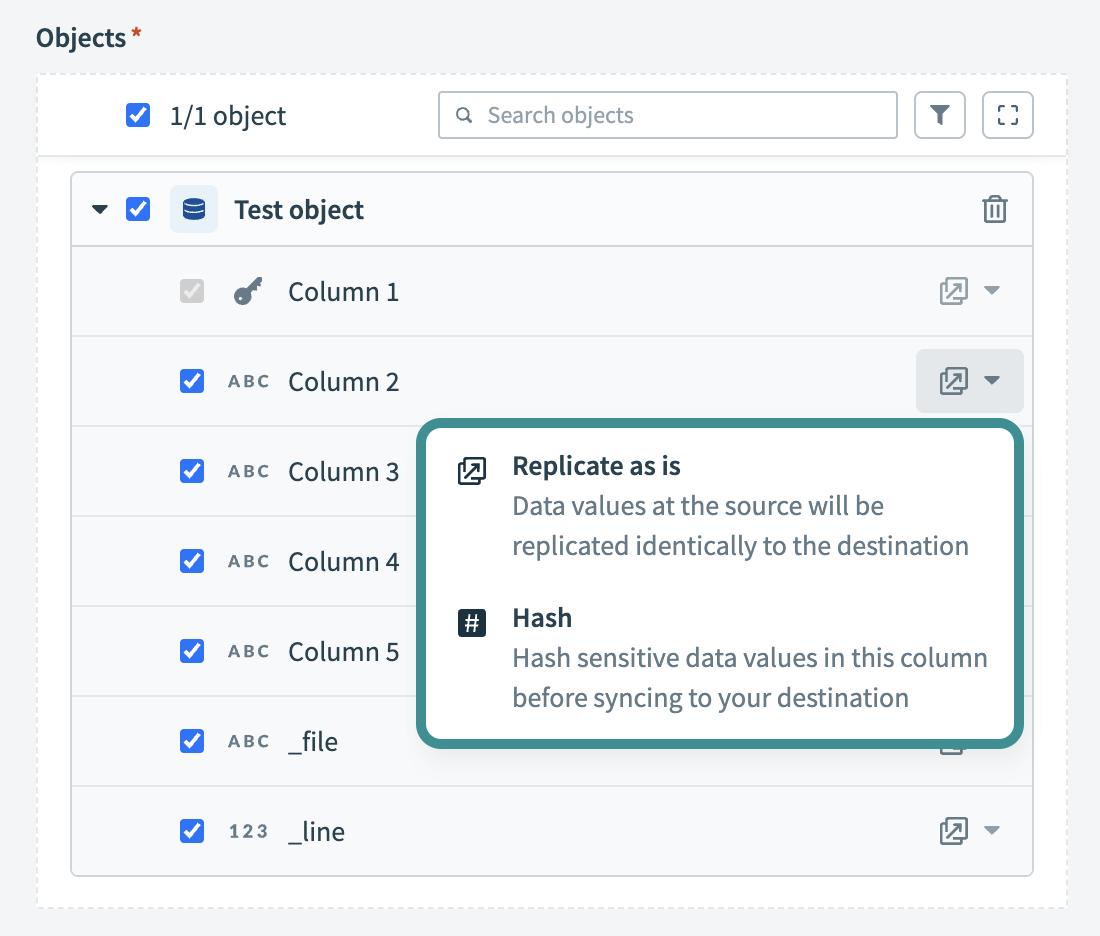 Configure field-level data protection
Click Add object again to add more objects using the same flow. You can repeat this step to include multiple Google Drive objects in your pipeline.
Choose how to handle schema changes:
- Select Auto-sync new fields to detect and apply schema changes automatically.
- Select Block new fields to manage schema changes manually. This option may cause the destination to fall out of sync if the source schema updates.
Unsynchronized schema changes, also known as schema drift, can cause issues if not managed. Refer to the Schema drift section for more information.
Configure how often the pipeline syncs data from the source to the destination in the Frequency field. Choose either a standard time-based schedule or define a custom cron expression.
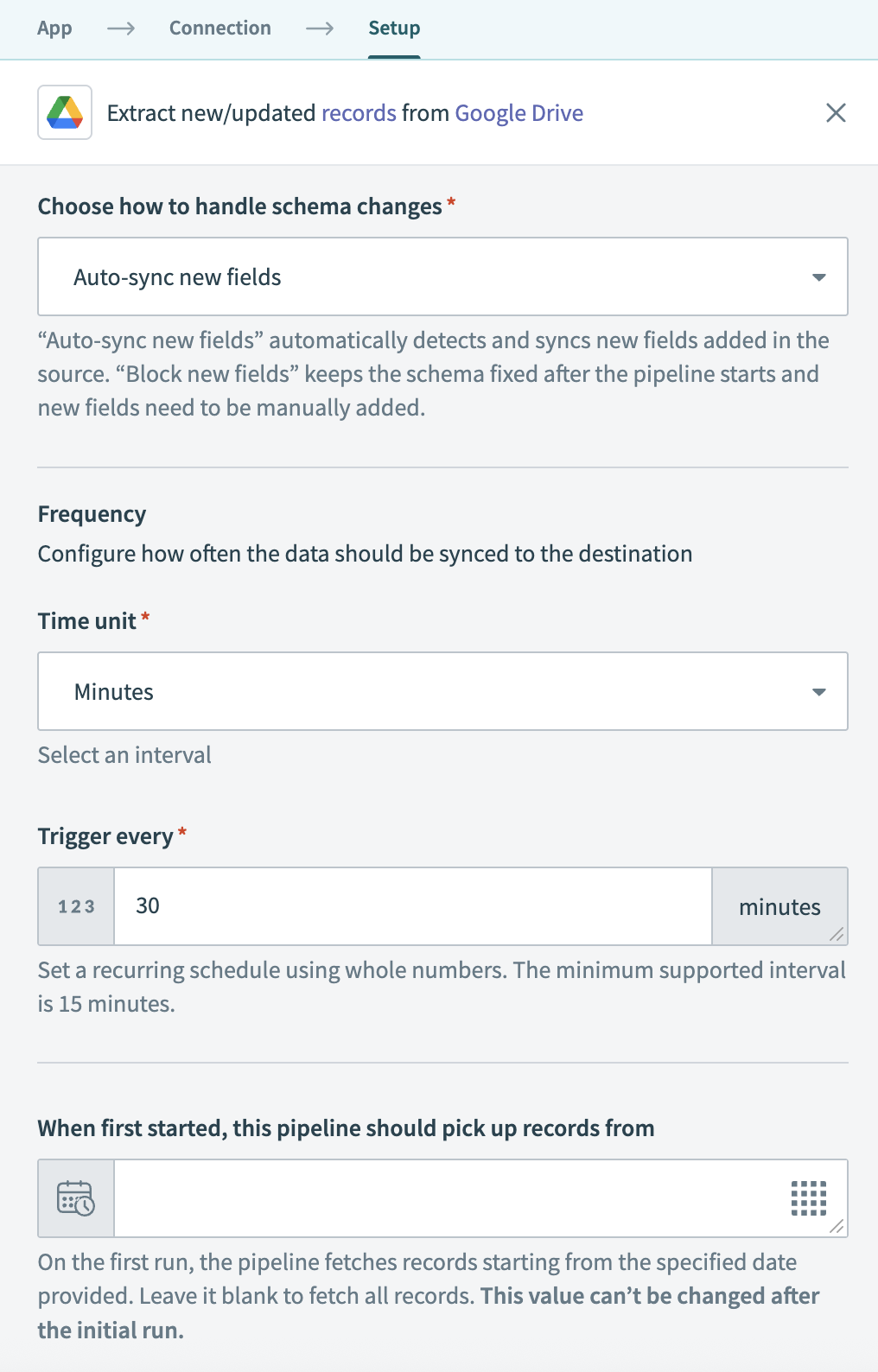 Configure sync frequency
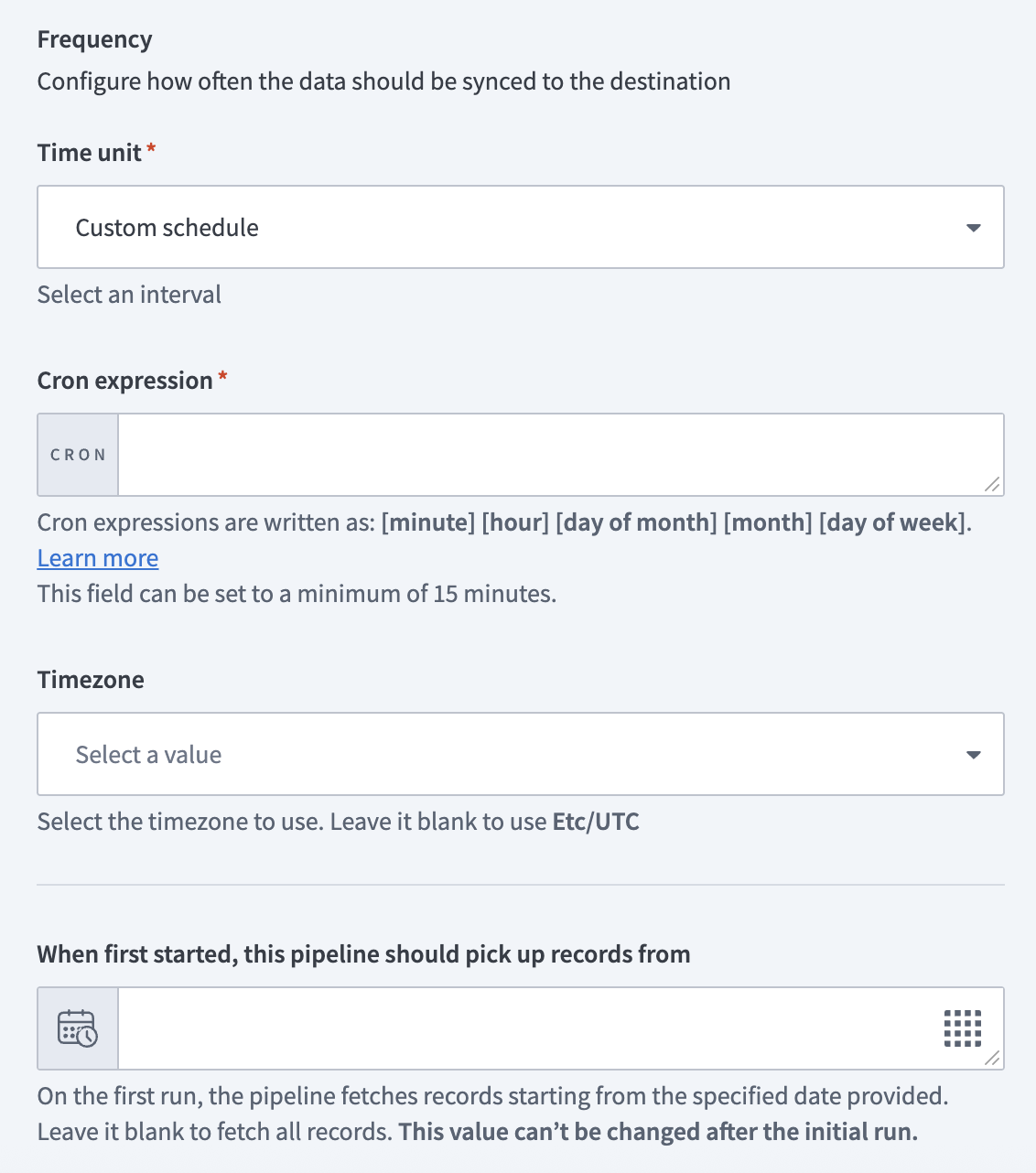 Configure sync frequency
# File schema and processing
The Google Drive connector reads .csv files stored in specified folders. These files define the structure and data that the pipeline extracts and syncs to your destination.
Workato infers the schema and data types from a selected reference file. All matched files must maintain the same column structure and data format to ensure accurate schema mapping.
Last updated: 2/6/2026, 5:48:07 PM