Google Sheets - Search rows action
This action allows you to search for rows in a sheet using search values in each column. It searches for exact matches of the search values you provide.
Input
| Input field | Description |
|---|---|
| Google Drive | Select either your personal drive or a team drive. Your personal drive is selected by default. |
| Spreadsheet | Select a spreadsheet from the drop-down, or use the Spreadsheet ID datapill from the output of other Google Sheets triggers and actions. |
| Sheet | Select a sheet from the drop-down, or use the Sheet name datapill from the output of other Google Sheets triggers and actions. |
| Columns | Enter the values to search for in each column. Workato searches for rows with an exact match in every column. This field displays after you select a sheet and spreadsheet. |
| Search result size | Specify the maximum number of matched rows to be returned. The minimum accepted value is 1, and the maximum is 50000. |
Output
| Output field | Description |
|---|---|
| Spreadsheet ID | ID of the spreadsheet. |
| Spreadsheet name | Name of the spreadsheet. |
| Sheet name | Name of the sheet. |
| Rows | The list of rows in the sheet. |
How to use this action
The following example demonstrates how to use the Search rows action with the Update row action.
Our sample sheet is a list of items from different countries. For the Google Sheets connector to work, your sheet must have at least one header row and one data row.
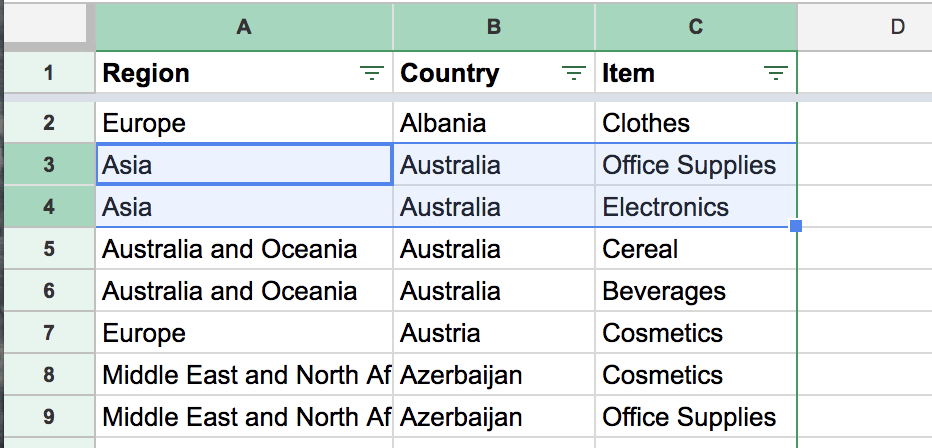 Sample sheet
In this example, there is a mistake in cells A3 and A4: these values should be Australia and Oceania, not Asia.
To fix this, our recipe must search for rows where Country equals Australia and Region equals Asia. Then, it must update the Region to Australia and Oceania instead.
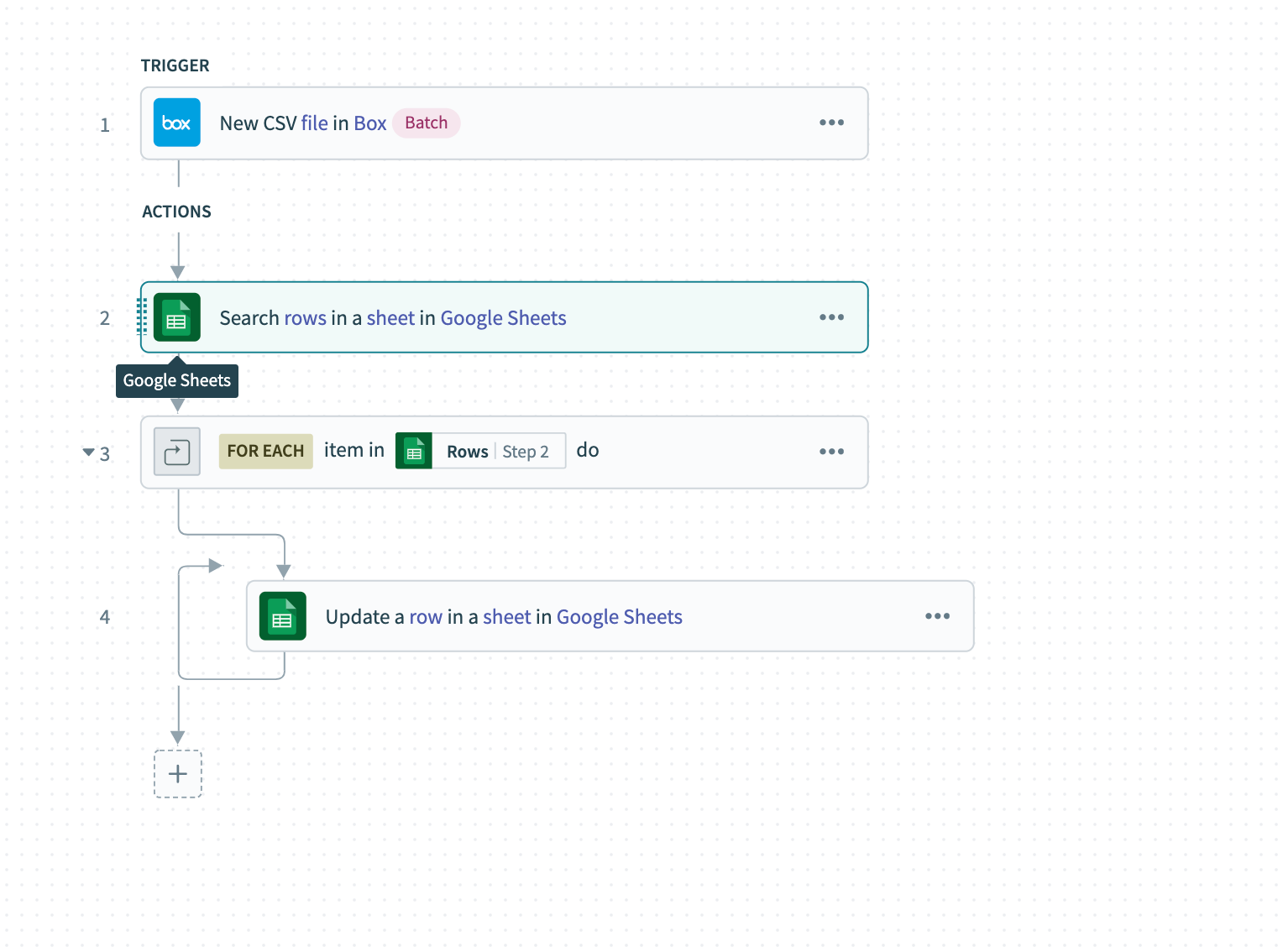 Sample recipe of Google Sheets Search and Update
Complete the following steps to configure the Search rows and Update row actions:
Configure the Search rows action
This action searches for rows in the Google Sheet that match the conditions you specify in the Columns fields.
Select the Search rows action and expand the Columns section.
Enter Asia in the Region field.
Enter Australia in the Country field.
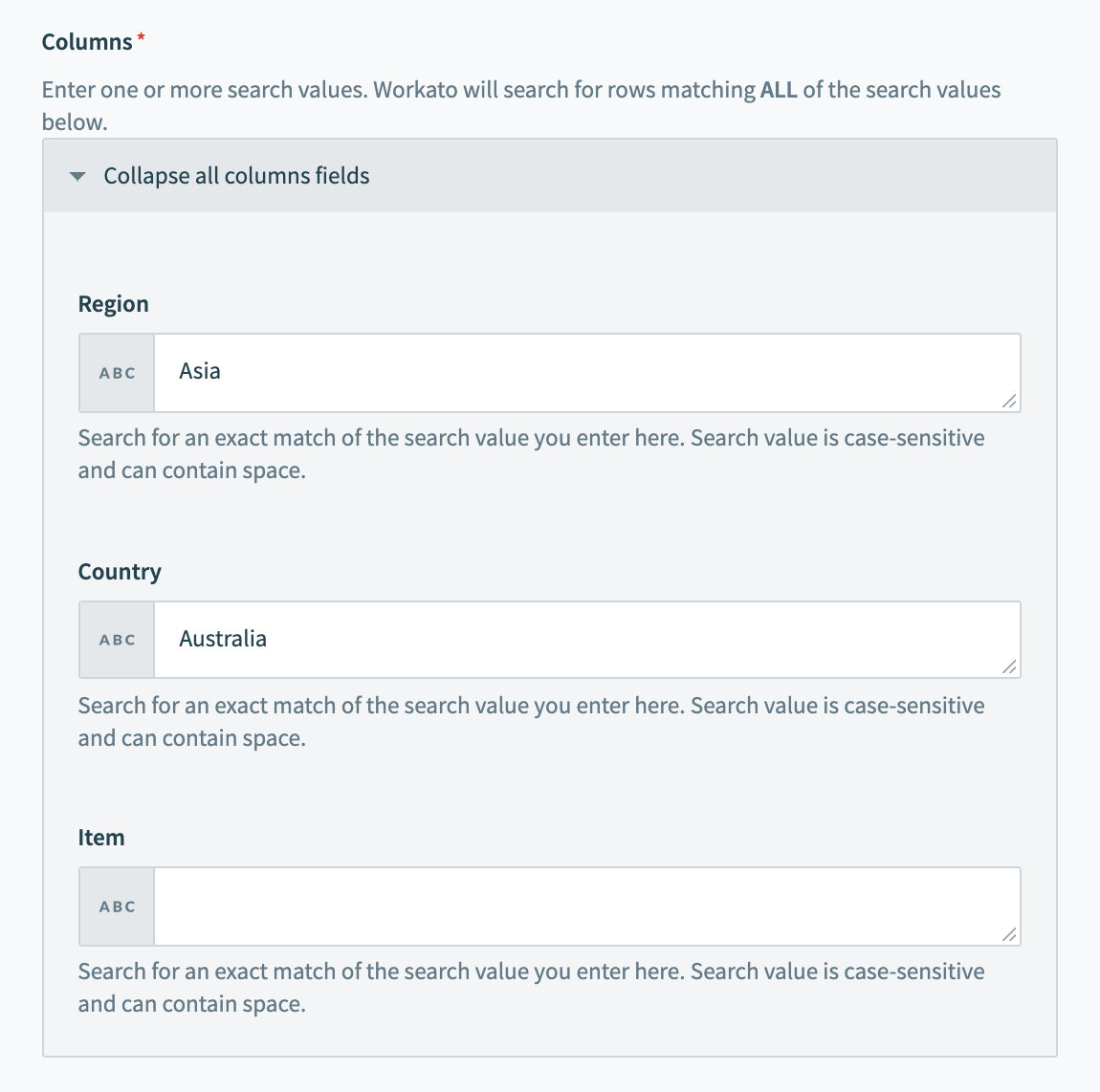 Configure the Search rows action
Configure the Repeat action
For each row in the sheet, this action checks if there are any matches based on the search criteria specified in the Search rows action.
Click + Add step and select Repeat for each.
Map the RowsStep 2 datapill to the Input list field.
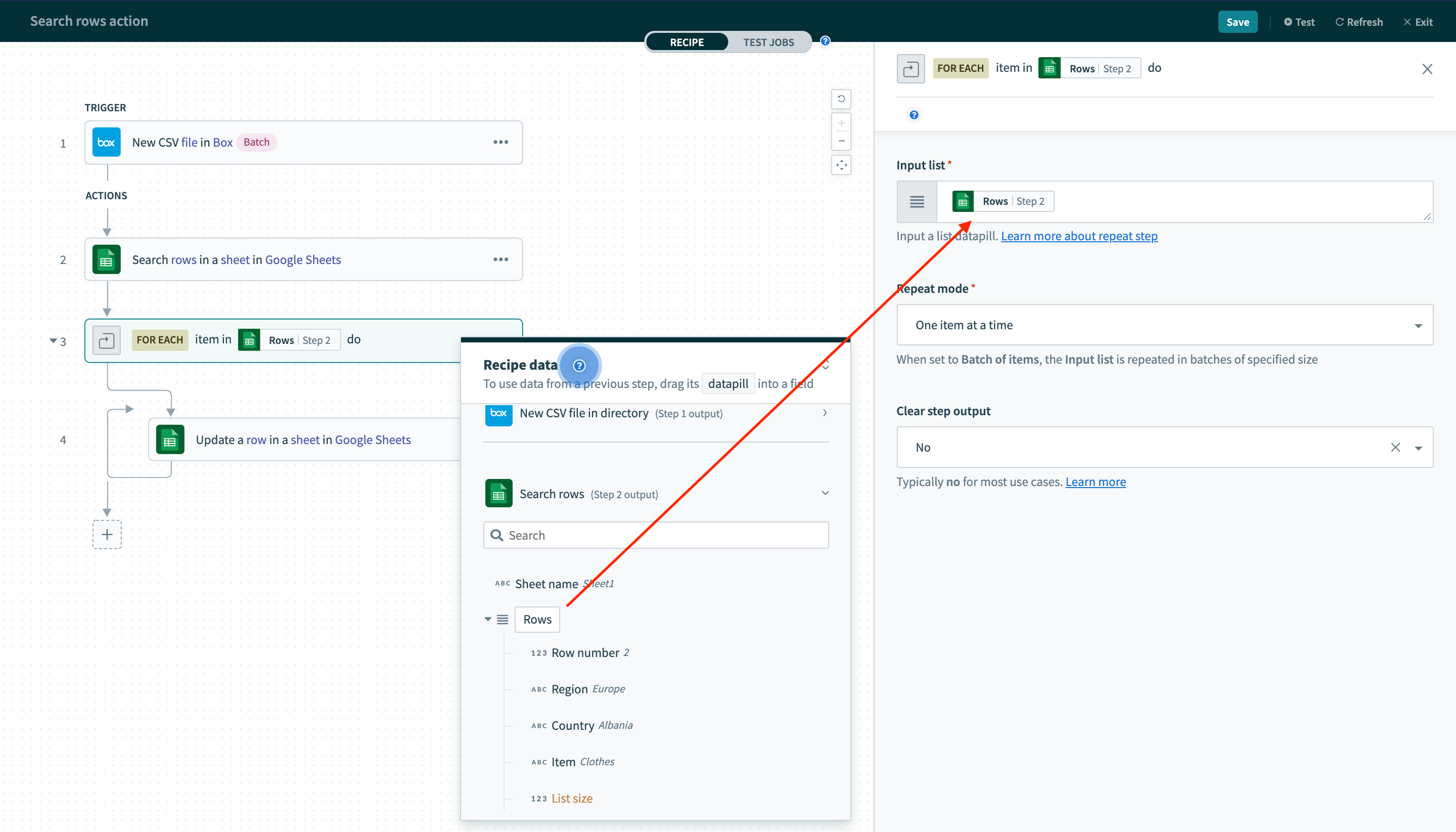 Configure the Repeat for each action
Configure the Update row action
Complete the following steps to configure the Update row action:
Select the Update row action and map the Row numberStep 3 datapill to the Row number field.
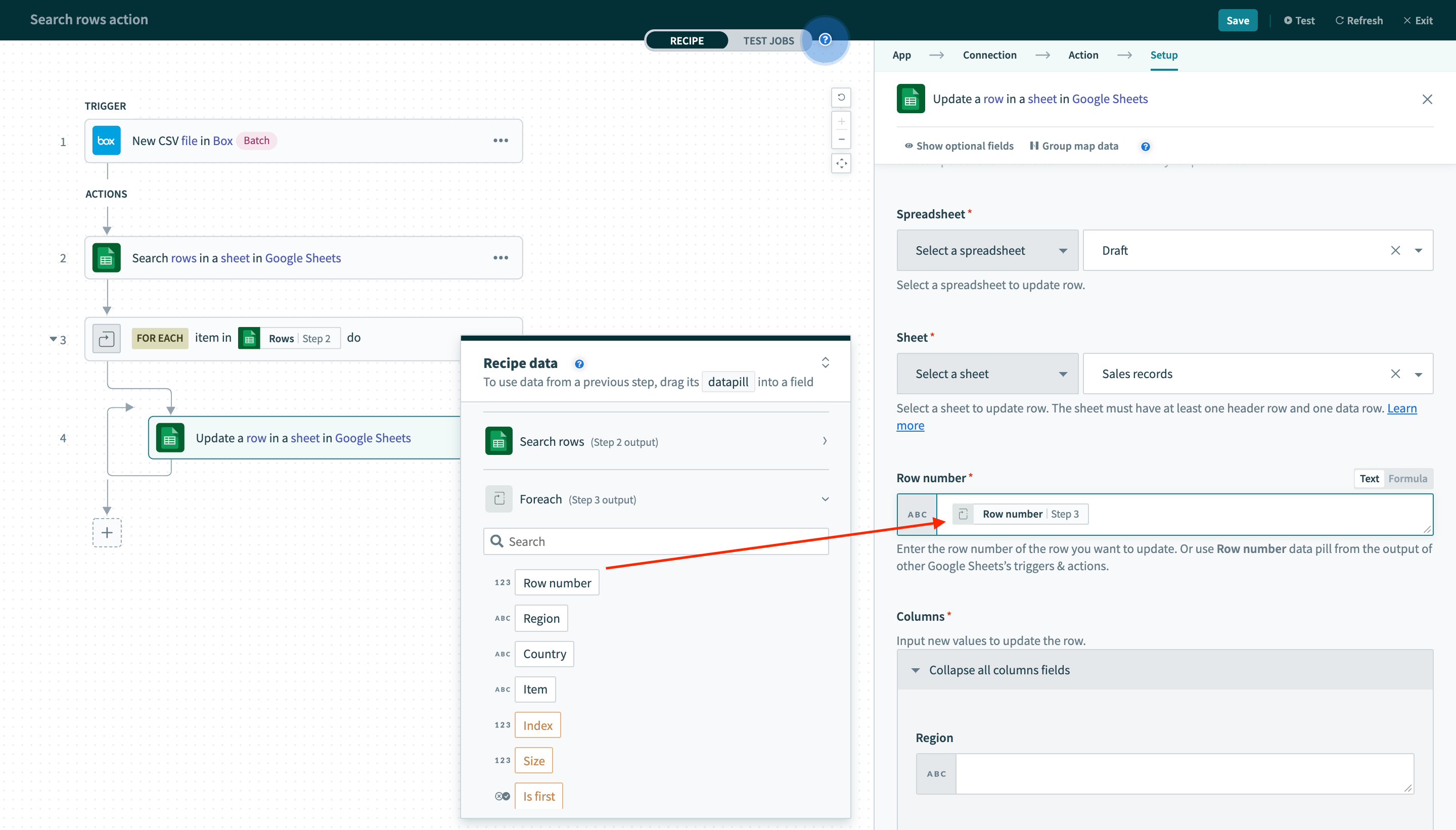 Configure the Update row action
Enter Australia and Oceania in the Region field to update cells matching the search criteria.
Click Save to save your recipe.
Test the recipe
Click Test recipe to test the recipe.
After running the recipe, you'll find that cells A3 and A4 are correctly updated to Australia and Oceania:
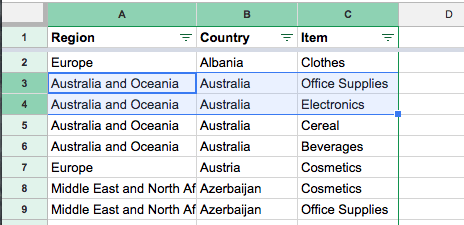 Cells A3 and A4 are correctly updated
Last updated: