Xero - Create purchase order with line items action
The Create purchase order with line items action allows you to create a purchase order with multiple line items in Xero.
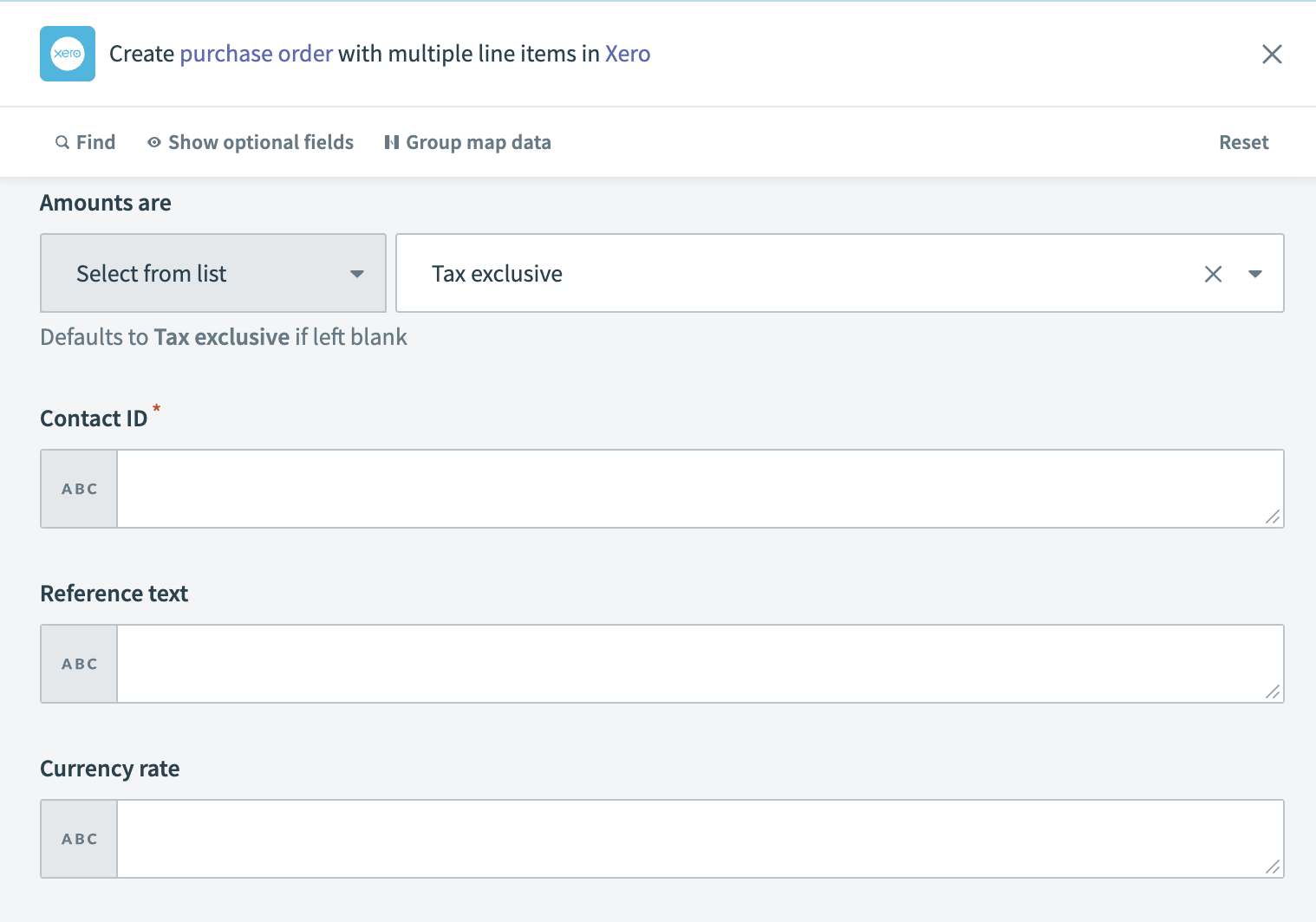 Xero - Create purchase order with line items action
Input
| Input field | Description |
|---|---|
| Date | Enter the date when the purchase order is created. |
| Delivery date | Specify the expected date for delivery of the items. |
| Amounts are | Indicate how amounts are reported. |
| Purchase order number | Input a unique number for identifying the purchase order. |
| Contact ID | Provide the unique identifier for the contact in Xero to whom the order is issued. |
| Reference text | Add any reference text for additional identification or notes. |
| Branding theme | Select a branding theme for the purchase order. |
| Currency code | Specify the currency code for the order. |
| Currency rate | Enter the exchange rate for the specified currency, if applicable. |
| Status | Set the status of the purchase order. |
| Sent to contact | Indicate whether the purchase order is sent to the contact. |
| Delivery address | Provide the address where the items should be delivered. |
| Attention to | Specify the person or department the delivery is addressed to. |
| Telephone | Enter a contact telephone number for delivery. |
| Delivery instructions | Add any special instructions for the delivery. |
| Expected arrival date | Indicate the expected date for the arrival of the items. |
| Line items | Provide details for each line item included in the purchase order. |
| Line items source list | Input a list datapill representing the line items for the purchase order. |
| Description (line items) | Enter a description for the line items. Ensure it is at least one character and a maximum of four thousand characters. |
| Item name (line items) | Specify the name of the line items. Click Products and services to retrieve the item name. If you provide both the item name and code, the item code takes precedence. |
| Quantity (line items) | Enter the quantity of the line items. Provide at least two fields out of Quantity, Unit price or Line amount. |
| Unit price (line items) | Set the unit price for the line items. Provide at least two fields out of Quantity, Unit price or Line amount. |
| Line amount (line items) | Enter the total amount for the line items. Provide at least two fields out of Quantity, Unit price or Line amount. |
| Discount rate (line items) | Input any discount rate applied to each item. |
| Account code (line items) | Assign an account code from your Chart of accounts to the line items. |
| Tax type name (line items) | Specify the tax type. Click Settings > General settings > Tax rates to find the tax type name. |
| Tax amount (line items) | Enter the tax amount for the line items. This field is auto-calculated as a percentage of the line amount based on the tax rate. |
| Item code (line items) | Provide the item code. Click Products and services to retrieve the item code. If you provide both the item name and code, the item code takes precedence. |
Output
| Output field | Description |
|---|---|
| Purchase order ID | The unique identifier for the purchase order in Xero. |
| Date | The date when the purchase order was created. |
| Delivery date | The expected date for delivery of the items. |
| Amounts are | How amounts are reported. |
| Purchase order number | The unique number assigned to the purchase order. |
| Contact ID | The unique identifier for the contact associated with the order. |
| Reference text | Any reference text associated with the order. |
| Branding theme | The branding theme applied to the purchase order. |
| Currency code | The currency code used for the order. |
| Currency rate | The exchange rate for the specified currency. |
| Status | The current status of the purchase order. |
| Sent to contact | Indicates if the order was sent to the contact. |
| Delivery address | The address where the items should be delivered. |
| Attention to | The person or department the delivery is addressed to. |
| Telephone | A contact telephone number for delivery. |
| Delivery instructions | Any special instructions for the delivery. |
| Expected arrival date | The expected date for the arrival of the items. |
| Line items | The collection of line items in the purchase order. |
| Contact | Information about the contact associated with the purchase order. |
| Updated date UTC | The UTC date and time when the purchase order was last updated. |
| Total discount | The total discount amount applied to the purchase order. |
| Sub total | The subtotal amount of the purchase order before tax. |
| Total tax | The total tax amount for the purchase order. |
| Total | The total amount of the purchase order, including tax. |
Last updated: