Configure Marketo as your data pipeline source
Set up Marketo as a data pipeline source to extract and sync records into your destination. This guide includes connection setup, pipeline configuration, and key behavior for working with Marketo as a source.
Workato uses the Marketo REST API to extract object data for pipeline syncs.
Features supported
The following features are supported when using Marketo as a data pipeline source:
- Extract data using the Marketo REST API
- Support for full and incremental sync
- Field-level selection for object extraction
- Schema drift detection and handling
- Field-level data masking
Prerequisites
You must have the following configuration and access:
- A custom service registered in your Marketo Admin console
- The REST API endpoint for your Marketo instance
- Client ID and client secret from the custom service
- Read access to the objects used in the pipeline
How to connect
Complete the following steps to connect to Marketo as a data pipeline source. This connection allows the pipeline to extract and sync data from your Marketo instance.
Connect to Marketo
Select Create > Connection.
Search for and select Marketo on the New connection page.
Enter a name in the Connection name field.
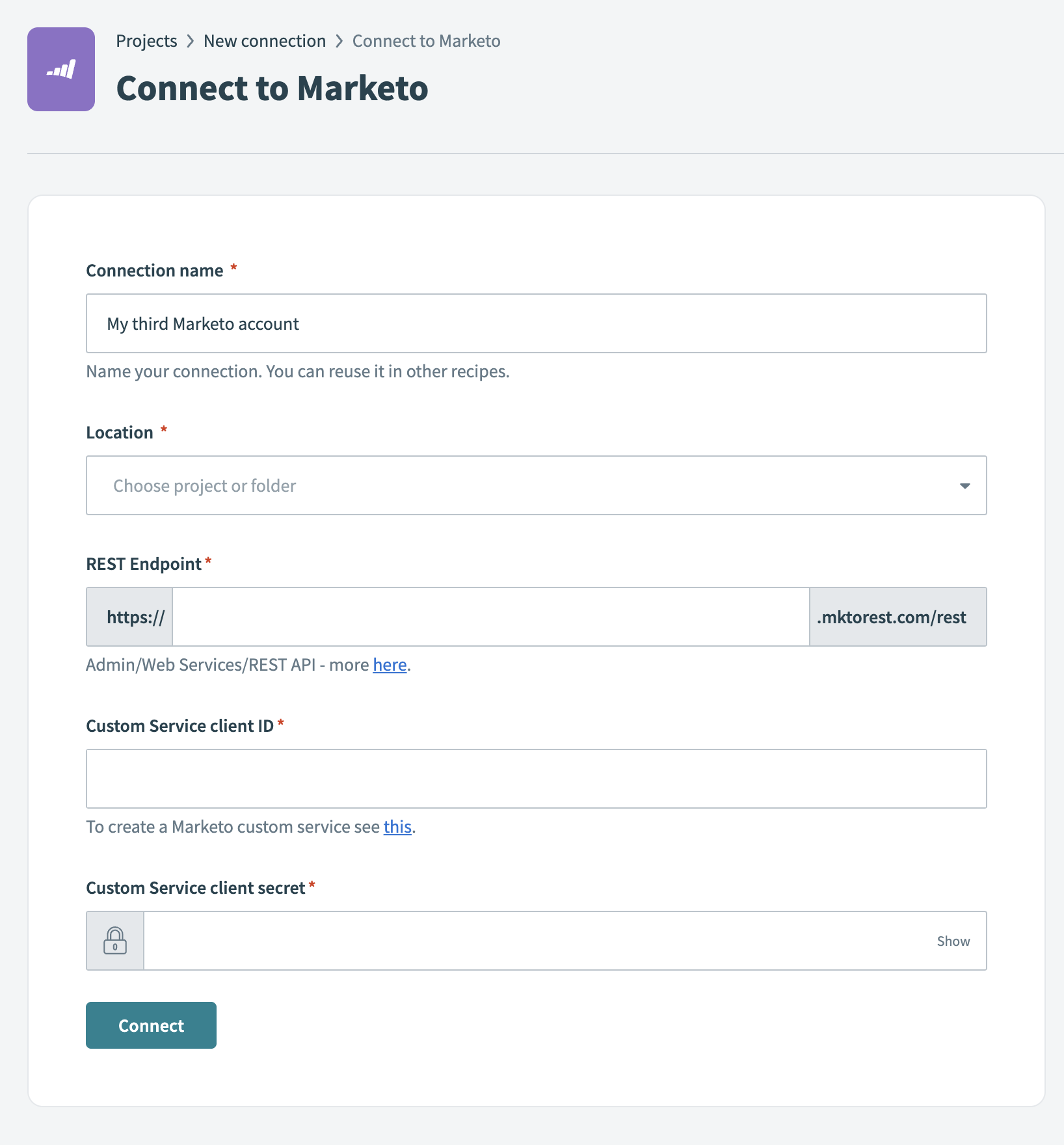 Marketo connection setup
Use the Location drop-down to select the project where you plan to store the connection.
Enter the REST Endpoint. This URL must match your Marketo instance’s Admin/Web Services REST API endpoint.
Enter the Custom Service client ID associated with your Marketo custom service. Refer to the Marketo Engage Developer Documentation to create a custom service in Marketo.
Enter the Custom Service client secret for the Marketo client ID.
Click Connect to verify and establish the connection.
Configure the pipeline
Complete the following steps to configure Marketo as your data pipeline source:
Select Create > Data pipeline.
Provide a Name for the data pipeline.
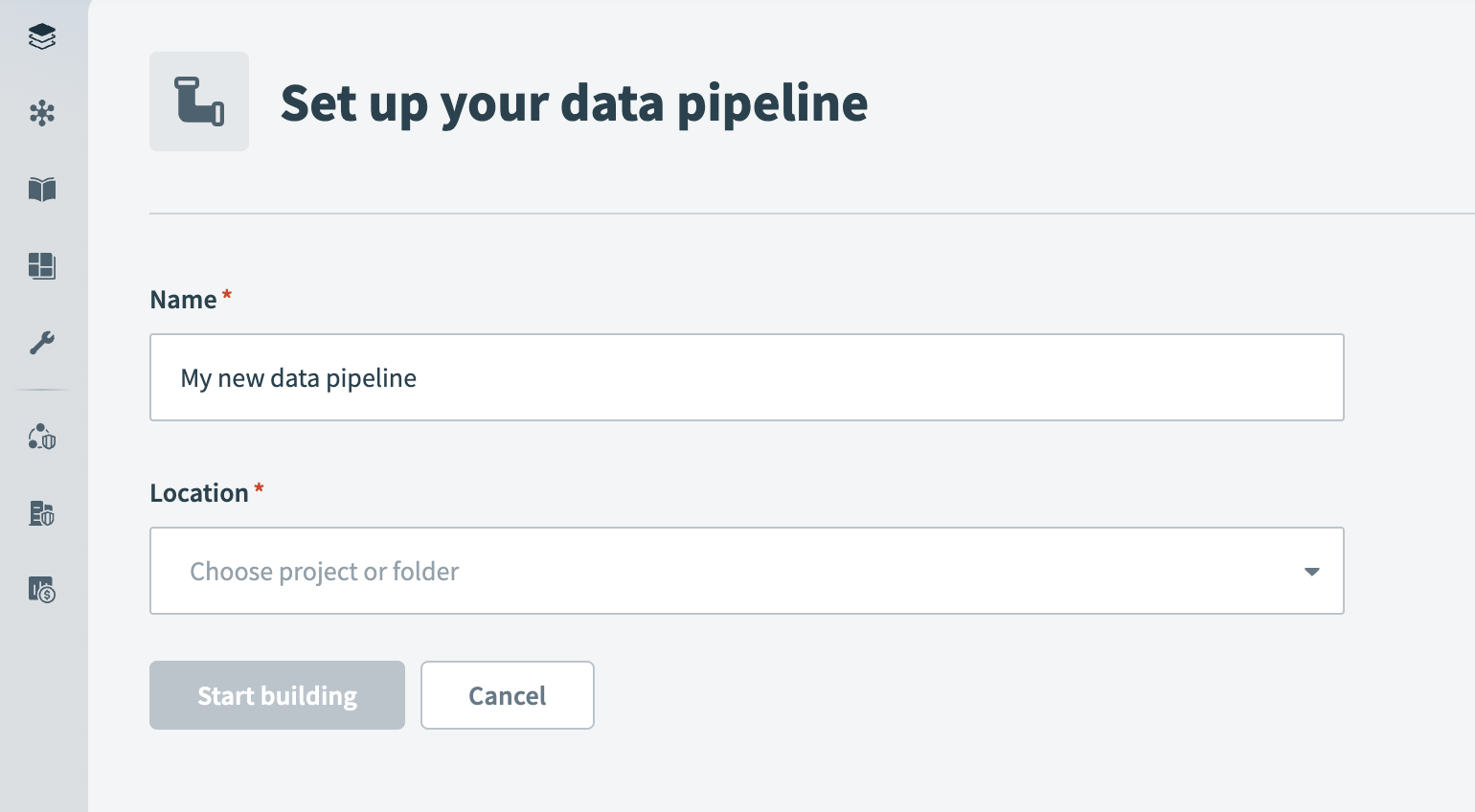 Data pipeline setup
Use the Location drop-down menu to select the project where you plan to store the data pipeline.
Select Start building.
Click the Extract new/updated records from source app trigger. This trigger defines how the pipeline retrieves data from the source application.
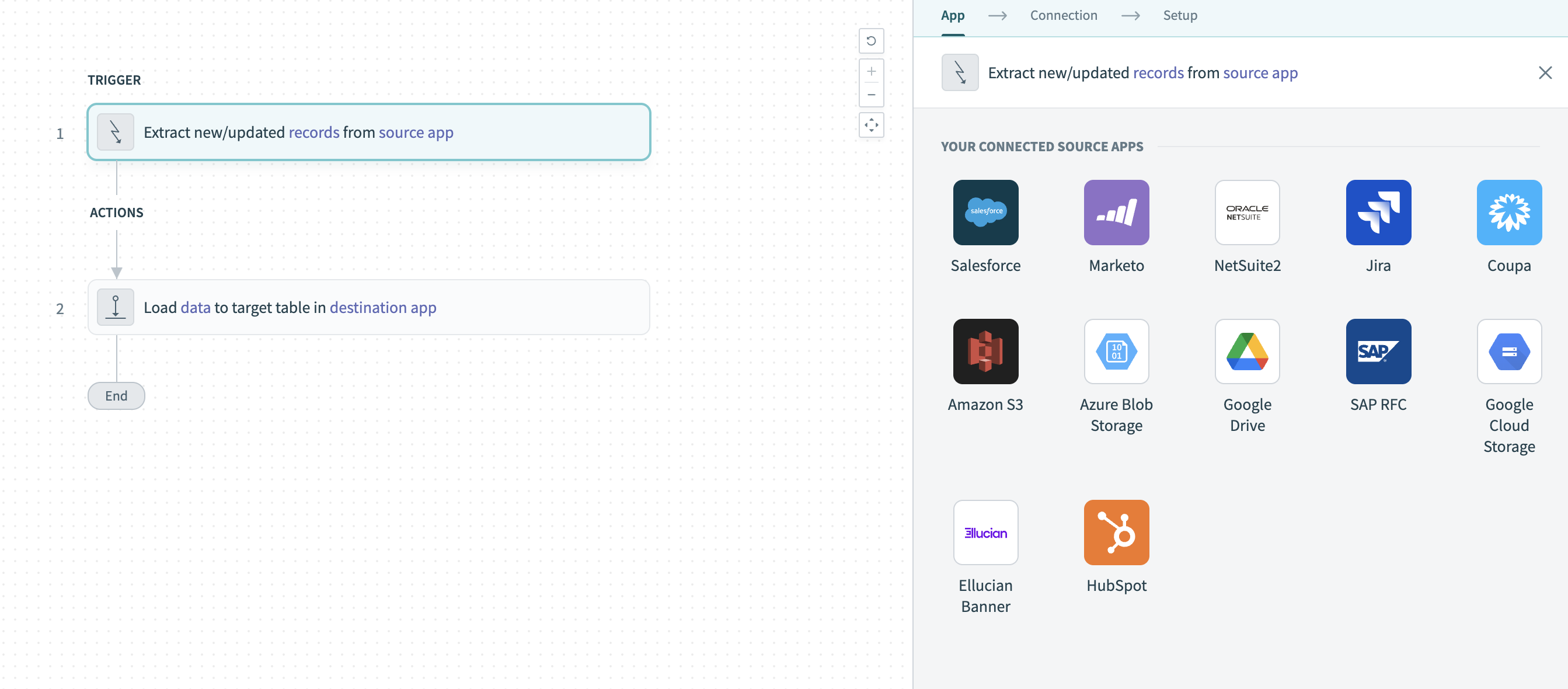 Configure the Extract new/updated records from source app trigger
Select Marketo from Your Connected Source Apps.
Choose the Marketo connection you plan to use for this pipeline. Alternatively, click + New connection to create a new connection.
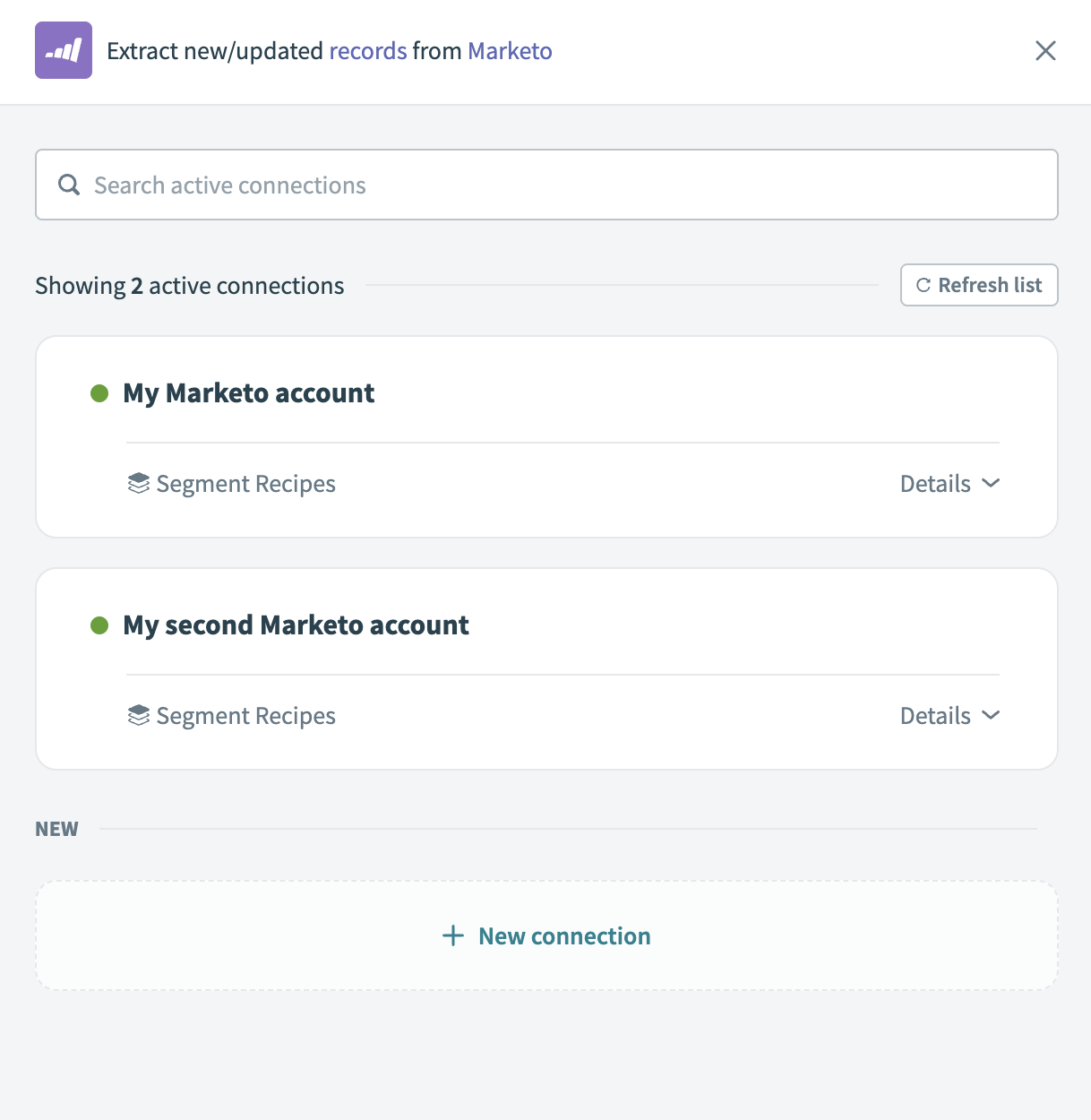 Choose a Marketo connection
Click Add object to open the object wizard.
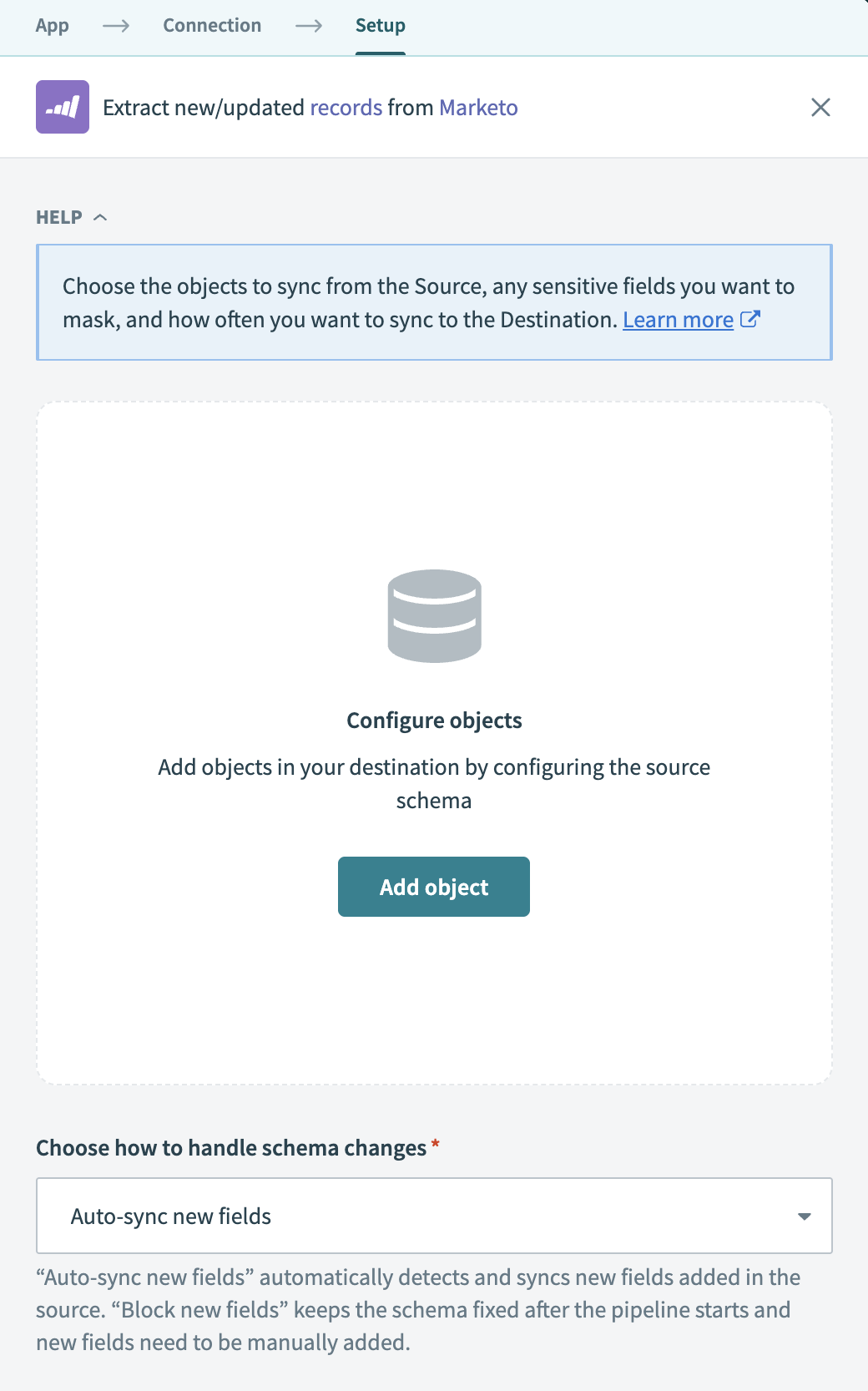 Add object
Search or browse the list of available Marketo objects. Select the objects you plan to sync and click Add.
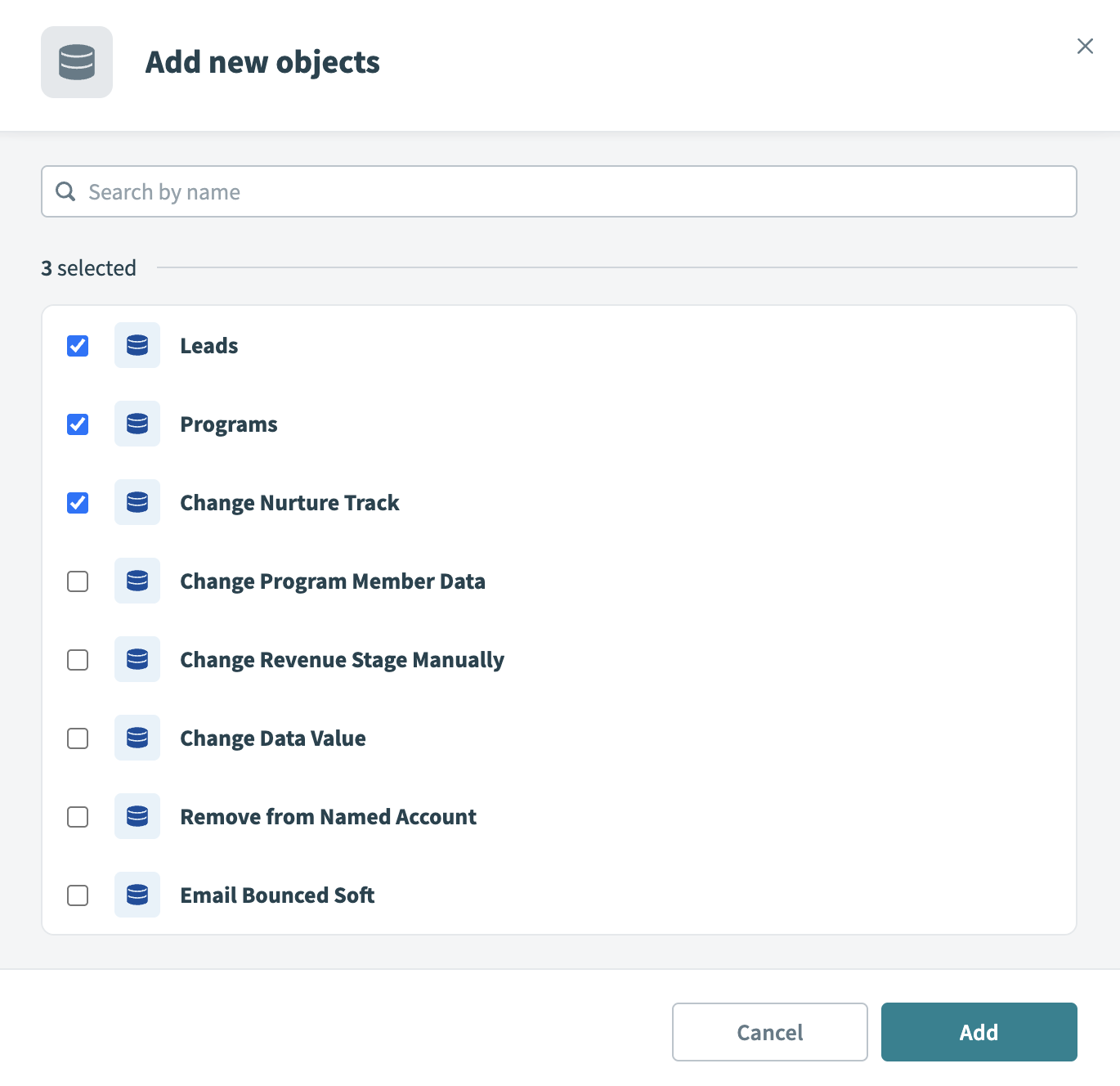 Select objects
Review and customize the schema for each selected object. When you select an object, the pipeline automatically fetches its schema to ensure the destination matches the source.
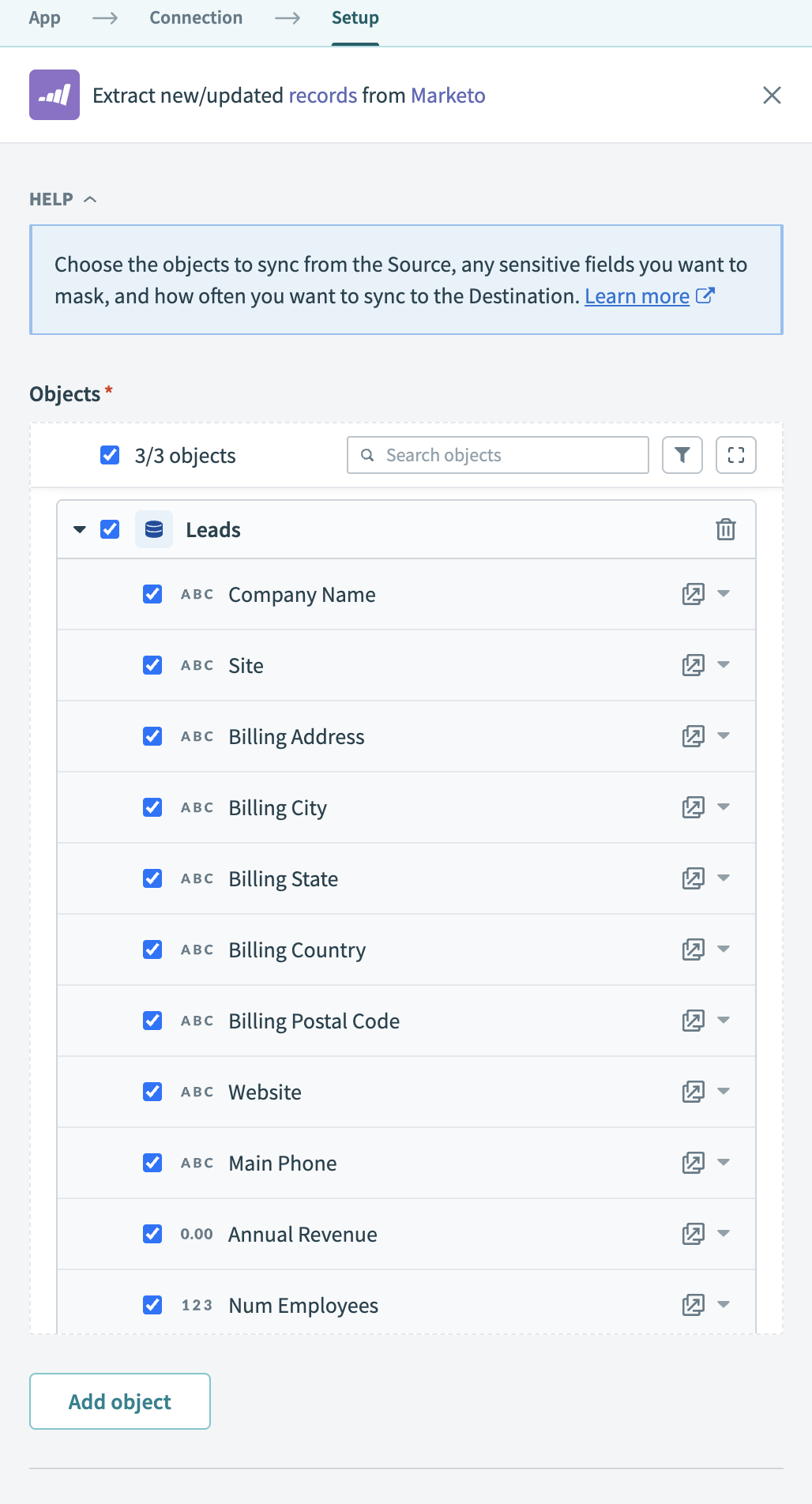 Expand object
You can expand any object to view its fields. Keep all fields selected to extract all available data, or deselect specific fields to exclude them from data extraction and schema replication.
Click Add object again to add more objects using the same flow. You can repeat this step to include multiple Marketo objects in your pipeline.
Choose how to handle schema changes:
- Select Auto-sync new fields to detect and apply schema changes automatically.
- Select Block new fields to manage schema changes manually. This option may cause the destination to fall out of sync if the source schema updates.
Unsynchronized schema changes, also known as schema drift, can cause issues if not managed. Refer to the Schema drift section for more information.
Configure how often the pipeline syncs data from the source to the destination in the Frequency field. Choose either a standard time-based schedule or define a custom cron expression.
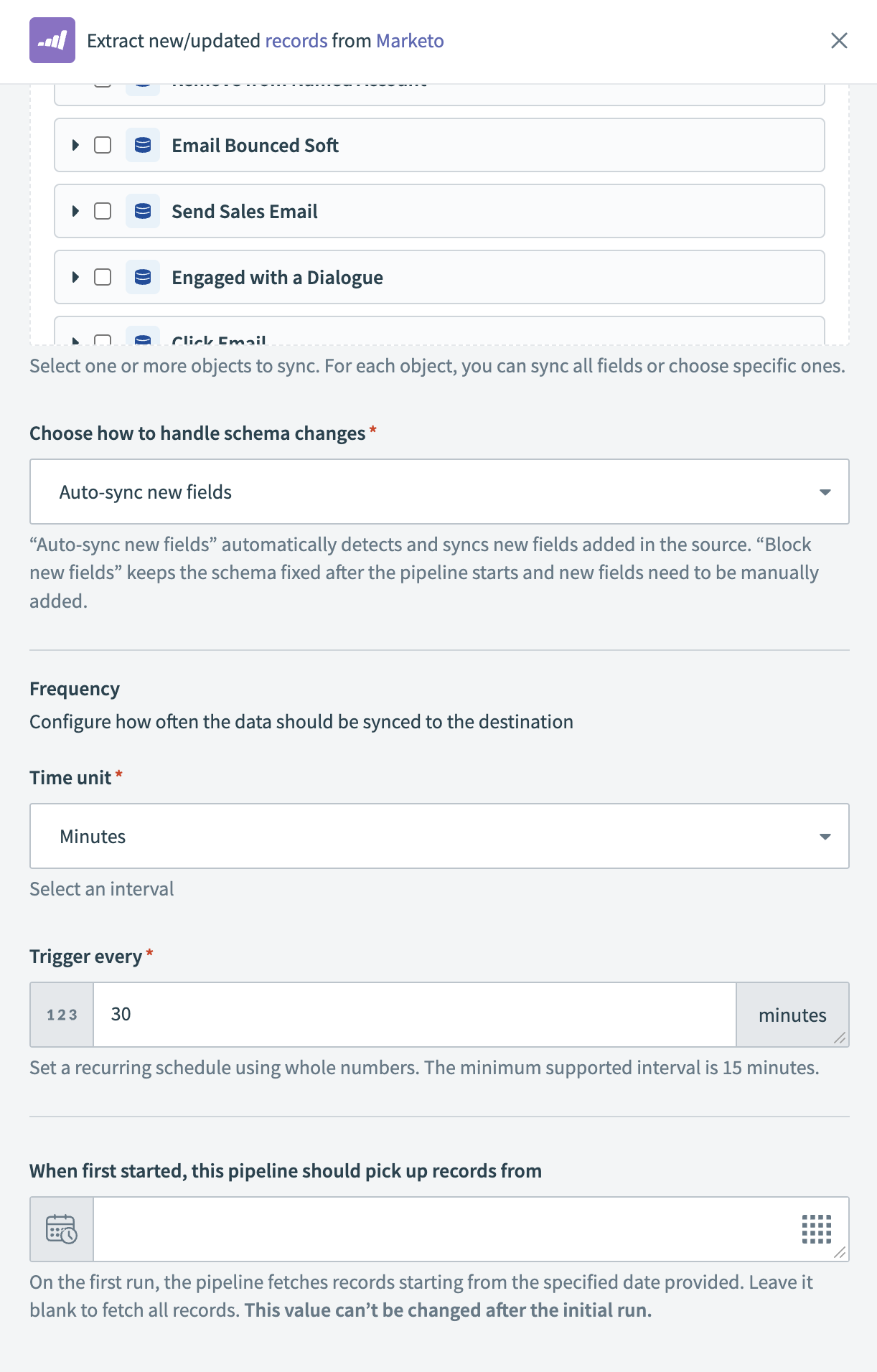 Configure sync frequency
 Configure sync frequency
Supported Marketo objects
The connector supports common Marketo objects, including Leads, Activities, and Programs. Workato uses the Marketo REST API to query and extract records.
Last updated: