Xero - Create invoice with one line item action
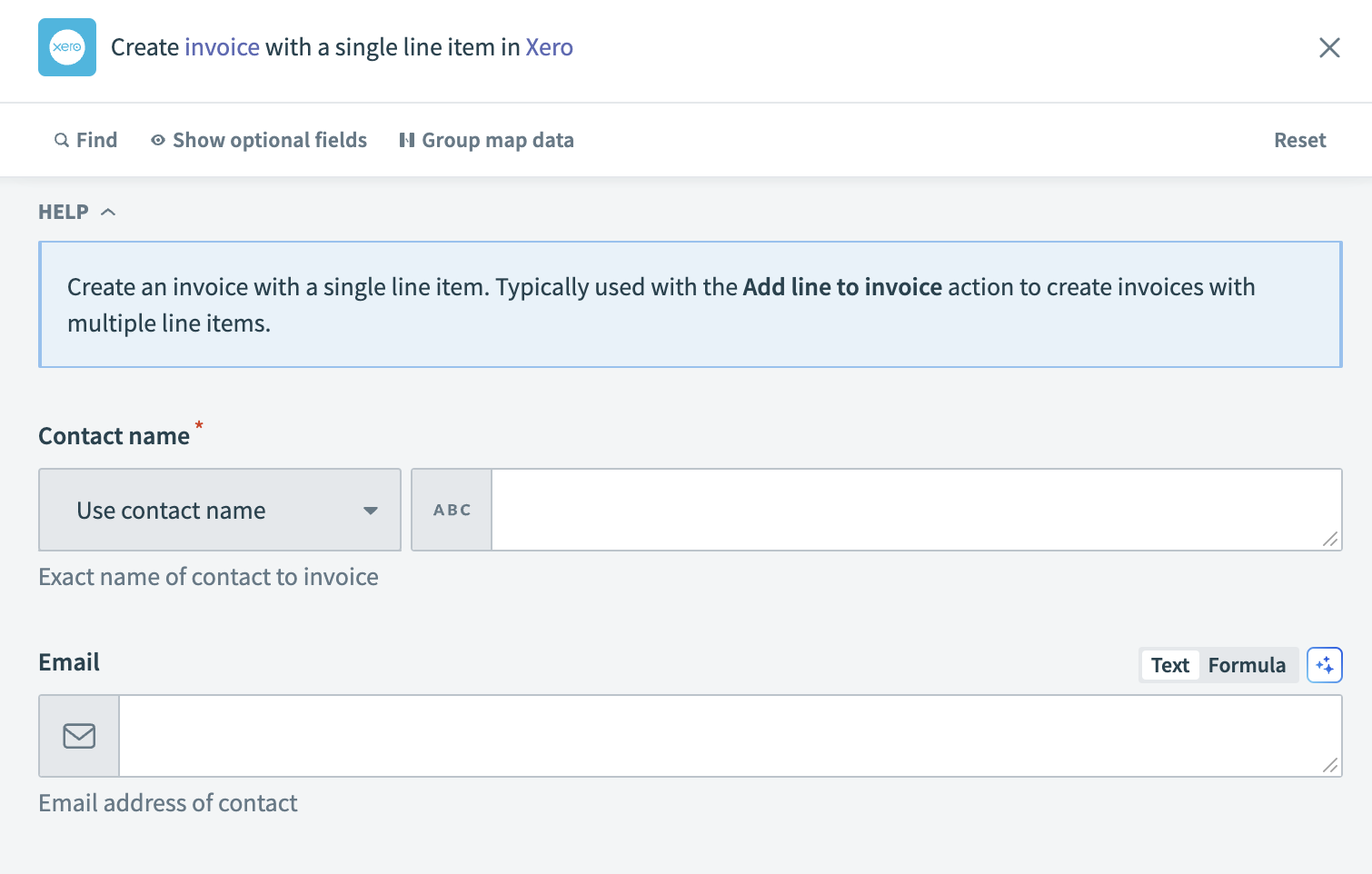
The Create invoice with one line item action allows you to create a new invoice in Xero with a single line item entry. This action is typically used with the Upsert line item to bill or invoice action to create invoices with multiple line items.
 Xero - Create invoice with one line item action
Input
| Input field | Description |
|---|---|
| Contact name | Enter the exact name of the contact you plan to invoice. |
| First name | Specify the contact's first name. |
| Last name | Specify the contact's last name. |
| Provide the contact's email address. | |
| Invoice number | Enter a unique invoice number. Xero automatically generates this field if left blank. |
| Date | Set the issue date for the invoice. |
| Due date | Define the due date for the invoice. This field is required if the invoice status is set to AUTHORISED or SUBMITTED. |
| Currency code | Enter the currency code for the invoice amounts. |
| Status | Select the initial status of the invoice. This field defaults to DRAFT if left blank. |
| Branding theme | Choose a branding theme to apply to the invoice. |
| Amounts are | Indicate whether the amounts are tax inclusive, exclusive, or no tax. This field defaults to Tax exclusive if left blank. |
| URL | Include a link to an external document related to the invoice. |
| Reference | Provide an additional reference for the invoice. |
| Description | Enter a description for the line item. Ensure it is at least one character and a maximum of four thousand characters. |
| Item name | Specify the name of the line item. Click Products and services to retrieve the item name. If you provide both the item name and code, the item code takes precedence. |
| Quantity | Enter the quantity of the line item. Provide at least two fields out of Quantity, Unit price or Line amount. |
| Unit price | Set the unit price for the line item. Provide at least two fields out of Quantity, Unit price or Line amount. |
| Line amount | Enter the total amount for the line item. Provide at least two fields out of Quantity, Unit price or Line amount. |
| Discount rate | Apply a discount rate to the line item if applicable. |
| Account code | Assign an account code from your Chart of accounts to the line item. |
| Tax type name | Specify the tax type. Click Settings > General settings > Tax rates to find the tax type name. |
| Tax amount | Enter the tax amount for the line item. This field is auto-calculated as a percentage of the line amount based on the tax rate. |
| Item code | Provide the item code. Click Products and services to retrieve the item code. If you provide both the item name and code, the item code takes precedence. |
Output
| Output field | Description |
|---|---|
| Type | The type of the document (invoice). |
| Invoice ID | The unique identifier for the invoice. |
| Invoice number | The number of the invoice. |
| Payments | Details of payments associated with the invoice. |
| Credit notes | Details of credit notes applied to the invoice. |
| Amount due | The total amount due on the invoice. |
| Amount paid | The total amount paid on the invoice. |
| Amount credited | The total amount credited to the invoice. |
| URL | The link to the invoice or associated online resource. |
| Currency code | The currency code for the invoice. |
| Currency rate | The exchange rate for the currency used. |
| Has errors | Indicates if there are errors related to the invoice. |
| Is discounted | Indicates if a discount has been applied to the invoice. |
| Has attachments | Indicates if there are attachments included with the invoice. |
| Contact | Contact information for the invoice. |
| Date | The issue date of the invoice. |
| Due date | The due date for payment of the invoice. |
| Status | The current status of the invoice. |
| Branding theme ID | The identifier for the branding theme used in the invoice. |
| Line amount types | The type of line amounts on the invoice. |
| Line items | Detailed information about each line item on the invoice. |
| Sub total | The subtotal amount of the invoice before tax. |
| Total tax | The total tax amount for the invoice. |
| Total | The total amount for the invoice, including tax. |
| Updated date | The date when the invoice details were last updated. |
| Paid date | The date when the invoice was paid, if applicable. |
| Reference | A reference number or note associated with the invoice. |
Last updated: